Choose how the deck moves from one slide to the next, and carry one element, such as a photo or a logo, across two slides so it flies to its new place instead of fading with the rest. Motion inside one slide is on builds.
The transitions
transition |
The next slide… |
|---|---|
none |
replaces the current one at once. |
fade |
fades in over the current one. |
slide |
fades in while moving a short way in from its side: from the right going forward, from the left going back. |
rise |
does the same vertically: up from below going forward, down from above going back. |
push |
pushes the current one off, the two edge to edge. |
cover |
moves in over the current one, which stays in place. |
wipe |
is uncovered by an edge sweeping across, over the current one. |
zoom |
fades in while settling from slightly smaller (slightly larger going back). |
Every kind brings the incoming slide in on top while the outgoing one stays in place (or, for push, moves off edge to edge), so the canvas never shows between two slides.
Where a deck’s transition comes from
The brand sets the deck’s transition in motion.transition: a kind, a duration and an easing from its motion tokens. The default brand uses fade at 280 ms. The fields are on brand schema.
A slide overrides it with transition: in its frontmatter. The value describes the boundary with the slide before it, in both directions: going forward onto the slide plays it, going back off it plays it in reverse. It holds however the move is made: a key, a click, a link or the presenter window.
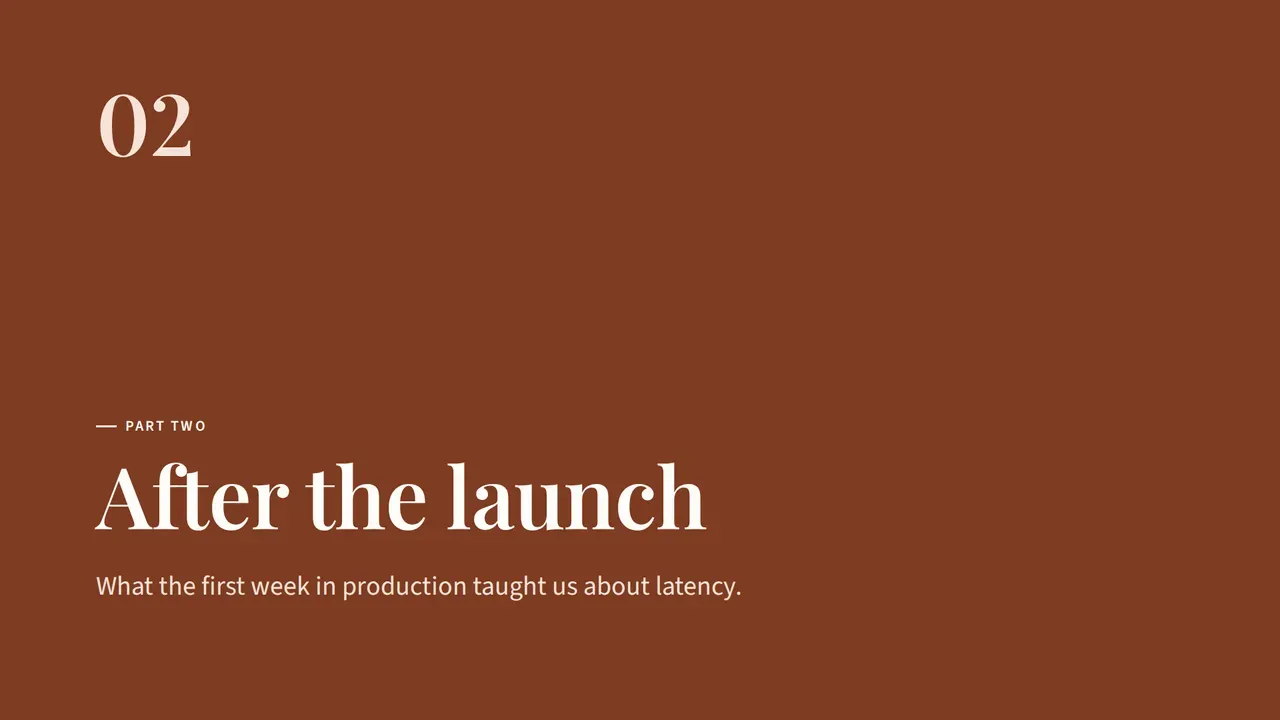
---
layout: section
title: After the launch
number: '02'
eyebrow: Part two
transition: push
budget: 15s
---

What the first week in production taught us about latency.

<Notes>
This slide sets its own transition: it pushes in, whatever the brand does, and pushes back out when you go back. The slides around it keep the brand's transition.
</Notes>
Slide 8 of the components deckView on GitHub
This section slide pushes in, and pushes back out when you go back; the slides around it keep the brand’s transition. The lookbook gives every part opener transition: cover.
A move to any slide that is not the next or the previous one cuts, with no transition. A value outside the eight kinds fails the build.
Carry an element across two slides
Wrap the element in <Morph id="..."> on two consecutive slides, with the same id on both. When the deck moves between them, the element flies from its place and size on one slide to its place and size on the other, while the slides run their own transition underneath.
<Media>
<Morph id="street">
  <Image src="../assets/street.jpg" alt="A residential street under a full summer canopy of mature maples" focal={[50, 30]} />
</Morph>
</Media>
The next slide has the same <Morph id="street"> around the same image, with the media on the other side (side: left instead of side: right):
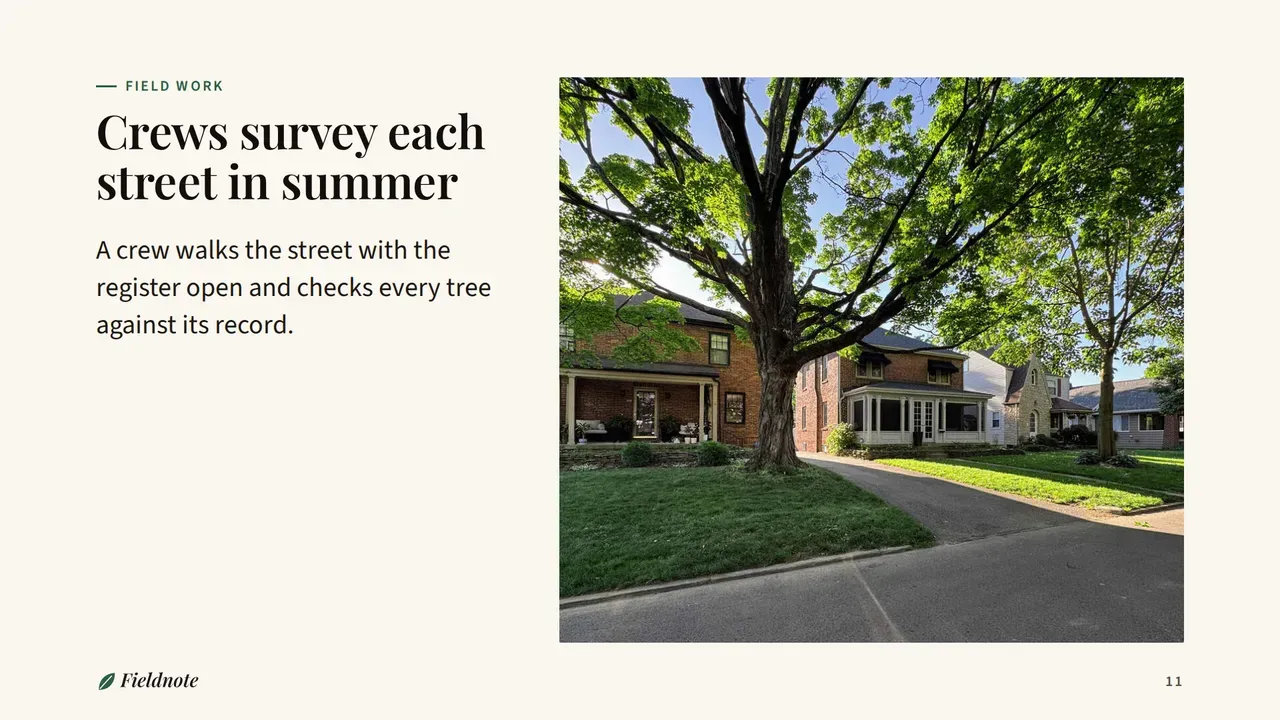
Click the slide and press the right arrow to see the photo fly across and shrink, then the left arrow to send it back. If it fades instead, open the deck in its own tab.
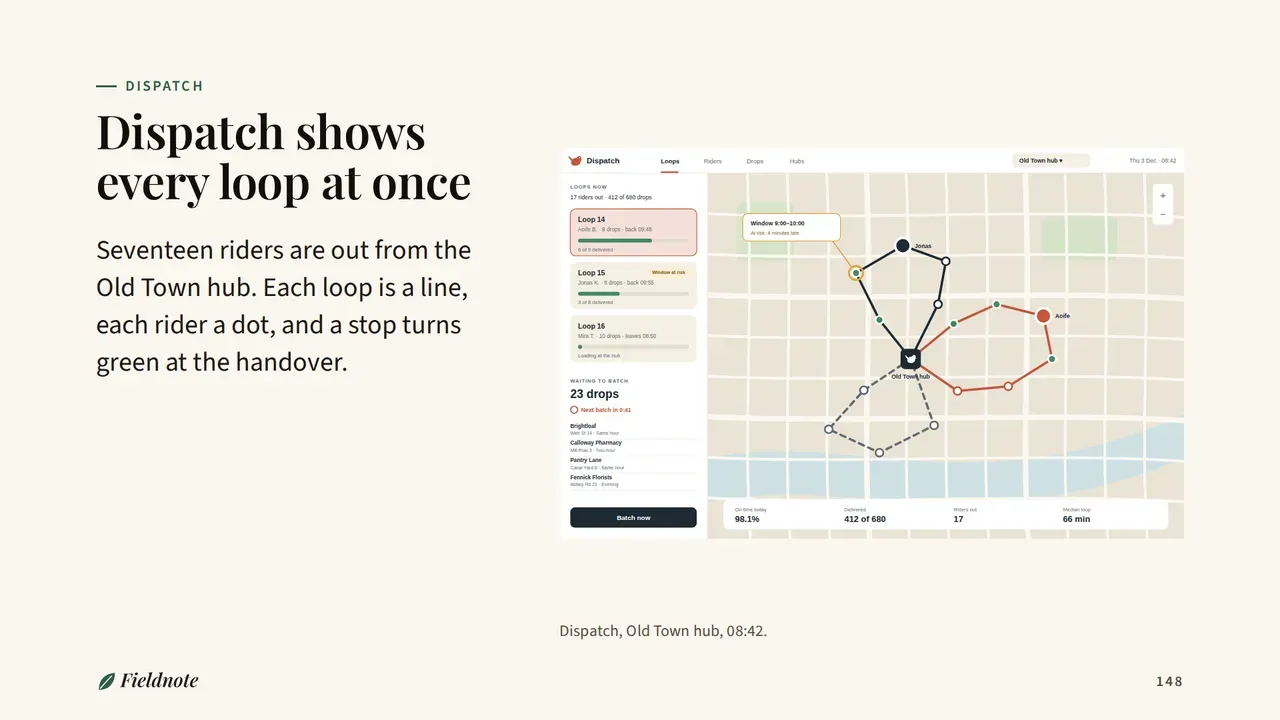
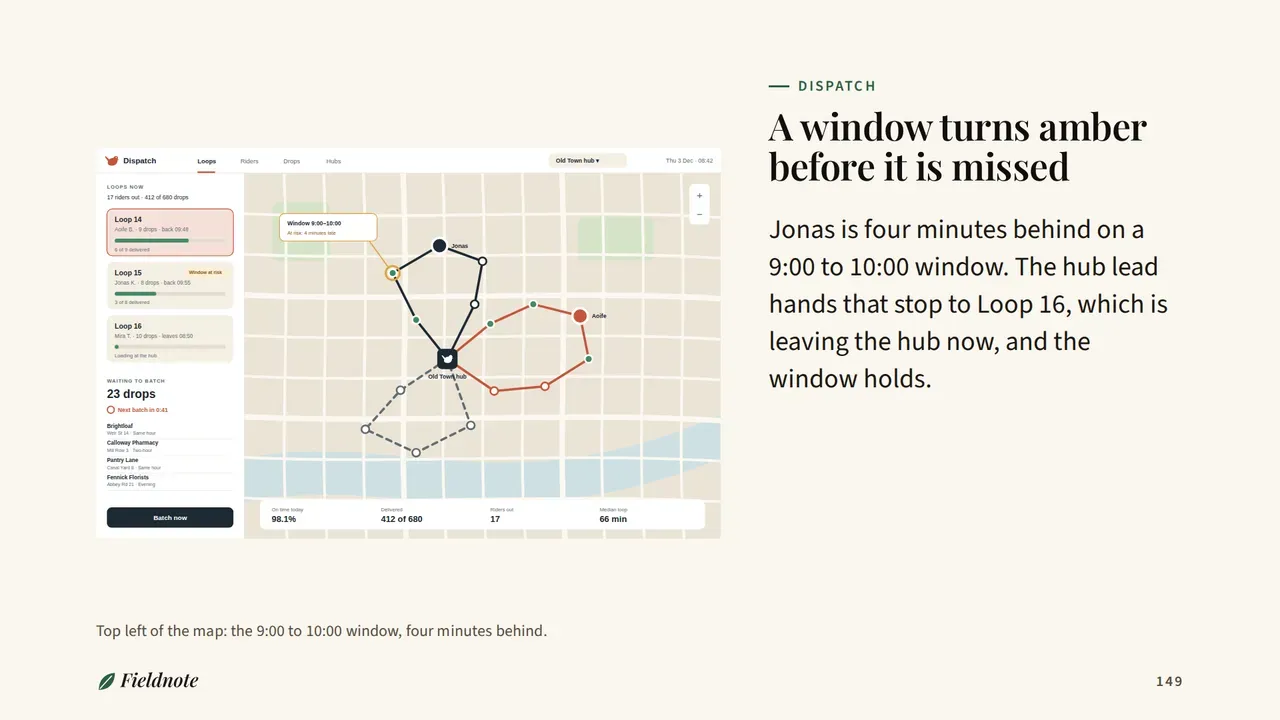
Two slides from the lookbook, a <Morph id="dispatch"> pair at the same ratio: 5:7, so the screenshot moves sides at its own size:
Rules for a morph:
- One element. A
<Morph>has no box of its own, so the layout places its child as if it were not wrapped. Only the first element inside it flies. - Each
idonce per slide. If a slide shows two elements with the same name, only the first one morphs. - Neighbours only. Morphs play between consecutive slides. An
idthe other slide does not have, or an element in a step that is not shown yet, does not fly. - Morph something with its own size. The element’s box flies, so a chart or figure that fills its whole region flies as that region. One or two morphs per move keep the eye on what carries over.
Around a hidden slide
New in 0.5.0. A slide pairs with the slide before it that a talk shows, so hidden slides do not break a pair. With slide 4 hidden, the move from slide 3 to slide 5 plays the transition of slide 5, and a <Morph> with the same id on slides 3 and 5 carries the element across. A move between the hidden slide and the slide next to it in the list pairs those two as usual.
When nothing moves
Transitions and morphs play only in the live deck. There is no morph, and no transition in the pictures, in:
- static mode,
deck shot,deck lintand exports (a PowerPoint export carries no slide transitions); - the slide copies in thumbnails and the presenter window’s panes;
- moves made through
window.__deck, which apply at once; - browsers without scoped view transitions (Chromium has them from version 140), where the slides still run their transition but nothing morphs.
Viewers who ask for reduced motion get the plain slide transition and no morph.
The transition key is listed with the others on slide frontmatter, and every prop of <Morph> on components.