Ask the audience which parcel to dispatch. A bakery bag fits on a cargo bike. A heavier flour box needs a van. Each choice takes the presenter through the checks that produce that decision.
Author the slide
Write a prompt and two branches with distinct names. Give each branch a situation, two or three actions and an outcome. In the live slide, select a branch and follow its buttons to the outcome. Use Back to choices to try the other branch. The finished PDF and PowerPoint exports show both paths side by side.
Example
---
layout: choose-path
title: How should Flock handle this drop?
eyebrow: Choose a workflow
budget: 1m
prompt: The Old Town hub has a new booking. Which parcel should Flock route?
branches:
  - name: 4 kg bakery bag
    situation: Brightloaf needs a bread order delivered within the hour.
    steps:
      - action: Check the bike limit
        detail: The bag fits in a bike box and weighs less than 25 kg.
      - action: Add to the bike loop
        detail: Loop 17 has room for the bag and can keep the promised window.
    outcome: Aoife takes the bag on loop 17 and keeps the same-hour window.
  - name: 28 kg flour box
    situation: Pantry Lane needs to send a single box of flour across town.
    steps:
      - action: Check the bike limit
        detail: The box is over the 25 kg limit, so Flock looks for a partner van.
      - action: Confirm the van booking
        detail: A partner has capacity and can make the promised window.
    outcome: The partner van takes the box and keeps the same-hour window.
---

<Notes>
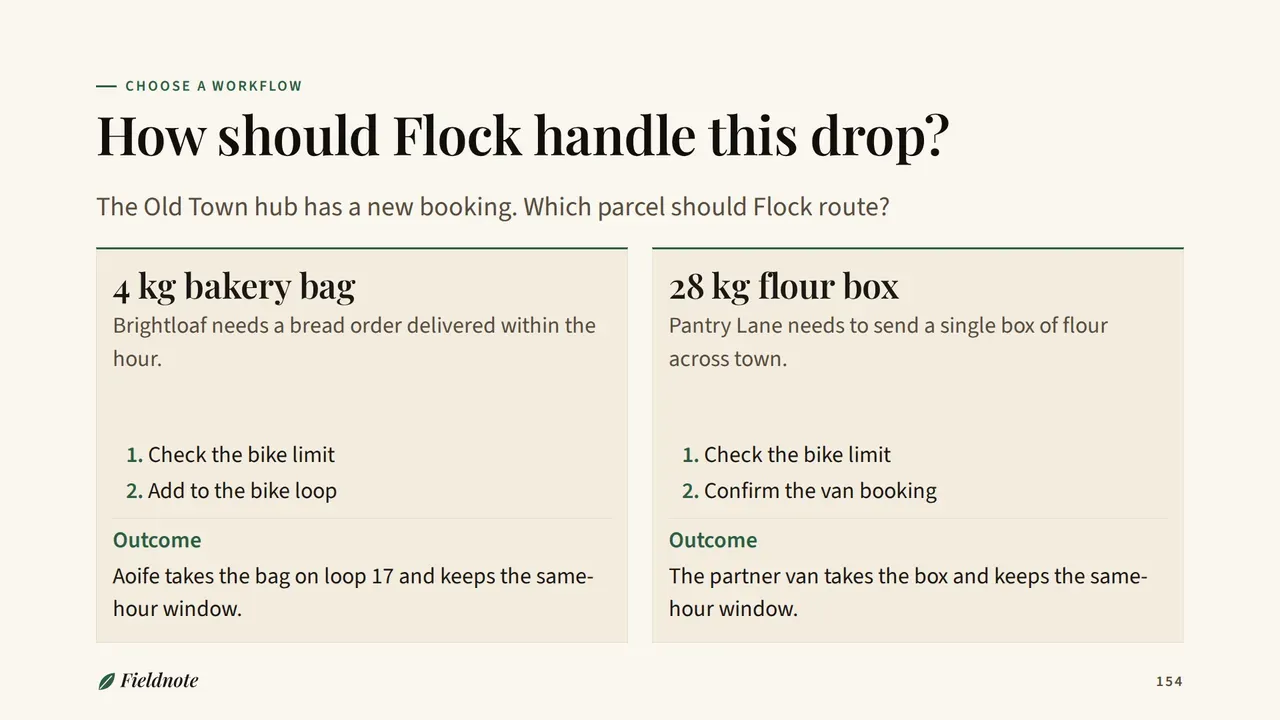
`choose-path` gives the room two cases to pick from. Ask for the bakery bag or the flour box. Follow the two buttons for the branch they pick, read the outcome, and use Back to choices to run the other case. The bike cap is the same in both cases and the action changes with the parcel. The still shows the two workflows and both outcomes side by side.
</Notes>
Slide 154 of the lookbook deckView on GitHub
Reference
- Frontmatter
layout: choose-path- Surface
- the deck's default
- Title
- required, 60 characters at most
- PowerPoint
- title-only slide
Let the audience choose one of two short workflows from the same prompt. Each choice opens its own actions and outcome. Return to the choices at any time. A static poster summarises both workflows and outcomes for previews and exports.
Slots
| Slot | Takes | Budget | What goes in it |
|---|---|---|---|
body | — | Content outside every slot tag (in TSX, the default export). | |
<Footnote> | text | 24 words | Brief source or caveat, such as that the outcomes are illustrated. |
Frontmatter fields
| Field | Values | How to use it |
|---|---|---|
eyebrow | text | Write a few words of at most 40 characters, for example eyebrow: Budget committee, or leave it out. |
promptrequired | text | Ask which case or action to explore, in up to 100 characters. |
branchesrequired | text | Write exactly 2 workflows, each with a distinct name (up to 34 characters), a situation and an outcome (up to 88 characters each). Give each branch 2 to 3 steps. Each pairs a verb-led action that fits on a button (up to 32 characters) with an explanatory detail (up to 88 characters). |
chrome | true (default) false | Write chrome: false to hide the page number, logo and progress bar on this slide, or chrome: true to show them. |
Example
---
layout: choose-path
title: "How should we handle this service request?"
eyebrow: Interactive demo
prompt: Choose which request to try.
branches:
  - name: A broken sprinkler
    situation: A resident reports water pooling on the pavement.
    steps:
      - action: Check the location
        detail: Match the postcode to a city-owned asset.
      - action: Send an urgent crew
        detail: Alert the crew on duty and assign the job.
    outcome: The duty crew accepts an urgent repair job.
  - name: A new street tree
    situation: A resident asks for shade outside their building.
    steps:
      - action: Check the planting list
        detail: Find the next survey for that street.
      - action: Book a survey
        detail: Send the resident the next available date.
    outcome: The resident gets a date for a pavement survey.
---

<Notes>Ask the room which request to try first. Walk through both actions, then return to the choices.</Notes>
See the presentation patterns guide for related slides and their source files.