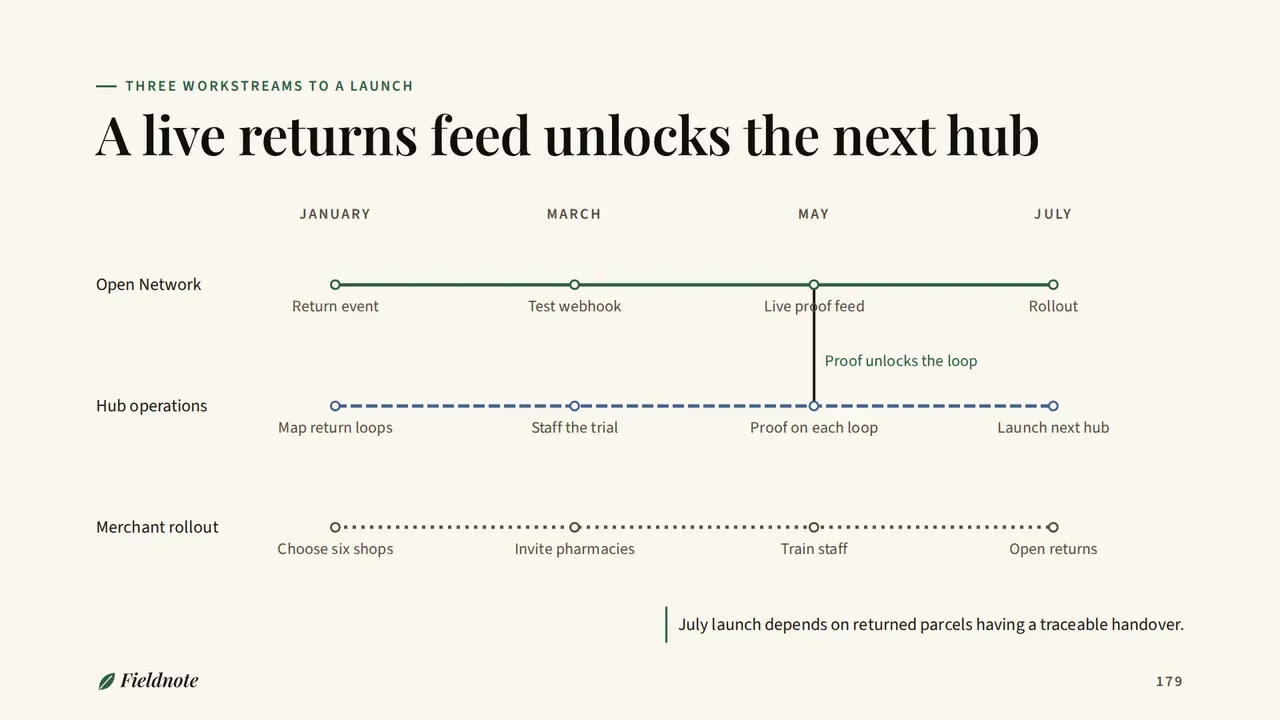
Network engineering and hub operations can work in parallel until the hub needs proof of returned parcels. The interchange marks the handoff that makes the July launch possible.
Author the slide
Give the three tracks the same four periods. Use a stop label for an event and null for an empty stop. Set transfer.stop to 2 or 3 and from and to to the two track positions counted from one. Name what the receiving team needs in the transfer label and the launch condition in milestone. With reveal: true, show the tracks first, then the transfer, then the milestone.
Example
---
layout: roadmap-transit
title: A live returns feed unlocks the next hub
eyebrow: Three workstreams to a launch
budget: 55s
reveal: true
periods: [January, March, May, July]
tracks:
  - name: Open Network
    stops: [Return event, Test webhook, Live proof feed, Rollout]
  - name: Hub operations
    stops: [Map return loops, Staff the trial, Proof on each loop, Launch next hub]
  - name: Merchant rollout
    stops: [Choose six shops, Invite pharmacies, Train staff, Open returns]
transfer:
  stop: 3
  from: 1
  to: 2
  label: Proof unlocks the loop
milestone: July launch depends on returned parcels having a traceable handover.
---

<Notes>
`roadmap-transit` uses parallel lines for the three workstreams that can move in parallel. Follow the Open Network line from the first return event to a live proof feed. Hub operations can staff the trial while the feed is built. [click] They meet in May. A live proof feed gives each return loop a traceable handover. [click] That is the condition for opening the next hub to returns in July. An elapsed date alone would not make it ready.
</Notes>
Slide 179 of the lookbook deckView on GitHub
Reference
- Frontmatter
layout: roadmap-transit- Surface
- the deck's default
- Title
- required, 70 characters at most
Lay three workstreams across four shared periods and mark the dependency where two lines connect.
Slots
| Slot | Takes | Budget | What goes in it |
|---|---|---|---|
body | — | Content outside every slot tag (in TSX, the default export). | |
<Footnote> | text | 24 words | A source or caveat on the bottom line. |
Frontmatter fields
| Field | Values | How to use it |
|---|---|---|
eyebrow | text | Write a few words of at most 40 characters, for example eyebrow: Budget committee, or leave it out. |
reveal | true false (default) | Show the three lines first, then the dependency, then the milestone. |
chrome | true (default) false | |
periodsrequired | text | List 4 period labels in time order, each up to 16 characters. Every workstream shares these positions. |
tracksrequired | text | Write 3 { name, stops } lines, each with 4 stop labels or null for an empty stop. A name or stop label takes up to 24 characters. |
transferrequired | text | Set stop to 2 or 3, use from and to to name the two one-based track positions, and explain the dependency in a label up to 32 characters. |
milestonerequired | text | State the milestone enabled by that dependency, in up to 96 characters. |
Example
---
layout: roadmap-transit
title: The pilot depends on pickup labels
reveal: true
periods:
  - April
  - May
  - June
  - July
tracks:
  - name: Software
    stops:
      - Queue prototype
      - Print labels
      - Live alerts
      - null
  - name: Operations
    stops:
      - Map pickup routes
      - Scan labels
      - Staff the pilot
      - Run the pilot
  - name: Sales
    stops:
      - Invite shops
      - null
      - Confirm shops
      - Announce dates
transfer:
  stop: 2
  from: 1
  to: 2
  label: Labels to dispatch
milestone: "July: run the pilot once every pickup carries a scannable label."
---

<Notes>Read across the parallel lines. [click] Trace the shared dependency. [click] Name the pilot it unlocks.</Notes>
See the presentation patterns guide for related slides and their source files.