End a talk with somewhere to go: a button, a card for a link worth a sentence, a download of the deck’s own PDF, or a QR code the room can scan. All four are kit components, so they need no import.
---
layout: split
title: Everything else is one click away
eyebrow: Take it with you
ratio: 1:1
budget: 30s
---

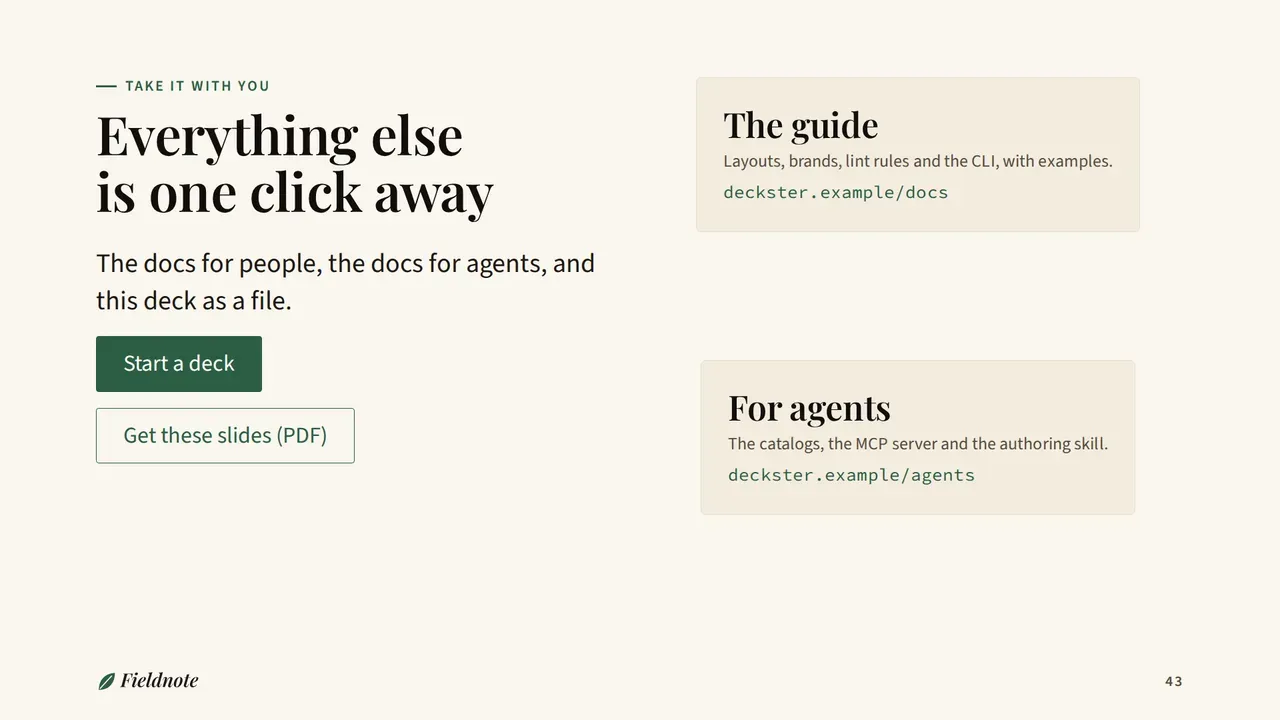
The docs for people, the docs for agents, and this deck as a file.

<Button href="https://deckster.example/start">Start a deck</Button> <Download file="showcase.pdf" variant="outline">Get these slides (PDF)</Download>

<Media>
  <LinkCard href="https://deckster.example/docs" title="The guide" description="Layouts, brands, lint rules and the CLI, with examples." />
  <LinkCard href="https://deckster.example/agents" title="For agents" description="The catalogs, the MCP server and the authoring skill." />
</Media>

<Notes>
Two links and two buttons. The guide for people, the agent docs for your coding agent, a start button, and this deck as a PDF, which the build writes next to the site.

These are real links on the slide: click them in the browser and the deck stays where it is.

If asked: the addresses are placeholders until the project has a public home.

Transition: one last piece of evidence.
</Notes>
Slide 43 of the showcase deckView on GitHub
Add a call to action
<Button href> opens a link. variant="outline" draws it as a ring instead of filled with the accent.
<Button href="https://example.com/start">Start a deck</Button>href takes http(s), mailto and tel URLs, a path or a # fragment; javascript: and other schemes are refused. A link that leaves the deck opens in a new tab, so the deck stays open. A click on a button does not move the deck. For a link inside a sentence, write a Markdown link instead.
Show a link worth a card
<LinkCard> shows a title, an optional sentence and the readable URL, with an optional icon at the start. Three cards on a slide is the most that reads.
<LinkCard href="https://example.com/docs" title="The guide" description="Layouts, brands, lint rules and the CLI, with examples." />Offer the deck’s PDF or PowerPoint
<Download file> is a button that downloads one of the deck’s exports. The file is a relative path beside the built deck: <deck>.pdf or <deck>.pptx.
<Download file="launch-review.pdf" variant="outline">Get these slides (PDF)</Download>Only deck build --with-exports writes those files:
$ deck build launch-review --with-exports
...
$ ls decks/launch-review/dist
assets
fonts
index.html
launch-review.pdf
launch-review.pptx
The build prints Vite’s output, cut here. Without --with-exports there is no file, and deck dev and deck preview answer the request with the deck’s own page, so the button saves an HTML page under the PDF’s name. Build with --with-exports, then try the button in deck preview launch-review. Hosting the folder is on build and host.
A file with a scheme, a host or a leading / is refused. To link to any other file, use <Button>.
Give the room a code to scan
<QR value> draws a QR code, with the readable URL under it unless caption={false}. size is its width and height on the 1920x1080 canvas, 300 pixels by default. Shorten long URLs first.
<Media>
<QR value="https://wrenhaul.example/start" size={480} />
</Media>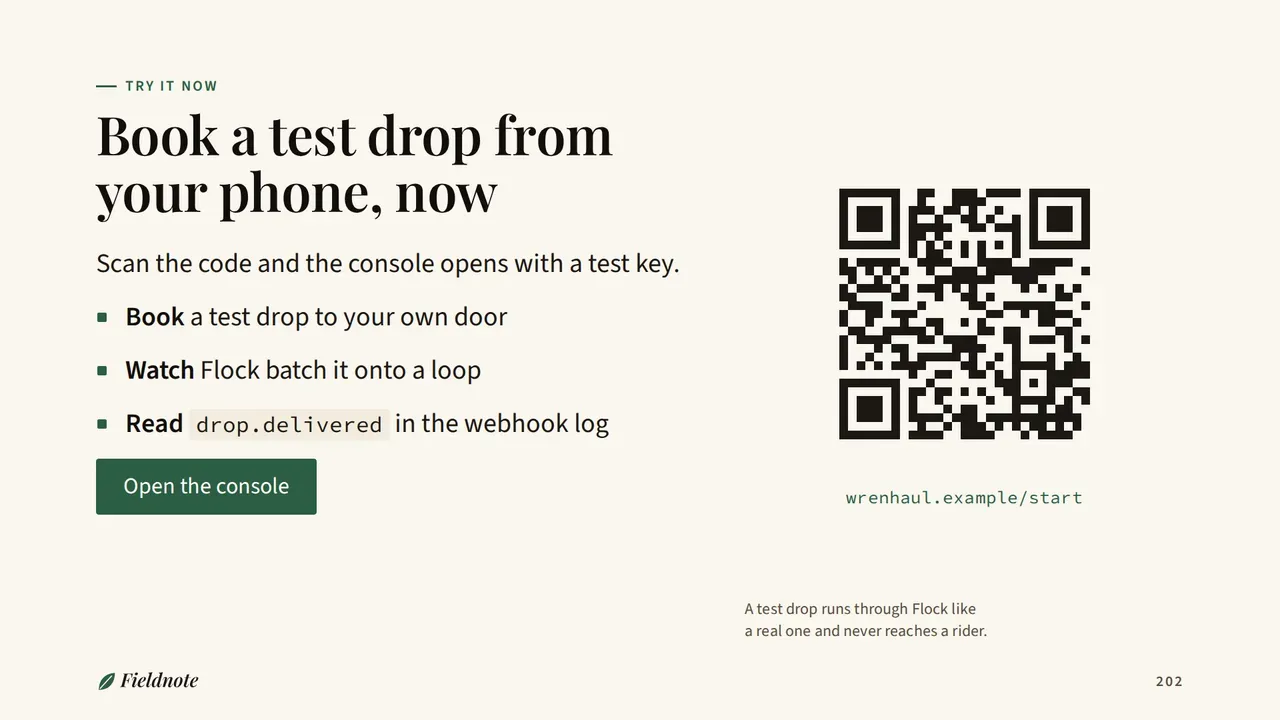
The last slide of a talk has its own field for this: the closing layout’s qr: takes an https:// address of up to 56 characters and draws it as a code with the address under it, beside up to three contacts:. See the closing layout.
Do links survive export?
- PDF: external links and links to other slides of the deck stay clickable. See PDF.
- PowerPoint:
http(s),mailtoandtellinks stay links, and a link to another slide becomes a jump to that slide. Other links, such as the relative path of a<Download>, are dropped.
Every prop is on components.