deck shot writes each slide of a deck as a 1920x1080 PNG, so you can look at slides as pictures, attach them to a review, or hand them to an agent to check its own work. After this page you can shoot a whole deck, one slide or every step, and read the result from a script.
Shoot a deck
-
Shoot every slide:
$ deck shot launch-review
/Users/you/talks/.deck/shots/launch-review/01-title.png
/Users/you/talks/.deck/shots/launch-review/02-revenue.png
/Users/you/talks/.deck/shots/launch-review/03-risks.png
Each file is named by the slide’s position (two digits) and its id. The command prints absolute paths; they are shortened to
/Users/you/talkson this page. -
Shoot one slide, by id or by its 1-based number (
deck shot launch-review 3writes the same file):$ deck shot launch-review risks /Users/you/talks/.deck/shots/launch-review/03-risks.png -
Open the files. Without
--steps, each slide is captured at its last step, with everything shown, the way static mode renders it: video, iframes and apps show their posters.
Shoot every step
--steps writes one picture per step instead of one per slide, named NN-id.stepK.png with K counting from 0. The hello deck comes from the repository: copy decks/hello/ into your workspace and delete its package.json and tsconfig.json, as on the hello deck.
$ deck shot hello steps --steps
/Users/you/talks/.deck/shots/hello/02-steps.step0.png
/Users/you/talks/.deck/shots/hello/02-steps.step1.png
/Users/you/talks/.deck/shots/hello/02-steps.step2.png
/Users/you/talks/.deck/shots/hello/02-steps.step3.png
This is how you check that a slide builds in the order its notes explain. The rollout-checks slide of the components deck, shot with --steps:
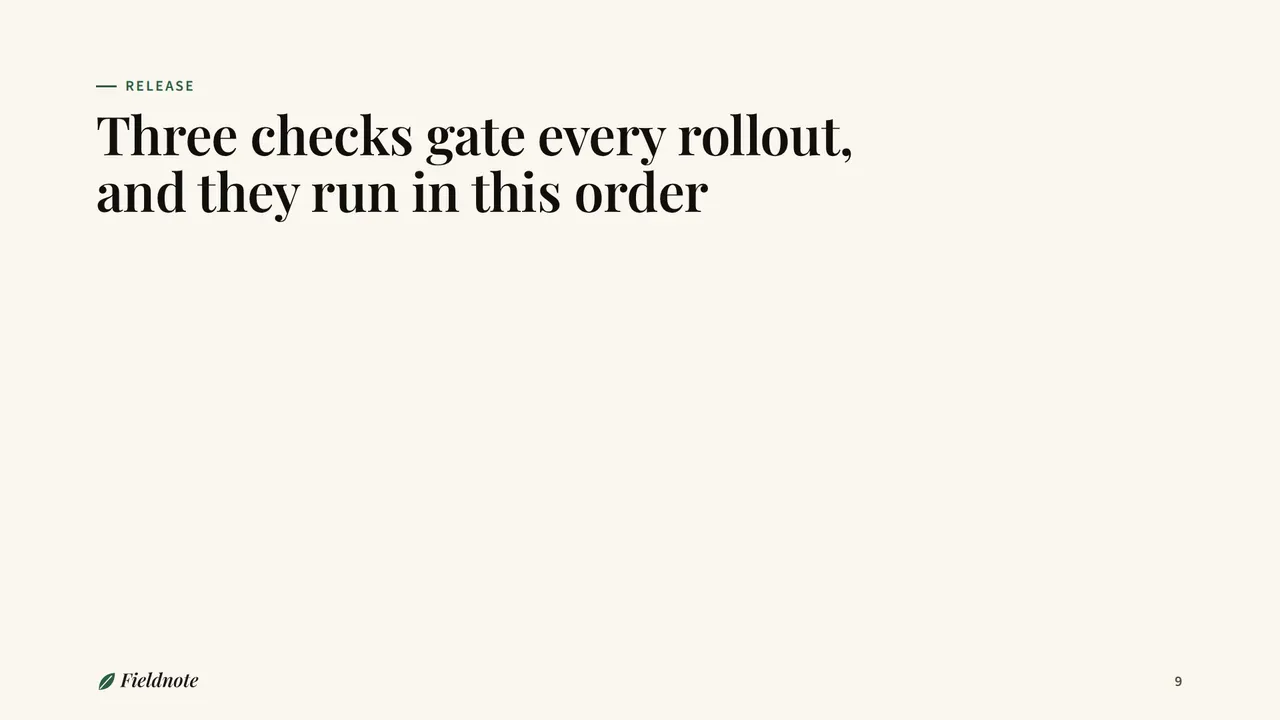 0start
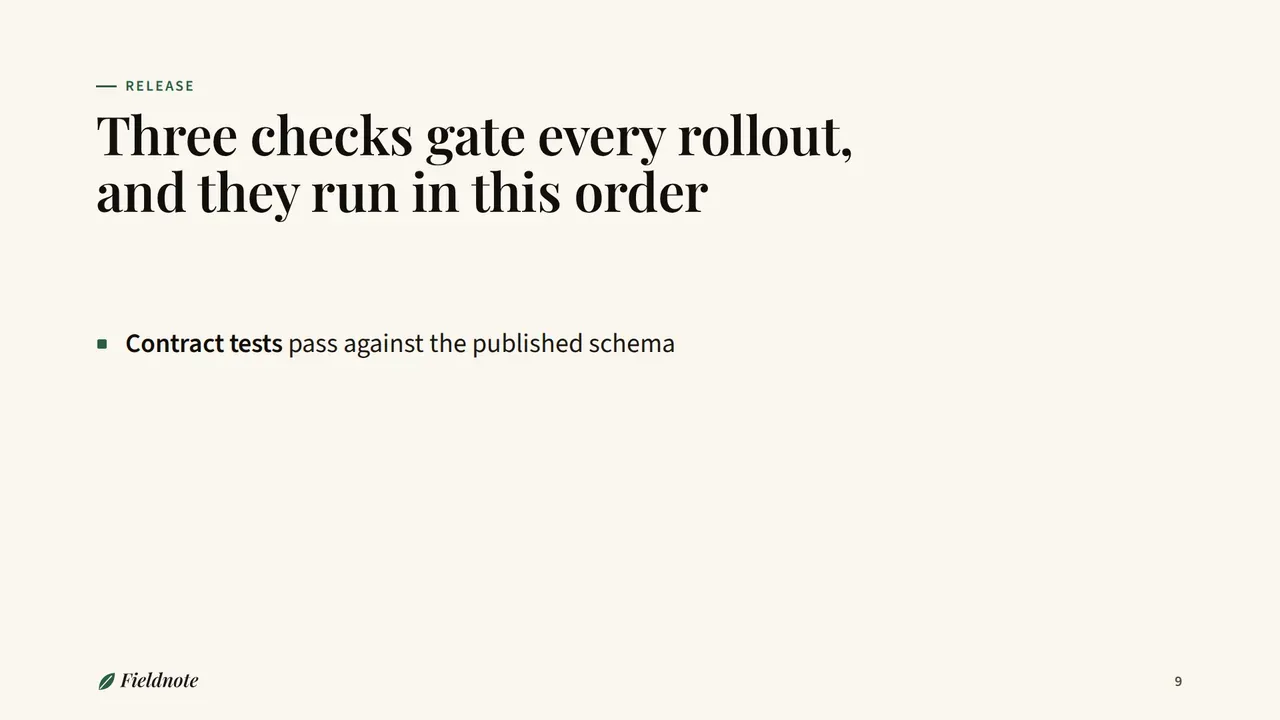 1
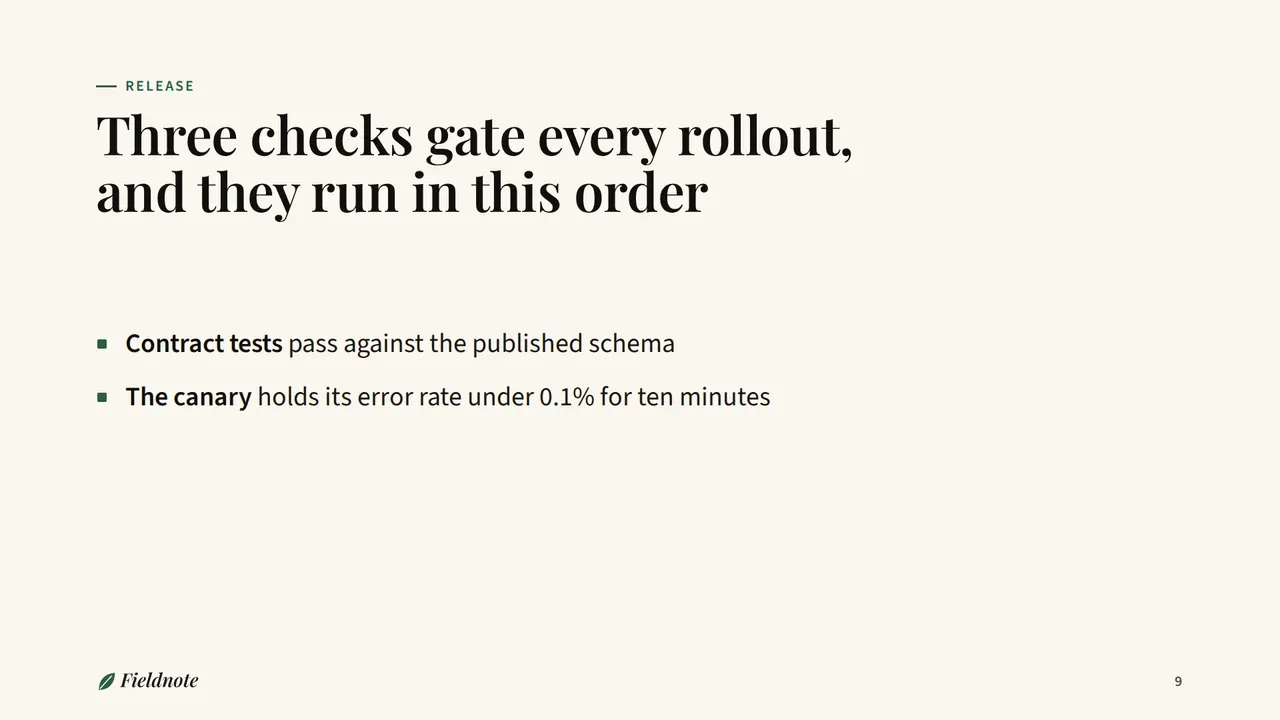 2
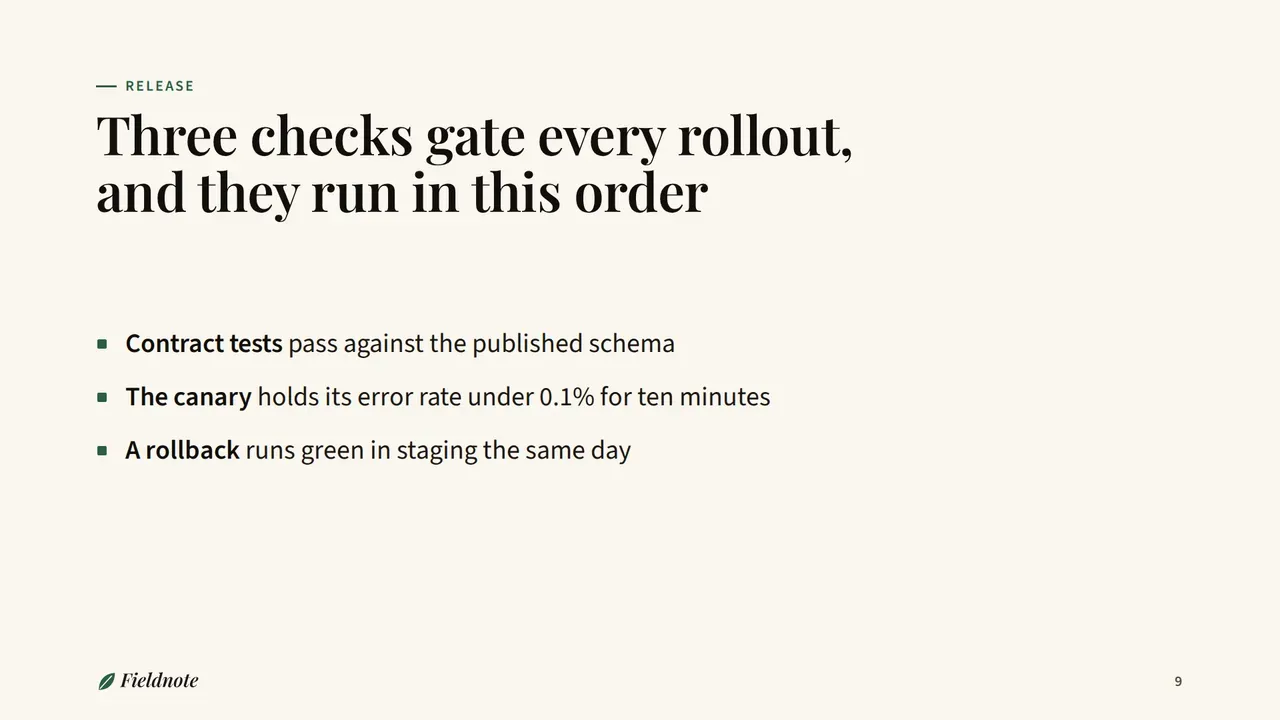 3
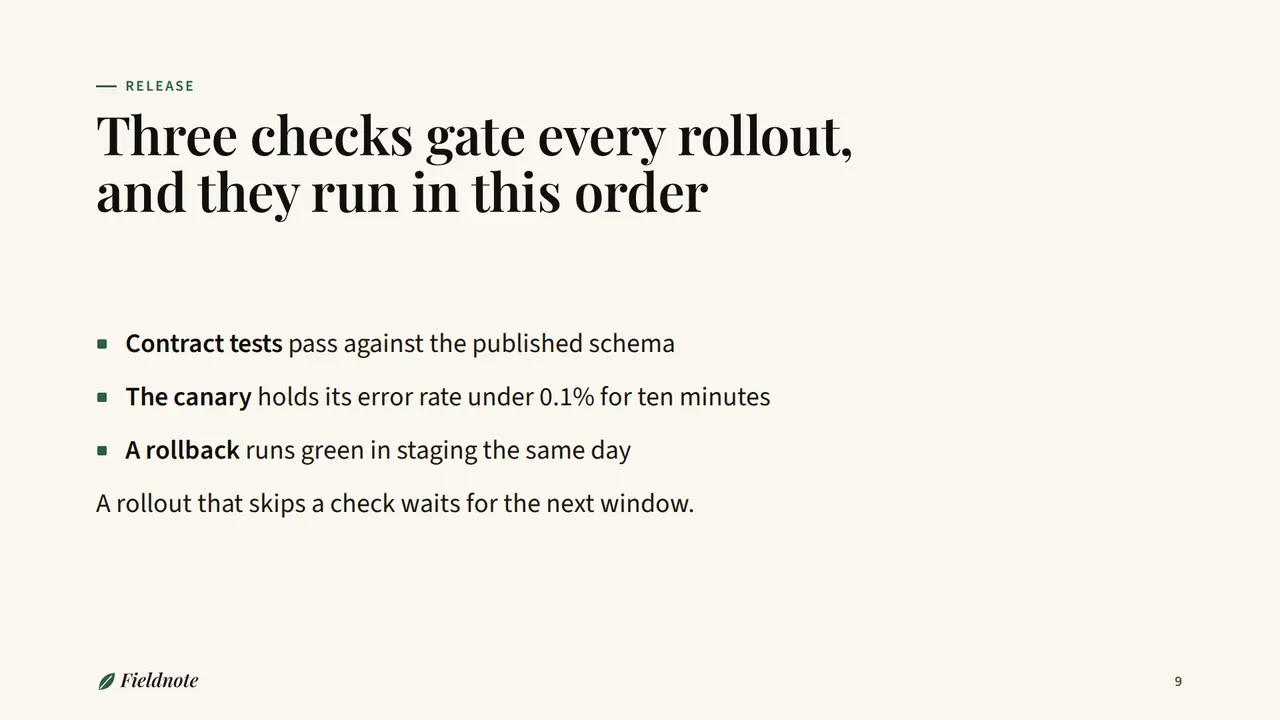 4finished
Options
| Option | What it does |
|---|---|
--brand <name> |
Renders with brands/<name> instead of the deck config’s brand, into .deck/shots/<deck>@<name>/. |
--out <dir> |
Writes to another folder. Default: .deck/shots/<deck>. |
--scale <n> |
Pixel density from 0.25 to 4. Default 1; --scale 2 writes 3840x2160 pictures. |
--json |
Prints the result as JSON instead of the list of files. |
A run over the whole deck first removes older pictures with this naming from the output folder, so a slide you deleted or renamed leaves nothing behind. Shooting one slide removes nothing.
When a slide breaks
A slide that throws is still captured, showing its error, and the other slides are captured as usual. The command names the slide and exits with 1. Here risks calls code that throws:
$ deck shot launch-review
/Users/you/talks/.deck/shots/launch-review/01-title.png
/Users/you/talks/.deck/shots/launch-review/02-revenue.png
/Users/you/talks/.deck/shots/launch-review/03-risks.png
  render-error: slide 3 "risks" shows an error: No risk data loaded
Run `deck lint <deck>` for every problem with its fix.
deck lint reports the same error with its fix, and deck dev shows its stack.
Read the result from a script
--json prints { deck, brand, outDir, ok, files, pageErrors }. Each file has its path, slide, number, step (null without --steps), hidden (new in 0.5.0: true for a slide with hidden: true), width, height and error, which is what a broken slide threw, else null. pageErrors are errors thrown while the deck loaded, before any slide showed. Here for the run above, with the first two files cut:
$ deck shot launch-review --json
{
  "deck": "launch-review",
  "brand": "default",
  "outDir": "/Users/you/talks/.deck/shots/launch-review",
  "ok": false,
  "files": [
...
    {
      "path": "/Users/you/talks/.deck/shots/launch-review/03-risks.png",
      "slide": "risks",
      "number": 3,
      "step": null,
      "hidden": false,
      "width": 1920,
      "height": 1080,
      "error": "No risk data loaded"
    }
  ],
  "pageErrors": []
}
A failure of the command itself (an unknown deck or slide, no browser) prints { "ok": false, "error": { "type", "message" } } instead. deck shot needs Chromium: npx playwright@1.65.0 install chromium.
Hidden slides
New in 0.5.0. deck shot shoots every slide, hidden ones included, so it is how you look at a backup slide (see hidden slides). With a fourth slide, pricing-backup, that has hidden: true, the run over the deck writes four pictures:
$ deck shot launch-review
/Users/you/talks/.deck/shots/launch-review/01-title.png
/Users/you/talks/.deck/shots/launch-review/02-revenue.png
/Users/you/talks/.deck/shots/launch-review/03-risks.png
/Users/you/talks/.deck/shots/launch-review/04-pricing-backup.png
The number in a file name is the slide’s place in the list, so hiding a slide renames no file. --json says which files are hidden:
$ deck shot launch-review pricing-backup --json
{
  "deck": "launch-review",
  "brand": "default",
  "outDir": "/Users/you/talks/.deck/shots/launch-review",
  "ok": true,
  "files": [
    {
      "path": "/Users/you/talks/.deck/shots/launch-review/04-pricing-backup.png",
      "slide": "pricing-backup",
      "number": 4,
      "step": null,
      "hidden": true,
      "width": 1920,
      "height": 1080,
      "error": null
    }
  ],
  "pageErrors": []
}
A hidden slide that is shot directly has no page number in the picture. deck export --png leaves hidden slides out unless you pass --include-hidden; see PDF.
Pictures for agents
An agent connected to deck dev takes the same pictures through the deck_screenshot tool (see MCP tools); an agent in a terminal runs deck shot. The create-presentation skill tells it that a deck is done only when lint is clean and it has opened every screenshot, every step included, because text can be right and the slide still wrong. If you direct an agent without the skill, ask for the same.
To compare pictures before and after an edit, use Visual diff, which shoots both sides for you. deck export --png writes the same pictures into the export folder (see PDF).