Write a slide as an MDX file: a frontmatter block that picks the layout and sets its fields, a body in Markdown with components, and the speaker’s notes. This is how most slides are written, by hand or by an agent, and what you read when you review one.
What an MDX slide looks like
---
layout: cards
title: Three rules decide where a tree goes
eyebrow: Planting principles
cards:
  - icon: thermometer
    title: Hottest blocks first
    text: Rank blocks by July surface heat; plant from the top.
  - icon: trees
    title: Large species only
    text: "Plane, oak and lime: crowns that shade the road."
  - icon: droplets
    title: Three summers of care
    text: Water, mulch and check every tree for three years.
budget: 40s
---

Every block in the ten-year plan passes all three.

<Notes>
Say the three rules, then say they come from the pilot: we broke each one once, and each time the trees died.
</Notes>
The file is slides/<id>.mdx in the deck folder, and the slide shows only once deck.config.ts lists its id. deck new slide <deck> <id> --layout <name> writes the file from the layout’s example and adds it to the list. The same slide rendered:
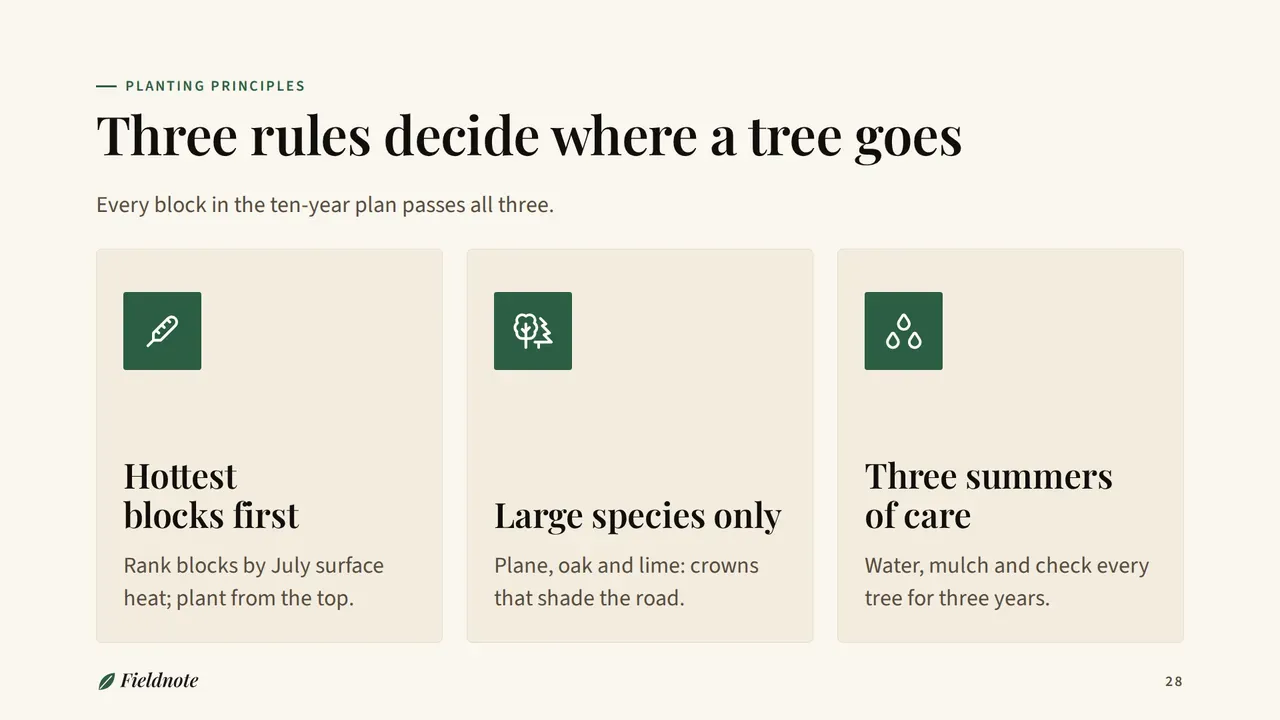
---
layout: cards
title: Three rules decide where a tree goes
eyebrow: Planting principles
cards:
  - icon: thermometer
    title: Hottest blocks first
    text: Rank blocks by July surface heat; plant from the top.
  - icon: trees
    title: Large species only
    text: "Plane, oak and lime: crowns that shade the road."
  - icon: droplets
    title: Three summers of care
    text: Water, mulch and check every tree for three years.
budget: 40s
---

Every block in the ten-year plan passes all three.

<Notes>
Say the three rules, then say they come from the pilot: we broke each one once, and each time the trees died.
</Notes>
Slide 28 of the layouts deckView on GitHub
Frontmatter
Every slide takes seven keys, whatever its layout:
| Key | What it sets |
|---|---|
layout |
The layout, by name. Default: default. deck layouts lists them. |
title |
The slide’s title. |
surface |
The brand surface: default, inverse, accent, gradient or one the brand adds. |
background |
A picture behind the whole slide. See media. |
budget |
How long you plan to speak, such as 40s or 1m30s. See speaker notes. |
transition |
How the slide comes in. See transitions and morphs. |
hidden |
true keeps the slide in the deck and skips it in a talk. New in 0.5.0. See hidden slides. |
Every other key belongs to the layout, such as eyebrow, cards or ratio. Find a layout for your slide in Choose a layout, then open its page for fields, slots and limits. See the common keys in slide frontmatter.
Whether title: appears on the slide depends on the layout. Content layouts such as cards, content and split set it as the slide’s heading. The statement layout shows only the statement: its title: names the slide in the outline. The default layout takes its heading from the body (# or ##).
Markdown in the body
The body is GitHub-flavoured Markdown: headings, *emphasis* and **strong**, lists, links, tables and inline code. Straight quotes become typographic ones, outside code. An image alone in its paragraph becomes an <Image>:
The layout’s budget says how much content the body can hold. Brand layouts only accept body content if they have a region bound to body. Text and fitting · Layouts and slots · MDX body content in brand layouts
Components and data
Kit components (<Step>, <Notes>, <Image>, <BarChart>, <Flow>, <Code> and the rest) need no import. Data files and your own components are imported with a path relative to the slide:
import teams from '../data/teams.csv';

<Slope
  data={teams}
  x="team"
  from="2025"
  to="2026"
  better="down"
  highlight={['Billing', 'Payroll']}
  unit="h"
  caption="Median hours to resolve a ticket, 2025 and 2026"
/>
Keep Markdown inside a component separated from the tags by blank lines, and write a literal { or < in text as \{ or <.
To look up a component’s props from the terminal, run deck components (code, media, link and demo components; --json for agents), deck charts or deck diagrams. The same catalogs are on components.
In one sentence each: <Step at={n}> reveals content on a later press (builds); a fence is a code block (code); <Notes> holds what the speaker says (speaker notes); images and video are on media.
Fill a layout’s named slots
The body fills the layout’s main slot. Other slots have a tag: wrap their content in it at the top level of the slide. Which tags a layout takes is on its page under layouts; common ones are <Aside> (a column beside the body), <Footnote> (a source on the bottom line), <Media> (the picture of split, image, title and section), <Caption> and <Attribution>.
A statement set as a quote, with the speaker in <Attribution>:

---
layout: statement
title: What the night nurses told us
eyebrow: From the ward
surface: gradient
budget: 30s
---

The worst nights are the second and third of a heatwave, when the flats never cool down and our older patients stop sleeping.

<Attribution>Mariam Haddad, charge nurse, Eastgate General Hospital</Attribution>

<Notes>
Mariam gave us permission to quote her. She has worked nights at Eastgate General for eleven years.

Read the quote slowly, then move on without comment.
</Notes>
Slide 7 of the exemplars deckView on GitHub
A content slide with a fact beside the list in <Aside>:
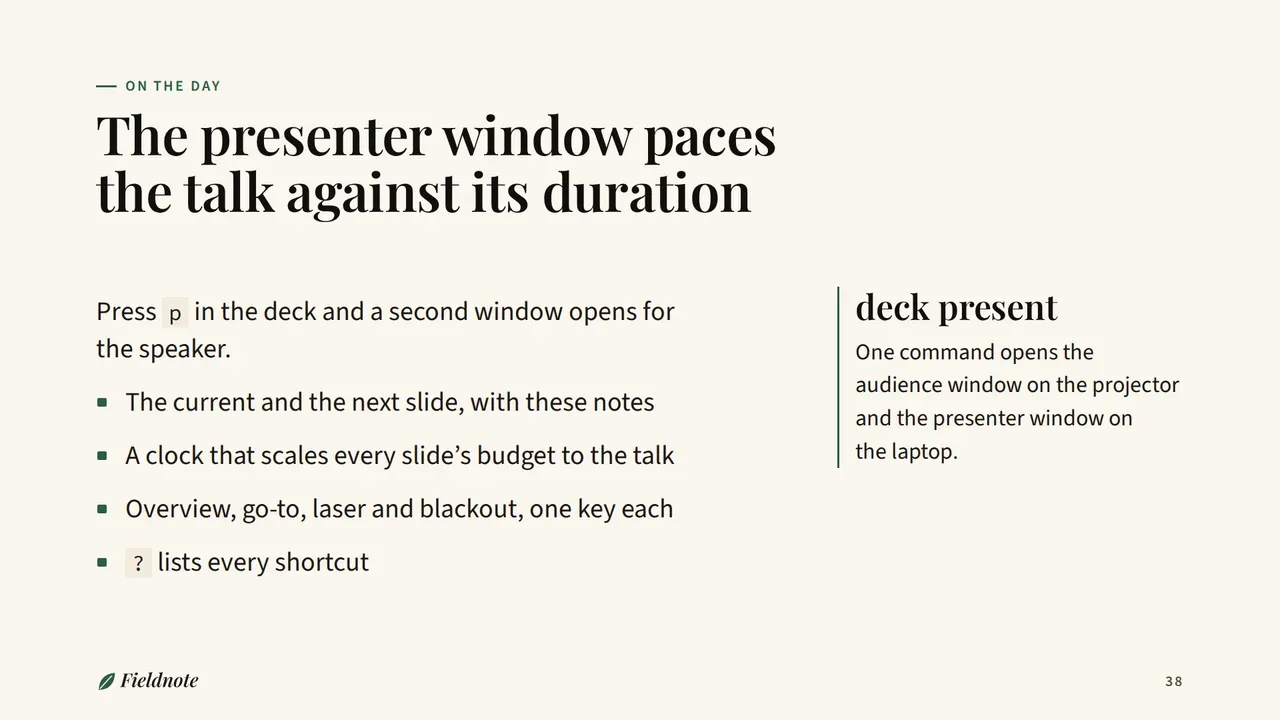
---
layout: content
title: The presenter window paces the talk against its duration
eyebrow: On the day
budget: 1m
---

Press `p` in the deck and a second window opens for the speaker.

- The current and the next slide, with these notes
- A clock that scales every slide's budget to the talk
- Overview, go-to, laser and blackout, one key each
- `?` lists every shortcut

<Aside>

### deck present

One command opens the audience window on the projector and the presenter window on the laptop.

</Aside>

<Notes>
I am reading this from the presenter window. It shows this slide, the next one, the notes, and a clock.

The clock is the useful part: the deck knows how long the talk is and every slide has a budget, so it tells me whether I am ahead or behind, per slide.

deck present does the window placement for you: projector gets the slides, laptop gets the notes.

Transition: and after the talk, somebody asks for the file.
</Notes>
Slide 38 of the showcase deckView on GitHub
A layout that requires a slot fails the build without it:
$ deck lint launch-review
decks/launch-review/slides/harbour.mdx
  error   schema (harbour): The split layout needs its media slot.
          Fix: Add <Media>…</Media> at the top level of the slide: What the text points at: one <img> with alt text (imported from the deck's assets/ or served from its public/ folder), a chart, diagram, table or component. Photos fill the frame and are cropped to it; anything else is centred and may fill it with `height: 100%` (the frame is a size container, so `100cqh` works too).

launch-review: 1 error, 0 warnings.
Content of a kind the slot does not take, such as a list where it takes no bullets, is a slot-content error in deck lint.
Build errors and their fixes
The build checks every slide against its layout before it renders. deck lint runs the same checks as deck build and reports each problem with the file, the line and a fix. A key that is close to a known one names it:
$ deck lint launch-review
decks/launch-review/slides/title.mdx
  error   schema (title): "eyebrw" is not a frontmatter field.
          Fix: Rename it to "eyebrow".

launch-review: 1 error, 0 warnings.
A key that is close to none lists the fields the layout takes:
$ deck lint launch-review
decks/launch-review/slides/title.mdx
  error   schema (title): "subtitel" is not a frontmatter field.
          Fix: Remove it. Known fields: layout, title, surface, background, budget, transition, hidden, eyebrow, byline, date, treatment, picture, align, chrome.

launch-review: 1 error, 0 warnings.
Fix what the message says and save; deck dev reloads the slide. The checks as a whole are on lint.