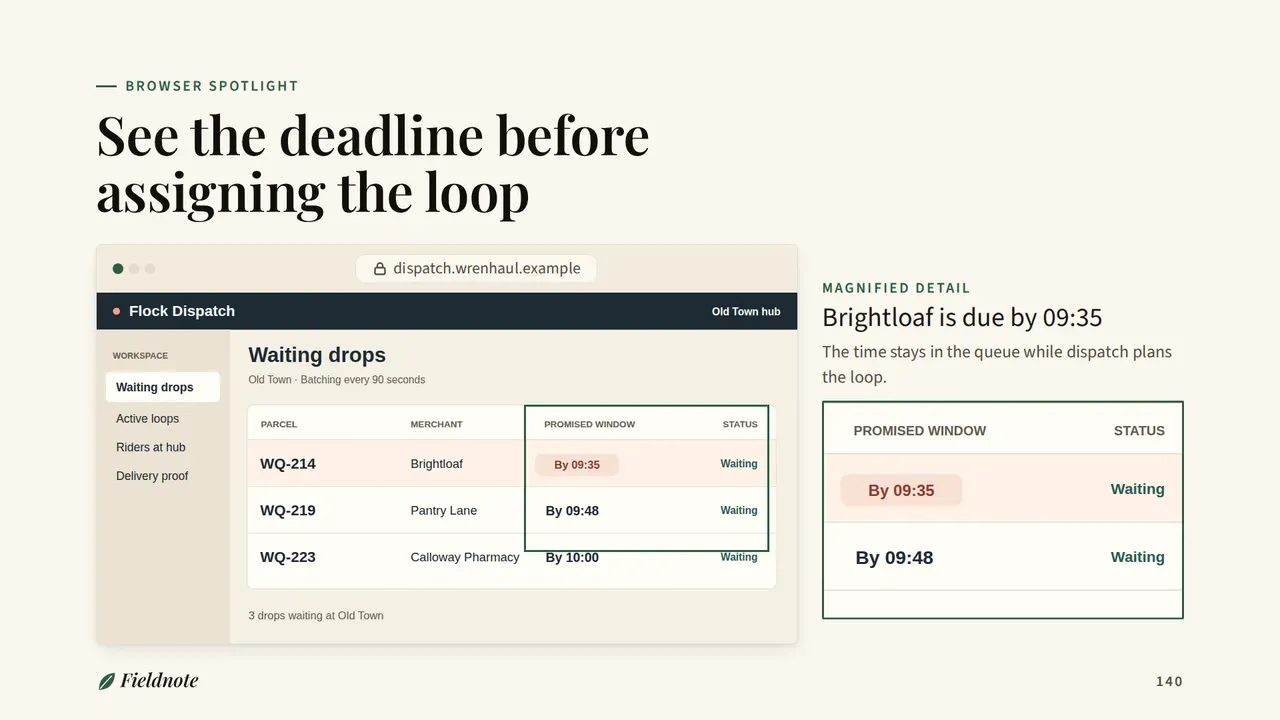
The dispatch queue contains several deadlines. A magnified crop keeps the 09:35 promise legible while the surrounding browser window shows where a dispatcher finds it.
Author the slide
Give each screenshot a label and alternative text. Set ratio to the desktop viewport width divided by its height. Use reveal: true for one advance on spotlight, wipe and handoff, or two on filmstrip.
spotlightcrops one screenshot. Set the crop’sx,y,widthandheightas percentages of the full image, counting from the top left. Keep the rectangle within the image and at least 5% wide and high.wipetakes two screenshots of the same viewport with a shared aspect ratio. Use the Compare versions slider to see where the screen changes. The finished export shows both versions side by side. Version wipehandofftakes a desktop screen for the sender and a phone screen for the receiver. Keep a name or ID visible on both devices so the audience can follow the same item. Device handofffilmstriptakes three screenshots in the order the actions happen. They remain together on the finished slide. Demo filmstrip
Example
---
layout: screen-story
pattern: spotlight
title: See the deadline before assigning the loop
eyebrow: Browser spotlight
address: dispatch.wrenhaul.example
ratio: 2
reveal: true
budget: 35s
screens:
  - src: ../assets/screens/demo-queue-after.svg
    alt: Flock Dispatch shows the promised time of 09:35 on the first waiting drop
    label: Brightloaf is due by 09:35
    detail: The time stays in the queue while dispatch plans the loop.
spotlight: { x: 61, y: 32, width: 35, height: 42 }
---

<Notes>
`browser-spotlight` uses a registered crop of the Dispatch queue.
Start with the whole waiting queue in the dispatch browser. [click] The border and magnification refer to the same part of the same screen. WQ-214 has a promise of 09:35. That time is available before assigning a rider.
</Notes>
Slide 140 of the lookbook deckView on GitHub
Reference
- Frontmatter
layout: screen-story- Surface
- the deck's default
- Title
- required, 62 characters at most
- PowerPoint
- title-only slide
Present an offline product moment using screenshot artwork. Spotlight links a browser view to a magnified crop of the same image. Wipe animates a registered pair in a fixed viewport and compares both versions in the finished export. Handoff transfers a task from desktop to a phone. Filmstrip keeps three consecutive actions and screenshots visible at the end.
Slots
| Slot | Takes | Budget | What goes in it |
|---|---|---|---|
body | — | Content outside every slot tag (in TSX, the default export). | |
<Footnote> | text | 24 words | Optional attribution or an example caveat. |
Frontmatter fields
| Field | Values | How to use it |
|---|---|---|
eyebrow | text | Write a few words of at most 40 characters, for example eyebrow: Budget committee, or leave it out. |
patternrequired | spotlight wipe handoff filmstrip | Choose spotlight, wipe, handoff, or filmstrip. |
screensrequired | text | Supply 1 screen for spotlight, 2 for wipe or handoff, and 3 for filmstrip. Each needs a local src, alt (up to 140 characters), label (up to 26 characters) and optional detail (up to 65 characters). Order them as the workflow happens. |
address | text | Optional browser address, up to 42 characters. |
ratio | default 2 | Write the desktop viewport width divided by its height, from 0.5 to 3, default 2. The images in a wipe must share the ratio and line up at corresponding coordinates. |
spotlight | text | Required only for spotlight. Set x, y, width and height as percentages of the complete screen. Keep the rectangle within the screenshot and at least 5% wide and high. |
reveal | true false (default) | Use reveal: true to build. Spotlight, wipe and handoff take one click. Filmstrip takes two clicks. Omit it to show the finished visual immediately. |
chrome | true (default) false | Write chrome: false to hide the page number, logo and progress bar on this slide, or chrome: true to show them. |
Example
---
layout: screen-story
title: Three actions turn a booking into a receipt
eyebrow: Product filmstrip
pattern: filmstrip
reveal: true
screens:
  - src: "data:image/svg+xml,%3Csvg%20xmlns%3D%22http%3A%2F%2Fwww.w3.org%2F2000%2Fsvg%22%20width%3D%22360%22%20height%3D%22480%22%3E%3Crect%20width%3D%22360%22%20height%3D%22480%22%20fill%3D%22%23f5efe4%22%2F%3E%3Crect%20width%3D%22360%22%20height%3D%2262%22%20fill%3D%22%231d2a33%22%2F%3E%3Ctext%20x%3D%2226%22%20y%3D%2240%22%20font-family%3D%22sans-serif%22%20font-size%3D%2224%22%20fill%3D%22white%22%3EBooking%20desk%3C%2Ftext%3E%3Ccircle%20cx%3D%22180%22%20cy%3D%22258%22%20r%3D%2287%22%20fill%3D%22white%22%2F%3E%3Cpath%20d%3D%22M124%20226h112v72H124zm20%2024h72m-72%2022h50%22%20fill%3D%22none%22%20stroke%3D%22%23695a46%22%20stroke-width%3D%228%22%20stroke-linejoin%3D%22round%22%20stroke-linecap%3D%22round%22%2F%3E%3Ctext%20x%3D%22180%22%20y%3D%22390%22%20text-anchor%3D%22middle%22%20font-family%3D%22sans-serif%22%20font-size%3D%2226%22%20fill%3D%22%231d2a33%22%3EBooking%20open%3C%2Ftext%3E%3C%2Fsvg%3E"
    alt: The open booking shown with a document icon
    label: Open booking
  - src: "data:image/svg+xml,%3Csvg%20xmlns%3D%22http%3A%2F%2Fwww.w3.org%2F2000%2Fsvg%22%20width%3D%22360%22%20height%3D%22480%22%3E%3Crect%20width%3D%22360%22%20height%3D%22480%22%20fill%3D%22%23f5efe4%22%2F%3E%3Crect%20width%3D%22360%22%20height%3D%2262%22%20fill%3D%22%231d2a33%22%2F%3E%3Ctext%20x%3D%2226%22%20y%3D%2240%22%20font-family%3D%22sans-serif%22%20font-size%3D%2224%22%20fill%3D%22white%22%3EBooking%20desk%3C%2Ftext%3E%3Ccircle%20cx%3D%22180%22%20cy%3D%22258%22%20r%3D%2287%22%20fill%3D%22white%22%2F%3E%3Cpath%20d%3D%22M180%20210l57%2092H123zm0%2031v23m0%2016v1%22%20fill%3D%22none%22%20stroke%3D%22%2385522b%22%20stroke-width%3D%228%22%20stroke-linejoin%3D%22round%22%20stroke-linecap%3D%22round%22%2F%3E%3Ctext%20x%3D%22180%22%20y%3D%22390%22%20text-anchor%3D%22middle%22%20font-family%3D%22sans-serif%22%20font-size%3D%2226%22%20fill%3D%22%231d2a33%22%3EPriority%20checked%3C%2Ftext%3E%3C%2Fsvg%3E"
    alt: The booking priority shown with a warning icon
    label: Check priority
  - src: "data:image/svg+xml,%3Csvg%20xmlns%3D%22http%3A%2F%2Fwww.w3.org%2F2000%2Fsvg%22%20width%3D%22360%22%20height%3D%22480%22%3E%3Crect%20width%3D%22360%22%20height%3D%22480%22%20fill%3D%22%23f5efe4%22%2F%3E%3Crect%20width%3D%22360%22%20height%3D%2262%22%20fill%3D%22%231d2a33%22%2F%3E%3Ctext%20x%3D%2226%22%20y%3D%2240%22%20font-family%3D%22sans-serif%22%20font-size%3D%2224%22%20fill%3D%22white%22%3EBooking%20desk%3C%2Ftext%3E%3Ccircle%20cx%3D%22180%22%20cy%3D%22258%22%20r%3D%2287%22%20fill%3D%22white%22%2F%3E%3Cpath%20d%3D%22M121%20260l39%2035%2078-79%22%20fill%3D%22none%22%20stroke%3D%22%23225d50%22%20stroke-width%3D%228%22%20stroke-linejoin%3D%22round%22%20stroke-linecap%3D%22round%22%2F%3E%3Ctext%20x%3D%22180%22%20y%3D%22390%22%20text-anchor%3D%22middle%22%20font-family%3D%22sans-serif%22%20font-size%3D%2226%22%20fill%3D%22%231d2a33%22%3EReceipt%20saved%3C%2Ftext%3E%3C%2Fsvg%3E"
    alt: The saved booking receipt shown with a tick
    label: Confirm booking
---

<Notes>Show the booking, then [click] the priority and [click] the receipt.</Notes>
See the presentation patterns guide for related slides and their source files.