A slide never sets its own grid, type sizes or spacing. It names a layout, and the layout places the content. After reading this page you will know what a layout promises, which content goes in which slot, how much text a slide can hold, and how to choose a layout for a message, either yourself or through an agent.
A slide picks a layout and fills it
The layout: key in a slide’s frontmatter picks the layout. The rest of the frontmatter and the content below it fill that layout. The layout owns the grid, the type and the spacing, and takes all of them from the brand. A cards slide, for example, gives each card an icon, a title and a line of text in its frontmatter, and one sentence in its body:
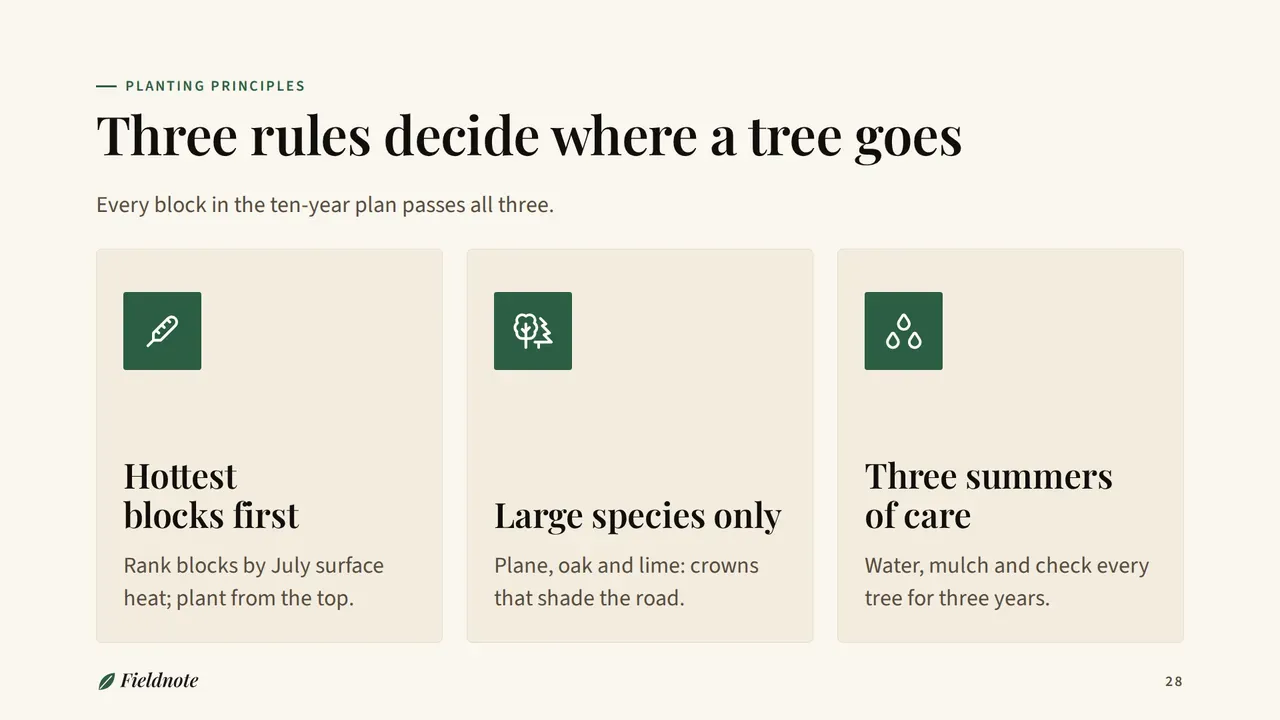
---
layout: cards
title: Three rules decide where a tree goes
eyebrow: Planting principles
cards:
  - icon: thermometer
    title: Hottest blocks first
    text: Rank blocks by July surface heat; plant from the top.
  - icon: trees
    title: Large species only
    text: "Plane, oak and lime: crowns that shade the road."
  - icon: droplets
    title: Three summers of care
    text: Water, mulch and check every tree for three years.
budget: 40s
---

Every block in the ten-year plan passes all three.

<Notes>
Say the three rules, then say they come from the pilot: we broke each one once, and each time the trees died.
</Notes>
Slide 28 of the layouts deckView on GitHub
The slide says nothing about where the cards go or how large the text is. The build checks cards against the layout, looks up each icon in the brand’s icon set, and fails on a name the set doesn’t have.
The kit has 63 layouts, from title, section and statement to stats, split, timeline and closing. The engine ships a plain default layout, and the kit replaces it with its own. The layouts reference shows every one. Twenty of them, such as quiz, pricing and schedule, are new in 0.6.0, and each of their pages says so.
The contract
Each layout publishes a contract, which the build and deck lint check slides against:
- Frontmatter fields: the keys the layout takes beyond the ones every slide has, with their types, allowed values and defaults.
statstakes astatslist of two to four items. - Title: whether the slide needs a
title:and its maximum length in characters, such as 90 forcontentand 44 forsplit. - Slots: where content goes, which slots are required, and what each one accepts (text, bullets, an image, a chart and so on).
- Default surface: the brand surface a slide gets when it names none. A
sectiondivider is onaccentand astatementis oninverse. A slide’s ownsurface:wins. - Content budget: the most words and bullets per slot, and the most lines for code.
- Variants: tighter limits that apply to some slides of a layout, such as a row of four stats, where each label has room for 32 characters instead of 48.
One contract in full: stats
This is everything the stats layout promises and asks for, from its catalog entry:
- Frontmatter
layout: stats- Surface
- the deck's default
- Title
- required, 90 characters at most
- PowerPoint
- title-only slide
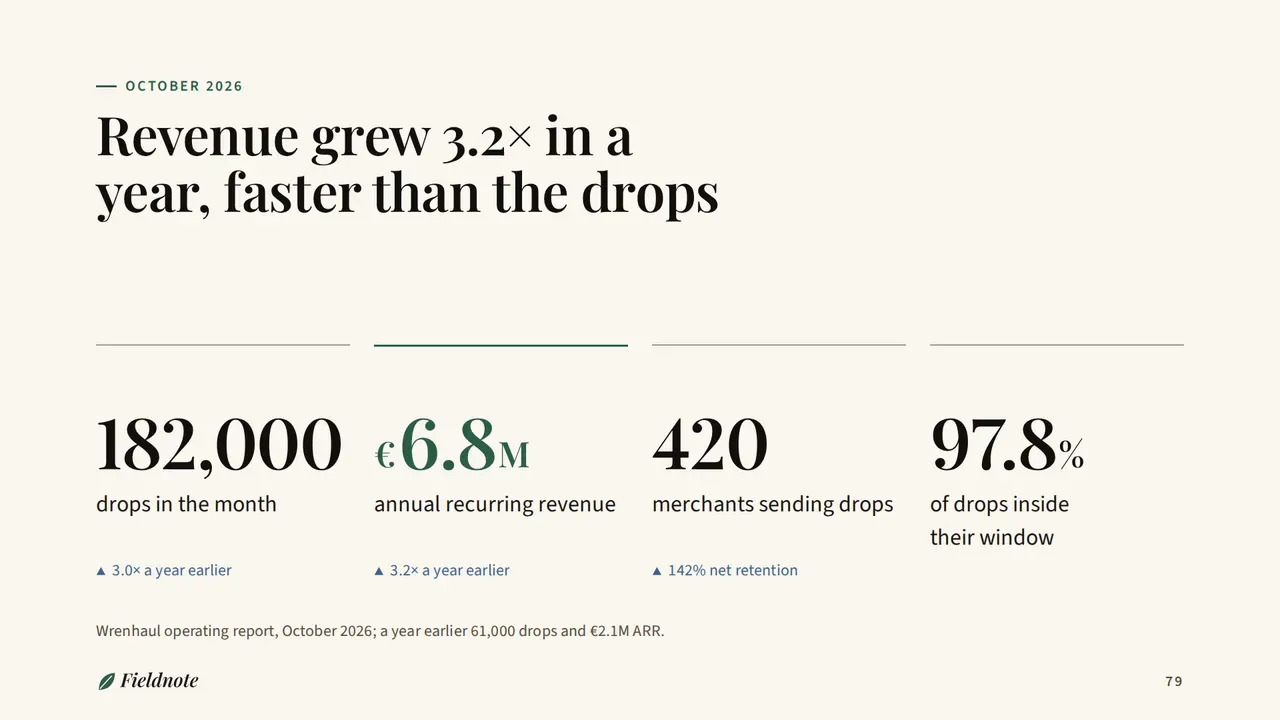
Two to four big numbers in a row, each with what it counts and, optionally, how it changed. The title states what the numbers mean together. The row stands on one line on every stats slide; set highlight: true on the stat the point rests on. Use it when the point is the size of something; use a chart (or split with one) for a trend, and a table for more than four figures; use market for nested sizes or dashboard for related charts.
Slots
| Slot | Takes | Budget | What goes in it |
|---|---|---|---|
body | text | 24 words | One sentence of context under the title. Set what the numbers mean together in title:. |
<Footnote> | text | 30 words | The source of the numbers, on the bottom line. |
Frontmatter fields
| Field | Values | How to use it |
|---|---|---|
eyebrow | text | Write a few words of at most 40 characters, for example eyebrow: Budget committee, or leave it out. |
statsrequired | text | List 2 to 4 stats, each with value (as shown, such as "34%", up to 8 characters), label (up to 48 characters, 32 in a row of four), and optionally delta ("+12% since 2023", up to 24 characters), tone (positive, negative or neutral; set it when a fall is good news), trend (up, down or flat, for a delta without a sign) and highlight: true for the stat that matters most. |
chrome | true (default) false | Write chrome: false to hide the page number, logo and progress bar on this slide, or chrome: true to show them. |
Variants
- four stats —
stats[].label: 32 characters
Example
---
layout: stats
title: Three summers of the Eastgate pilot
stats:
  - value: "1,240"
    label: street trees planted on 38 blocks
  - value: "−2.8 °C"
    label: average afternoon street temperature
    delta: "−0.9 °C vs. 2025"
    tone: positive
    highlight: true
  - value: "−31%"
    label: heat-related emergency visits
    delta: "−12 pts vs. control"
    tone: positive
---

<Footnote>Pilot blocks against matched control blocks, June to August.</Footnote>

<Notes>
Start with the temperature: it is the number the committee asked about.
</Notes>
Slots
A slot is a named place in a layout. In MDX, slide content outside the named slot tags fills body. A brand layout only has a body slot if it binds a region to it. Other slots are filled with a tag named after the slot at the top level of the slide: <Media>, <Aside>, <Footnote>, <Attribution> and <Caption> in the kit’s layouts. A TSX slide fills them by exporting a function with the same name.
This content slide puts its bullets in the body and its sources in <Footnote>, which the layout sets on the bottom line:
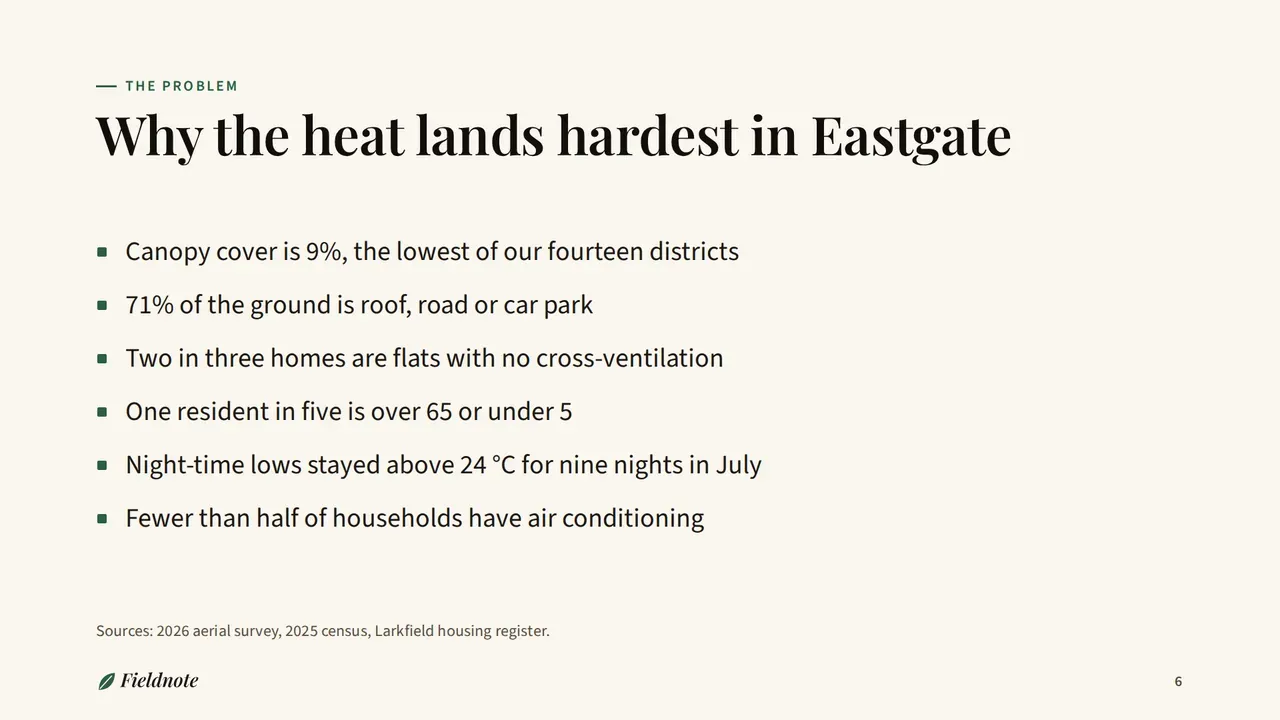
---
layout: content
title: Why the heat lands hardest in Eastgate
eyebrow: The problem
budget: 1m30s
---

- Canopy cover is 9%, the lowest of our fourteen districts
- 71% of the ground is roof, road or car park
- Two in three homes are flats with no cross-ventilation
- One resident in five is over 65 or under 5
- Night-time lows stayed above 24 °C for nine nights in July
- Fewer than half of households have air conditioning

<Footnote>Sources: 2026 aerial survey, 2025 census, Larkfield housing register.</Footnote>

<Notes>
These six facts compound. Hot ground, homes that cannot cool, and people who cannot cope with heat, all on the same twelve blocks.

The night-time figure is the one the hospital cares about most. Bodies recover at night; in Eastgate they cannot.
</Notes>
Slide 6 of the exemplars deckView on GitHub
Each layout has its own set of slots: split has <Media>, <Caption> and <Footnote>, and content has <Aside> and <Footnote>. A missing required slot fails the build, and so does a slot tag the layout doesn’t have:
$ deck build launch-review
transforming...
✓ 852 modules transformed.
✗ Build failed in 549ms
The slide does not fit its layout's slots in decks/launch-review/slides/why-now.mdx:
  - <Caption> on line 8 is not a slot of the content layout, which has slots <Aside>, <Footnote>.
    Fix: Use a layout that has it (split, image), or move the content into one of this layout's slots.
The kinds of content a slot accepts are checked on the rendered slide by deck lint’s slot-content rule. MDX slides shows how to write frontmatter and slot tags.
Budgets count content, not space
A budget counts words, bullets and lines of code. The content body, for example, holds at most 72 words and 6 bullets. It never counts how much room the content takes. Words and bullets are the same in every brand, so a slide that is within budget in one brand is within budget in all of them. deck lint reports a slide over budget with the content-budget rule:
$ deck lint launch-review
decks/launch-review/slides/why-now.mdx
  error   content-budget (why-now): The body slot holds 7 bullets; its layout allows 6.
          Fix: Cut it to the essentials, split the slide, move detail into speaker notes, or pick a layout made for more content (`deck layouts`).

launch-review: 1 error, 0 warnings in 2 slides (2 steps checked).
Whether the text fits a brand’s type is a separate question, which the overflow rules answer: container-overflow, canvas-overflow and text-truncated. Text and fitting covers what to do when a slide is within budget but still too full, and lint as the contract explains how the rules fit together.
Choosing a layout
Start with what the audience needs from the slide. Use the chooser to find a layout for that job, then check its slots and budgets. Choose a layout
deck layouts --summary lists the deck’s brand layouts first, followed by the kit layouts. Each entry lists its default surface, title limit, slots with what they accept, and budget. An asterisk marks a required slot. A workspace using the default brand starts with these entries.
$ deck layouts launch-review --summary
default       surface default   title any
              One column of content under an accent rule, centred on the slide: a heading with a lead paragraph, or a heading with a short list.
              slots: body* heading/text/bullets/image/component 80 words 6 bullets
title         surface gradient  title <= 36
              The cover of a deck: the deck title set large on the bottom line, a one-line subtitle, and who is presenting and when.
              slots: body text 14 words; <Media> image
section       surface accent    title <= 40
              A divider that opens a part of the talk: its number set large at the top, the part title on the bottom line and an optional one-sentence summary, whose two lines are kept free when it is left out so every divider sets its title at the same height.
              slots: body text 16 words; <Media> image
statement     surface inverse   title any
              One sentence set large, on its own: the claim the talk turns on, or a quote.
              slots: body* text/quote 24 words; <Attribution> text 12 words
...
An agent reads the full catalog with deck layouts --json. It holds every field with its default, allowed values and fix, every slot, budget and variant, and a complete example slide for each layout. That way an agent writes to the same limits the build and deck lint enforce.