Use the shift layout for the one change a talk argues for: a new process, a new cost, a new owner. The old state (from:) stands on the left, the new state (to:) on an accent panel that runs to the right and bottom edges, with an arrow on the seam between them.
Example
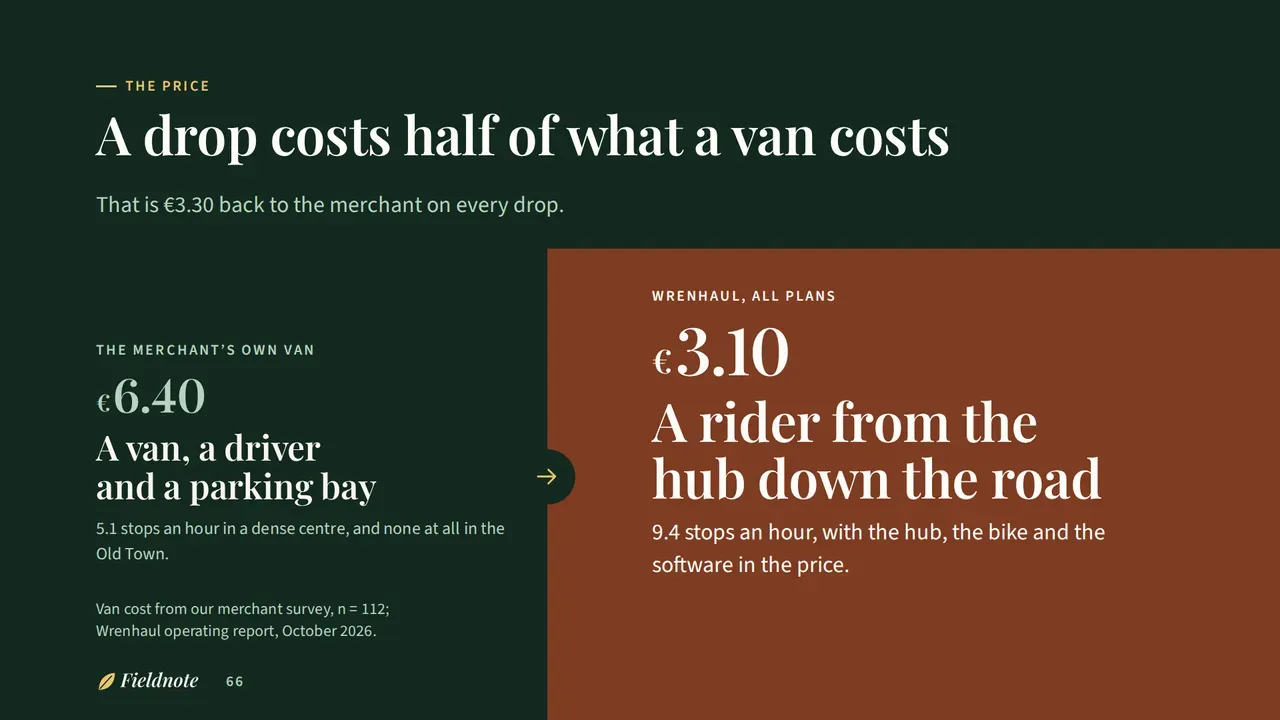
---
layout: shift
title: A drop costs half of what a van costs
eyebrow: The price
surface: inverse
budget: 40s
from:
  label: The merchant's own van
  value: "€6.40"
  title: A van, a driver and a parking bay
  text: 5.1 stops an hour in a dense centre, and none at all in the Old Town.
to:
  label: Wrenhaul, all plans
  value: "€3.10"
  title: A rider from the hub down the road
  text: 9.4 stops an hour, with the hub, the bike and the software in the price.
---

That is €3.30 back to the merchant on every drop.

<Footnote>Van cost from our merchant survey, n = 112; Wrenhaul operating report, October 2026.</Footnote>

<Notes>
`shift` on the inverse surface, with a figure on each side; use it when the change is a price or a cost and both sides need a sentence of why.
Merchants told us their own vans cost them €6.40 a drop. We charge €3.10 on average. The difference is stops: a rider makes nearly twice as many in an hour.
</Notes>
Slide 66 of the lookbook deckView on GitHub
Notice that both states fill the same four parts, a label, a value, a title and a text, and that the rows line up across the seam: €6.40 sits level with €3.10, so the eye compares like with like. The old state is set smaller and muted; the new one is larger, on the panel.
When to use it
- There is one change and two states.
from:andto:are both required, and each needs atitle(up to 36 characters).label(up to 24),value(a figure as shown, up to 8 characters) andtext(up to 80) are optional. - Both sides need a sentence of why. When the change is a single number, the
<Comparison>chart says it with less. - You want the room to see the old way first.
reveal: trueshows the old state, then brings in the panel, the arrow and the new state on the next step. - The title (up to 60 characters) can say the change outright: “A drop costs half of what a van costs”.
When two or three options are measured on several rows, it is not one change: use the comparison layout.
Reference
- Frontmatter
layout: shift- Surface
- the deck's default
- Title
- required, 60 characters at most
- PowerPoint
- two-content slide
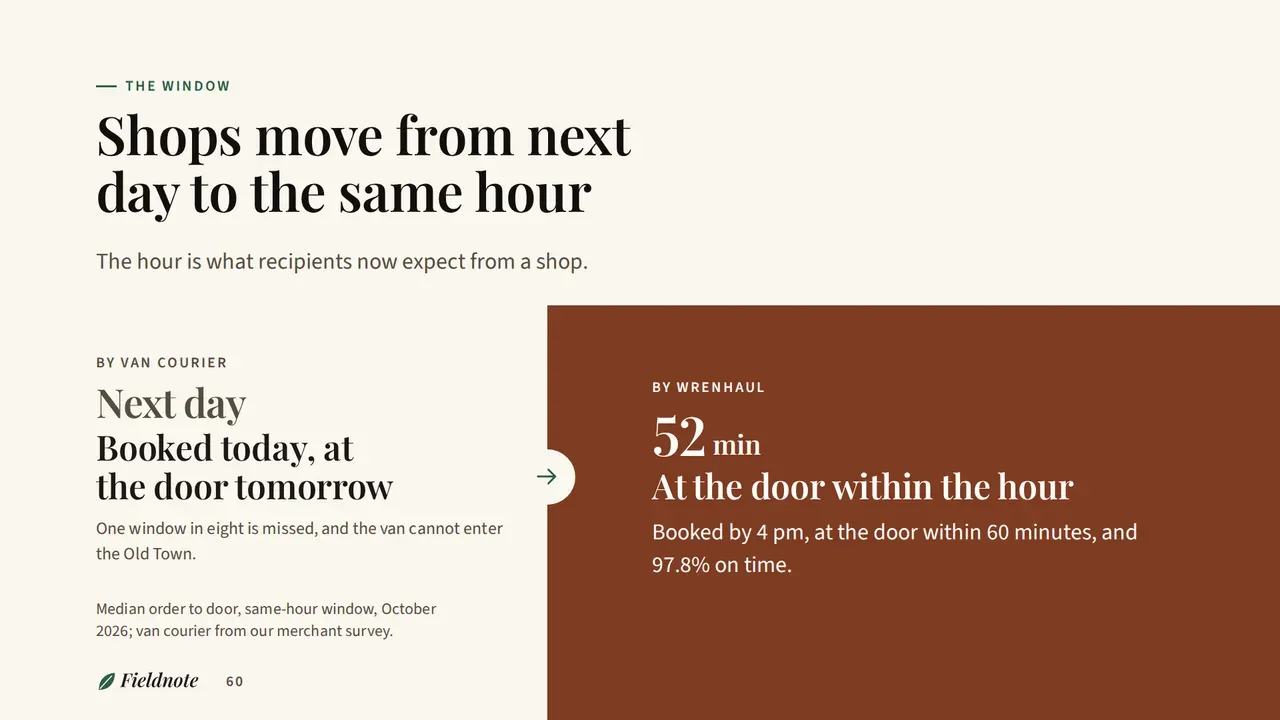
One change, from the way things are to the way they will be: under the title, the old state (from:) on the left and the new state (to:) on an accent panel that runs to the right and bottom edges of the slide, with an arrow on the seam between them. Each state has a heading, and optionally a label (Today, With the plan), a figure and a line of text; their rows line up across the seam so the eye compares like with like, and reveal: true brings in the new state on a click. Use it for the turn a talk argues for (a new process, a new cost, a new owner); use comparison when two or three options are measured on several rows, and the <Comparison> chart when the change is one number.
Slots
| Slot | Takes | Budget | What goes in it |
|---|---|---|---|
body | text | 14 words | One sentence under the title on why the change matters. Put the two states in from: and to:, not here. |
<Footnote> | text | 16 words | A source or caveat on the bottom line, under the old state. |
Frontmatter fields
| Field | Values | How to use it |
|---|---|---|
eyebrow | text | Write a few words of at most 40 characters, for example eyebrow: Budget committee, or leave it out. |
fromrequired | text | Write from: with title (up to 36 characters) and optionally label (up to 24, such as "Today"), value (a figure as shown, up to 8 characters) and text (up to 80). |
torequired | text | Write to: with title (up to 36 characters) and optionally label (up to 24, such as "With the plan"), value (a figure as shown, up to 8 characters) and text (up to 80). |
reveal | true false (default) | Write reveal: true to show the old state first and the new one on the next step, or leave it out to show both at once. |
chrome | true (default) false | Write chrome: false to hide the page number, logo and progress bar on this slide, or chrome: true to show them. |
Example
---
layout: shift
title: "Residents ask, and the city plants"
eyebrow: The request process
from:
  label: Until 2026
  value: 14 mo
  title: A tree when a block is redone
  text: "Streets got trees only when the road was rebuilt, on the roads plan."
to:
  label: From spring 2027
  value: 10 wk
  title: A tree when a resident asks
  text: "Any resident can request a street tree; crews plant the next season."
---

Demand outran the roads plan in the first summer.

<Footnote>Median wait from first request to planting, 2024 to 2026.</Footnote>

<Notes>
Read the old way first, then click to the panel: the city plants when someone asks.
</Notes>
Common mistakes
- A long body. The body is one sentence under the title on why the change matters, at most 14 words. A 19-word sentence fails
deck lintwithcontent-budget: “The body slot holds 19 words; its layout allows 14.” Move the reasons into each state’stext, or into the notes. - A missing state. A slide with only
to:is aschemaerror before it renders: “from is required.” Its fix lists whatfrom:takes. - The states in the body. Write the two states in
from:andto:, not as bullets in the body; the body takes text only. - Long state text. Each state’s
texttakes at most 80 characters. When the text still does not fit, the layout sets the old state’s text and both figures a step smaller, then the new heading too; shorter text keeps the larger sizes.
Related layouts
comparison: two or three options measured on the same two to five rows.stats: two to four figures side by side, with no before and after.timeline: a change in dated milestones rather than two states.
For a change that is one number, see <Comparison>. How reveal stages a slide is on builds.