Review comments let you point at a word, a chart or a region of a slide in deck dev and say what should change. Each comment is saved as a file next to the deck, with the file, line and column that rendered what you clicked, so the author or an agent can fix it from the terminal. After this page you can leave comments in the browser, work through them with deck comments, and read what their anchor status says.
Leave a comment in the browser
-
Start the deck with
deck dev launch-reviewand go to the slide. -
Press
c, or click the speech bubble at the end of the tool cluster in the bottom-left corner. A bar at the top says Commenting, and hovering an element shows the source line it came from. -
Pick what the comment is about:
- click an element;
- Alt-click to take its parent instead (Alt+Up and Alt+Down walk up and down once one is picked);
- drag to select a region;
- or click Whole slide in the bar.
By keyboard, Tab and the arrow keys move between elements and Enter selects.
-
Type the comment and press Cmd+Enter (Ctrl+Enter on Windows and Linux) to save it. Escape closes the box and keeps your draft.
-
Click Done in the bar, or press
cagain, to leave comment mode.
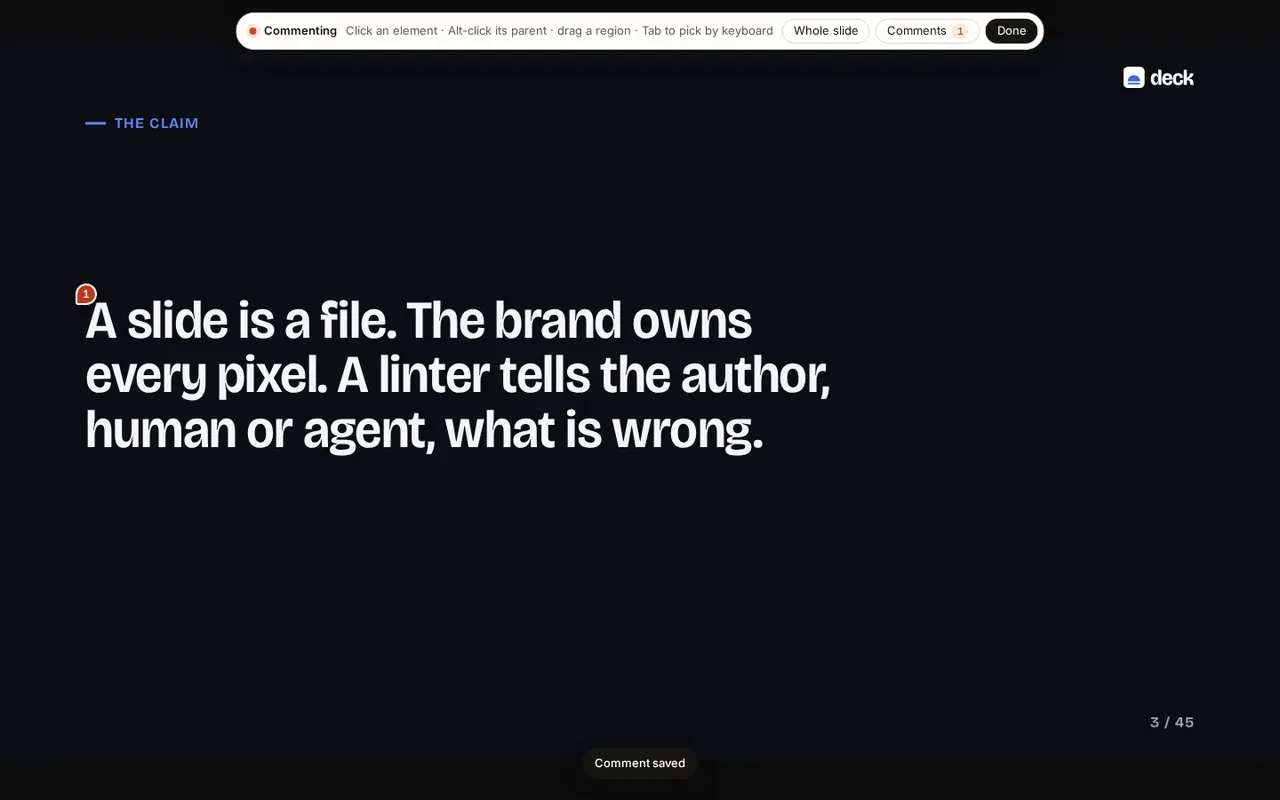
When a comment is saved, deckster takes a screenshot of the slide in headless Chromium and stores it beside the comment. If the screenshot fails, the comment is still saved and the terminal running deck dev shows a warning.
Where comments appear
Comments show as numbered pins on their slide, at the step they were left on, and as a count of open comments on the slide’s thumbnail in the sidebar and the overview. Comments in the bar opens the docked panel:
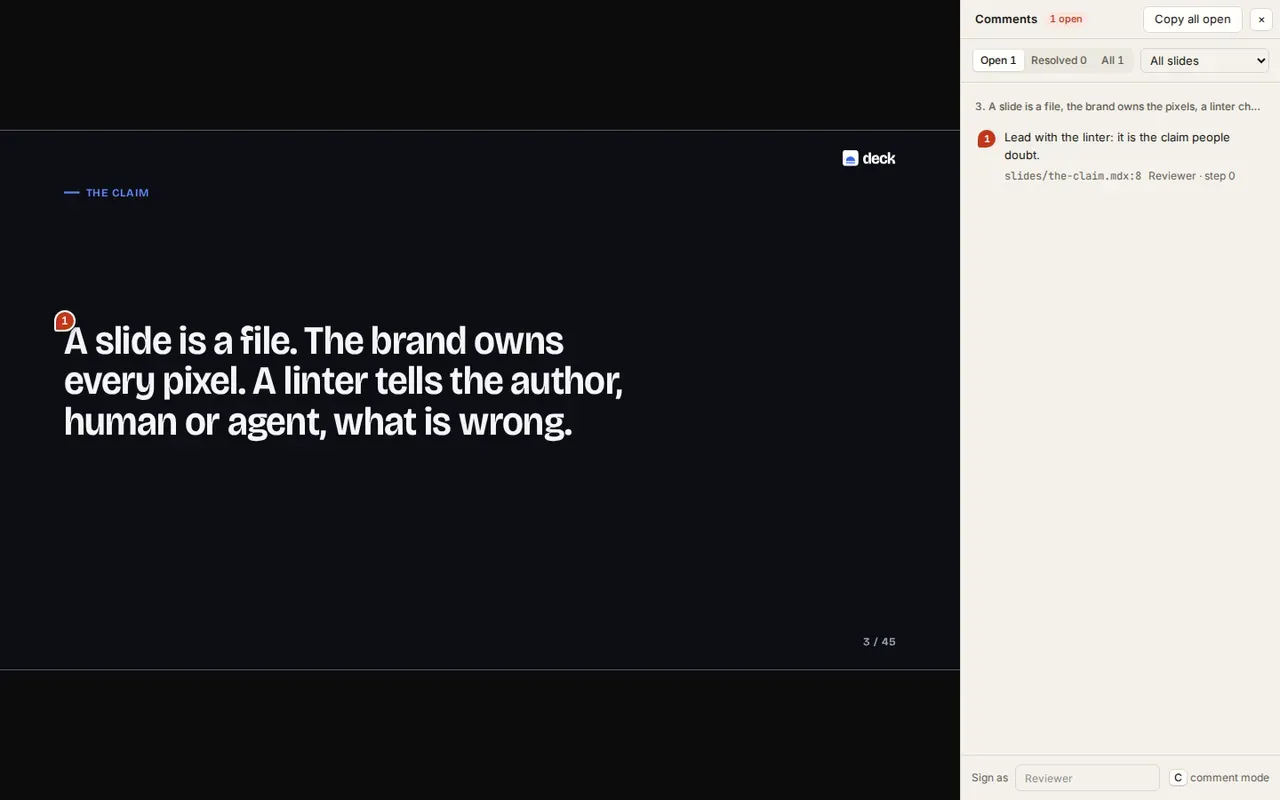
The panel lists open, resolved or all comments, for one slide or all of them. Copy all open puts every open comment on the clipboard as Markdown, ready to paste into a chat with an agent. The Sign as field at the bottom sets the name your browser comments are signed with. In the agent panel you can attach comments to a prompt instead; see Agent panel.
Where comments are stored
| Path | Contents |
|---|---|
decks/<deck>/.feedback/<slide-id>.json |
The slide’s comments, oldest first. |
decks/<deck>/.feedback/<slide-id>/<comment-id>.png |
The screenshot taken when the comment was left in the browser. |
Commit the .feedback/ folder with the deck, so everyone who checks out the deck sees the same comments. The JSON keeps its fields in a fixed order, so a change diffs as the lines it touched.
Work through comments in the terminal
deck comments reads and changes the same files without a browser, for you or for an agent. An agent connected to deck dev can also use the comments tool (see MCP tools).
-
List the open comments:
$ deck comments launch-review
launch-review: 2 open, 0 resolved

slide 2 revenue
  #1 4a82fmiy  open question  decks/launch-review/slides/revenue.mdx  (slide, step 0)
     Is this Q3 or the year to date?

slide 3 risks
  #1 lypb1v7u  open fix  decks/launch-review/slides/risks.mdx:7:1  (anchor ok, step 0)
     Name an owner for each risk

After a fix: deck comments resolve launch-review <id> --note "what changed"
As JSON: deck comments launch-review --json
Each comment has an id, its type, the
file:line:columnto edit (just the file for a comment on the whole slide), its anchor status and step, and its text.--resolvedor--alllist the others, and--slide <id>limits the list to one slide. -
Open the file at that line and make the change.
-
Resolve the comment, saying what changed:
$ deck comments resolve launch-review lypb1v7u --note "Added owners in the notes"
Resolved lypb1v7u (decks/launch-review/slides/risks.mdx:7:1)
The resolution is signed (see below) and shown under the comment in
deck comments launch-review --all, asresolved by Ana Ruiz: Added owners in the notes. Resolving a comment that is already resolved keeps its note.
The other subcommands:
| Command | What it does |
|---|---|
deck comments reopen <deck> <id> |
Opens a resolved comment again. |
deck comments add <deck> <slide> --text <text> |
Adds a comment from the terminal. --line <n> ties it to a line of the slide file, --step <n> to a step (default 0), --type is fix, question or idea. |
deck comments prune <deck> |
Removes the comments of slides the deck config no longer lists. With nothing to remove it prints launch-review: every comment belongs to a slide of the deck. |
The two comments above were added like this:
$ deck comments add launch-review risks --text "Name an owner for each risk" --line 7 --type fix
Added lypb1v7u at decks/launch-review/slides/risks.mdx:7:1
$ deck comments add launch-review revenue --text "Is this Q3 or the year to date?" --type question
Added 4a82fmiy at decks/launch-review/slides/revenue.mdx
A comment added from the terminal has no screenshot. Every subcommand takes --json; the full shape is in deck comments --help and on the CLI reference. As long as a slide has open comments, deck lint warns open-comments for it.
What the anchor status means
Slides change after a comment is left, so deck comments looks for the commented line again each time it lists:
| Status | Meaning |
|---|---|
ok |
The line still reads as it did. |
moved |
The same line was found elsewhere; the line number shown is the new place. |
guessed |
The line was reworded; the line shown is the nearby line most like it. Check it. |
lost |
Nothing matches; only the file is named. Read the excerpt around the original line (in --json) and the screenshot. |
none |
The comment is on the whole slide, not a line. |
Who signs a comment
New comments and resolutions are signed with the DECK_AUTHOR environment variable, else git’s user.name, else Reviewer. In the browser, a name typed in the panel’s Sign as field takes precedence.
Where comments do not exist
Comment mode, pins and the panel exist only while the dev server runs: in deck dev, and in deck present without --built. A built deck (deck build or deck present --built), deck shot, deck lint and exports never show them, so a deck you host never shows review notes. (deck lint still reads the files, for open-comments.)
Keys for comment mode are listed with the others in Keyboard shortcuts.