Use the screen layout to show one product screen as large as the slide allows: an app, a dashboard or a page the audience should look at. The kit draws the frame around it from the brand (a browser window, a phone, a laptop or none), never crops the picture, and sets up to four numbered callouts beside it.
Example
---
layout: screen
title: The rider never has to think about the route
eyebrow: Rider
frame: phone
src: ../assets/screens/rider-next-stop.svg
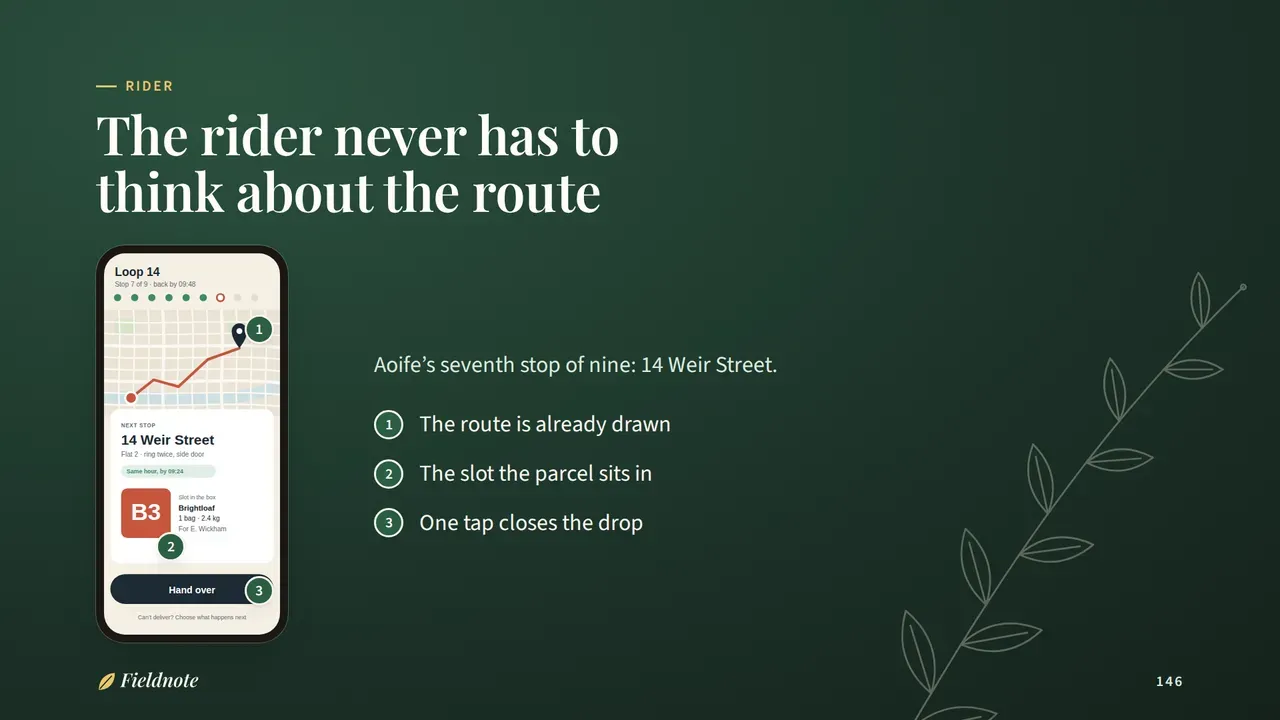
alt: The Rider app's next stop, 14 Weir Street, with the route on a map, slot B3 in the box and a Hand over button
callouts:
  - x: 88
    y: 20
    label: The route is already drawn
  - x: 38
    y: 77
    label: The slot the parcel sits in
  - x: 88
    y: 88.4
    label: One tap closes the drop
reveal: true
budget: 45s
---

Aoife's seventh stop of nine: 14 Weir Street.

<Notes>
`screen` with `frame: phone` and three `callouts` with `reveal: true`; use it for a phone app, one point per click.
A rider's screen answers three questions and nothing else. [click] Where am I going: the route is drawn, Flock chose the order. [click] Which parcel: slot B3, so nobody unpacks the box on the pavement. [click] And one tap hands it over and opens the next stop.
</Notes>
Slide 146 of the lookbook deckView on GitHub
frame: phone draws the device, so the file holds only the app. Each callout puts a numbered marker on the screen and its label beside the frame under the same number, never over the interface, and with reveal: true they arrive one per step. The slide sits on the gradient surface, the layout’s default. The reference below shows frame: browser with an address.
When to use it
- The audience should look at a screen.
srcandaltare required: a screenshot cut to the app itself, without its own browser bar or phone bezel, and up to 120 characters on what it shows. - You pick the frame.
frameisbrowser(the default),phone,laptopornone. Onlybrowsershows anaddress, up to 40 characters; keep it to the host and a word, since a long one is cut with an ellipsis when the window is narrow. - You point at up to four parts. Each callout has
xandy(percent of the picture from its top-left corner) and alabelof up to 32 characters. Put the point just beside or at the end of what it names, since the marker covers what is under it.
The title takes up to 60 characters. The body is one optional sentence of up to 14 words beside the screen, for when the title does not say what the audience is looking at. For two to four screens, use gallery; when the text matters as much as the picture, split; for a photo, image.
Reference
- Frontmatter
layout: screen- Surface
gradient- Title
- required, 60 characters at most
- PowerPoint
- title-only slide
One product screen as large as the slide allows, shown whole (never cropped) under the title, in a frame the kit draws from the brand: a browser window (the default, with an optional address), a phone, a laptop, or none. The picture is src and alt; leave its own window or device chrome out of the file, since the frame draws it. Up to four callouts point at parts of it: each puts a numbered marker at x and y (percent of the picture from its top-left corner) and sets its label beside the frame under the same number, never over the interface; with reveal: true they arrive one per step and earlier ones recede. Defaults to the gradient surface, where a framed screen reads as a product shot. Use it for a product, an app, a dashboard or a page the audience should look at; use split when the text matters as much as the picture, gallery for two to four screens, and image for a photo.
Slots
| Slot | Takes | Budget | What goes in it |
|---|---|---|---|
body | text | 14 words | One optional sentence beside the screen, above the callout labels: what the audience is looking at, when the title does not say it. Leave it out to give the slide to the picture. Put the points on the screen in callouts:, not here. |
<Footnote> | text | 20 words | A source or caveat on the bottom line. |
Frontmatter fields
| Field | Values | How to use it |
|---|---|---|
eyebrow | text | Write a few words of at most 40 characters, for example eyebrow: Budget committee, or leave it out. |
srcrequired | text | Name the screenshot or screen recording still, a file in the deck folder such as assets/screens/map.png, cut to the app itself without its browser bar or phone bezel. |
altrequired | text | Say what the screen shows, up to 120 characters. |
frame | browser (default) phone laptop none | Write frame: browser for a web app (the default), phone for a tall phone screen, laptop for a desktop app shown on a device, or none for the picture alone. |
address | text | Write the address the browser bar shows, up to 40 characters, such as trees.larkfield.example/map; only frame: browser shows it, and a long one is cut short with an ellipsis when the window is narrow, so keep it to the host and a word. |
callouts | text | List up to 4 callouts in the order you will talk about them, each with x and y (where the marker goes, in percent of the picture from its top-left corner: x: 72, y: 18) and label (what is there, up to 32 characters). Put the point just beside or at the end of what it names (the right end of a button, the corner of a card), since the marker covers what is under it. |
reveal | true false (default) | Write reveal: true to show the items one per step, in order, or leave it out to show them all at once. |
chrome | true (default) false | Write chrome: false to hide the page number, logo and progress bar on this slide, or chrome: true to show them. |
Example
---
layout: screen
title: Crews plan every planting round from one map
eyebrow: The request service
src: "data:image/svg+xml,%3Csvg xmlns='http://www.w3.org/2000/svg' width='1600' height='1000' viewBox='0 0 160 100'%3E%3Crect width='160' height='100' fill='%23eef1ec'/%3E%3Crect width='160' height='8' fill='%23ffffff'/%3E%3Crect y='8' width='40' height='92' fill='%23ffffff'/%3E%3Crect x='6' y='16' width='28' height='6' rx='2' fill='%23dfe8e1'/%3E%3Crect x='6' y='26' width='28' height='6' rx='2' fill='%23dfe8e1'/%3E%3Ccircle cx='96' cy='46' r='14' fill='%23c6d6ca'/%3E%3Ccircle cx='96' cy='46' r='4' fill='%232c6e4f'/%3E%3Crect x='8' y='88' width='24' height='6' rx='3' fill='%231c2420'/%3E%3C/svg%3E"
alt: "The planting map, with requests listed on the left and a pin on the hottest block"
address: trees.larkfield.example/map
callouts:
  - x: 22
    y: 19
    label: "Requests, hottest blocks first"
  - x: 66
    y: 38
    label: Each pin is a resident request
  - x: 21
    y: 91
    label: One button sends the round
reveal: true
---

<Notes>
Start with the list on the left: it is sorted by heat, not by date. Then the pins, then the
button that hands the round to the crews.
</Notes>
Common mistakes
Fields that need another field. An address needs the browser frame, and reveal needs callouts to reveal. Both are checked when the slide is built, so deck lint reports them before it renders any slide:
$ deck lint launch-review
decks/launch-review/slides/map.mdx
  error   schema (map): address: Only the browser frame shows an address; this screen's frame is phone.
          Fix: Write `frame: browser` to show the address, or leave `address` out.
  error   schema (map): reveal: `reveal` brings in the callouts one per step, and this screen has none.
          Fix: Add `callouts:` to point at parts of the screen, or leave `reveal` out.

launch-review: 2 errors, 0 warnings.
The tour in the body. Points on the screen belong in callouts:, not in the body. A body of 20 words is a content-budget error: The body slot holds 20 words; its layout allows 14. A fifth point is a second slide.
The device in the file. A screenshot that still has its browser bar or phone bezel gets a second one from the frame. Crop it to the app, or write frame: none.
Related layouts
gallery: two to four screens or photos, the first one largest.split: a picture with a paragraph or bullets beside it, when the text matters as much.image: one photo across the whole slide, edge to edge.demo: a live app or page instead of a still.
Where src points is on media.