Use the steps layout to show how something is done: three to five numbered steps along a line, each with a short title and a line on how. You can mark the step the talk is on, or bring the steps in one per click as you walk through them.
Example
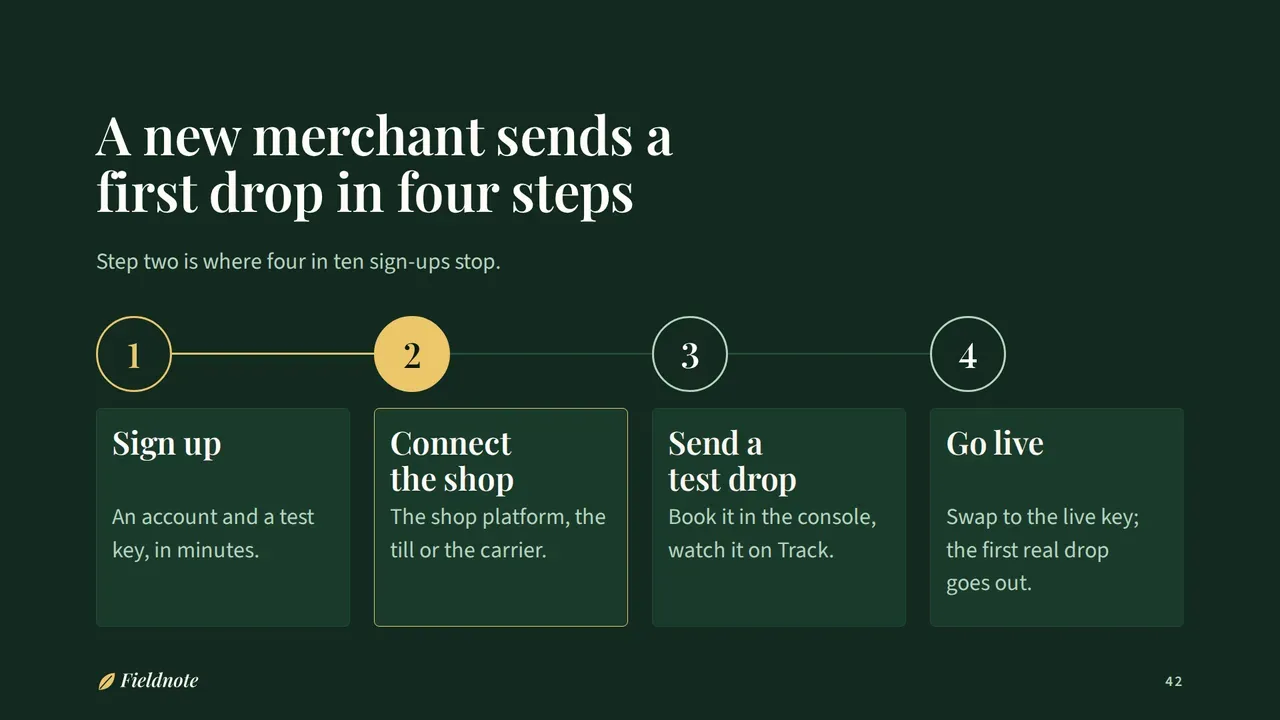
---
layout: steps
title: A new merchant sends a first drop in four steps
surface: inverse
current: 2
steps:
  - title: Sign up
    text: An account and a test key, in minutes.
  - title: Connect the shop
    text: The shop platform, the till or the carrier.
  - title: Send a test drop
    text: Book it in the console, watch it on Track.
  - title: Go live
    text: Swap to the live key; the first real drop goes out.
budget: 45s
---

Step two is where four in ten sign-ups stop.

<Notes>
`steps` with four steps, `current: 2` and `surface: inverse`; use it to show where in a process you are, or where the trouble is.
Onboarding has four steps. The line stops at the second on purpose: connecting the shop is where we lose four in ten sign-ups, and it is what Open Network's plug-ins fix.
</Notes>
Slide 42 of the lookbook deckView on GitHub
Notice current: 2: the line is drawn in the accent up to the second step and its marker is filled, which points the room at the step where, as the body says, four in ten sign-ups stop. The steps come from steps: in the frontmatter; the body is a single sentence of context.
When to use it
- The process has three to five steps, in order.
steps:is required and takes three to five entries, each with atitleand an optionaltext. - Each step fits in a title and a line. The limits tighten as the row fills: a title takes 32 characters (20 in a row of five), and the text 72 (56 in a row of four, 44 in a row of five).
- You want to say where you are, or walk through it.
current:marks one step;reveal: trueadds one step per click, each with its segment of the line. - A sentence of context helps. The body takes one sentence of up to 14 words, under the title.
Pick another layout when the order or the count is different:
- The steps have dates: use the
timelinelayout. - The items are the parts of the talk: use
agenda. - The ideas are not in order: use
cards. - Commitments with owners and due dates: use
actions. - A timed activity for the audience: use
exercise. - A longer process: the contract caps the row at five, so group the steps into phases.
Reference
- Frontmatter
layout: steps- Surface
- the deck's default
- Title
- required, 60 characters at most
- PowerPoint
- title-only slide
A process in order: three to five numbered steps along a line, each with a short title and a line or two on how, from steps: in the frontmatter. current: marks the step the talk is on (the line fills up to it), and reveal: true adds one step per click. Use it for how something is done; use timeline when the steps have dates, agenda for the parts of the talk, and cards for ideas that are not in order; use actions for commitments with owners or exercise for a timed activity.
Slots
| Slot | Takes | Budget | What goes in it |
|---|---|---|---|
body | text | 14 words | One sentence under the title on what the process achieves. Put the steps in steps:. |
<Footnote> | text | 24 words | A source or caveat on the bottom line. |
Frontmatter fields
| Field | Values | How to use it |
|---|---|---|
eyebrow | text | Write a few words of at most 40 characters, for example eyebrow: Budget committee, or leave it out. |
stepsrequired | text | List 3 to 5 steps in order, each with title (up to 32 characters, 20 in a row of five) and optionally text (up to 72, 56 in a row of four, 44 in a row of five). |
current | text | Write the number of the step the talk is on, current: 2, or leave it out. |
reveal | true false (default) | Write reveal: true to show the items one per step, in order, or leave it out to show them all at once. |
chrome | true (default) false | Write chrome: false to hide the page number, logo and progress bar on this slide, or chrome: true to show them. |
Variants
- four steps —
steps[].text: 56 characters - five steps —
steps[].title: 20 characters;steps[].text: 44 characters
Example
---
layout: steps
title: Four steps put a tree in the ground for good
eyebrow: How we plant
steps:
  - title: Survey the block
    text: "Surface temperature, pipes, cables and sight lines."
  - title: Build the pit
    text: "Connected soil cells, 12 m³ under the pavement."
  - title: Plant in autumn
    text: "Large-species stock, staked and mulched."
  - title: Water three summers
    text: Weekly rounds until the roots reach the cells.
current: 2
---

Every tree in the plan goes through all four.

<Notes>
Walk the four steps, then stop on the second: the pit is where the money goes.
</Notes>
Common mistakes
- Long titles in a row of five. The five-step variant allows 20 characters per title. A 25-character title fails
deck lintwith aschemaerror before the slide renders: “steps[0].title: The steps layout sets at most 20 characters here (five steps), got 25.” - A sixth step.
steps:takes at most five: “steps: Expected at most 5 steps, got a list of 6 items.” Group the steps into phases instead. - A
currentpast the end. With four steps,current: 5is an error: “current: 5 names step 5, but there are 4 steps.” Steps count from 1. - The steps in the body. Put them in
steps:; the body takes one sentence of text, and a list there is aslot-contenterror. - A process that is really a list. If the order does not matter, the numbers and the line promise one that is not there; that is the case the catalog sends to
cards.
Related layouts
timeline: dated milestones along a line, for a roadmap or a history.agenda: the parts of the talk, withcurrent:between parts.cards: two to four ideas of equal weight, in no order.actions: three to six next actions, each with an owner and a due date.exercise: a task for the audience, with numbered instructions, a duration and groups.
How reveal and other builds stage a slide is on builds.