Use the code layout to put one piece of code in front of the room: a fenced block with highlighted lines, a <CodeMove> that animates from one version to the next, or a <Terminal> session typed one command at a time. The title says what the code shows, and up to three short notes can stand beside it.
Example
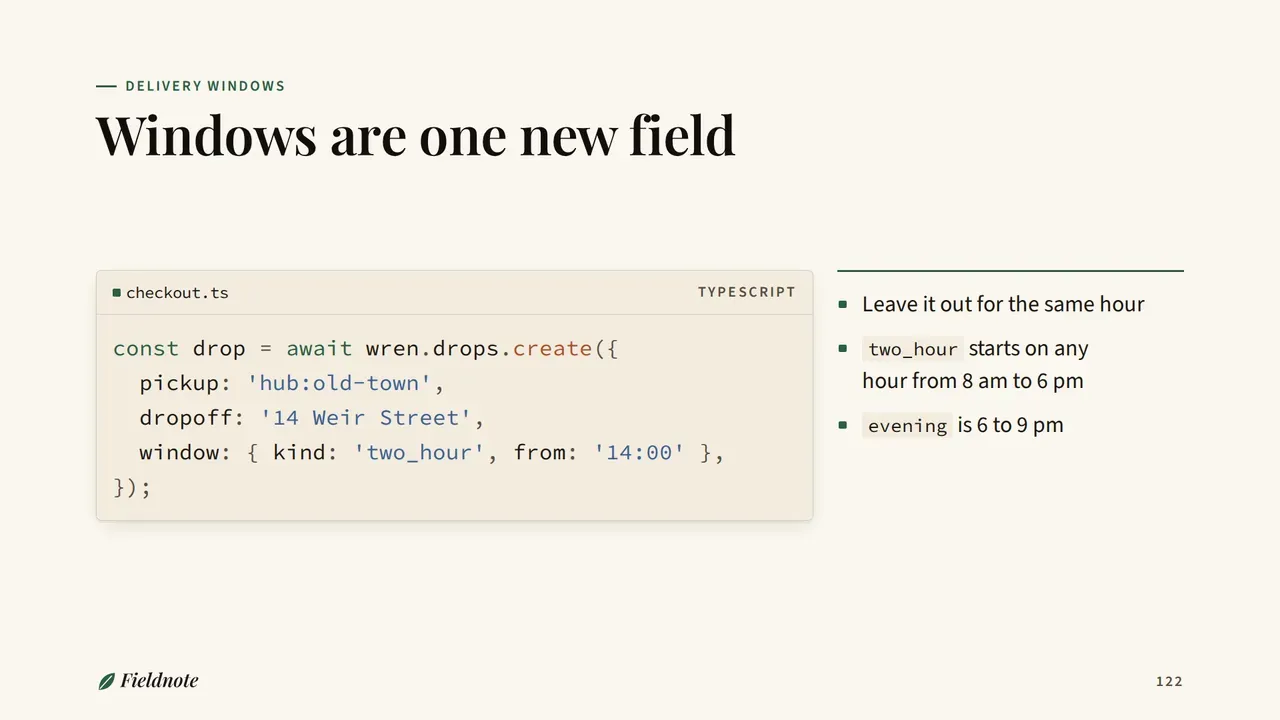
---
layout: code
title: Windows are one new field
eyebrow: Delivery windows
budget: 1m
---

<CodeMove file="checkout.ts">

```ts
const drop = await wren.drops.create({
  pickup: 'hub:old-town',
  dropoff: '14 Weir Street',
});
```

```ts
const drop = await wren.drops.create({
  pickup: 'hub:old-town',
  dropoff: '14 Weir Street',
  window: { kind: 'two_hour', from: '14:00' },
});
```

</CodeMove>

<Aside>
- Leave it out for the same hour
- `two_hour` starts on any hour from 8 am to 6 pm
- `evening` is 6 to 9 pm
</Aside>

<Notes>
`code` with a `<CodeMove>` between two fenced versions; use it when the change between versions is the point, so the room sees which lines stay and which arrive.
This is the call from two slides ago. [click] To sell a two-hour slot instead, you add one field: the kind of window and when it starts. Nothing else moves. Leave it out and you get the same hour, which is what eight in ten recipients pick anyway.
</Notes>
Slide 122 of the lookbook deckView on GitHub
Notice the click: the <CodeMove> moves from the first version to the second, so the room sees which lines stay and that one window line arrives. The <Aside> notes take the right column; without them the code gets the full width.
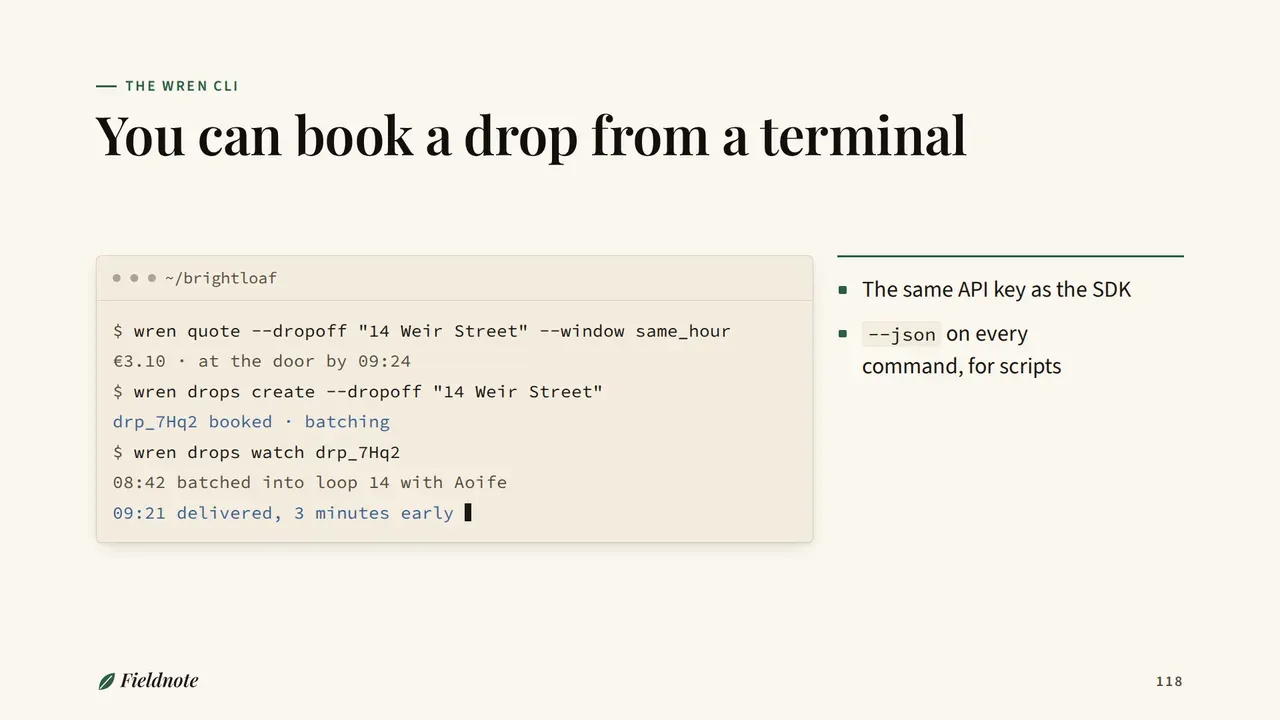
The same layout holds a shell session, with one step per <Cmd> and its <Out> lines after it:
When to use it
- The code is the evidence. The title is required, up to 48 characters on one line, so write the takeaway there (“Auth runs before every route”), not the file name.
- It fits in 11 lines, the body’s budget. Keep lines to 60 columns when you add
<Aside>, or 90 without it. - There is one block. The body takes exactly one fence,
<CodeMove>or<Terminal>. - You talk through it in order. A fence with
{2|3-4}adds one step per part, and each<Cmd>adds one step; at step 0 a terminal shows only the prompt and cursor.
Pick another layout when the code is not the point:
- Prose that explains the code: use
content. - A picture or screenshot beside text: use
split. - A running app rather than its source: use
demo.
Reference
- Frontmatter
layout: code- Surface
- the deck's default
- Title
- required, 48 characters at most
- PowerPoint
- title-only slide
A title that states what the code shows, then a large code area: a fenced block, a <CodeMove> that animates between versions, or a <Terminal> session. Fill <Aside> with up to three short notes to set them beside the code. Keep code to at most 11 lines and 60 columns beside notes (90 without); longer lines step the font down to the brand minimum and then overflow, which deck lint reports. In a <Terminal> each <Cmd> adds one step (the first at the Terminal's at, default 1, so step 0 shows only the prompt and cursor); a fence with {2|3-4} adds one step per part. Use content for prose and split for a picture.
Slots
| Slot | Takes | Budget | What goes in it |
|---|---|---|---|
bodyrequired | code | 11 lines | One code block: a fence with options (```ts title="app.ts" {2-4|7}), a <CodeMove> with a fence per version, or a <Terminal> (one step per <Cmd>, its <Out> lines following; step 0 shows only the prompt and cursor). At most 11 lines, 60 columns beside notes or 90 without. Set the takeaway in title: (one line). |
<Aside> | text, bullets | 40 words, 3 bullets | Up to three short notes that explain the code: a few words each, as bullets or sentences. Anything longer belongs in speaker notes. |
<Footnote> | text | 30 words | A source or caveat on the bottom line, in a sentence or two. |
Frontmatter fields
| Field | Values | How to use it |
|---|---|---|
eyebrow | text | Write a few words of at most 40 characters, for example eyebrow: Budget committee, or leave it out. |
chrome | true (default) false | Write chrome: false to hide the page number, logo and progress bar on this slide, or chrome: true to show them. |
Example
---
layout: code
title: Auth runs before every route
eyebrow: Request flow
---

```ts title="server.ts" {2|3-4}
const app = createApp();
app.use(cors());
app.use(authenticate());
app.use(rateLimit({ perMinute: 60 }));
app.listen(3000);
```

<Aside>
- Middleware runs in the order it is registered
- `authenticate` rejects with 401 before any route code
</Aside>

<Notes>
Press next twice: first the CORS line, then the two that guard every route.
</Notes>
Common mistakes
- Too many lines. A 13-line fence fails
deck lintwithcontent-budget: “The body slot holds 13 lines; its layout allows 11.” Keep the lines you talk about, or split the code over two slides. - Lines too wide. Two lines of over 100 columns beside an
<Aside>gave acontainer-overflowerror on the code area and atext-overlaperror between the code and the notes. Wrap the lines, or drop the<Aside>to get 90 columns. - Two blocks in the body. Two fences fail with
slot-content: “The body slot holds 2 code blocks; the code layout takes exactly one: code there.” For a before and after, put both fences in one<CodeMove>. - Long notes.
<Aside>takes 40 words and three bullets; a fourth bullet is acontent-budgeterror on the aside slot. Put the explanation in<Notes>. - Nothing builds.
few-buildswarns when too few of a deck’s chart, diagram and code slides build in steps; lint rules lists it. Step ranges on the fence ({2-4|7}) fix it.
Related layouts
content: a paragraph or bullets with an aside, when you explain rather than show.split: one picture, chart or diagram with text beside it.demo: a live app or widget on the slide instead of its code.diagram: how the parts connect, when the code has more detail than the room needs.
How to write fences, highlights, <CodeMove> and <Terminal> is on code.