deck export --pptx writes a PowerPoint file that people can edit in PowerPoint, Keynote or Google Slides: real text, tables, charts and speaker notes, not a picture per slide. An editable slide never matches the web slide exactly, so the export also tells you what it drew natively. After this page you can export a deck, choose how much of it stays editable, and handle fonts and media.
Export a PowerPoint file
-
See what the export will do, without writing anything:
$ deck export launch-review --dry-run
PPTX dry run (hybrid mode): native / picture / simplified / dropped
01 title [title]: 3 / 0 / 0 / 0
02 revenue [chart]: 4 / 0 / 1 / 0
   simplified chart  div.kit-frame > div.kit-safe > div.kit-chart-layout > div.kit-region > div.kit-chart-fill > span.deck-slot > figure.kit-chart: native bar chart; bar ends are square, the web rounds them (a native bar cannot be rounded); 6 label(s) and 0 shape(s) the native chart cannot draw exactly, as text boxes and shapes; category labels as text boxes where the web set them
03 risks [content]: 6 / 0 / 0 / 0
Total: 13 native, 0 picture, 1 simplified, 0 dropped.
Each slide, with its layout, counts the elements drawn natively, as a picture, simplified, or dropped. Every element that is not plain native gets a line with its CSS path and the reason.
-
Export:
$ deck export launch-review --pptx
/Users/you/talks/.deck/exports/launch-review/launch-review.pptx (3 slides, hybrid mode, masters: default, gradient, fonts embedded: Bricolage Deck Display, Bricolage Deck Headline, Bricolage Deck Label, Inter Deck Caption, Inter Deck Lead)
/Users/you/talks/.deck/exports/launch-review/fonts: 5 static TrueType instance(s) in 5 families (Bricolage Deck Display, Bricolage Deck Headline, Bricolage Deck Label, Inter Deck Caption, Inter Deck Lead), cut from the brand fonts at the exact axes the deck uses and embedded in the PPTX; install them where an app ignores embedded fonts (Keynote, Google Slides, LibreOffice).
The command prints absolute paths; they are shortened to
/Users/you/talkson this page. The file goes to.deck/exports/<deck>/<deck>.pptx, or.deck/exports/<deck>@<brand>/with--brand;--outtakes a folder or a.pptxfile. -
Open the file. If you send it to someone on Keynote or Google Slides, send the
fonts/folder too, or see Fonts below.
--slides 3,5-9 (numbers, ranges or ids) exports a subset, and --steps writes one slide per step. Without a format flag, deck export writes the PDF as well; see PDF.
Hidden slides
New in 0.5.0. A slide with hidden: true (see hidden slides) is left out of the PowerPoint file, as it is out of the talk, and the export says how many it left out:
$ deck export launch-review --pptx
/Users/you/talks/.deck/exports/launch-review/launch-review.pptx (3 slides, hybrid mode, masters: default, gradient, fonts embedded: Bricolage Deck Display, Bricolage Deck Headline, Bricolage Deck Label, Inter Deck Caption, Inter Deck Lead)
...
1 hidden slide left out (add --include-hidden to export).
The ... stands for the fonts line, which is the one shown above. With --include-hidden the file has every slide, and each hidden slide is a hidden slide in PowerPoint too: the slide carries show="0", so PowerPoint skips it in a slide show. A backup slide you hid in the deck stays a backup in the file you send:
$ deck export launch-review --pptx --include-hidden --out all.pptx
/Users/you/talks/all.pptx (4 slides, hybrid mode, masters: default, gradient, fonts embedded: Bricolage Deck Display, Bricolage Deck Headline, Bricolage Deck Label, Inter Deck Caption, Inter Deck Lead)
...
A hidden slide that --slides names is exported without the flag, and it is still a hidden slide in the file. --dry-run lists the slides the export would write: the hidden ones only with --include-hidden.
Numbering a partial export
A slide-number field in the PowerPoint file follows its position in that file. For example, if you export just slide 7, a footer that normally shows the slide number and total reads 1 / 1. In v0.6.1 the exporter also saves that value for viewers that display the cached field. The source deck keeps its original numbering.
Native or picture
--mode decides what happens to an element PowerPoint cannot draw the way the web does:
| Mode | What you get |
|---|---|
hybrid (default) |
Native wherever it is faithful, a picture where it is not. |
native |
Writes supported PowerPoint objects, including pictures for authored images. Unsupported elements are dropped and reported in the dry run. |
image |
One picture per slide, with the speaker notes and clickable link areas. Nothing is editable, everything looks right. |
On the components deck from the repository (copied into the workspace without its package.json and tsconfig.json, as on the hello deck), the dry run shows a Lottie animation on the deploy slide as a picture in hybrid mode and dropped in native mode:
$ deck export components --dry-run
...
05 deploy [code]: 16 / 1 / 2 / 0
...
   picture    svg    div.kit-frame > div.kit-safe > div.kit-region > div.kit-code-row > aside.kit-code-aside > span.deck-slot > figure.kit-lottie > div.kit-lottie-frame > svg: SVG uses text, gradients, filters or masks
...
$ deck export components --dry-run --mode native
...
05 deploy [code]: 16 / 0 / 2 / 1
   dropped    svg    div.kit-frame > div.kit-safe > div.kit-region > div.kit-code-row > aside.kit-code-aside > span.deck-slot > figure.kit-lottie > div.kit-lottie-frame > svg: SVG uses text, gradients, filters or masks
Total: 114 native, 0 picture, 10 simplified, 1 dropped.
The output is cut to the deploy slide.
What comes across
- A theme and a slide master per brand surface the deck uses, with the brand’s chrome and a slide number (the
masters:list in the output). - The deck’s layouts as PowerPoint layouts, with placeholders placed and styled as the deck sets them. A brand layout (new in 0.6.0) becomes a slide layout named after its
label, with its art placed once in the layout. The first media region bound to a slot becomes a picture placeholder. The dry run marks its slidesart in layout. Starting in v0.8.0, the exporter also writes separate placeholders for both bodies of a brand layout mapped to PowerPoint’s two-content layout. Brand layouts in PowerPoint - Editable text that wraps where the web wraps.
- Shapes, gradients and pictures; a picture is stored once and as JPEG when it is opaque.
- SVG image files keep their vector original when the exporter can embed it. The file also carries a PNG for viewers that use a raster copy. As of v0.6.1, a cropped SVG uses the same crop on both versions. If an image source cannot be fetched, the exporter captures the visible image and keeps that framing.
- Tables as PowerPoint tables.
- Charts as native charts: bar charts for
<BarChart>,<Comparison>,<Progress>,<Waterfall>and<Funnel>, line charts for<LineChart>,<Slope>and<Sparkline>, and native area, doughnut and scatter charts for<AreaChart>,<Donut>and<Scatter>.<BigNumber>,<StatRow>,<Pictogram>and<Heatmap>have no native chart type; the dry run shows how each is drawn. Which chart to use is on Choosing a chart. - Diagrams as native shapes and connectors, with the brand’s cards: fills, borders, corner radii, shadows and accent stripes, and the arrowhead style of the edges. PowerPoint draws one outer shadow per shape, so a card’s shadow keeps only its strongest layer, and a
dotarrowhead is centred on the line’s end, where the slide draws it a little before the end. Straight and supported right-angle connectors can stay attached to their nodes. Curved or complex routes become freeform lines. The diagram controls in v0.8.0 preserve connector widths and patterns and embed image icons as pictures. Design controls for diagrams - Speaker notes in the notes pane, and links.
- Step reveals as click animations, in the order of the steps.
--no-animationsturns that off.
Fonts
By default the brand’s fonts are embedded in the PPTX as static instances, cut from the brand’s variable fonts at the exact weights and axes the deck uses, and the same files are written to a fonts/ folder beside it. Apps that ignore embedded fonts (the export names Keynote, Google Slides and LibreOffice) need the fonts/ files installed on the machine that opens the file.
When the people opening the file will not have the fonts:
| Option | What it does |
|---|---|
--fonts system |
Renders and measures the deck in each font’s substitute (Arial, Georgia, Courier New and so on), so line breaks are right in an app without the brand’s fonts. |
--outline-text |
Draws display-size text (60px and up: titles, statements, stats) as vector shapes in the brand font, so it looks the same without the font. The text stays in the title placeholder for the outline view. |
--no-embed-fonts |
Embeds no fonts; the text names the brand’s families with PANOSE and pitch data, so apps pick a similar font. |
How a brand names its substitute fonts is on Fonts and assets.
Media and pictures
Videos are embedded as MP4 or MOV files up to --max-media-mb megabytes (default 50). A larger video, one in another format, or one that cannot be read stays as its poster, and the export prints a warning, such as this one from the components deck:
warning: slide 2: aurora.webm stays a poster; PowerPoint embeds MP4 or MOV, not webm.--no-embed-media keeps every video as its poster. --scale sets the pixel density of the pictures in the PPTX, from 0.25 to 4; the default is 2, at most 1920x1080 pixels per picture.
Check the result
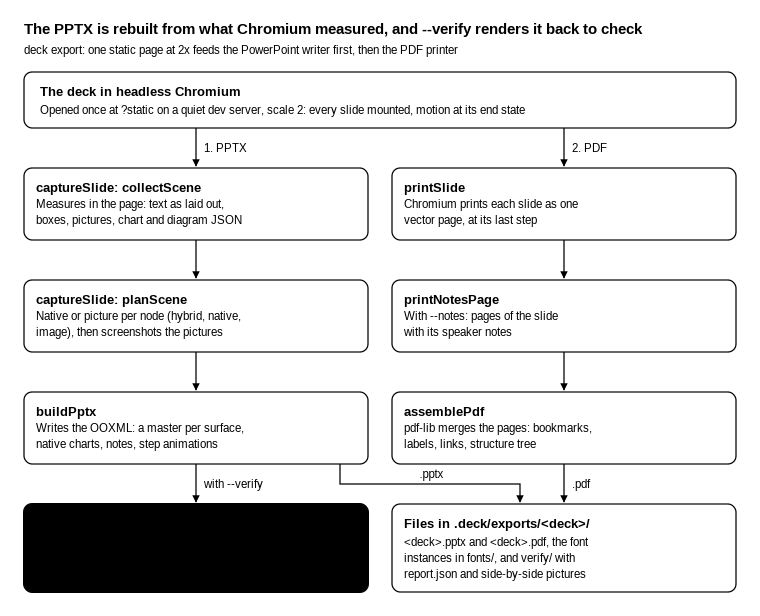
deck export --verify exports the PPTX, validates it and renders it back to compare each slide with the web; verify an export shows how to run it and read the report.
--json prints the export result as JSON for scripts. The full option list is in deck export --help and on the CLI reference.