Every running deck, in deck dev and in a build, carries its own presenting tools: a slide sidebar, an overview, go-to, blackout, a laser pointer and a presenter window with notes and a pacing timer. This page shows each tool and the keys you use while presenting from a browser. For a desktop window on a second display, see deck present and displays.
The tool cluster
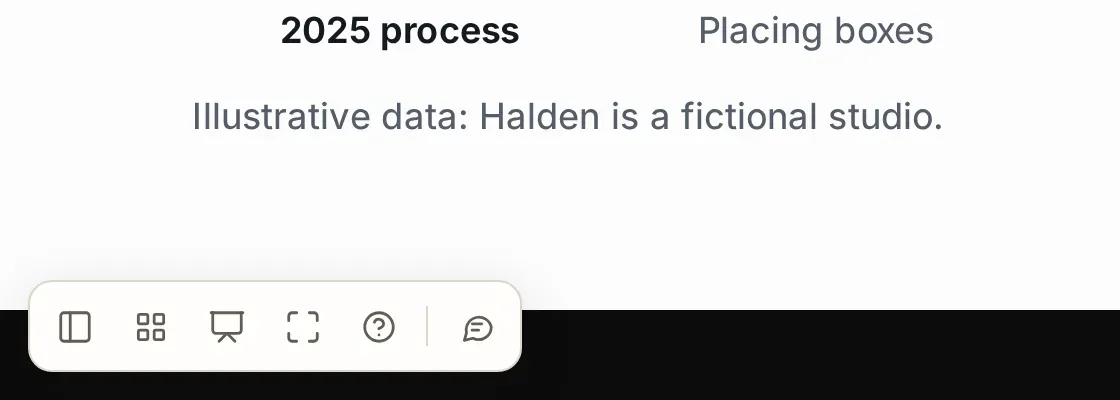
Move the pointer to the bottom-left corner of the slide and a row of small icon buttons appears; it fades when the pointer moves away. Hover a button for its name. From left to right:
| Button | Key | Where it appears |
|---|---|---|
| Slide sidebar | s |
everywhere |
| Overview | o |
everywhere |
| Presenter window | p |
everywhere |
| Fullscreen | f |
everywhere |
| Displays | none | only in the deck present window |
| Keyboard shortcuts | ? |
everywhere |
| Comment mode | c |
deck dev and deck present without --built, after a divider |
| Agent | a |
with --agent |
A built deck has five: Slide sidebar, Overview, Presenter window, Fullscreen and Keyboard shortcuts.
Keys while presenting
| Key | What it does | Works in |
|---|---|---|
| Right, Down, PageDown, Space | Next step or slide | both windows |
| Left, Up, PageUp, Shift+Space | Previous step or slide | both windows |
| Home, End | First or last shown slide | both windows |
g |
Go to slide: type its number, then Enter. A hidden slide too | both windows |
b, w |
Black out or white out the screen; press again, or any navigation key, to bring the slide back | both windows |
l |
Laser pointer | both windows |
f |
Fullscreen | both windows |
p |
Open the presenter window | audience window |
s |
Slide sidebar | audience window |
o |
Overview | audience window |
? |
Every key the running deck knows | both windows |
| Escape | Close the panel on top | both windows |
A key pressed with Ctrl, Alt or Meta is left to the browser. Next, previous, Home and End skip hidden slides; see backup slides below. The full list is in Keyboard shortcuts.
Find a slide: sidebar and overview
s opens the sidebar: every slide as a thumbnail with its number, title and time budget, the current one outlined. Click a thumbnail to go there.
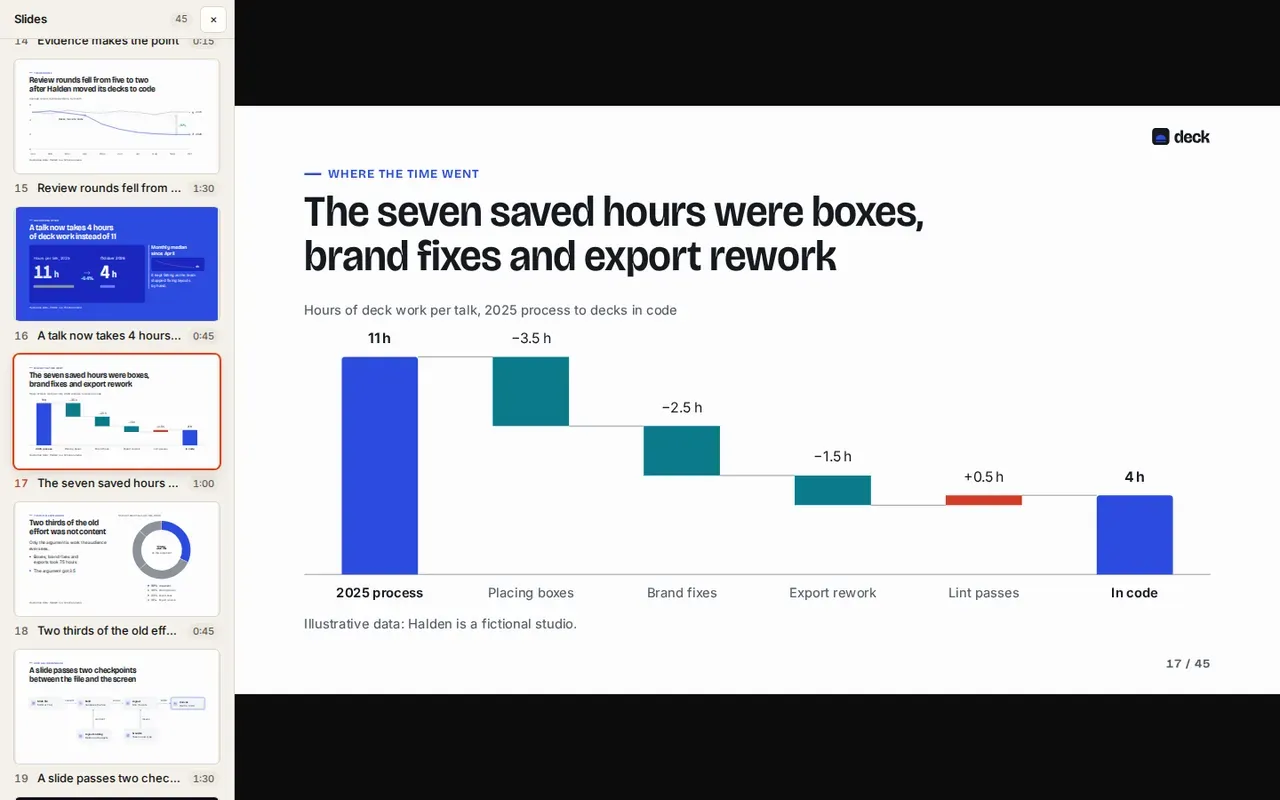
In deck dev you can also drag a thumbnail to reorder the slides, and the dev server writes the new order into deck.config.ts. A build has no server to write to, so dragging is dev only.
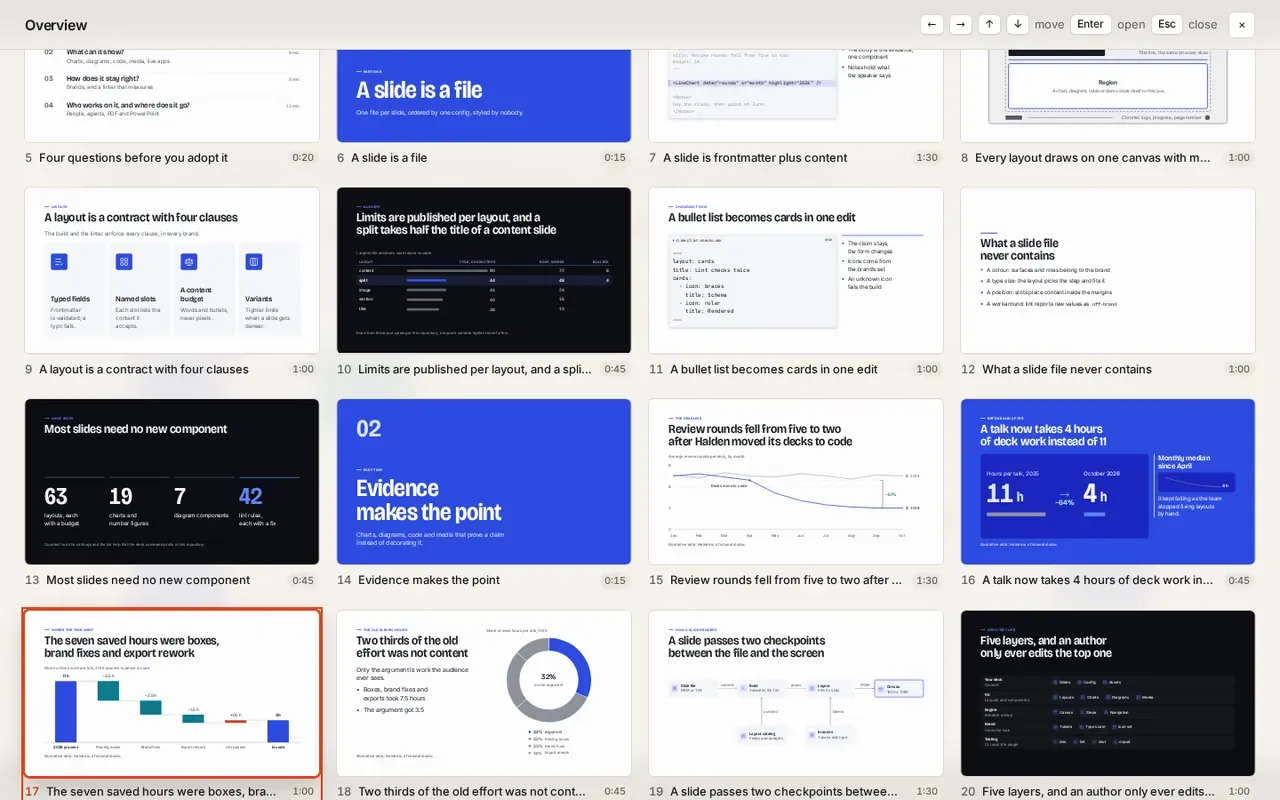
o opens the overview, the whole deck as a grid: the arrow keys move, Enter opens the selected slide, Escape closes. A slide that builds shows its step count.
The presenter window
Press p, or click the presenter button, and a second window opens at the same address with ?presenter added, for example http://localhost:5173/?presenter#/1/0; you can also open that address yourself. Drag it to the screen only you can see.
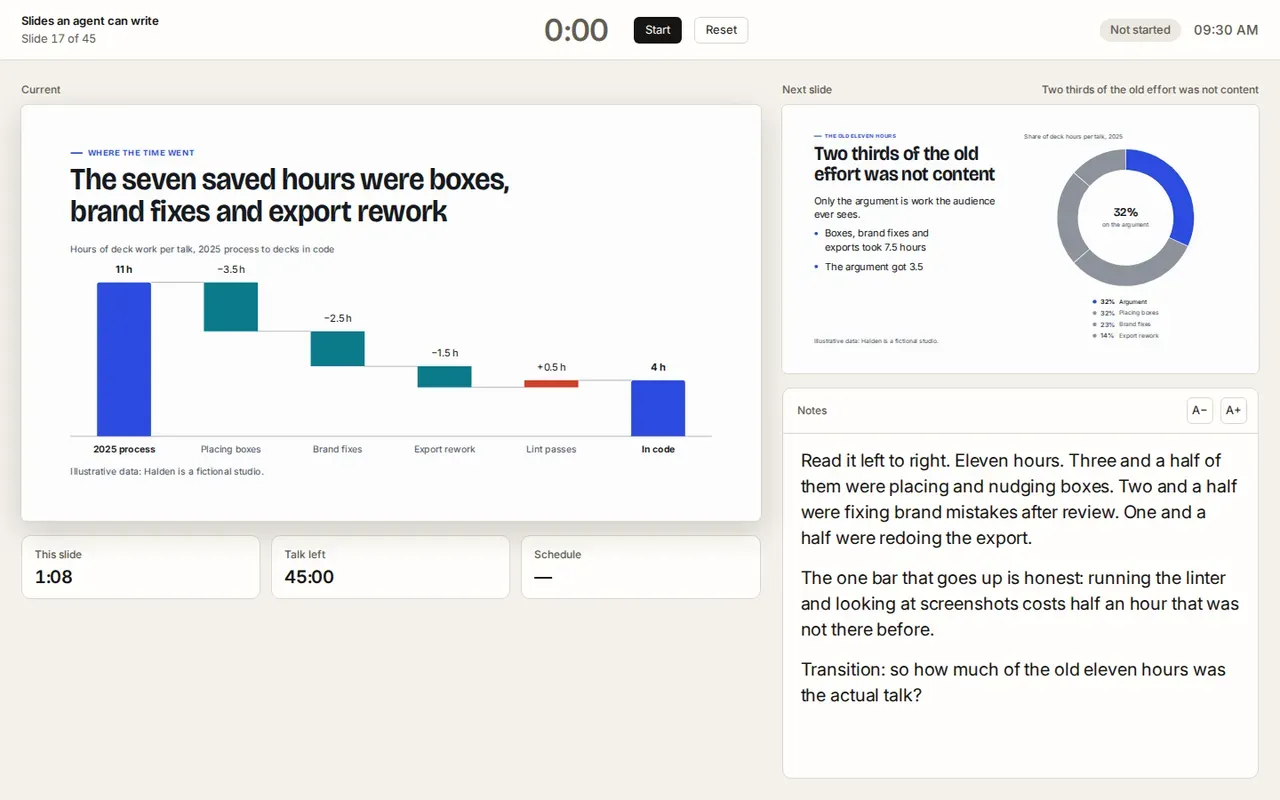
It shows the slide number; the timer with Start (then Pause) and Reset, and the wall clock; the current slide (click it for the next step) and the next slide or step; the speaker notes from <Notes>, with A− and A+ to resize them; and three pacing figures. Writing notes and budgets is covered in Speaker notes.
How pacing works
The timer starts when you press Start. Pacing compares it with each slide’s budget (in the slide’s frontmatter, such as budget: 30s), so it needs at least one slide with a budget:
- Without a
durationindeck.config.ts, the budgets stand as written, and the second figure reads Budgets left. - With a
duration, the slides without a budget share the time the budgets leave over equally, and then every budget is scaled so they add up to the duration exactly. A 20-minute talk whose budgets add up to 10 minutes plans each slide at twice its budget. The second figure reads Talk left. - Hidden slides are left out of the plan: their budgets are not in the total, and a
durationis shared between the shown slides. On a hidden slide This slide shows a dash, because the slide has no time of its own. New in 0.5.0. - Without any budget, there is no plan, with or without a
duration: a duration alone is not spread over the slides. The label reads No budgets, and This slide and Schedule show a dash. With aduration, Talk left still counts it down.
Once there is a plan, the label at the top right says Not started until you press Start, then On pace while the timer is inside the current slide’s planned window, or Ahead or Behind with the minutes and seconds. This slide counts down the current slide’s budget from the moment it came on screen, and shows a dash on a slide that has none when there is no duration; Schedule shows how far ahead (positive) or behind (negative) you are.
Backup slides
A slide with hidden: true is a backup: next, previous, Home and End pass over it, so the talk runs without it and the slide waits for its question. Hidden slides shows how to write one. Here is how you reach it while you present:
-
Open the slide sidebar (
s) or the overview (o) and select the backup. Both dim a hidden slide and badge it “Hidden”. Or pressg, type its number and press Enter. The number is the one the sidebar shows, which counts hidden slides too. Or open a link to it, such as#/4. -
Answer the question. On the hidden slide, next and previous step through its own steps first, as on any slide.
-
Leave it. Next goes to the first shown slide after the backup in the slide list, and previous to the last shown slide before it. Neither remembers where you were, so to return to the slide you came from, select it in the sidebar or press
gand its number. A backup after the last shown slide has no next.
On a hidden slide the presenter window’s header reads “Slide 4 of 4 · hidden”. Its next-slide preview shows the next shown slide, the one the audience gets after it, not the next slide in the list. The audience window shows no page number on a hidden slide, and the page numbers of the shown slides run without a gap; the two numbering rules are on hidden slides.
Two windows, one position
The two windows talk over the browser’s BroadcastChannel, named for the deck, so open them in the same browser. They share the position (a step in either window moves both), blackout and white-out, and the laser point, which shows on the audience screen. The presenter window closes itself when the audience window closes, but not when the audience window reloads, so a hot reload does not cost you your notes.
A presentation clicker sends PageDown, PageUp or the arrow keys. In the presenter window those keys and Space always move the deck unless a text field has focus, and clicking a tool button does not take the focus, so the clicker never gets stuck on a button. While the screen is blacked out, the first press brings the slide back instead of moving on.