Use this page to look up a key in a running deck: in deck dev, in deck present’s audience and presenter windows, and in a built deck. Press ? in the deck to see the same list for the window you are in.
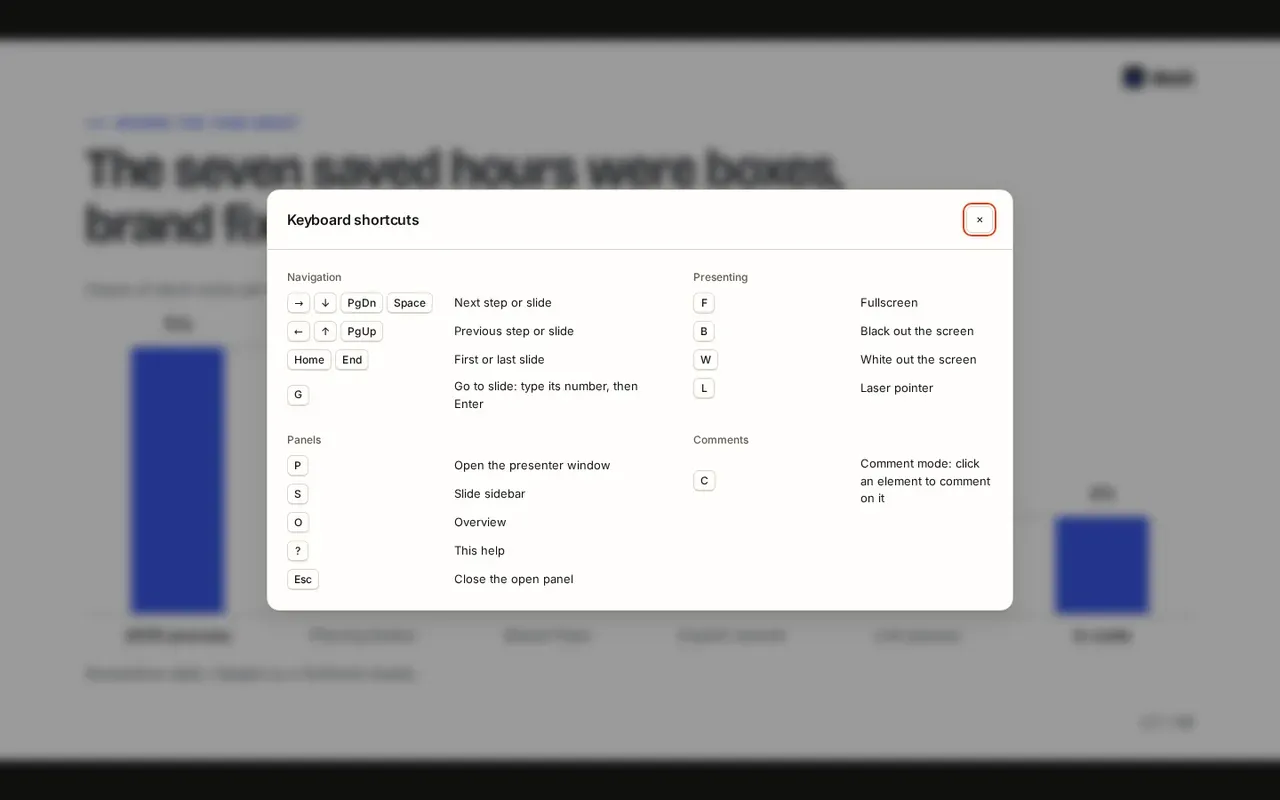
Letters match either case. A key pressed with Ctrl, Alt or Meta (Cmd) never triggers a deck shortcut, so the browser’s own shortcuts keep working. While you type into a text field, such as a comment or the agent’s input, the keys stay in the field.
Moving through the deck
These work in every running deck and in both deck present windows.
| Key | Does |
|---|---|
| Right, Down, PageDown, Space | Next step, or the next shown slide after the last step |
| Left, Up, PageUp, Shift+Space | Previous step, or the previous shown slide |
| Home | First shown slide |
| End | Last shown slide |
g, then a number and Enter |
Go to that slide, hidden or not. The number counts every slide |
| Left click | Next step or slide |
| Right click | Previous step or slide |
New in 0.5.0: the keys and the clicks skip slides marked hidden: true; see backup slides.
PageDown and PageUp are what most presentation clickers send. A click does not move the deck when it lands on a button, link or other interactive element, ends a drag or a text selection, or is made with a modifier key held. mouseNavigation: false in deck.config.ts turns both clicks off; the keys still work.
Presenter tools
The Window column says where a key works: the audience window (the deck itself, in a browser tab or deck present’s main window), the presenter window, or both. How these tools behave is on presenter tools and shortcuts.
| Key | Does | Window |
|---|---|---|
f |
Fullscreen on and off | both |
b |
Black out the screen | both |
w |
White out the screen | both |
l |
Laser pointer | both |
p |
Open the presenter window | audience |
s |
Slide sidebar | audience |
o |
Overview of every slide | audience |
? |
Keyboard shortcuts | both |
| Escape | Close the open panel | both |
The deck present menu
deck present opens the deck in its own app, whose menu adds these shortcuts. They work in both windows. In kiosk mode the menu is hidden. Press the quit shortcut twice within two seconds to quit in kiosk mode. If you started the presentation from the gallery, use the gallery shortcut below to switch decks. In a browser (deck dev, deck present --browser, a built deck) the browser’s own shortcuts apply.
| Shortcut (macOS) | Shortcut (Windows, Linux) | Does |
|---|---|---|
| Ctrl+Cmd+F | F11 | Fullscreen on and off for the audience window |
| Cmd+Shift+P | Ctrl+Shift+P | Open the presenter window, or bring it to the front |
| Cmd+Shift+D | Ctrl+Shift+D | Move the focused window to the next display |
| Cmd+R | Ctrl+R | Reload the focused window |
| Alt+Cmd+I | Alt+Ctrl+I | Developer tools of the focused window |
| Cmd+W | none | Close the focused window |
| Cmd+Q | Ctrl+Q | Quit |
The Edit menu has the system’s cut, copy, paste and undo, for typing in a comment or the agent’s input.
New in v0.7.0. Cmd+Shift+B on macOS or Ctrl+Shift+B on Windows and Linux returns to the desktop gallery, including in kiosk mode. See Choose a deck in the desktop gallery.
Comments
In deck dev, and in deck present unless it runs with --built. How commenting works is on comments.
| Key | Does |
|---|---|
c |
Comment mode on and off: click an element to comment on it (audience window) |
| Tab, Shift+Tab | In comment mode, pick the slide’s elements one by one |
| Up, Down | In comment mode, move the pick to the parent or child element |
| Alt+click | Select the parent of the element you click |
| Enter | Select the picked element, or put the cursor in the comment box |
| Cmd+Enter or Ctrl+Enter | Save the comment |
| Escape | Step back: close the comment box and keep its text, then leave comment mode, then close the panel |
Agent panel
Only when the deck runs with --agent claude or --agent codex. See agent panel.
| Key | Does |
|---|---|
a |
Show or hide the agent panel; opening it puts the cursor in its input (audience window) |
| Enter | Send the prompt |
| Shift+Enter | New line in the prompt |
| Escape | Leave the input and give the keys back to the deck |
Live demos
| Key | Does |
|---|---|
v |
Switch an <AppFrame> to its recording and back, while one with a recording is on screen (audience window) |