Make a slide unfold in the order you explain it: reveal points one press at a time with <Step>, pick how each one comes in, let earlier points recede so the room looks at the newest, and stage charts, diagrams and code the same way. How steps are numbered and what the hash shows is on steps; this page is about writing them.
Reveal content with <Step>
Wrap what should come in later in <Step at={n}>. Step 0 is the slide as it arrives; at is the press that reveals the content, a whole number of 1 or more. A <Step> without at is refused.
<Step at={1}>

08:42:10 booked.

</Step>

<Step at={2}>

08:42:51 batched.

</Step>
Hidden content keeps its space, so nothing on the slide jumps when it appears. Write the content on its own lines with a blank line after <Step> and before </Step>: the effect acts on the blocks directly inside the step.

The slide opens at its first step, before any line is in, so it shows only its eyebrow. Click it and press the right arrow three times. The same three lines with other effects are on the slides after it: fade, scale, blur, wipe and focus.
Choose an effect
effect sets how the content comes in. Durations and easings come from the brand.
effect |
What it does |
|---|---|
rise (default) |
Fades in and rises into place. |
fade |
Fades in. |
scale |
Fades in from slightly smaller, growing from the middle of the text or picture. |
blur |
Fades in from out of focus. |
wipe |
Is uncovered from the start edge across, list markers fading in with it. |
Words inside a sentence can fade, blur or wipe; rise and scale only fade there. Any other name is refused with the list of effects. Keep the default and pick another only when it carries meaning: wipe for a line read left to right, scale for a card that arrives.
 0start
 1
 2
 3
 4finished
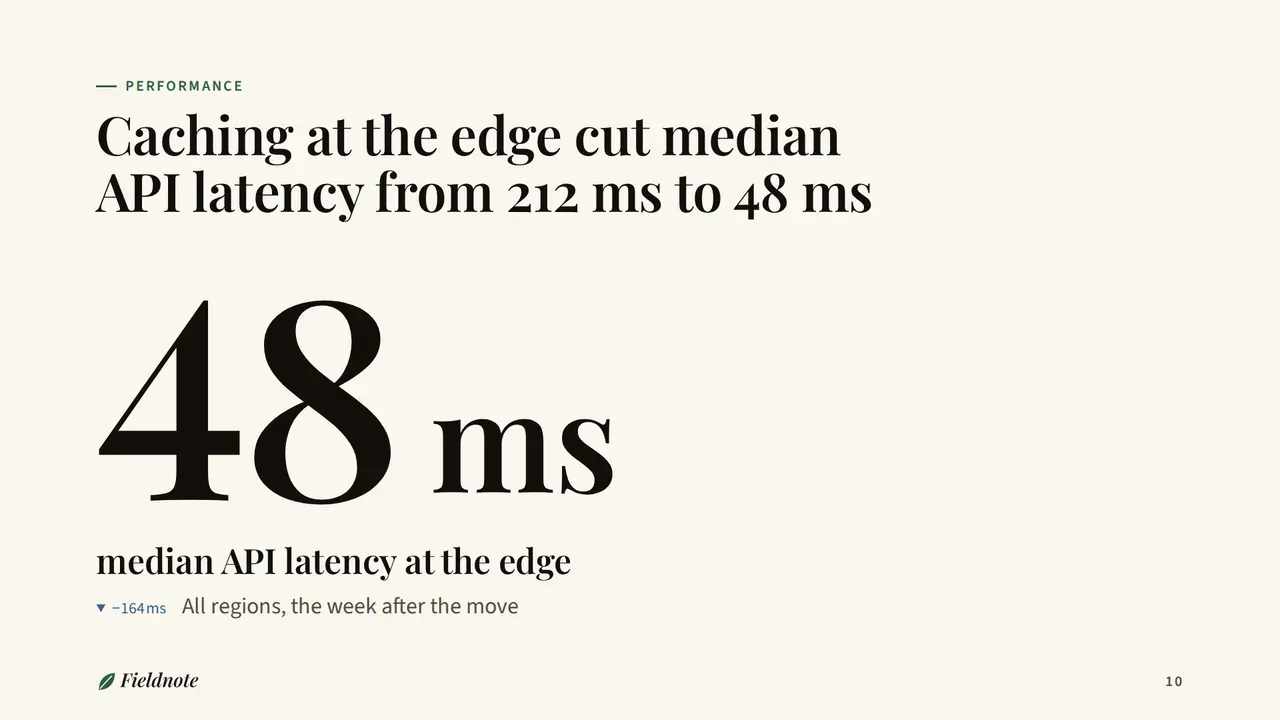
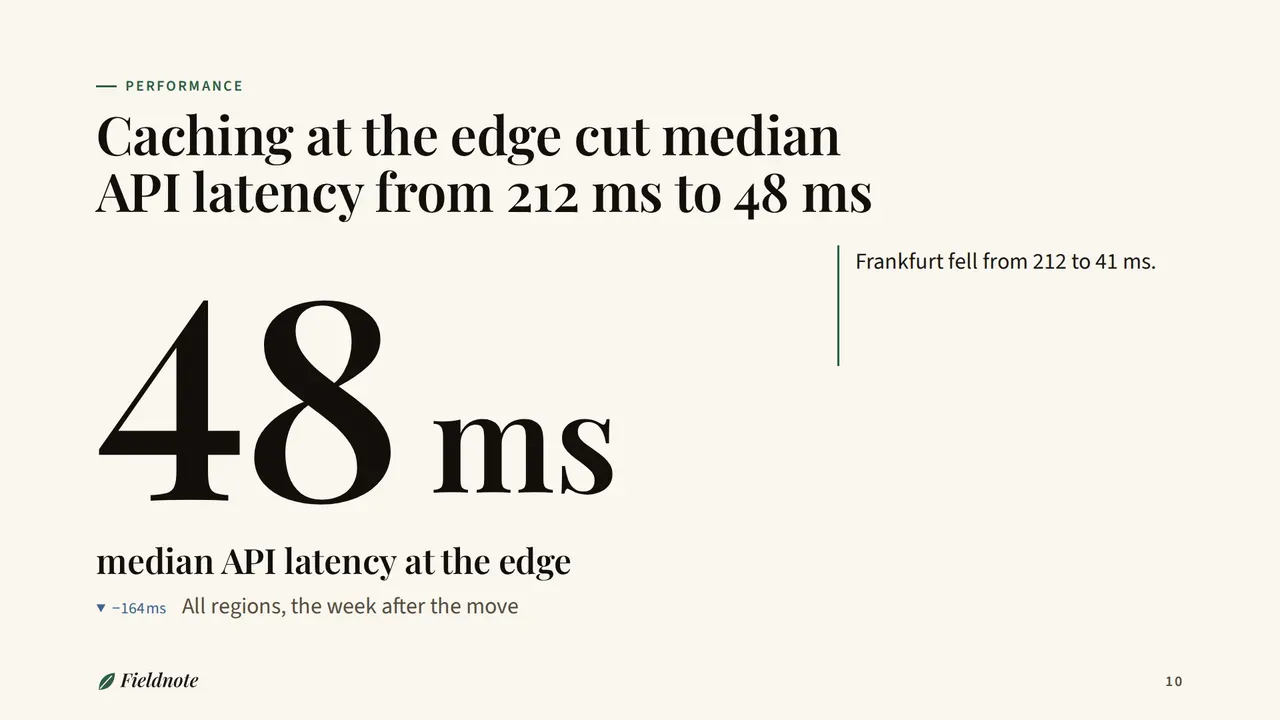
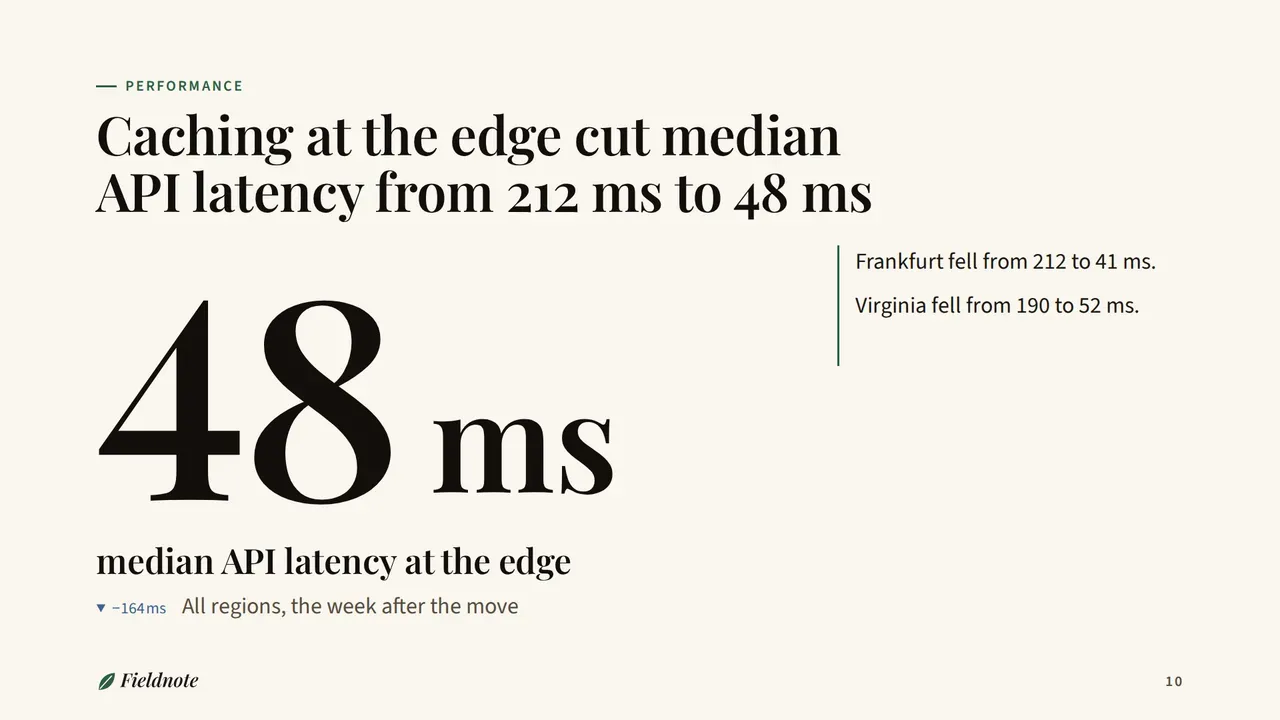
The strip above counts a figure up on step 1, then brings in one line each with fade, scale and blur. A real slide keeps one effect; this test slide uses three to show them.
Recede earlier points with focus
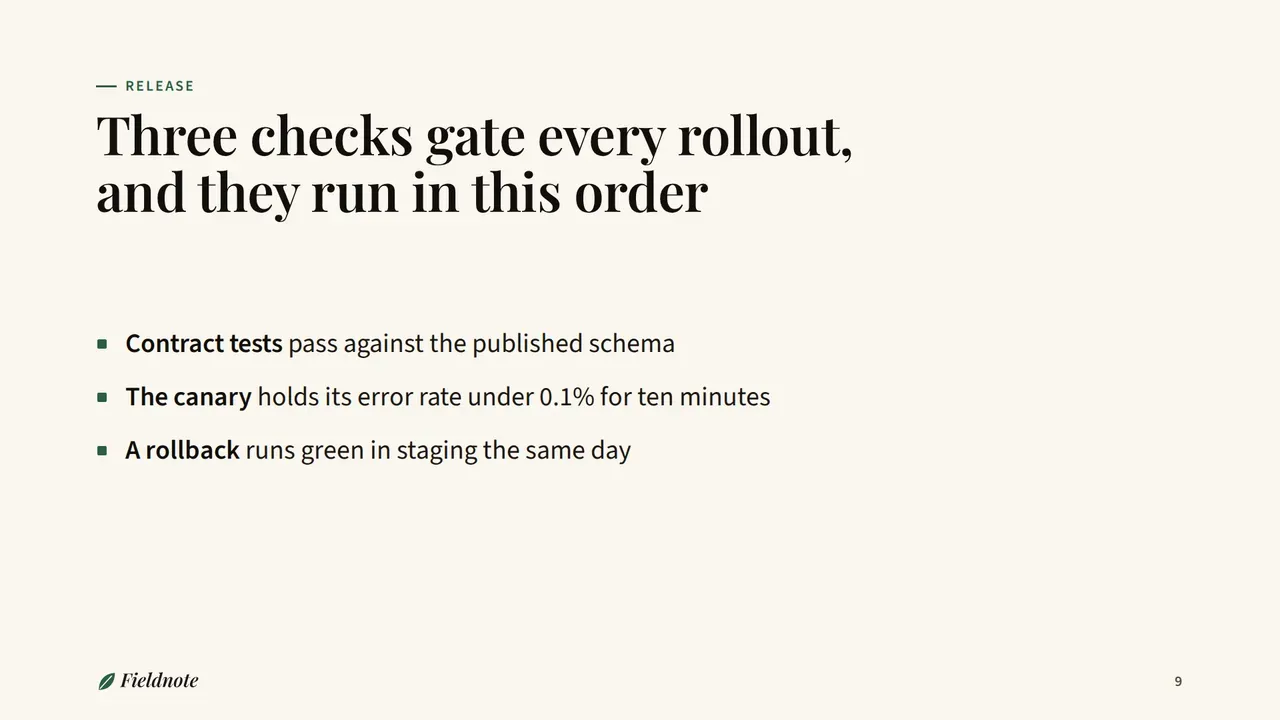
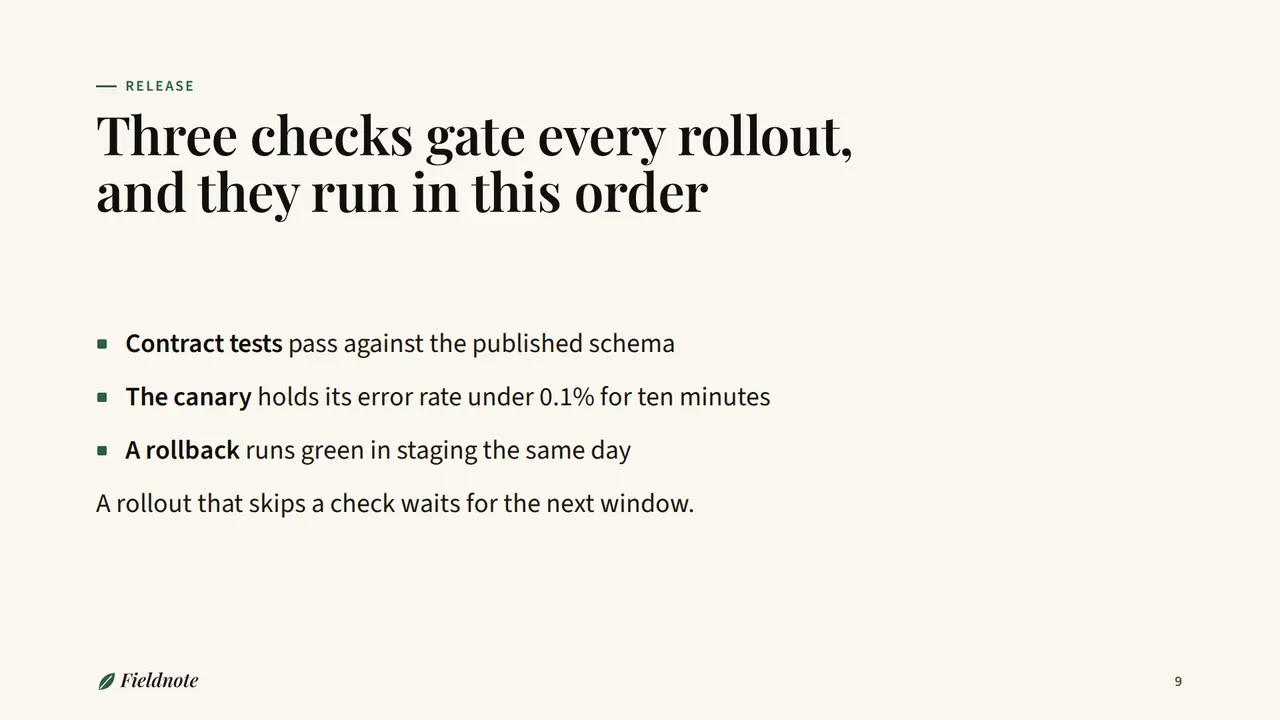
Give each step of a run you walk through focus. Once a later step of the slide is reached, a focused step recedes to the brand’s muted colour, so the one just revealed is the only one at full strength. It changes colour, never opacity, so receded text keeps its contrast.
<Step at={1} focus>

- **Contract tests** pass against the published schema

</Step>

<Step at={2} focus>

- **The canary** holds its error rate under 0.1% for ten minutes

</Step>

<Step at={3} focus>

- **A rollback** runs green in staging the same day

</Step>

<Step at={4} effect="wipe">

A rollout that skips a check waits for the next window.

</Step>
Going back a step brings the receded point back to full strength.
 0start
 1
 2
 3
 4finished
What builds without <Step>
Many parts of a slide take their own steps. They count as deck steps like any <Step>.
- Layouts with a
revealfield.reveal: truebrings the items in one per step onactions,ask,before-after,bento,cards,columns,comparison,conversation,dashboard,do-dont,equation,faq,features,market,matrix,pricing,proof,quadrants,quiz,recap,risks,schedule,screen,shift,status,steps,timelineandvoices. Each layout’s page gives the order. Sixteen of them are new in 0.6.0:actions,before-after,conversation,dashboard,do-dont,faq,features,market,pricing,quadrants,quiz,recap,risks,schedule,statusandvoices. Onquiz,revealdefaults totrueand the second step marks the answer. - Presentation layouts added in v0.7.0. Ten more layouts take
reveal: true. Each has its own order. For example,roadmap-transitshows parallel workstreams, then the transfer, then the milestone it enables. Presentation patterns · Transit roadmap - Charts.
aton a chart, a series, itshighlightor an annotation, andrevealby series or category. Usefocus.fromin<RetentionCohorts>orbuildFromin<ProfitPool>and<MarketMovement>to start each chart’s own sequence. Highlights and annotations · Chart props - Diagrams.
aton nodes, groups and edges, a<Journey>that travels one hop per step, and<Packet>traffic. See flow diagrams. - Code. Highlight ranges in a fence (
{2-4|7}),<CodeMove>versions and<Terminal>commands. See code. - Video.
cuescut a<Video>into parts played one per step. See media. - Demos.
<CommandDemo>,<GroundedAnswer>,<ReviewDiff>and<RunTrace>have deck steps by default. Usereveal={false}to start at the finished state. Product and AI demos - Count-ups. A stat’s number, such as a
<BigNumber>, counts up from zero when the deck moves forward onto its slide or onto the step that reveals it. Years, small numbers and text such as1 in 4do not count, and nothing counts going back.
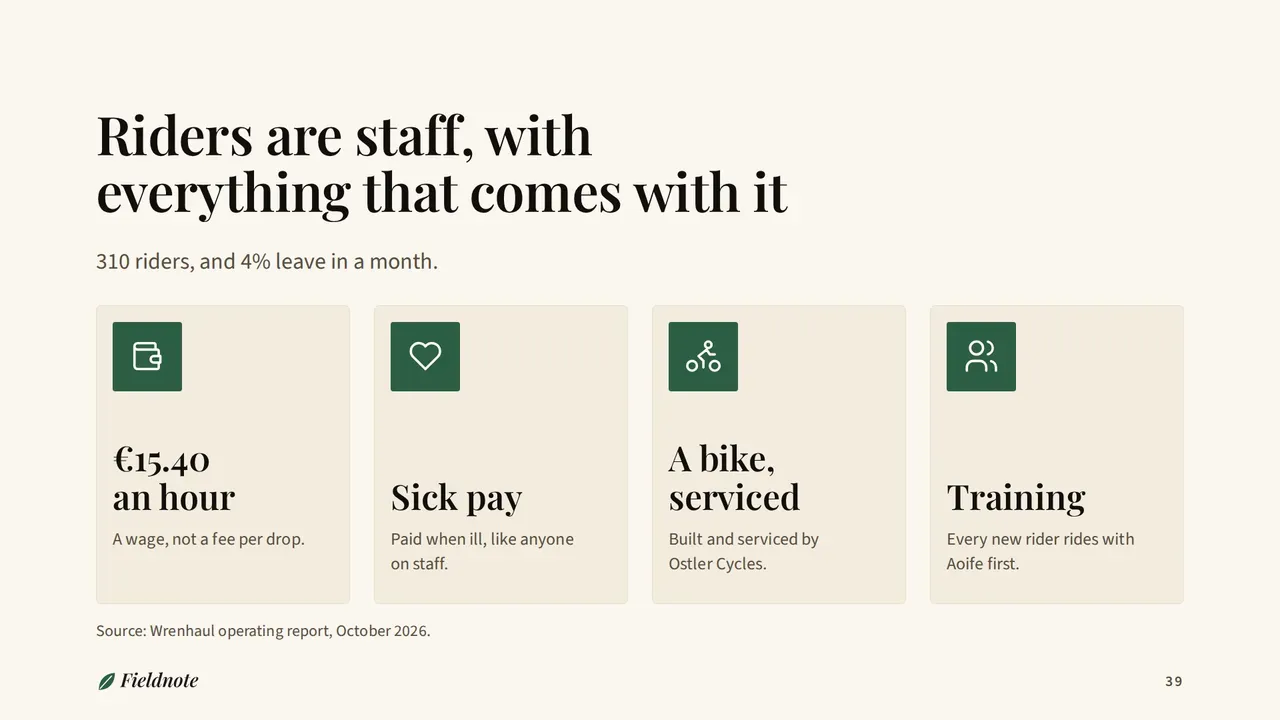
A cards slide with reveal: true brings in one card per press. The example opens at the slide’s last step, with every card in: press the left arrow to take the cards away one at a time.
---
layout: cards
title: Riders are staff, with everything that comes with it
reveal: true
cards:
  - icon: wallet
    title: €15.40 an hour
    text: A wage, not a fee per drop.
  - icon: heart
    title: Sick pay
    text: Paid when ill, like anyone on staff.
  - icon: bike
    title: A bike, serviced
    text: Built and serviced by Ostler Cycles.
  - icon: users
    title: Training
    text: Every new rider rides with Aoife first.
budget: 45s
---

310 riders, and 4% leave in a month.

<Footnote>Source: Wrenhaul operating report, October 2026.</Footnote>

<Notes>
`cards` with four cards and `reveal: true`, one card per click; use it for peers you name one at a time.
Our 310 riders are employees. [click] They earn €15.40 an hour, [click] they get sick pay, [click] a bike that someone else maintains, [click] and training with Aoife Brennan, our first rider. That is why only 4% leave in a month.
</Notes>
Slide 39 of the lookbook deckView on GitHub
Tell the speaker
Put a [click] cue in the notes at the point where each step is spoken, in order. The notes of the slide above read “Our 310 riders are employees. [click] They earn €15.40 an hour, [click] they get sick pay, …”. Notes and cues are on speaker notes.
When a slide should not build
Exports show a slide’s last step, so every slide must read whole. Reveal what the speaker builds on, not every bullet by habit; experts read faster than you reveal. Leave a slide whole when nothing on it is explained part by part.
The opposite mistake has a lint rule. few-builds warns when a deck has 4 or more chart, diagram and code slides and fewer than 25% of them build in steps:
$ deck lint launch-review
decks/launch-review/deck.config.ts
  warning few-builds: 0 of 4 chart, diagram and code slides build in steps; these show everything at once: routes, auth, limits, deploy.
          Fix: Stage the figures the notes walk through, in the order the notes explain them: `reveal` or `at` on a chart and its highlight and annotations, `at` on diagram nodes and edges or a <Journey>, step ranges on a code fence (```ts {2-4|7}), and a [click] cue in the notes for each step. Check the order with `deck shot <deck> <slide> --steps`.

launch-review: 0 errors, 1 warning in 4 slides (4 steps checked).
Where nothing moves
Static mode, deck shot and exports show each step’s end state, and every revealed step at full strength: nothing recedes. So do the slide copies in thumbnails and the presenter’s panes. Viewers who ask for reduced motion get a fade for every effect, and a PowerPoint export turns each step into a fade on click. To move a whole slide or carry an element to the next one, see transitions and morphs. Every prop of <Step> is on components.