deck build turns a deck into a folder of static files that any web host can serve, so you can share the deck as a link. After this page you can build one deck, check the build locally, add the PDF and PowerPoint files, build a site of several decks with a gallery page, and put it online.
Build one deck
-
Build the deck:
$ deck build launch-review
transforming...
✓ 854 modules transformed.
rendering chunks...
computing gzip size...
decks/launch-review/dist/index.html    0.81 kB │ gzip:   0.36 kB
...
✓ built in 756ms
The output is cut: Vite lists every file it writes, and then a note that some chunks are larger than 500 kB. The build succeeded when the command exits with 0.
-
Look at the build before you upload it:
$ deck preview launch-review
  ➜  Local:   http://localhost:4173/
Open the address and click through the deck. Press Ctrl+C to stop the server.
--port <n>uses that port and fails if it is taken;--hostlistens on all network interfaces, so a phone on the same network can open it. -
Upload
decks/launch-review/dist/to your host.
The build lands in decks/<deck>/dist/. Every path in it is relative (./assets/...), so the folder works at the root of a domain or under any sub-path, such as https://example.github.io/talks/launch-review/, without configuration. Without a deck name, deck build builds every deck in the workspace (or the deck in $DECK, when it is set).
Add the PDF and PowerPoint files
--with-exports also exports the deck to <deck>.pdf and <deck>.pptx beside its index.html:
deck build launch-review --with-exportsA <Download file="launch-review.pdf"> button on a slide then has a file to link to; see Links. The exports are the same as deck export writes; see PDF. They need Chromium (npx playwright@1.65.0 install chromium).
New in 0.5.0: the build includes slides with hidden: true, and a visitor who opens one by its number or id sees it, but the exports leave them out, as deck export does without --include-hidden. A deck of four slides with one hidden builds four slides and exports a three-slide PowerPoint file. The gallery of a site counts all four. See hidden slides.
Build a site of several decks
--out <dir> builds decks into one site folder with a gallery page:
$ deck build --all --out site --with-exports
Leaving out 1 scratch deck(s) (zz-): zz-broken. Pass --include-scratch to build them too.
...
Built 2 deck(s) into /Users/you/talks/site; open /Users/you/talks/site/index.html
The Vite output of each deck is cut, and the absolute path is shortened to /Users/you/talks. The folder:
- site/
- index.html
- .deck-site
- hello/
- index.html
- thumbnail.png
- hello.pdf
- hello.pptx
- assets/
- fonts/
- launch-review/
- index.html
- thumbnail.png
- launch-review.pdf
- launch-review.pptx
- assets/
- fonts/
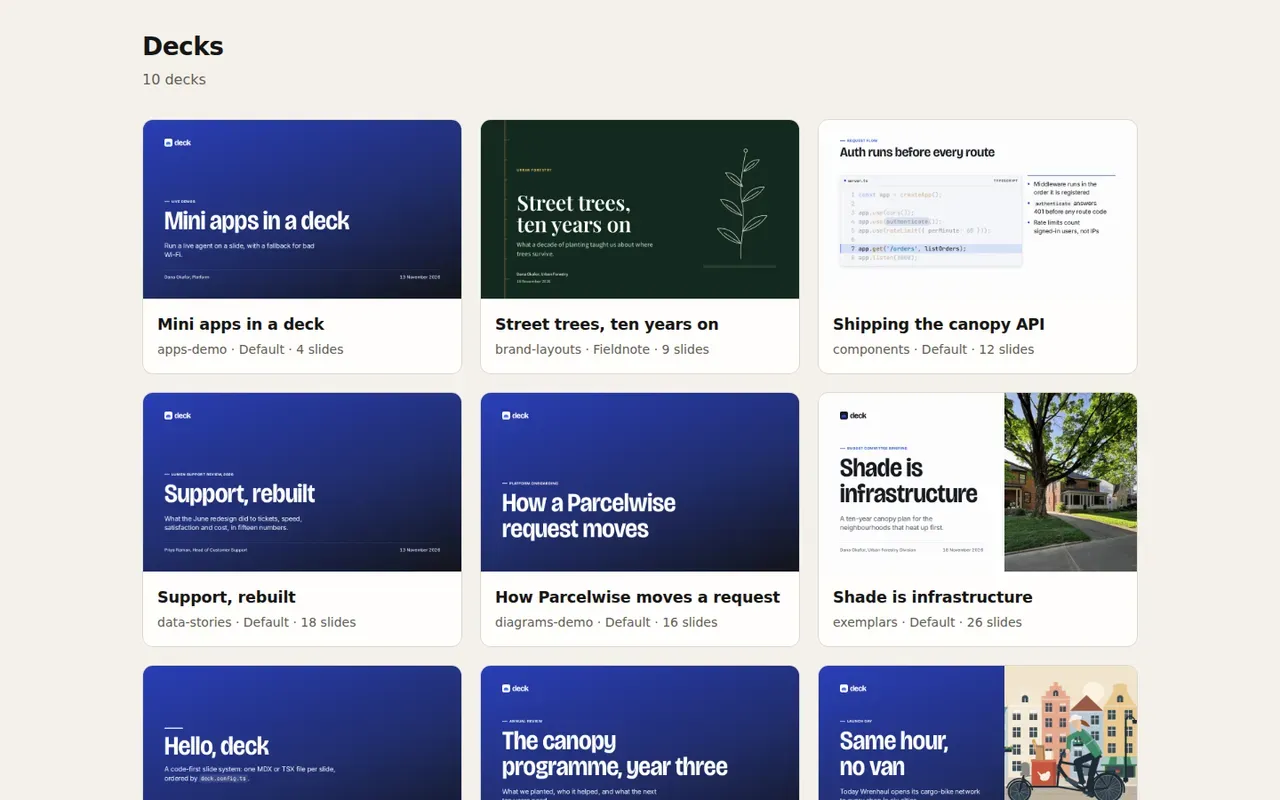
index.htmlis the gallery: each deck’s title, brand, slide count and thumbnail, with links to the deck and, with--with-exports, to its PDF and PPTX.- Each deck’s folder is its
dist/build plusthumbnail.png, its first slide at 960x540. Taking a thumbnail needs Chromium; a thumbnail that cannot be taken is reported and left out, and the build still succeeds. .deck-sitemarks the folder as onedeck buildmade.
This is the gallery of the published decks in the deckster repository, built with deck build --all --out <dir> and no exports:
Which decks go in:
| Command | Decks in the site |
|---|---|
deck build --out site |
Every deck, or the deck in $DECK when it is set. |
deck build --all --out site |
Every deck, ignoring $DECK. |
deck build launch-review --out site |
Only that deck. |
Decks whose folder name starts with zz- are scratch decks (trial runs) and are left out of a site unless you name one or pass --include-scratch.
The site folder is replaced on every build. deck build writes the new site beside it and swaps it in when it is complete, so a failed build leaves the previous site. To protect your sources, it refuses a folder that is the workspace, holds it, or is (or is inside) decks/, brands/ or packages/:
$ deck build --out decks
--out /Users/you/talks/decks is not a safe site folder: it is `decks/` or inside it. The build replaces the folder, so it would delete sources. Use a folder of its own such as `site`.
Run `deck build --help` for the usage.
It also refuses to replace a folder that has files in it but no .deck-site marker, so it never deletes a folder it did not make.
deck preview serves one deck’s dist/, not a site folder. To look at a site, serve the folder, for example with python3 -m http.server -d site 8080, and open http://localhost:8080/. Press Ctrl+C to stop it.
Host it
A built deck or site is plain HTML, JavaScript, CSS, fonts and pictures. Any static host can serve it, including GitHub Pages, Cloudflare Pages, Netlify and Vercel: give the host the output folder (site/, or decks/<deck>/dist/) as what to publish. You can upload a folder you built locally, or let the host build it with your workspace’s own commands:
npm install --global @deckster/cli@0.8.0
npx playwright@1.65.0 install chromium
deck build --all --out site
The CLI needs Node 26 or later on the build machine. Chromium is needed only for thumbnails and --with-exports.
Example: GitHub Pages
This workflow builds every deck on each push to main and publishes the site. Save it as .github/workflows/decks.yml, then in the repository’s settings, under Pages, set the source to GitHub Actions. It is adapted for an npm workspace from the deploy workflow in the deckster repository at v0.3.0, which pins each action to a commit:
name: Decks
on:
  push:
    branches: [main]
  workflow_dispatch:
permissions:
  contents: read
concurrency:
  group: pages
  cancel-in-progress: false
jobs:
  build:
    runs-on: ubuntu-latest
    steps:
      - uses: actions/checkout@3d3c42e5aac5ba805825da76410c181273ba90b1 # v7.0.1
      - uses: actions/setup-node@949feb2413d6458794dcd2491c4babbbce0c15c1 # v7.1.0
        with:
          node-version: 26
      - run: npm install --global @deckster/cli@0.8.0
      - run: npx playwright@1.65.0 install chromium --with-deps
      - run: deck build --all --out site
      - uses: actions/upload-pages-artifact@fc324d3547104276b827a68afc52ff2a11cc49c9 # v5.0.0
        with:
          path: site
  deploy:
    needs: build
    runs-on: ubuntu-latest
    permissions:
      pages: write
      id-token: write
    environment:
      name: github-pages
      url: ${{ steps.deployment.outputs.page_url }}
    steps:
      - id: deployment
        uses: actions/deploy-pages@368f82528645a54fb793d4d04e342629a3f51346 # v5.0.1
If your workspace has a package.json (for a brand’s font packages), add - run: npm ci before the build. Add --with-exports to the build line for the PDF and PowerPoint files. Keep site/ out of git (add it to .gitignore): the workflow builds it.
What a built deck leaves out
A build keeps the presenter tools, such as the presenter window, the sidebar and the overview (see Presenter tools and shortcuts); only reordering slides in the sidebar is limited to deck dev. It leaves out everything that needs the dev server: review comments and comment mode, the agent panel and the tools agents connect to. Nobody who opens a hosted deck can leave comments or change it.
Embed a slide on another page
Embed mode is available from v0.4.0. Use the hosted deck address as the iframe source, put ?embed before the hash, and use a slide ID to keep the link pointing at that slide when you reorder the deck. This example opens the Fieldnote part divider on this site:
<iframe
  title="Street trees, ten years on"
  src="https://sandrinodm.github.io/deckster/decks/brand-layouts/?embed#/part-one"
  loading="lazy"
  style="width: 100%; aspect-ratio: 16 / 9; border: 0;"
></iframe>
Readers can step through the deck using the previous and next buttons or focus the deck to use the arrow keys. Open full deck opens the current position in a new tab. To start at a particular build, append the zero-based step to the slide ID, for example ?embed#/part-one/0. See deck URL parameters.