Put a whole small app inside a slide, such as an agent run or a product demo, that takes the deck’s brand and plays one move per press. A mini app is a page of its own in your deck folder, shown in an iframe by <AppFrame>, and talks to the deck through the app bridge.
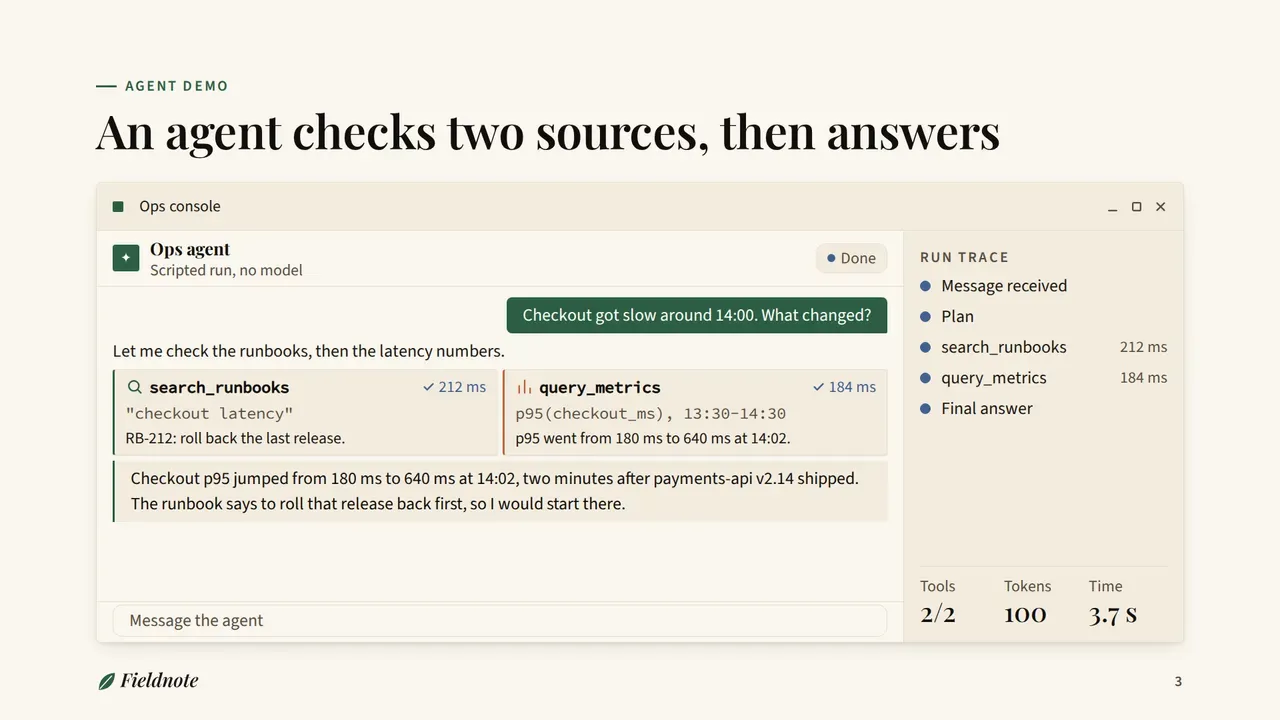
This slide is a scripted agent run. Click into it and press the left arrow to step back through its moves; click inside the app to use it, and press Escape to give the keyboard back to the deck.
Create, show and build one
-
Create the app in a deck:
$ deck new app launch-review agent-demo
decks/launch-review/apps/agent-demo/index.html
decks/launch-review/apps/agent-demo/main.tsx
decks/launch-review/apps/agent-demo/app.tsx
decks/launch-review/apps/agent-demo/error-boundary.tsx
decks/launch-review/apps/agent-demo/app.css
Next: add <AppFrame app="agent-demo" poster="..." /> to a slide.
It is a React app wired to the bridge. In an npm workspace it installs nothing and writes no
package.json; React and the bridge come with the CLI. Write your demo inapp.tsx. -
Add a slide for it on the
demolayout, which gives the frame the whole region under the title:$ deck new slide launch-review demo --layout demo decks/launch-review/slides/demo.mdx decks/launch-review/deck.config.tsIt writes
slides/demo.mdxwith a<Live>placeholder and addsdemoto theslideslist indeck.config.ts. -
Give the frame a poster.
posteris required: it is the still that static mode,deck shot, exports and offline runs show instead of the frame, and the file must exist, ordeck lintreportsmedia-missingandbroken-image. Until you have a picture of the app, use a still of the title slide and replace the file later:deck shot launch-review title --out decks/launch-review/assets mv decks/launch-review/assets/01-title.png decks/launch-review/assets/agent-poster.png -
Replace the contents of
slides/demo.mdxwith an<AppFrame>:--- layout: demo title: Watch the agent call two tools, then answer eyebrow: Live demo --- <AppFrame app="agent-demo" poster="../assets/agent-poster.png" alt="The agent demo" chrome="window" /> <Aside> - Tool calls appear as cards - The answer streams in last </Aside> <Notes> Say what to watch for before the demo starts, then let it run without talking over it. </Notes>chromedresses the frame:none(default),window(a title bar) orbrowser(an address bar).posterandfallbackfollow the media path rule:../assets/agent-poster.pngstarts at the slide file, so it namesassets/agent-poster.pngin the deck folder. -
Check it:
$ deck lint launch-review launch-review: no problems in 2 slides (2 steps checked). -
Build the deck. The app is built with it, into
dist/apps/<name>/:$ deck build launch-review ... $ ls decks/launch-review/dist/apps/agent-demo assets index.htmlHosting the built folder is on build and host.
How the app talks to the deck
The app reads the deck through useDeckApp() from @deckster/app-bridge/react. This is the component deck new app writes:
import { useDeckApp } from '@deckster/app-bridge/react';
import { useEffect } from 'react';

const STEPS = 3;

function Demo() {
  const { brand, active, step, ready, requestSteps } = useDeckApp();
  useEffect(() => {
    requestSteps(STEPS);
    ready();
  }, [ready, requestSteps]);
  return (
    <main className="app" data-active={active}>
      <h1>{brand?.label ?? 'Standalone'}</h1>
      <p>
        Step {step} of {STEPS}. The slide is {active ? 'on screen' : 'paused'}.
      </p>
    </main>
  );
}
From useDeckApp() |
What it is |
|---|---|
step |
The slide’s current step. Move through the demo with it. |
active |
Whether the slide is on screen. Pause work while it is not. |
brand |
The deck’s brand tokens, for values in code. |
status |
connecting, connected, or standalone when the page is opened on its own, so you can develop it in a normal tab. |
ready() |
Say the first complete frame is drawn. The slide waits for it, up to readyTimeout (8000 ms by default). |
requestSteps(n) |
Own n steps of the slide (0 to 64): the slide gets that many presses, and the app follows them through step. |
next(), prev() |
Move the deck. |
error(message) |
Report a failure; the deck shows the recording or the poster. The scaffold’s error boundary calls it. |
release() |
Give the keyboard back to the deck. |
On connecting, the app gets the brand’s --brand-* CSS custom properties and the deck’s fonts on its page, so style it with the same variables a slide uses. Clicks inside the frame do not move the deck; once the app has focus the keyboard is the app’s until Escape.
In static mode the frame never loads, so an app that owns steps should also say how many with steps={n} on the <AppFrame>, so deck shot --steps and exports see them. A poster can be a function of the step, as on the slide above, to draw the app’s state at each one.
What is checked
| Problem | Reported as |
|---|---|
No poster |
A build error in MDX, a render-error in TSX. |
app names a folder the deck does not have |
A build error in MDX; app-missing in deck lint for a name computed in TSX. |
src loads an external page with no fallback |
app-external-src warning. |
$ deck lint launch-review
decks/launch-review/slides/demo.mdx
  error   schema (demo): Line 7, column 1: <AppFrame app="agent-dmeo"> names an app that does not exist: there is no decks/launch-review/apps/agent-dmeo/index.html. Its apps: agent-demo. Create it with `deck new app launch-review agent-dmeo`, or fix the name.
          Fix: Change the element as the message says.

launch-review: 1 error, 0 warnings.
External pages and failures on stage
src loads a page instead of a bundled app. A page on another site needs the venue’s network and gets no bridge unless you set bridge. Give it a fallback: a recorded video that plays, muted and looping, when the browser is offline, the host does not answer or the app fails. Without one, the deck shows the poster.
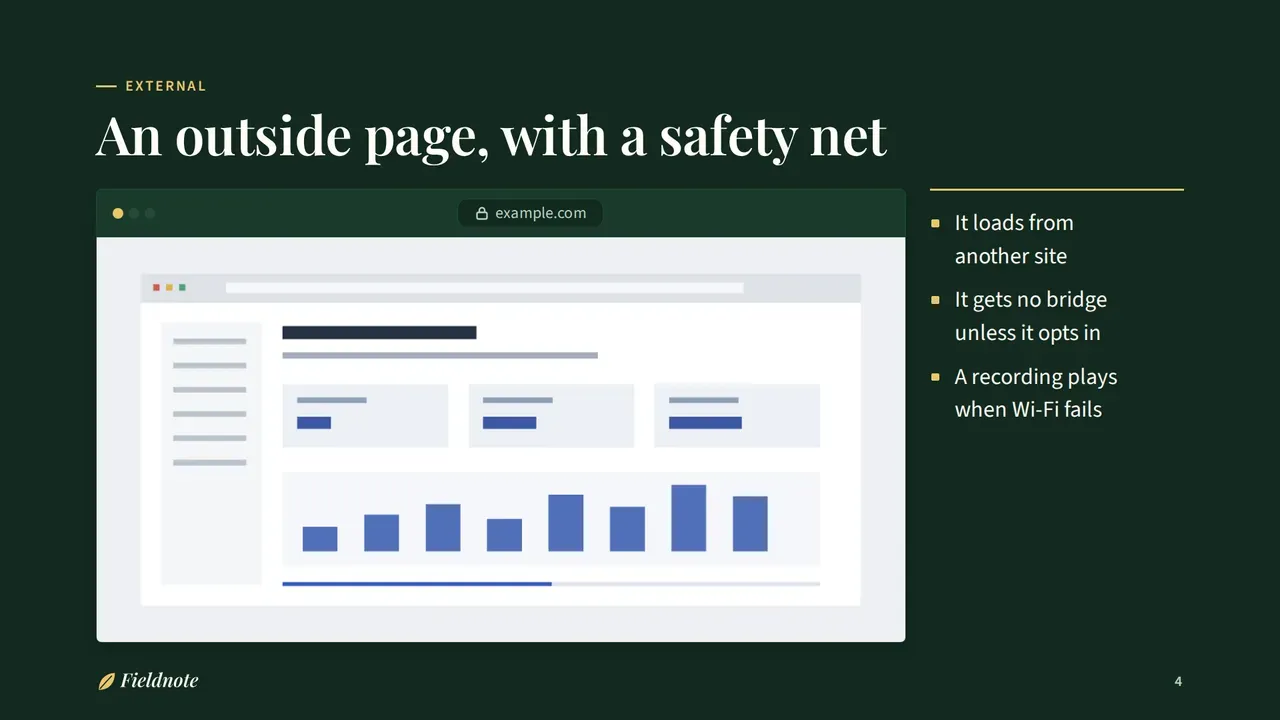
---
layout: demo
title: An outside page, with a safety net
eyebrow: External
surface: inverse
budget: 1m
---

<AppFrame
  src="https://example.com/"
  chrome="browser"
  mount="active"
  keepAlive
  poster="../assets/external-poster.png"
  fallback="../assets/external-fallback.webm"
  alt="A browser showing a documentation page"
/>

<Aside>
- It loads from another site
- It gets no bridge unless it opts in
- A recording plays when Wi-Fi fails
</Aside>

<Notes>
This frame points at a page on another site. If the venue network fails, the recorded video plays in its place, and exports show the poster.
</Notes>
Slide 4 of the apps-demo deckView on GitHub
With a fallback, the presenter can switch between the live demo and the recording with the frame’s Recording control or the v key (keyboard shortcuts).
The iframe isolates the app’s CSS and globals from the deck; it is not a security boundary. Bundled apps run with sandbox="allow-scripts allow-same-origin allow-forms", and sandbox and allow add tokens.
<AppFrame> or <Live>
For a small widget that can share the slide’s styles, such as a counter or a slider, use <Live>: it runs in the slide’s own React tree with no build of its own. See live components. Every <AppFrame> prop, including mount, keepAlive and readyTimeout, is on components.