Put code on a slide as a fenced block, step the focus through it line by line, animate it from one version to the next with <CodeMove>, or type a shell session one command per press with <Terminal>. Each of these is a deck step, so the speaker controls the pace.
Code goes on the code layout: a title that says what the code shows, one block of code, and up to three short notes in <Aside>.
Write a code block
A fence with a language is a code block. The words after the language set its options:
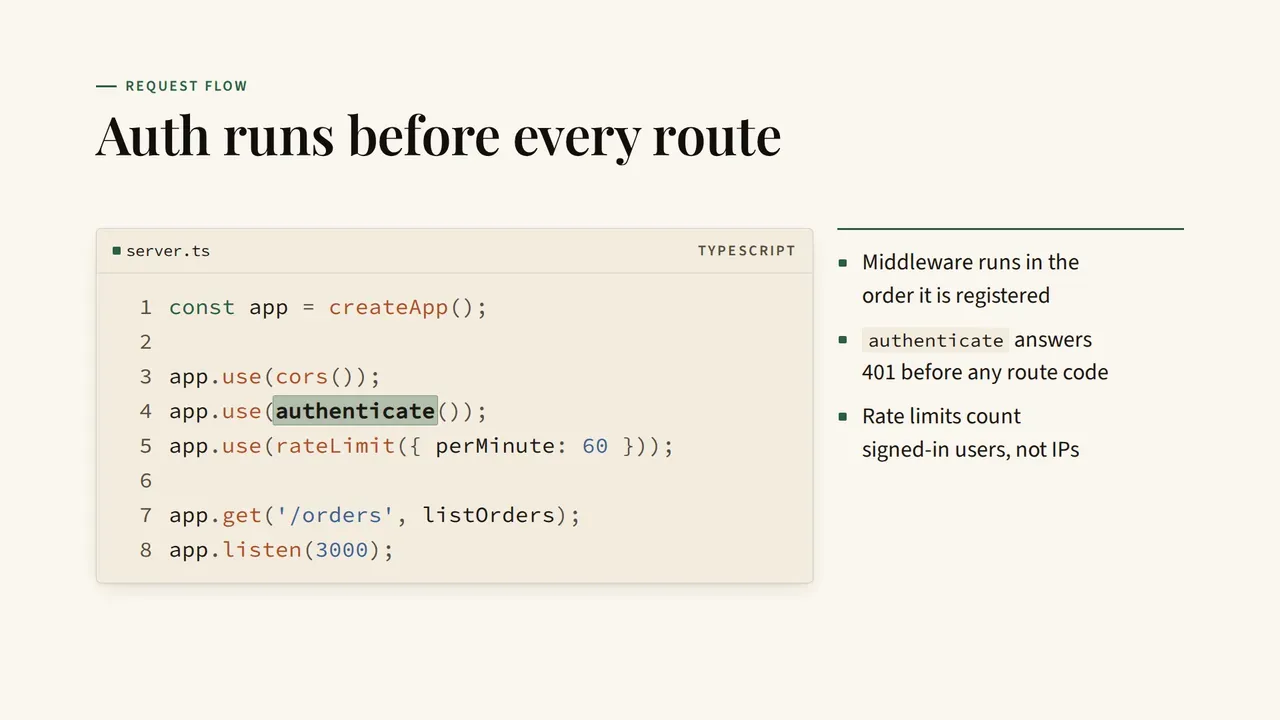 0start
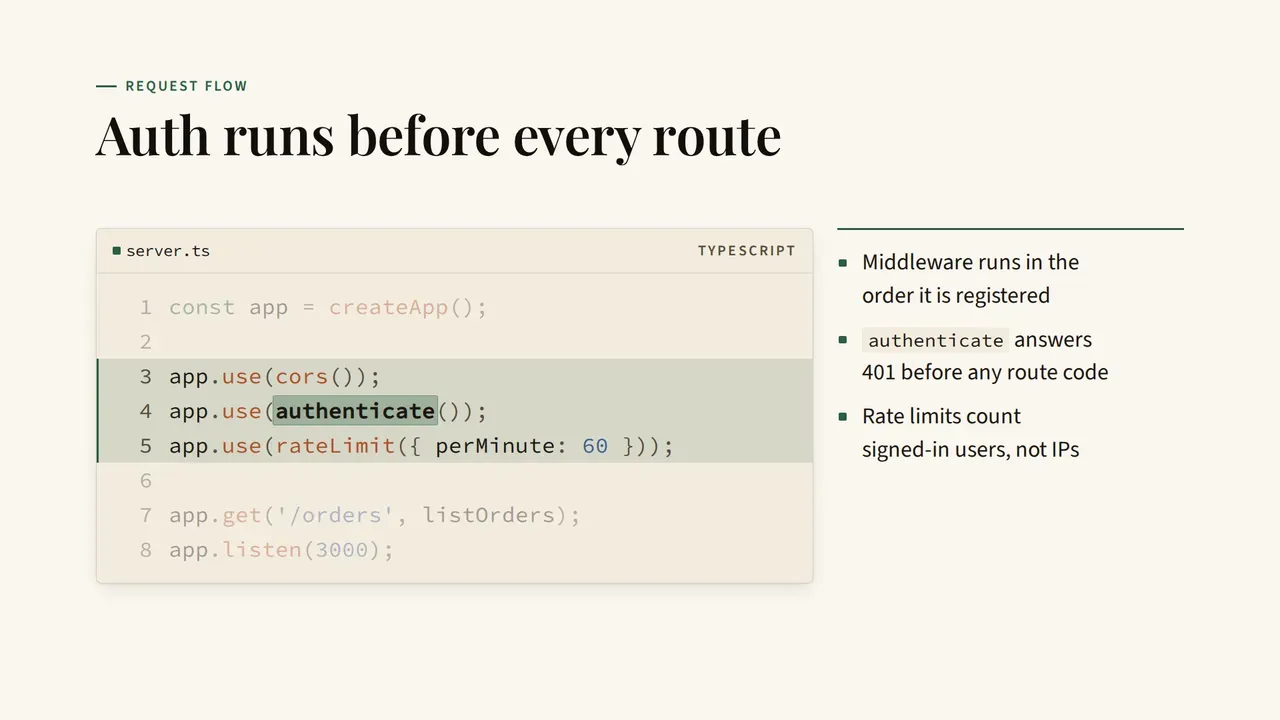 1
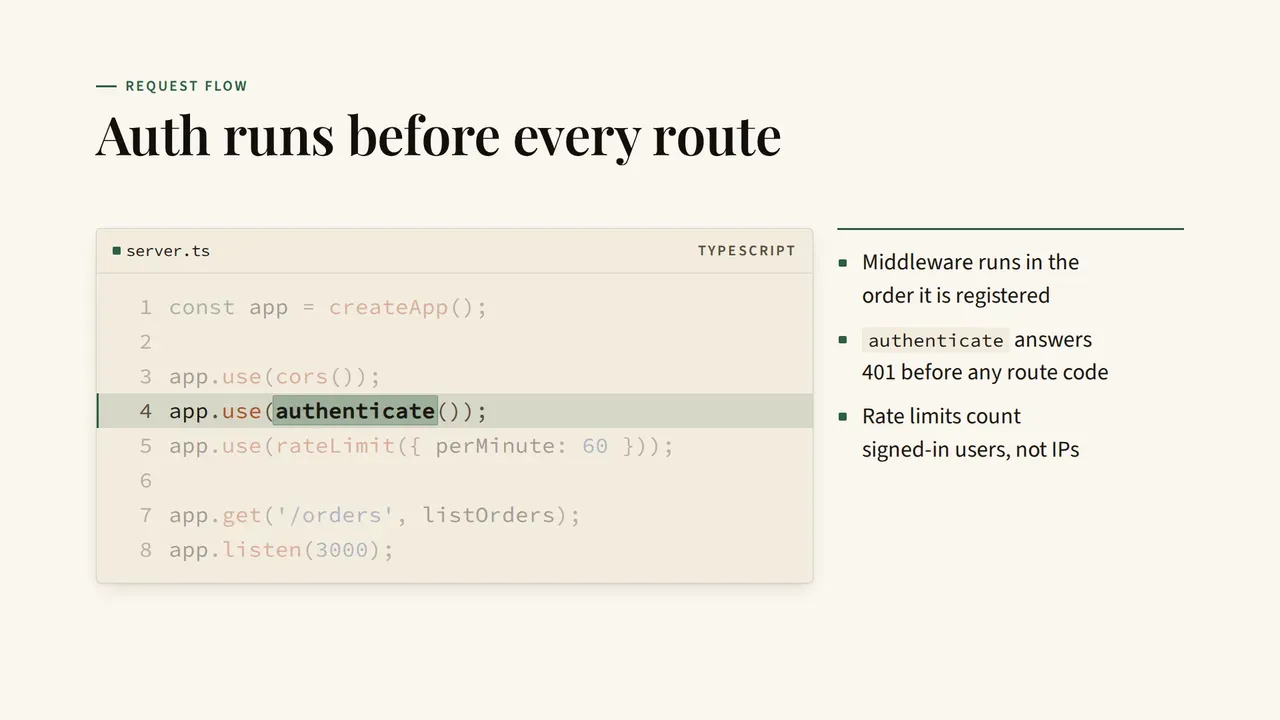 2
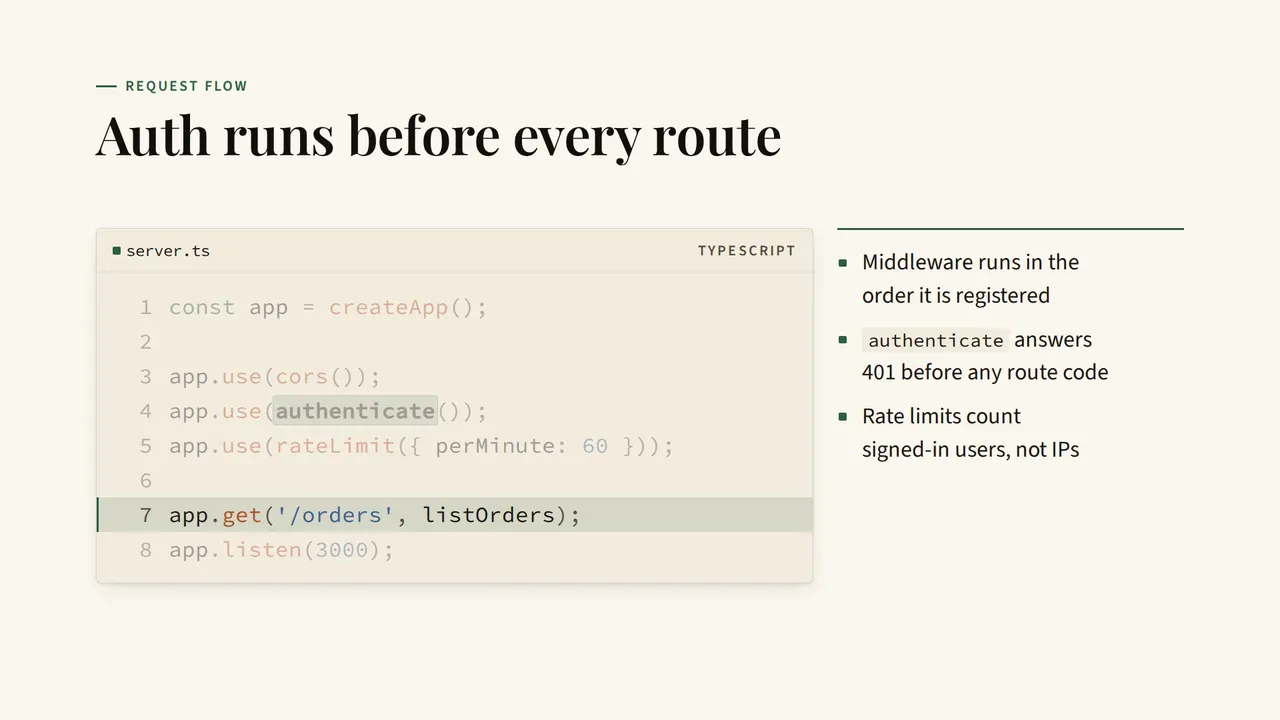 3finished
```ts title="server.ts" {3-5|4|7} lineNumbers /authenticate/
const app = createApp();

app.use(cors());
app.use(authenticate());
app.use(rateLimit({ perMinute: 60 }));

app.get('/orders', listOrders);
app.listen(3000);
```
Step 0 shows the whole block. Each part of {3-5|4|7} is one press: the named lines stay at full strength and the rest fade back. The strip above shows the four steps.
| Option | What it does |
|---|---|
title="server.ts" or file="server.ts" |
The file name in the title bar. A bare quoted string ("server.ts") does the same. |
{2-4|7} |
Highlight steps, separated by |. A step names lines and ranges, comma-separated (2-4,7). *, - or none clears the focus for that step. |
at=2 |
The step of the first highlight. Default 1. |
lineNumbers |
Show line numbers. showLineNumbers and numbers work too. |
start=10 |
The number of the first line. |
diff |
A leading + or - marks an added or removed line, tinted in the surface’s diff colours. |
/word/ |
Mark a word wherever it occurs as a whole word. Repeat for more words. |
noDim |
Keep lines outside the highlight at full strength. |
label="TS", noLabel |
Change or hide the language label in the title bar. |
Anything else stops the build. In deck lint:
$ deck lint launch-review
decks/launch-review/slides/query.mdx
error schema (query): Line 6, column 1: "lines" is not a code block option. Use title="file.ts", {2-4|7}, /word/, lineNumbers, diff, noDim, noLabel, label="TS", start=10 or at=2.
Fix: Close every JSX tag, keep markdown inside a component separated by blank lines, and escape a literal { or < in text as \{ or <.
launch-review: 1 error, 0 warnings.A diff fence shows a change in one block:
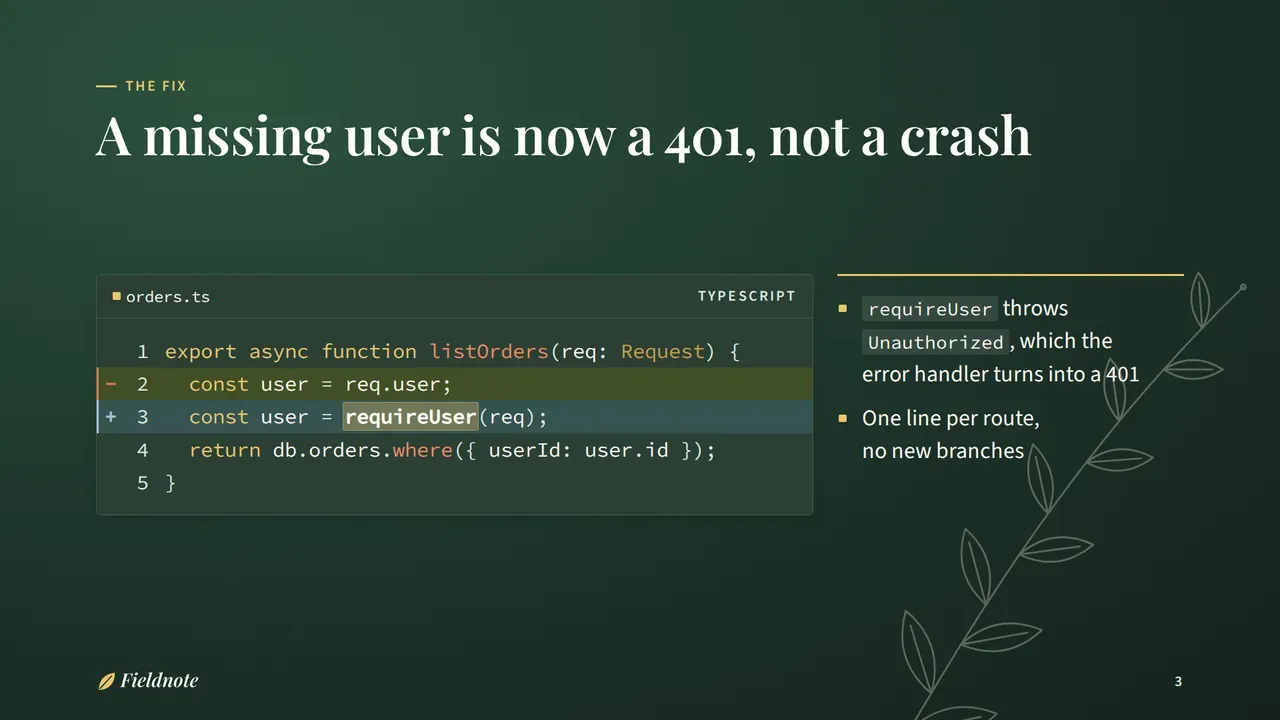
---
layout: code
title: A missing user is now a 401, not a crash
eyebrow: The fix
surface: gradient
budget: 1m
---

```ts title="orders.ts" diff lineNumbers /requireUser/
export async function listOrders(req: Request) {
-  const user = req.user;
+  const user = requireUser(req);
  return db.orders.where({ userId: user.id });
}
```

<Aside>
- `requireUser` throws `Unauthorized`, which the error handler turns into a 401
- One line per route, no new branches
</Aside>

<Notes>
Read the two changed lines aloud. Before, `req.user` was undefined for expired sessions and `user.id` threw a TypeError, which surfaced as a 500.

The marked word is the whole change.
</Notes>
Slide 3 of the components deckView on GitHub
Highlighting runs when the deck is built, and the colours are the brand’s code colours for the slide’s surface, so the same block reads on every surface and in every brand. Lines that start with + or - without diff stay as written; a trailing // [!code ++] or // [!code --] comment marks a single line instead.
Use <Code> instead of a fence
A fence covers almost every case. Write <Code> when the code comes from a variable, most often in a TSX slide: it takes the same options as props (code, lang, file, lineNumbers, start, highlight, at, dim, diff, words), and highlight also takes a list or an object keyed by step, such as { 1: '3-5' }. A <Code> in a TSX slide is highlighted in the browser, and the slide waits for it before it counts as ready. Every prop is on components.
Animate code as it changes
<CodeMove> holds one fence per version. The first shows on arrival, and each press moves to the next: tokens that stay glide to their new place, so the room can follow which line became which.
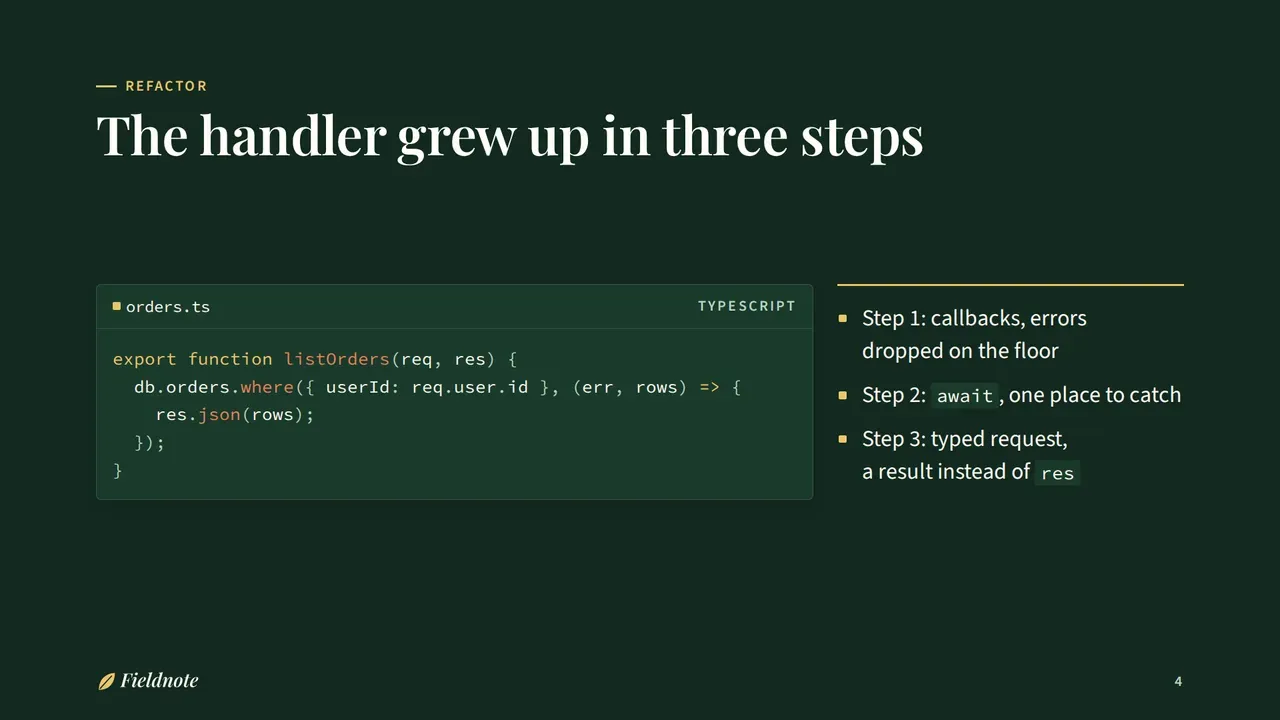 0start
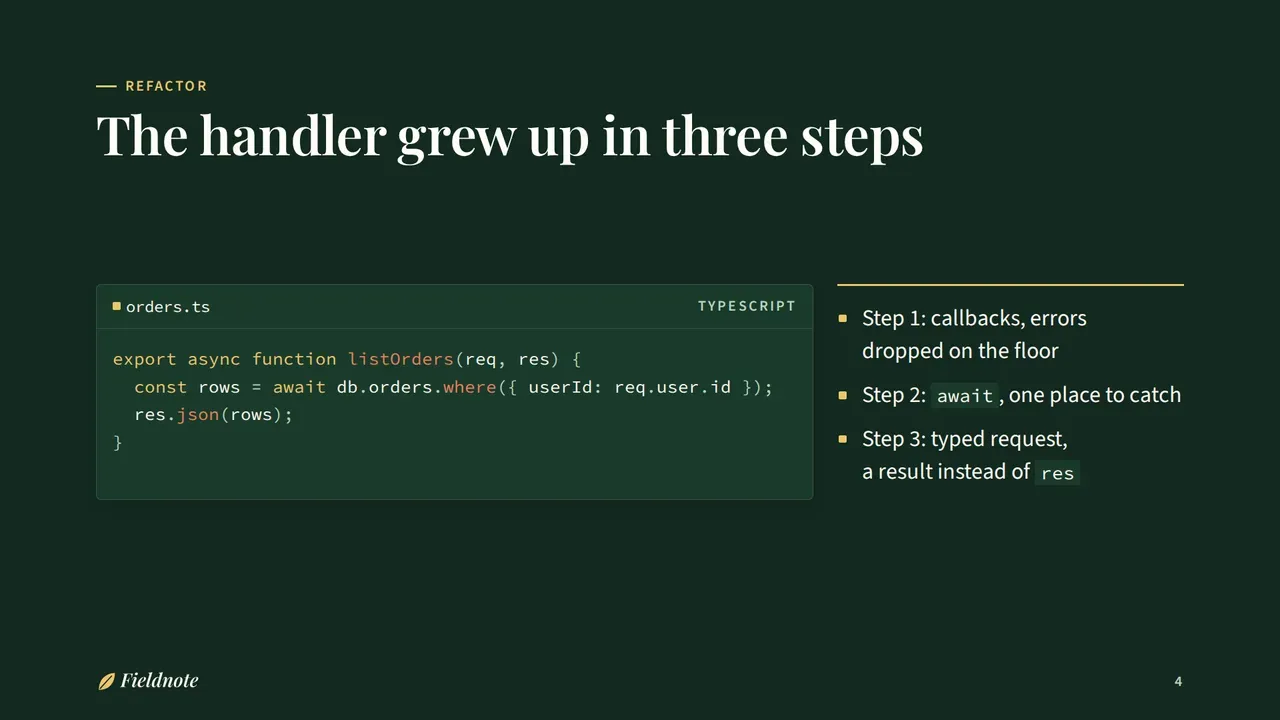 1
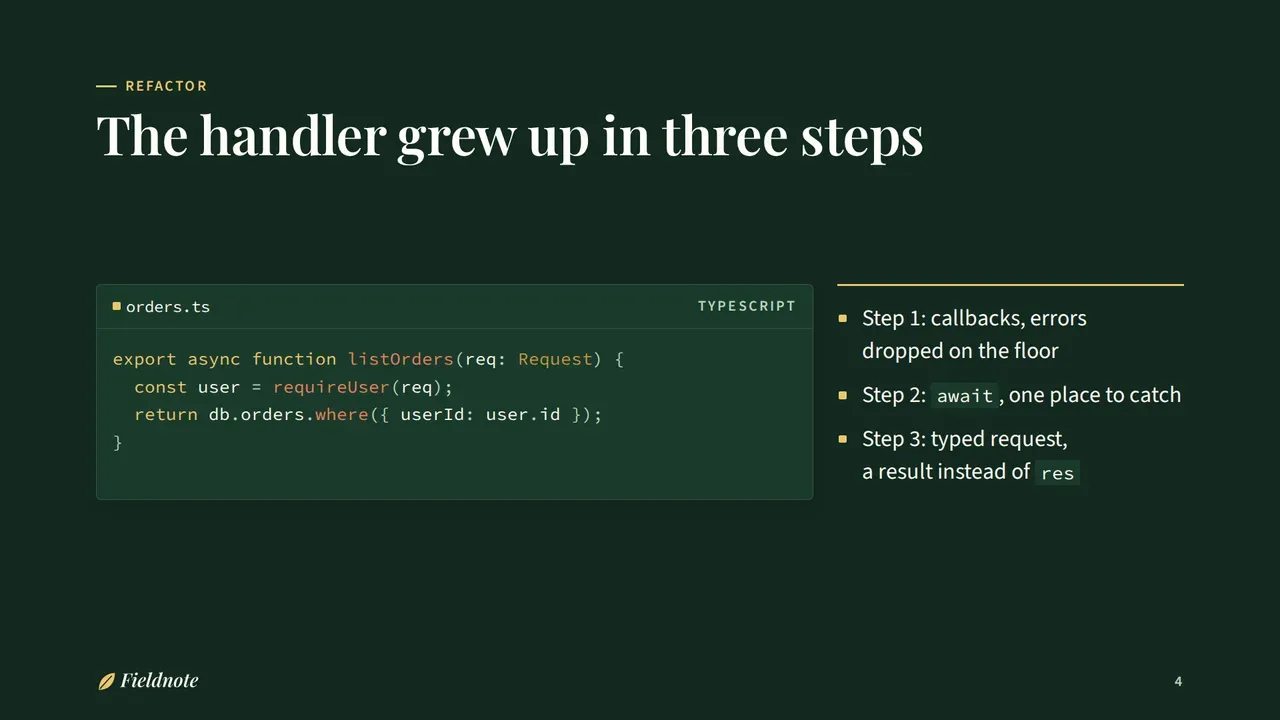 2finished
<CodeMove file="orders.ts">

```ts
export function listOrders(req, res) {
  db.orders.where({ userId: req.user.id }, (err, rows) => {
    res.json(rows);
  });
}
```

```ts
export async function listOrders(req, res) {
  const rows = await db.orders.where({ userId: req.user.id });
  res.json(rows);
}
```

</CodeMove>
Keep blank lines around each fence inside the tag. at sets the step of the second version (default 1). For a version a fence cannot express, such as a different language, write a <CodeStep lang="js"> in its place. Four versions is the most a room follows.
Show a shell session
<Terminal> types its commands one press at a time. Each <Cmd> adds one step, and the <Out> lines after it appear once the command is typed:
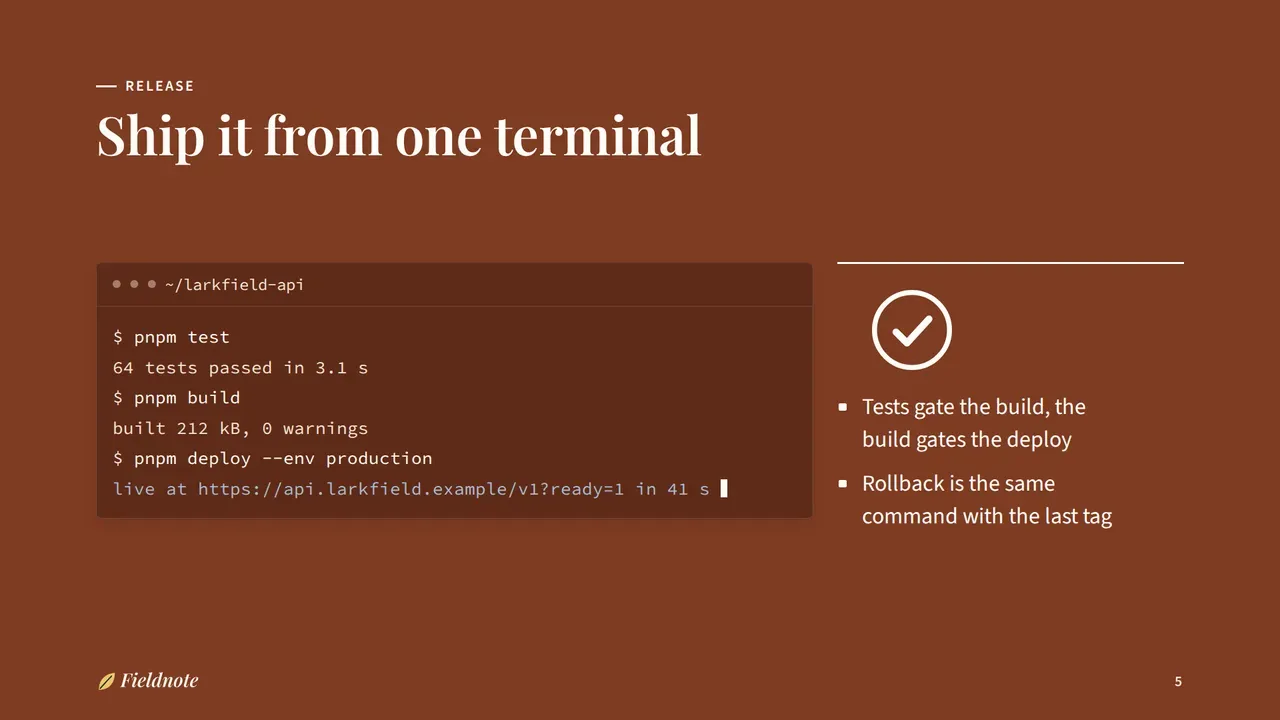
---
layout: code
title: Ship it from one terminal
eyebrow: Release
surface: accent
budget: 1m
---

<Terminal title="~/larkfield-api" at={1}>
  <Cmd>pnpm test</Cmd>
  <Out tone="muted">64 tests passed in 3.1 s</Out>
  <Cmd>pnpm build</Cmd>
  <Out tone="muted">built 212 kB, 0 warnings</Out>
  <Cmd>pnpm deploy --env production</Cmd>
  <Out tone="success">live at https://api.larkfield.example/v1?ready=1 in 41 s</Out>
</Terminal>

<Aside>
<Lottie src="../assets/check.json" alt="A check mark drawing itself inside a ring" size="md" role="fg" />

- Tests gate the build, the build gates the deploy
- Rollback is the same command with the last tag
</Aside>

<Notes>
Each press types the next command. Say what it does as it types, not after.

The deploy output is the only line in colour on purpose: that is the one the room should remember.
</Notes>
Slide 5 of the components deckView on GitHub
- With the default
at={1}, the terminal arrives with only the prompt and a cursor;at={0}types the first command on arrival. A<Cmd>has noatof its own. <Out>written before the first<Cmd>shows from step 0.<Out tone>colours a line:plain(default),muted,success,warningorerror.titlesets the window bar (defaultTerminal) andpromptthe prompt (default$).
A command is kept exactly as written, so URLs and * stay text. Show the two lines of output that matter, not the log.
How much code fits
At most 11 lines, and lines of at most 60 columns beside an <Aside> or 90 without one. The code layout’s budget is 11 lines: more is a content-budget error. Long lines step the font down to the brand’s minimum and then overflow, which deck lint reports as well. Cut the code to the lines you talk about, or split the slide.
What lint warns about
Three problems in code reach deck lint from the build as warnings:
$ deck lint launch-review
decks/launch-review/slides/query.mdx
  warning code-unknown-language (query): Line 6: Unknown code language "sqll"; the block is shown as plain text.
          Fix: Use a Shiki language id such as ts, tsx, bash or json.

decks/launch-review/slides/middleware.mdx
  warning code-step-range (middleware): Line 7: The highlight step at 2 names line 9, but the block has 2 lines.
          Fix: Number the lines from 1 to 2 in `{...}`, or remove the step; a step that names no line of the block is a press that changes nothing.

decks/launch-review/slides/deploy.mdx
  warning terminal-tone (deploy): Line 9: <Out tone="green"> is not a terminal tone, so the line draws plain.
          Fix: Use one of "plain", "muted", "success", "warning", "error".

launch-review: 0 errors, 3 warnings in 3 slides (6 steps checked).
In static mode and exports
Static mode, deck shot and exports draw the step they render: that step’s highlight and <CodeMove> version, and the terminal session typed up to it, as in the strips above. An export of the whole slide shows its last step. How code becomes PowerPoint is on PowerPoint. For more on steps, see builds and steps.