The before-after layout sets two pictures side by side at the same size, each with a label, under a title that states what changed. Use it for a redesign, a restoration or any visual evidence of a change, where seeing both states does more than a list of differences.
Example
---
layout: before-after
title: The bollards stopped vans, not deliveries
eyebrow: Kestwick Old Town
before:
  src: ../assets/scenes/van-at-the-bollards.svg
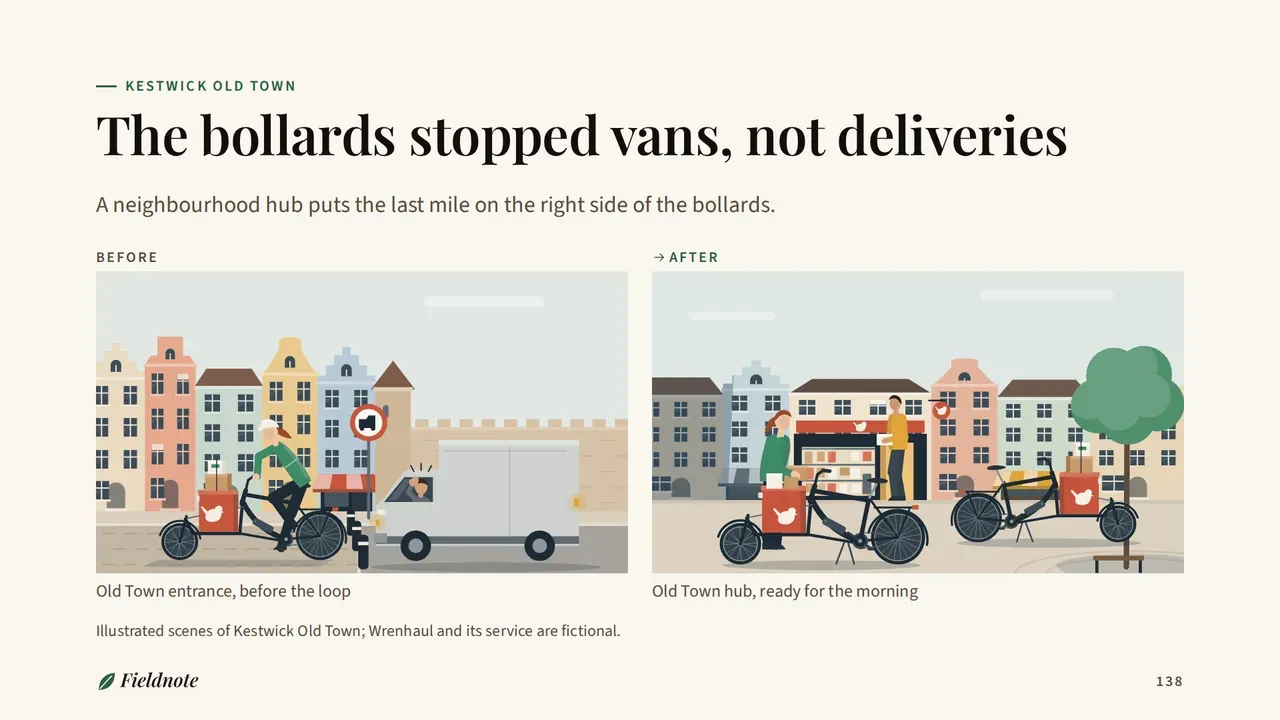
  alt: A delivery van waiting outside the bollards at the entrance to Kestwick Old Town
  caption: Old Town entrance, before the loop
  focal: center 50%
after:
  src: ../assets/scenes/hub-square.svg
  alt: Cargo bikes serving the Old Town square from Wrenhaul's neighbourhood hub
  caption: Old Town hub, ready for the morning
  focal: center 50%
fit: cover
reveal: true
budget: 40s
---

A neighbourhood hub puts the last mile on the right side of the bollards.

<Footnote>Illustrated scenes of Kestwick Old Town; Wrenhaul and its service are fictional.</Footnote>

<Notes>
`before-after` with `fit: cover`, captions and an accented after label, revealed before first; use it when two pictures show the change more clearly than a list.
[click] Before: the van reaches the bollards and stops. The shop still has a delivery to make.
[click] After: a small hub inside the Old Town sends cargo bikes straight to the door. The restriction becomes the reason the network works.
</Notes>
Slide 138 of the lookbook deckView on GitHub
before: and after: each name a picture with src and alt, and add an optional caption. fit: cover crops both pictures to equal frames around each side’s focal point. The labels default to “Before” and “After”, and the after label carries an arrow and the accent colour. With reveal: true the before picture comes in first and the after picture on the next click. The body is one sentence on what to compare.
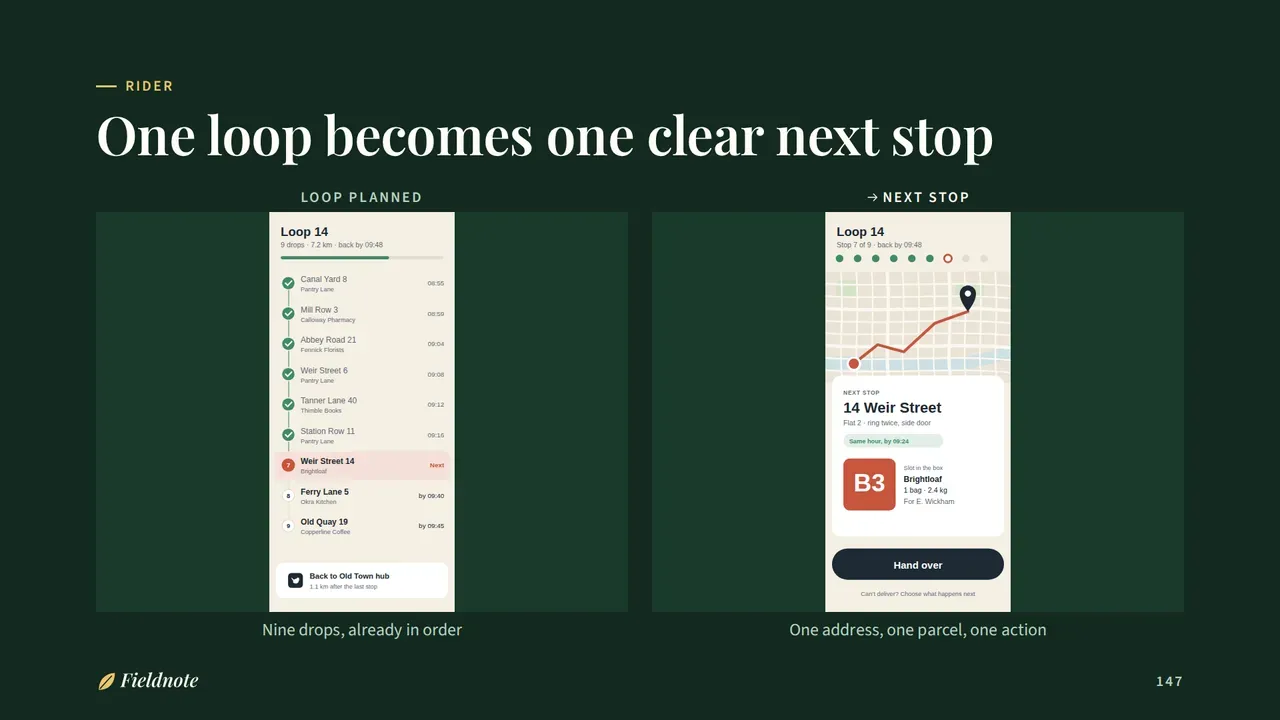
fit: contain shows each picture whole, which suits screenshots, and treatment: plain keeps them in their own colours. This slide also renames the labels and sets accent: none, so neither label is coloured.
When to use it
- Two pictures of one change. A
beforeand anafterare both required, each withaltof up to 120 characters. Alabeltakes up to 20 characters and acaptionup to 48, on one line. The title takes up to 50 characters, the body up to 14 words and the footnote up to 16. - Say what changed in the title. Labels always name the sides, so colour never carries the change by itself.
accent: nonemakes the labels neutral, and on anaccentsurface the after label uses the foreground colour instead of the accent. - Choose
containorcoveronce. Both pictures sharefit.containis the default and shows them whole. Withcover, addfocal(top,center 30%or40% 20%) to say what to keep when a picture is cropped. Withouttreatment,containshows plain pictures andcoveruses the brand’s default treatment; fonts and assets lists the treatments. - Reveal the change.
reveal: truebrings in the before picture, then the after picture. Put a[click]cue for each in the notes. See builds. - Files live in the deck folder. Media explains how
srcpaths resolve.
Reference
- Frontmatter
layout: before-after- Surface
- the deck's default
- Title
- required, 50 characters at most
- PowerPoint
- two-content slide
Two pictures side by side at the same size, labelled Before and After, under a title that states what changed. Each side has a required file and accessible description, an optional label and a one-line caption below the picture. Both pictures share fit: contain shows them whole (the default), cover crops them into equal frames around each side's focal point. The after label carries the accent unless accent: none; labels always name the sides so colour alone never carries the change. reveal: true brings in before first, then after. Use it for a redesign, a restoration or visual evidence of a change. Use gallery for an unpaired collection with a lead picture, screen for one interface with callouts, and shift when the change is an argument in words and figures rather than two pictures.
Slots
| Slot | Takes | Budget | What goes in it |
|---|---|---|---|
body | text | 14 words | One sentence under the title explaining what to compare between the pictures. |
<Footnote> | text | 16 words | A source, date or qualification on the bottom line. |
Frontmatter fields
| Field | Values | How to use it |
|---|---|---|
eyebrow | text | Write a few words of at most 40 characters, for example eyebrow: Budget committee, or leave it out. |
beforerequired | text | Name the earlier picture with src (a file in the deck folder) and alt (up to 120 characters). Optionally add label (up to 20 characters, default "Before"), caption (one line, up to 48 characters), and focal. Name the part of the photo to keep when it is cropped, as a CSS position: focal: top, focal: center 30% (a face in the upper third) or focal: 40% 20%. |
afterrequired | text | Name the later picture with src (a file in the deck folder) and alt (up to 120 characters). Optionally add label (up to 20 characters, default "After"), caption (one line, up to 48 characters), and focal. Name the part of the photo to keep when it is cropped, as a CSS position: focal: top, focal: center 30% (a face in the upper third) or focal: 40% 20%. |
fit | contain (default) cover | Use contain (the default) to show both pictures whole, or cover to crop both to fill equal frames. |
accent | after (default) none | Use accent: none for neutral labels; by default the after label uses accent text, or foreground text on an accent slide. |
treatment | text | Name one of the brand's image treatments, for example treatment: plain (every brand has it) to show a screenshot, map or chart in its own colors; deck brand --json lists them under imagery.treatments. With contain, omitted treatment defaults to plain; cover uses the brand default. |
reveal | true false (default) | Write reveal: true to show the items one per step, in order, or leave it out to show them all at once. |
chrome | true (default) false | Write chrome: false to hide the page number, logo and progress bar on this slide, or chrome: true to show them. |
Example
---
layout: before-after
title: The same street now has summer shade
before:
  src: "data:image/svg+xml,%3Csvg xmlns='http://www.w3.org/2000/svg' width='1600' height='1000'%3E%3Crect width='1600' height='1000' fill='%238fa79a'/%3E%3C/svg%3E"
  alt: Harrow Road before the planting programme
  caption: "Harrow Road, before planting"
after:
  src: "data:image/svg+xml,%3Csvg xmlns='http://www.w3.org/2000/svg' width='1600' height='1000'%3E%3Crect width='1600' height='1000' fill='%238fa79a'/%3E%3C/svg%3E"
  alt: Harrow Road three summers after planting
  caption: "Harrow Road, three summers later"
---

<Notes>Compare the same stretch of pavement before and after planting.</Notes>
Common mistakes
-
A picture without a description.
altis required on both sides:$ deck lint launch-review decks/launch-review/slides/ba-alt.mdx error schema (ba-alt): before.alt is required. Fix: Name the earlier picture with `src` (a file in the deck folder) and `alt` (up to 120 characters). Optionally add `label` (up to 20 characters, default "Before"), `caption` (one line, up to 48 characters), and `focal`. Name the part of the photo to keep when it is cropped, as a CSS position: `focal: top`, `focal: center 30%` (a face in the upper third) or `focal: 40% 20%`. launch-review: 1 error, 0 warnings. -
A long label or caption. A label over 20 characters is a
schemaerror:before.label: Expected a picture label of at most 20 characters, got "The old delivery route …" (38 characters).A caption over 48 fails the same way. -
A picture that is not there. A wrong path is a
media-missingerror: “before.src: ../assets/van-at-the-bollards.svgdoes not exist”. The layout draws an empty panel until the file is there. -
Comparing pictures that differ in shape.
fit: covercrops both to the same frame. Check each withdeck shotand setfocalon the side that loses what matters.