Use the section layout for the divider that opens each part of your talk: a part number, a title of two to five words and an optional one-line summary. Give every part one and the room always knows where the talk has got to.
Example

---
layout: section
title: Explain
number: 3
numeral: large
transition: cover
budget: 10s
---

What a drop, a loop and a hub are, and how they fit together.

<Notes>
`section` with `numeral: large` and `transition: cover`, the same on every divider so they read as one set; use one to open each part.
This part explains the parts of the service before we argue for it.
</Notes>
Slide 28 of the lookbook deckView on GitHub
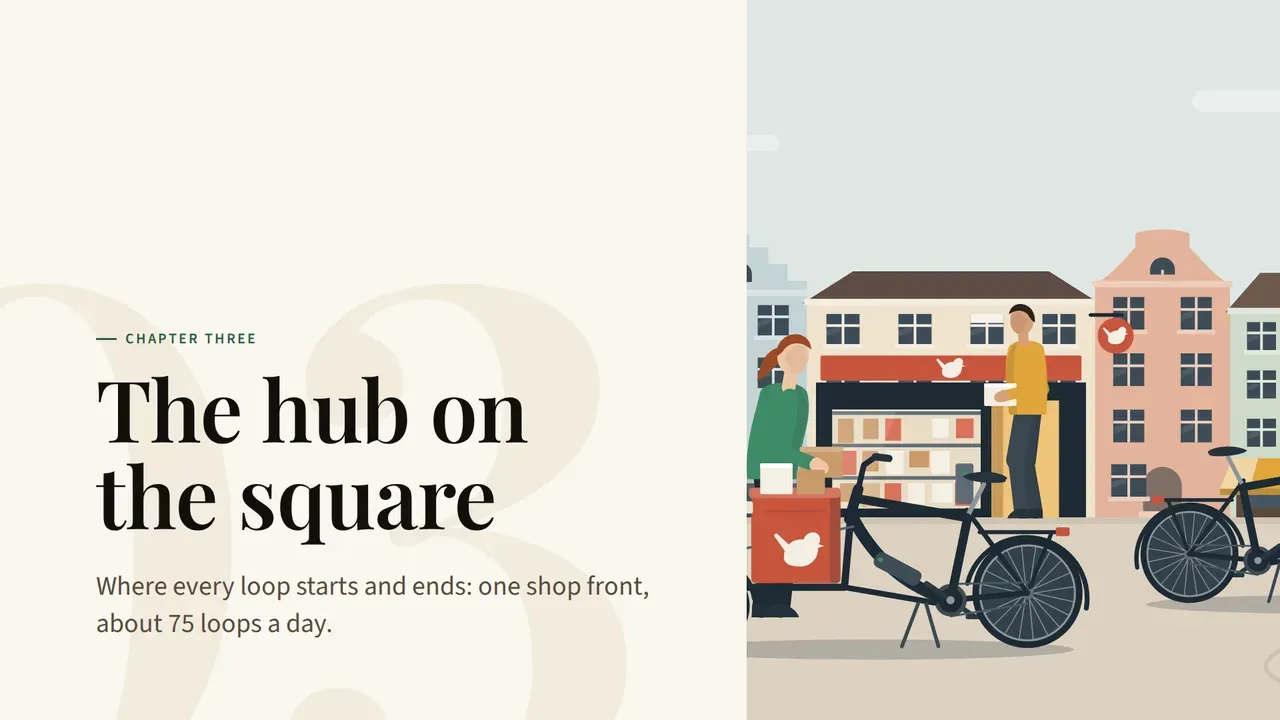
Notice the number: with number: 3 and numeral: large, it is set as 03 in the surface’s own tone, behind the title and running off the bottom edge. Every part opener in the lookbook writes the same fields, so the dividers read as a set.
Fill <Media> with one image and the divider changes shape: the picture fills the right five columns edge to edge and the text keeps to the left.
When to use it
- One per part, in order. The catalog asks for every divider on the same surface and with the same options. Nothing in
deck lintchecks that, so pick the fields once and copy them. - A short title and at most one sentence.
title:is required and takes 40 characters. The summary is plain text of up to 16 words, or 14 when<Media>is filled. When you leave it out, its two lines stay empty, so every divider sets its title at the same height. - The look is set by three fields.
numeral: largemakes the number a landmark. Leave it out and the number sits small on the top line.align: centercentres the number, title and summary, but has no effect beside a picture. The divider defaults to theaccentsurface and hides the page number, logo and progress bar (chrome: false).
Pick another layout when the slide is not a divider. The cover of the deck is title. A list of every part with the current one marked is agenda, and a single claim is statement.
Reference
- Frontmatter
layout: section- Surface
accent- Title
- required, 40 characters at most
- PowerPoint
- section slide
A divider that opens a part of the talk: its number set large at the top, the part title on the bottom line and an optional one-sentence summary, whose two lines are kept free when it is left out so every divider sets its title at the same height. numeral: large makes the number a landmark: set in the surface tone, so large it runs off the bottom of the slide behind the title. align: center centres the number, title and summary on the slide. Fill <Media> with a photo for the part to fill the right five columns edge to edge; the text then stays on the left. Use one per part, in order, all on the same surface and with the same options, so the dividers read as a set. Defaults to the accent surface and hides the page chrome.

Slots
| Slot | Takes | Budget | What goes in it |
|---|---|---|---|
body | text | 16 words | One sentence on what this part covers. Set the part title in title: (two to five words). |
<Media> | image | — | A photo for the part, as one <img> with alt text; it fills the right five columns of the slide edge to edge, in the brand image treatment, and the text keeps to the left (align: center does not apply). Leave it out for a type-only divider. |
Frontmatter fields
| Field | Values | How to use it |
|---|---|---|
eyebrow | text | Write a few words of at most 40 characters, for example eyebrow: Budget committee, or leave it out. |
number | text | Number the part, for example number: 2 (shown as 02) or number: IV, in up to 3 characters. |
numeral | small large | Write numeral: large to set the number as a large graphic behind the title, or leave it out for the number on the top line. |
align | left (default) center | Write align: center to centre the number, title and summary on the slide, or leave it out to set them from the left. |
treatment | text | Name one of the brand's image treatments, for example treatment: plain (every brand has it) to show a screenshot, map or chart in its own colors; deck brand --json lists them under imagery.treatments. |
chrome | true false (default) | Write chrome: false to hide the page number, logo and progress bar on this slide, or chrome: true to show them. |
Variants
- with media — body: 14 words
Example
---
layout: section
title: The plan
number: "02"
eyebrow: Part two
numeral: large
---

Where we plant, in what order, and what it costs each year.

<Notes>
Say how long this part takes and what the committee will decide at its end.
</Notes>
Common mistakes
- A large numeral with no number.
numeral: largewithoutnumber:fails with aschemaerror atnumeral: “numeral: largesets the part number large, but the slide has nonumber:.” Addnumber: 2, or removenumeral. - A list as the summary. The body slot takes text only. Three bullets under the title get a
slot-contenterror: “The body slot holds a list of 3 items; the section layout sets it as text.” Write one sentence, and save the points for the part’s first slide. - A number that is too long.
number:is a whole number from 0 to 99 (shown with two digits, so3reads 03) or text of up to three characters (IV,Q3). Anything longer is aschemaerror. - Dividers that do not match. One divider with
numeral: smallor another surface among large-numeral accent ones breaks the set. Lint does not catch it.
Related layouts
title: the cover, used once, first, rather than a part opener.agenda: shows all the parts at once, withcurrent:marking the one that starts.statement: one sentence set large, a claim and not a heading.
The lookbook gives every part opener transition: cover; see transitions and morphs.