deck present <deck> opens a deck in its own desktop window and serves it with hot reload, so an edit shows at once. With the flags on this page you choose which display shows the audience window and which shows your notes, present the built deck, or open it in a browser. For a named deck in the desktop app, closing the audience window stops the server. Press Ctrl+C to stop it from the terminal.
Download Electron’s binary once
The window is Electron. npm installs the electron package with @deckster/cli, but not its binary, and deck present never downloads anything in the middle of a command. The first time, it stops and prints the command that downloads it:
$ deck present launch-review
Electron's binary is not downloaded (<cli>/node_modules/electron/dist), so `deck present` cannot open a window.
Run `node "<cli>/node_modules/electron/install.js"` (about 120 MB), or pass --browser to present in Chrome.
<cli> stands for the folder npm installed the CLI in; the real message prints the full path. Copy the node "..." command from your terminal and run it once. Every deck present after that starts the binary directly.
Present on one screen
$ deck present launch-review
Presenting launch-review at http://localhost:5173/
Window open on display 0. Close the window or press Ctrl+C to stop.
The window opens on the primary display, not fullscreen. The terminal keeps a short status; --verbose adds the dev server’s log. --port <n> and --brand <name> work as they do for deck dev. Inside the window every presenting tool and key works as in a browser: see Presenter tools and shortcuts.
Choose a deck in the desktop gallery
New in v0.7.0. Desktop presentation gallery changelog.
Run deck present without a deck argument and with DECK unset or empty. With several decks, Deckster shows Choose a deck. Pick a card to open the deck in an audience window. A single deck opens directly, and an explicit deck name takes precedence over DECK. To open the starter deck directly, run deck present hello.
With two or more displays in extended mode, the gallery stays off the audience display. Mirrored displays show the same view. With one display, the gallery hides while the audience window is open. Use the same display options as for a named deck, such as deck present --presenter --fullscreen.
Use Back to decks in the presenter window or the Present menu to end the current presentation and choose another. With one display and no presenter window, the audience window shows the button while the presentation is windowed. Cmd/Ctrl+Shift+B also returns to the gallery in fullscreen and kiosk mode. Closing the audience window returns to the gallery. If an agent is working, Deckster asks whether to stop it or keep presenting. Close the gallery, quit Deckster, or press Ctrl+C to end the command.
--browser opens the chooser in the browser. The selected deck replaces the chooser there, with a Back to decks link to return. With --built, Deckster builds the deck when you select it. --port <n> sets the gallery’s port and the selected deck runs on a separate port. The restrictions on built decks and browser presentation also apply in gallery mode.
The desktop gallery runs on the presenting computer and displays only its local chooser page. The audience and presenter windows keep the deck’s normal navigation and download rules.
Put the slides on the projector and the notes on your laptop
-
Connect the second display, then list the displays
deck presentsees:$ deck present --list-displays 0: display 1920x1080 @1x (primary)That is a machine with one display; each display gets a line, with its index first.
--jsonprints{ ok, displays }, where each display hasindex,id,label,bounds,workArea,scaleFactorandprimary. -
Start the deck with the presenter window:
deck present launch-review --presenter --fullscreenWith two or more displays, the presenter window opens on the primary display and the audience window on the first other one, fullscreen.
-
If that put them the wrong way round, name the displays:
--display <n>places the audience window and--presenter <n>the presenter window, by the index from step 1.deck present launch-review --display 1 --presenter 0 --fullscreenAn index that does not exist stops the command and lists what is there:
$ deck present launch-review --display 3 Presenting launch-review at http://localhost:5173/ --display 3 does not exist. Connected displays: 0: display 1920x1080 @1x (primary). Run `deck present --help` for the usage. -
While you present, move windows from the window’s Present menu: Presenter Window (Cmd/Ctrl+Shift+P), Move to Next Display (Cmd/Ctrl+Shift+D) and Toggle Fullscreen (Ctrl+Cmd+F on macOS, F11 elsewhere). The Displays button in the tool cluster lists the displays and moves either window, and
pin the audience window opens the presenter window on the other display.
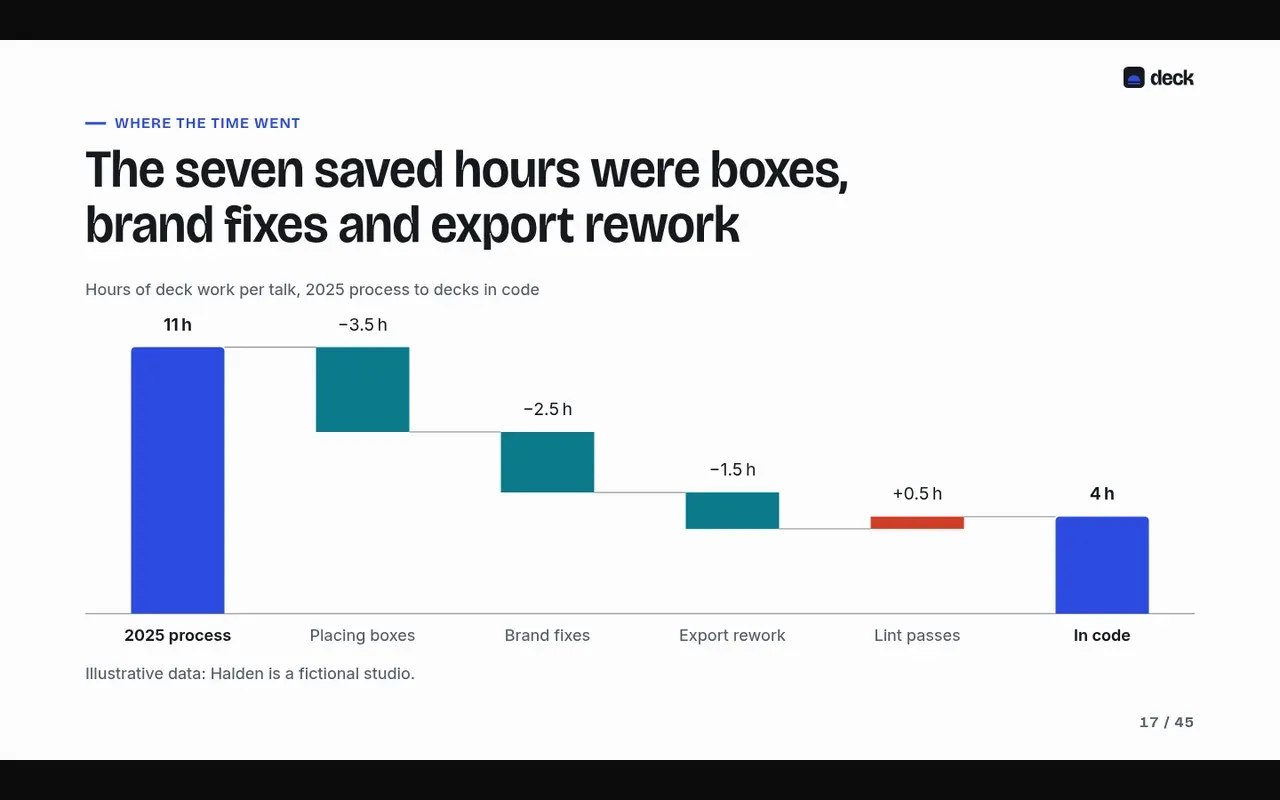
Here is the audience window on the showcase deck, at 1440x900: the 16:9 slide fills the window’s width, with black bars above and below.
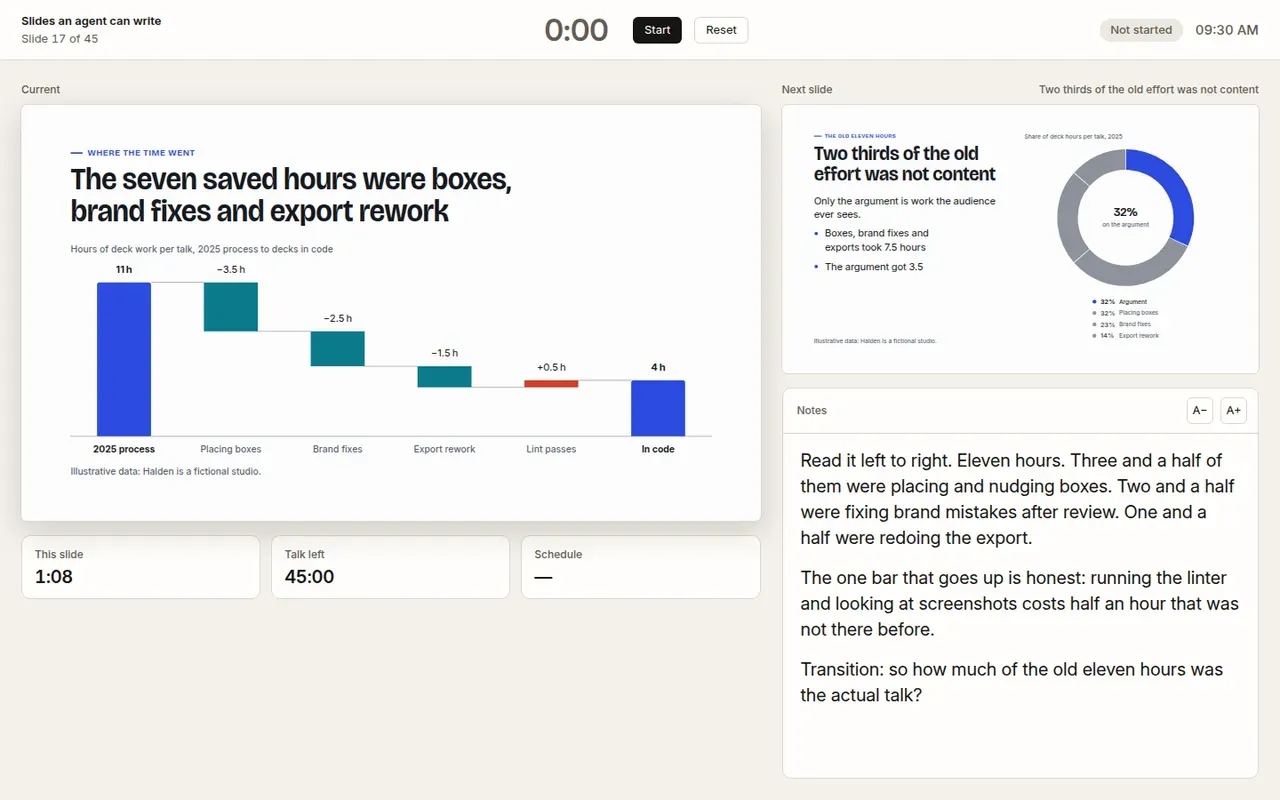
The presenter window, on the same slide, is the one described on Presenter tools and shortcuts:
With one display, both windows share it, the presenter window opens beside the audience window, and fullscreen is dropped because it would cover your notes. The command says so:
$ deck present launch-review --presenter --fullscreen
Presenting launch-review at http://localhost:5173/
Only one display is connected: the presenter window opens beside the audience window.
The audience window stays windowed: fullscreen would cover the presenter window.
Window open on display 0, presenter on display 0. Close the window or press Ctrl+C to stop.
--kiosk is fullscreen with no menu; Cmd+Q (Ctrl+Q off macOS) must be pressed twice to quit.
Present the built deck
--built builds the deck and presents the static build, the same files you would host:
$ deck present launch-review --built
Building launch-review...
...
Presenting launch-review at http://localhost:4173/
Window open on display 0. Close the window or press Ctrl+C to stop.
The build log is cut at .... The built deck has no hot reload, no comments and no agent panel, so --built cannot be combined with --brand or --agent:
$ deck present launch-review --built --agent claude
--built presents the static build, which has no dev tools: leave out --brand and --agent.
Run `deck present --help` for the usage.
Present in a browser instead
--browser skips Electron: it opens the deck in Chrome’s app mode (a window without browser controls; on macOS, Chromium or Edge also qualify), or in your default browser when it finds none, prints the URL and keeps serving until Ctrl+C. Use it when the binary is not downloaded, or for a deck that offers a file to download. A browser window cannot be placed, so --browser refuses --fullscreen, --kiosk, --display and --presenter; press p and f in the page instead.
What the window does for you
- It remembers where it was. Each window’s position and display are saved per deck in
.deck/shell/windows.jsonand restored when the same display is planned again. A fullscreen window’s position is not saved. - It loads only the deck. A link, pop-up or redirect to another site opens in your default browser (web and
mailto:links only, at most 3 in 10 seconds across all its windows). Downloads are refused, so no save dialog appears on stage. - It keeps its files in the workspace. The window’s browser profile, caches and logs are in
.deck/shell/profile. - On macOS it is called Deckster. The first
deck present(or--list-displays) builds a copy of Electron’s app named Deckster in.deck/shell/app/, signed for this Mac only, so the Dock, Cmd+Tab and the menu bar show Deckster. Later runs reuse it.
deck present <deck> --agent claude puts the agent panel in the window; the --agent flags are on The agent panel. When something goes wrong, see Troubleshooting.