Crisp Diagrams
pnpx skills add sandrinodm/skills --skill crisp-diagrams
Draw them in your own style
Paste a screenshot of your website or dashboard (or your logo, or a slide) and ask for your colors. The skill picks the accent and group colors from the image, shows you a preview, and saves them in a STYLE.md next to your diagrams. Every diagram after that follows it, in light and dark mode.
No image at hand? Name a color (“our brand color is #4b2bb3”) or a theme (“use pastel from now on”).
Here's a screenshot of our dashboard. Use its colors for all our diagrams from now on.
Promptcopy it, change the names, get your own version
Use the crisp-diagrams skill to draw an anatomy diagram (the parts inside one thing).

Title: A banking app asks for Face ID again before any large payment
Subtitle: What sits inside a mobile banking app, and what it talks to

- On top: You, on your phone: Check balances, pay and manage cards
    Arrow down labelled “taps and payments” and arrow back up labelled “balances and alerts”
- A container called “Banking app” holding:
    Accounts: Balances and recent transactions
    Payments: Transfers, bills and saved payees
    Cards: Freeze, unfreeze and set limits
    Insights: Where your money went this month
    Support chat: Answers, then a person if needed
    Settings: Devices, alerts and privacy
    Step-up check (the accent): Face ID again for payments over €500 or to new payees
- Outside, below it, reached only with “confirmed requests”:
    Core banking: Moves the money and keeps the ledger
    Card network: Approves card payments
    Fraud team: Reviews anything that looks unusual

Layout:
- The person box centered at the top, then a full-width container with the parts in 2 rows of 3
- Step-up check as a full-width accent band at the bottom of the container
- The 3 outside systems in a row under the container, each with an arrow from the Step-up check band

Color groups: teal for Accounts, Payments, Cards, Insights, Support chat and Settings; green for Core banking, Card network and Fraud team; violet for You, on your phone

Use these labels word for word.

Style: pastel theme, with an icon on a tinted badge in each box.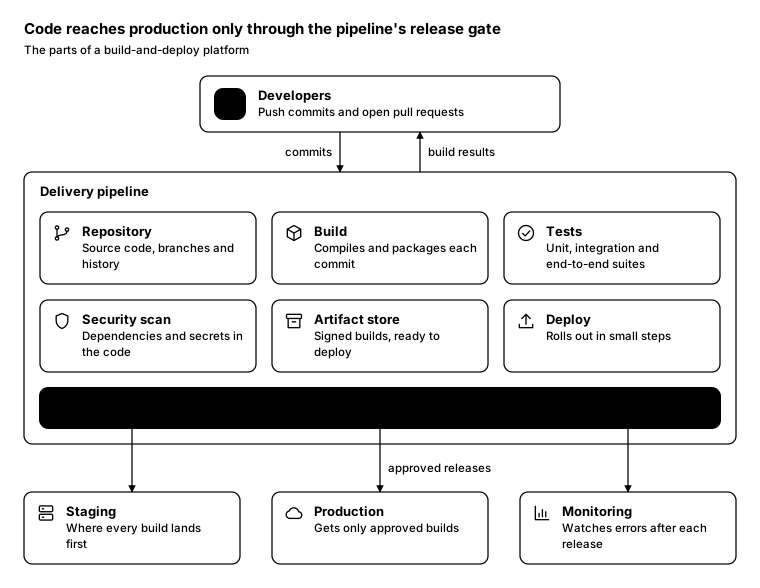
Promptcopy it, change the names, get your own version
Use the crisp-diagrams skill to draw an anatomy diagram (the parts inside one thing).

Title: Code reaches production only through the pipeline's release gate
Subtitle: The parts of a build-and-deploy platform

- On top: Developers: Push commits and open pull requests
    Arrow down labelled “commits” and arrow back up labelled “build results”
- A container called “Delivery pipeline” holding:
    Repository: Source code, branches and history
    Build: Compiles and packages each commit
    Tests: Unit, integration and end-to-end suites
    Security scan: Dependencies and secrets in the code
    Artifact store: Signed builds, ready to deploy
    Deploy: Rolls out in small steps
    Release gate (the accent): a green build plus one approval, or nothing ships
- Outside, below it, reached only with “approved releases”:
    Staging: Where every build lands first
    Production: Gets only approved builds
    Monitoring: Watches errors after each release

Layout:
- The person box centered at the top, then a full-width container with the parts in 2 rows of 3
- Release gate as a full-width accent band at the bottom of the container
- The 3 outside systems in a row under the container, each with an arrow from the Release gate band

Use these labels word for word.

Style: quiet theme (outlines only, one blue accent), with a small line icon in each box.
Promptcopy it, change the names, get your own version
Use the crisp-diagrams skill to draw an anatomy diagram (the parts inside one thing).

Title: A patient portal shows your records only to you and your care team
Subtitle: What sits inside a hospital's patient portal

- On top: Patients: On the web or the hospital's app
    Arrow down labelled “requests” and arrow back up labelled “results and reminders”
- A container called “Patient portal” holding:
    Appointments: Book, move or cancel visits
    Records: Results, notes and letters
    Messages: Write to your care team
    Prescriptions: Request refills
    Billing: Statements and payments
    Sharing: Who can see what
    Consent (the accent): only you and the people you allow can open your records
- Outside, below it, reached only with “only what each one needs”:
    Clinic systems: Where records are created
    Pharmacy: Fills the prescriptions
    Insurer: Gets only what billing needs

Layout:
- The person box centered at the top, then a full-width container with the parts in 2 rows of 3
- Consent as a full-width accent band at the bottom of the container
- The 3 outside systems in a row under the container, each with an arrow from the Consent band

Color groups: teal for Appointments, Records, Messages, Prescriptions, Billing and Sharing; green for Clinic systems, Pharmacy and Insurer; violet for Patients

Use these labels word for word.

Style: tinted zones theme, with icon cards (icon on top, name below).
Promptcopy it, change the names, get your own version
Use the crisp-diagrams skill to draw an anatomy diagram (the parts inside one thing).

Title: An online store scores every order for fraud before it takes payment
Subtitle: The parts of an e-commerce storefront

- On top: Shoppers: Browse on the web or in the app
    Arrow down labelled “searches and orders” and arrow back up labelled “confirmations”
- A container called “Storefront” holding:
    Catalog: Products, prices and stock
    Search: Finds products as you type
    Cart: Saved across devices
    Checkout: Address, delivery and payment
    Orders: Status from paid to delivered
    Reviews: Ratings from verified buyers
    Fraud check (the accent): scores each order before the card is charged
- Outside, below it, reached only with “approved orders”:
    Payment provider: Charges the card
    Warehouse: Picks, packs and ships
    Email: Order and delivery updates

Layout:
- The person box centered at the top, then a full-width container with the parts in 2 rows of 3
- Fraud check as a full-width accent band at the bottom of the container
- The 3 outside systems in a row under the container, each with an arrow from the Fraud check band

Color groups: teal for Catalog, Search, Cart, Checkout, Orders and Reviews; green for Payment provider, Warehouse and Email; violet for Shoppers

Use these labels word for word.

Style: gradient theme, with an icon on a tinted badge in each box.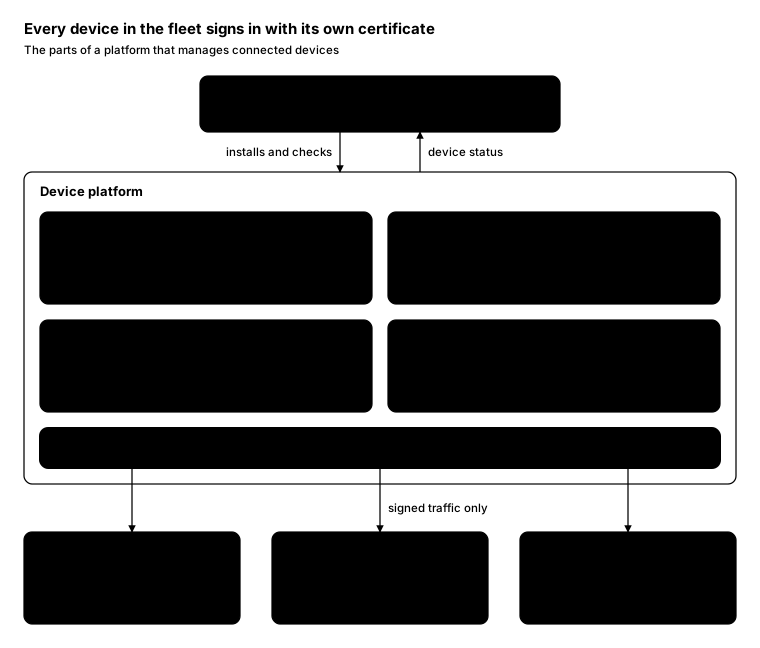
Promptcopy it, change the names, get your own version
Use the crisp-diagrams skill to draw an anatomy diagram (the parts inside one thing).

Title: Every device in the fleet signs in with its own certificate
Subtitle: The parts of a platform that manages connected devices

- On top: Field technicians: Install, check and replace devices
    Arrow down labelled “installs and checks” and arrow back up labelled “device status”
- A container called “Device platform” holding:
    Device registry: Every device, its owner and location
    Telemetry: Readings from each sensor
    Updates: Firmware rolled out in waves
    Alerts: Offline or unusual devices
    Device identity (the accent): each device proves who it is with its own certificate
- Outside, below it, reached only with “signed traffic only”:
    Sensors in the field: Meters, cameras and gateways
    Data lake: Long-term history
    Ops dashboard: Fleet health at a glance

Layout:
- The person box centered at the top, then a full-width container with the parts in 2 rows of 3
- Device identity as a full-width accent band at the bottom of the container
- The 3 outside systems in a row under the container, each with an arrow from the Device identity band

Color groups: teal for Device registry, Telemetry, Updates and Alerts; green for Sensors in the field, Data lake and Ops dashboard; violet for Field technicians

Use these labels word for word.

Style: pastel theme, with icon cards (icon on top, name below).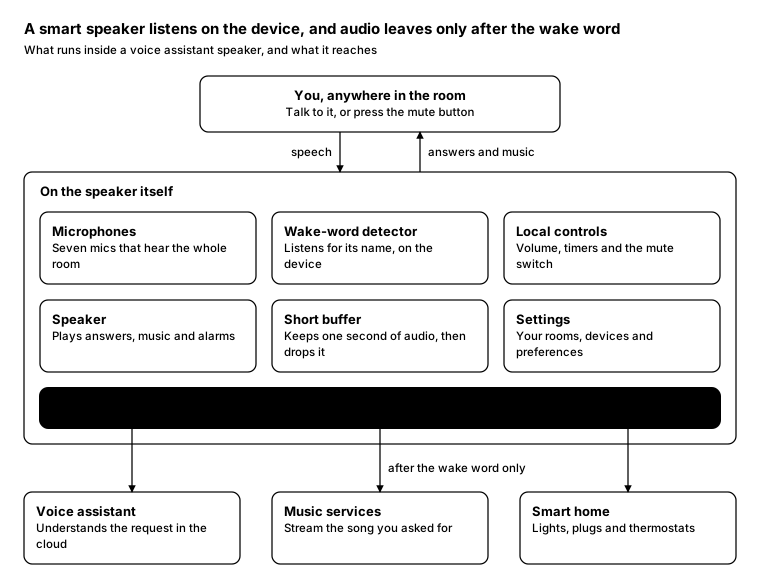
Promptcopy it, change the names, get your own version
Use the crisp-diagrams skill to draw an anatomy diagram (the parts inside one thing).

Title: A smart speaker listens on the device, and audio leaves only after the wake word
Subtitle: What runs inside a voice assistant speaker, and what it reaches

- On top: You, anywhere in the room: Talk to it, or press the mute button
    Arrow down labelled “speech” and arrow back up labelled “answers and music”
- A container called “On the speaker itself” holding:
    Microphones: Seven mics that hear the whole room
    Wake-word detector: Listens for its name, on the device
    Local controls: Volume, timers and the mute switch
    Speaker: Plays answers, music and alarms
    Short buffer: Keeps one second of audio, then drops it
    Settings: Your rooms, devices and preferences
    Privacy gate (the accent): audio leaves the speaker only after the wake word
- Outside, below it, reached only with “after the wake word only”:
    Voice assistant: Understands the request in the cloud
    Music services: Stream the song you asked for
    Smart home: Lights, plugs and thermostats

Layout:
- The person box centered at the top, then a full-width container with the parts in 2 rows of 3
- Privacy gate as a full-width accent band at the bottom of the container
- The 3 outside systems in a row under the container, each with an arrow from the Privacy gate band

Use these labels word for word.

Style: quiet theme (outlines only, one blue accent).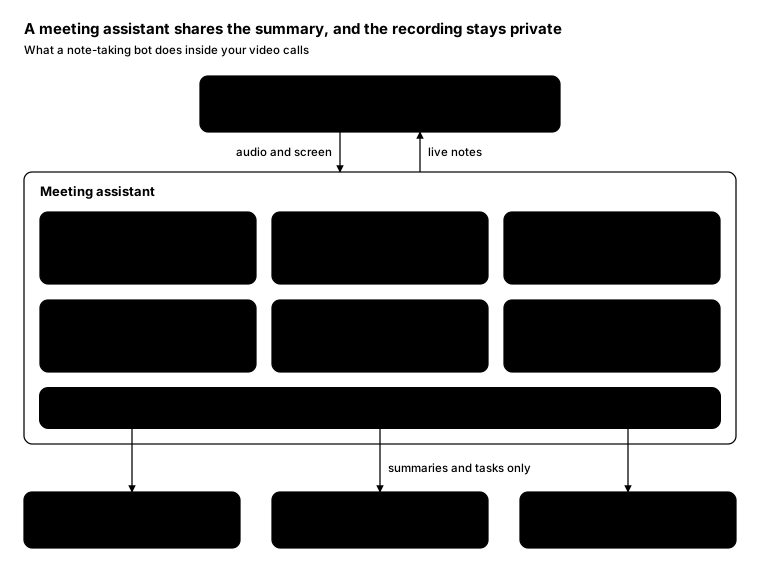
Promptcopy it, change the names, get your own version
Use the crisp-diagrams skill to draw an anatomy diagram (the parts inside one thing).

Title: A meeting assistant shares the summary, and the recording stays private
Subtitle: What a note-taking bot does inside your video calls

- On top: You and your team, in a call: Zoom, Meet or Teams, with the assistant invited
    Arrow down labelled “audio and screen” and arrow back up labelled “live notes”
- A container called “Meeting assistant” holding:
    Transcriber: Turns speech into text as people talk
    Speaker labels: Knows who said what
    Summarizer: Writes the key points and decisions
    Action items: Who owes what, by when
    Search: Finds anything said in past meetings
    Retention: Deletes recordings after 30 days
    Sharing rules (the accent): attendees get the summary; recordings stay with the host
- Outside, below it, reached only with “summaries and tasks only”:
    Calendar: Tells it which meetings to join
    Email: Sends the summary to attendees
    Project tracker: Gets the action items as tasks

Layout:
- The person box centered at the top, then a full-width container with the parts in 2 rows of 3
- Sharing rules as a full-width accent band at the bottom of the container
- The 3 outside systems in a row under the container, each with an arrow from the Sharing rules band

Color groups: teal for Transcriber, Speaker labels, Summarizer, Action items, Search and Retention; green for Calendar, Email and Project tracker; violet for You and your team, in a call

Use these labels word for word.

Style: pastel theme.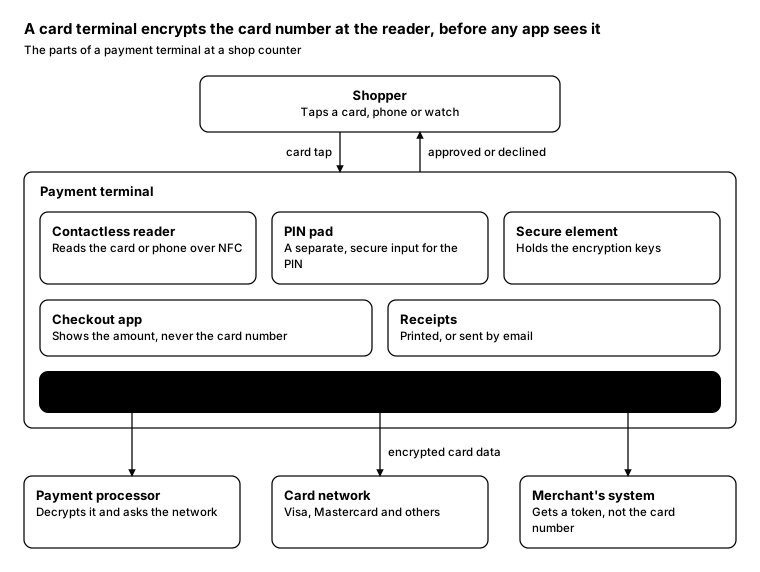
Promptcopy it, change the names, get your own version
Use the crisp-diagrams skill to draw an anatomy diagram (the parts inside one thing).

Title: A card terminal encrypts the card number at the reader, before any app sees it
Subtitle: The parts of a payment terminal at a shop counter

- On top: Shopper: Taps a card, phone or watch
    Arrow down labelled “card tap” and arrow back up labelled “approved or declined”
- A container called “Payment terminal” holding:
    Contactless reader: Reads the card or phone over NFC
    PIN pad: A separate, secure input for the PIN
    Secure element: Holds the encryption keys
    Checkout app: Shows the amount, never the card number
    Receipts: Printed, or sent by email
    Encryption at the reader (the accent): card data is encrypted the moment it's read
- Outside, below it, reached only with “encrypted card data”:
    Payment processor: Decrypts it and asks the network
    Card network: Visa, Mastercard and others
    Merchant's system: Gets a token, not the card number

Layout:
- The person box centered at the top, then a full-width container with the parts in 2 rows of 3
- Encryption at the reader as a full-width accent band at the bottom of the container
- The 3 outside systems in a row under the container, each with an arrow from the Encryption at the reader band

Use these labels word for word.

Style: quiet theme (outlines only, one blue accent).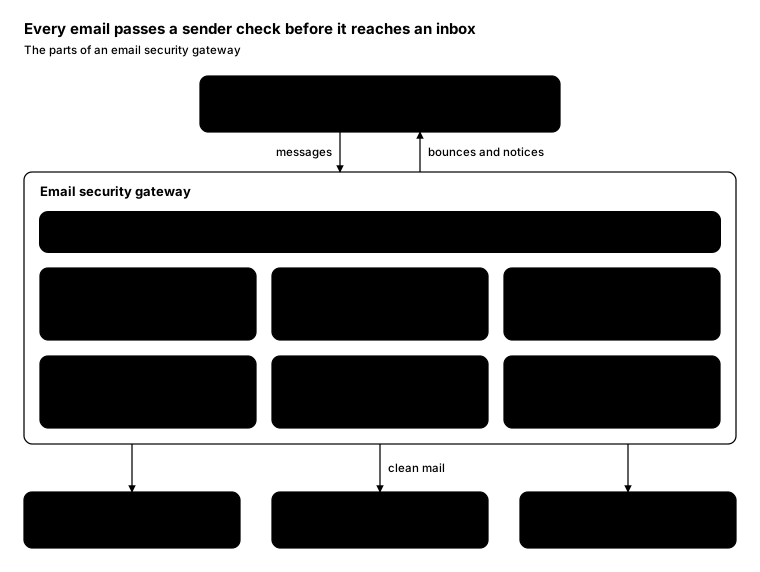
Promptcopy it, change the names, get your own version
Use the crisp-diagrams skill to draw an anatomy diagram (the parts inside one thing).

Title: Every email passes a sender check before it reaches an inbox
Subtitle: The parts of an email security gateway

- On top: Incoming email: From anyone on the internet
    Arrow down labelled “messages” and arrow back up labelled “bounces and notices”
- A container called “Email security gateway” holding:
    Spam filter: Scores each message on content and history
    Attachment sandbox: Opens files in isolation first
    Link checker: Rewrites links and checks them on click
    Impersonation check: Spots look-alike senders and domains
    Quarantine: Holds suspicious mail for review
    Reports: What was blocked, and why
    Sender check (the accent): SPF, DKIM and DMARC prove who really sent it
- Outside, below it, reached only with “clean mail”:
    Mailboxes: Get only the mail that passed
    Security team: Reviews the quarantine
    Archive: Keeps a copy for compliance

Layout:
- The person box centered at the top, then a full-width container with the parts in 2 rows of 3
- Sender check as a full-width accent band at the top of the container
- The 3 outside systems in a row under the container, each with an arrow from the Sender check band

Color groups: teal for Spam filter, Attachment sandbox, Link checker, Impersonation check, Quarantine and Reports; green for Mailboxes, Security team and Archive; violet for Incoming email

Use these labels word for word.

Style: gradient theme.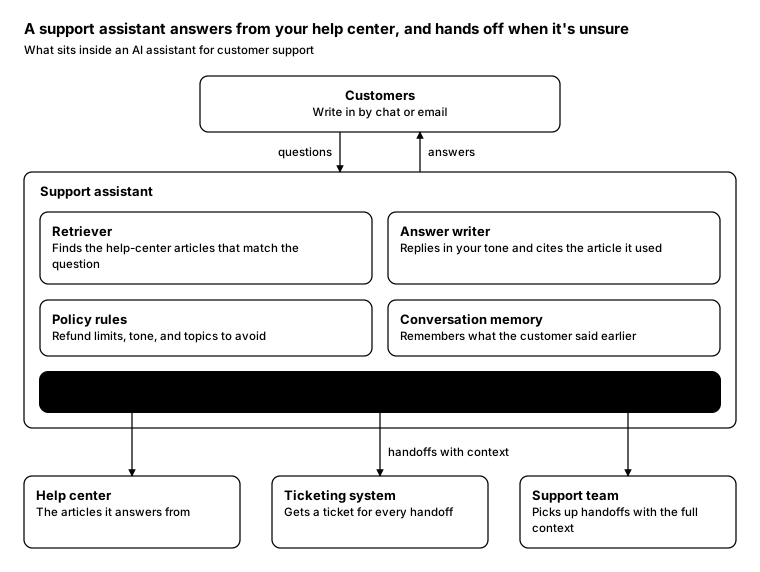
Promptcopy it, change the names, get your own version
Use the crisp-diagrams skill to draw an anatomy diagram (the parts inside one thing).

Title: A support assistant answers from your help center, and hands off when it's unsure
Subtitle: What sits inside an AI assistant for customer support

- On top: Customers: Write in by chat or email
    Arrow down labelled “questions” and arrow back up labelled “answers”
- A container called “Support assistant” holding:
    Retriever: Finds the help-center articles that match the question
    Answer writer: Replies in your tone and cites the article it used
    Policy rules: Refund limits, tone, and topics to avoid
    Conversation memory: Remembers what the customer said earlier
    Escalation check (the accent): unsure, or an upset customer? a person takes over
- Outside, below it, reached only with “handoffs with context”:
    Help center: The articles it answers from
    Ticketing system: Gets a ticket for every handoff
    Support team: Picks up handoffs with the full context

Layout:
- The person box centered at the top, then a full-width container with the parts in 2 rows of 3
- Escalation check as a full-width accent band at the bottom of the container
- The 3 outside systems in a row under the container, each with an arrow from the Escalation check band

Use these labels word for word.

Style: quiet theme (outlines only, one blue accent).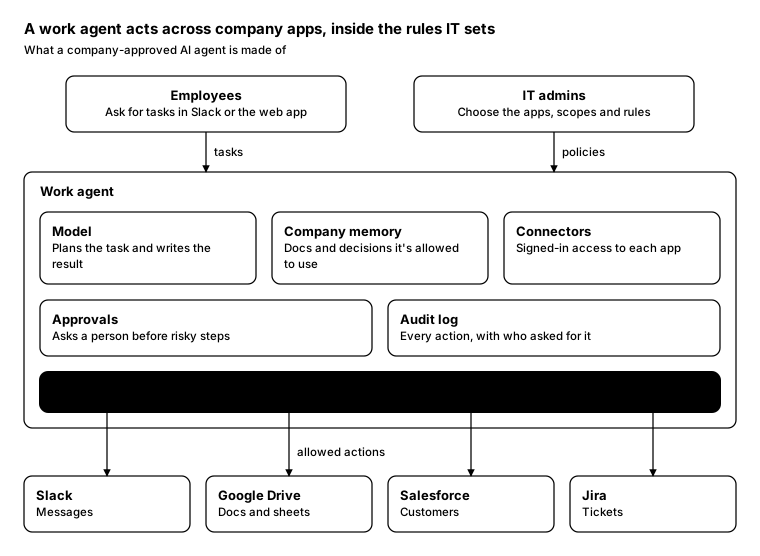
Promptcopy it, change the names, get your own version
Use the crisp-diagrams skill to draw an anatomy diagram (the parts inside one thing).

Title: A work agent acts across company apps, inside the rules IT sets
Subtitle: What a company-approved AI agent is made of

- On top: Employees: Ask for tasks in Slack or the web app
- On top: IT admins: Choose the apps, scopes and rules
- A container called “Work agent” holding:
    Model: Plans the task and writes the result
    Company memory: Docs and decisions it's allowed to use
    Connectors: Signed-in access to each app
    Approvals: Asks a person before risky steps
    Audit log: Every action, with who asked for it
    Policy engine (the accent): IT's rules decide what each request may touch
- Outside, below it, reached only with “allowed actions”:
    Slack: Messages
    Google Drive: Docs and sheets
    Salesforce: Customers
    Jira: Tickets

Layout:
- The person box centered at the top, then a full-width container with the parts in 2 rows of 3
- Policy engine as a full-width accent band at the bottom of the container
- The 4 outside systems in a row under the container, each with an arrow from the Policy engine band

Use these labels word for word.

Style: quiet theme (outlines only, one blue accent).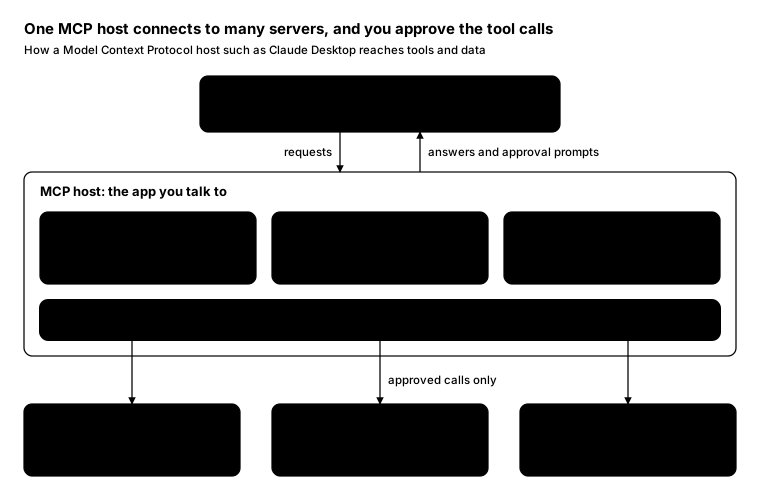
Promptcopy it, change the names, get your own version
Use the crisp-diagrams skill to draw an anatomy diagram (the parts inside one thing).

Title: One MCP host connects to many servers, and you approve the tool calls
Subtitle: How a Model Context Protocol host such as Claude Desktop reaches tools and data

- On top: You, in the chat app: Ask for something that needs a tool
    Arrow down labelled “requests” and arrow back up labelled “answers and approval prompts”
- A container called “MCP host: the app you talk to” holding:
    Model: Decides which tool to call and with what input
    MCP clients: One client per server, each on its own connection
    Tool list: The tools, resources and prompts servers offer
    Approval (the accent): you confirm tool calls before they run
- Outside, below it, reached only with “approved calls only”:
    Filesystem server: Reads and writes files in folders you allow
    GitHub server: Issues, pull requests and code search
    Slack server: Reads channels and posts messages

Layout:
- The person box centered at the top, then a full-width container with the parts in one row of 3
- Approval as a full-width accent band at the bottom of the container
- The 3 outside systems in a row under the container, each with an arrow from the Approval band

Color groups: teal for Model, MCP clients and Tool list; green for Filesystem server, GitHub server and Slack server; violet for You, in the chat app

Use these labels word for word.

Style: pastel theme.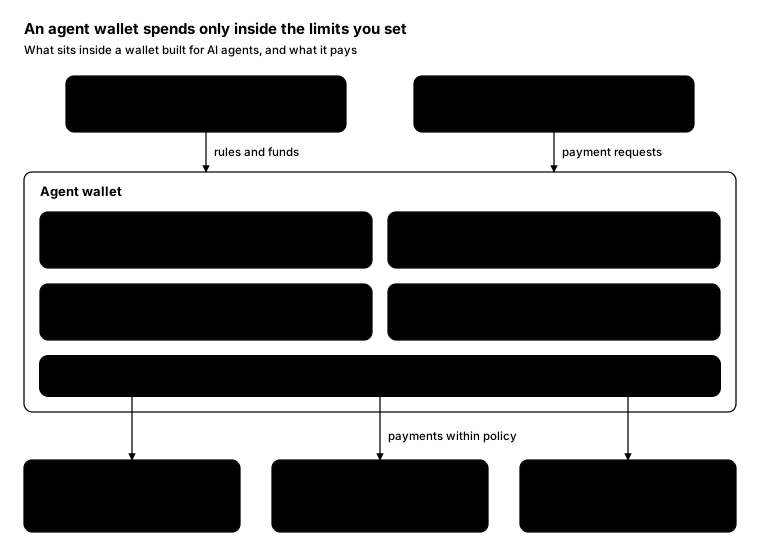
Promptcopy it, change the names, get your own version
Use the crisp-diagrams skill to draw an anatomy diagram (the parts inside one thing).

Title: An agent wallet spends only inside the limits you set
Subtitle: What sits inside a wallet built for AI agents, and what it pays

- On top: You, the owner: Fund the wallet and set its rules
- On top: Your agent: Asks the wallet to pay for things
- A container called “Agent wallet” holding:
    Keys: Held in secure hardware, never shown to the agent
    Balance: Stablecoins or a linked card
    Receipts: Every payment, with what it bought
    Recovery: Lets you freeze or move the funds at any time
    Spending policy (the accent): per-payment and daily caps, allowed merchants
- Outside, below it, reached only with “payments within policy”:
    Paid APIs: Charge per call over x402
    Online stores: Card checkout with a network token
    Other agents: Get paid for a finished task

Layout:
- The person box centered at the top, then a full-width container with the parts in 2 rows of 3
- Spending policy as a full-width accent band at the bottom of the container
- The 3 outside systems in a row under the container, each with an arrow from the Spending policy band

Color groups: teal for Keys, Balance, Receipts and Recovery; green for Paid APIs, Online stores and Other agents; violet for You, the owner and Your agent

Use these labels word for word.

Style: gradient theme.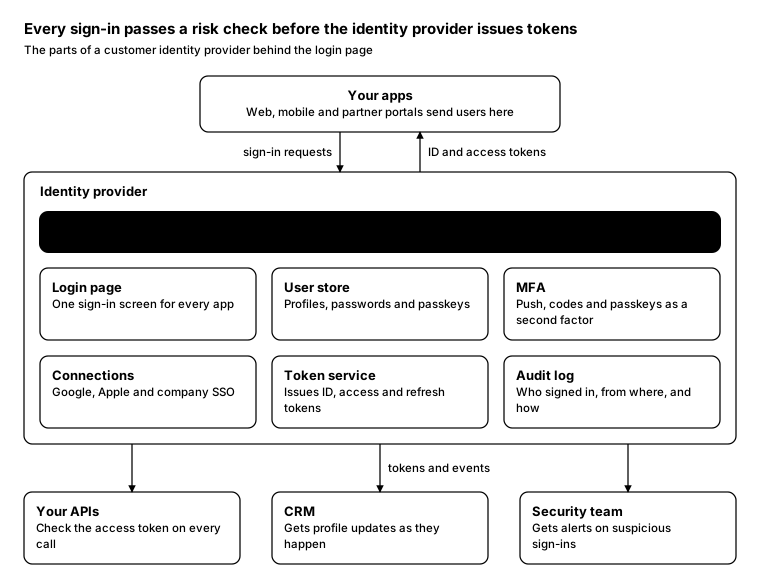
Promptcopy it, change the names, get your own version
Use the crisp-diagrams skill to draw an anatomy diagram (the parts inside one thing).

Title: Every sign-in passes a risk check before the identity provider issues tokens
Subtitle: The parts of a customer identity provider behind the login page

- On top: Your apps: Web, mobile and partner portals send users here
    Arrow down labelled “sign-in requests” and arrow back up labelled “ID and access tokens”
- A container called “Identity provider” holding:
    Login page: One sign-in screen for every app
    User store: Profiles, passwords and passkeys
    MFA: Push, codes and passkeys as a second factor
    Connections: Google, Apple and company SSO
    Token service: Issues ID, access and refresh tokens
    Audit log: Who signed in, from where, and how
    Risk check (the accent): scores each attempt; risky ones need a second factor
- Outside, below it, reached only with “tokens and events”:
    Your APIs: Check the access token on every call
    CRM: Gets profile updates as they happen
    Security team: Gets alerts on suspicious sign-ins

Layout:
- The person box centered at the top, then a full-width container with the parts in 2 rows of 3
- Risk check as a full-width accent band at the top of the container
- The 3 outside systems in a row under the container, each with an arrow from the Risk check band

Use these labels word for word.

Style: quiet theme (outlines only, one blue accent).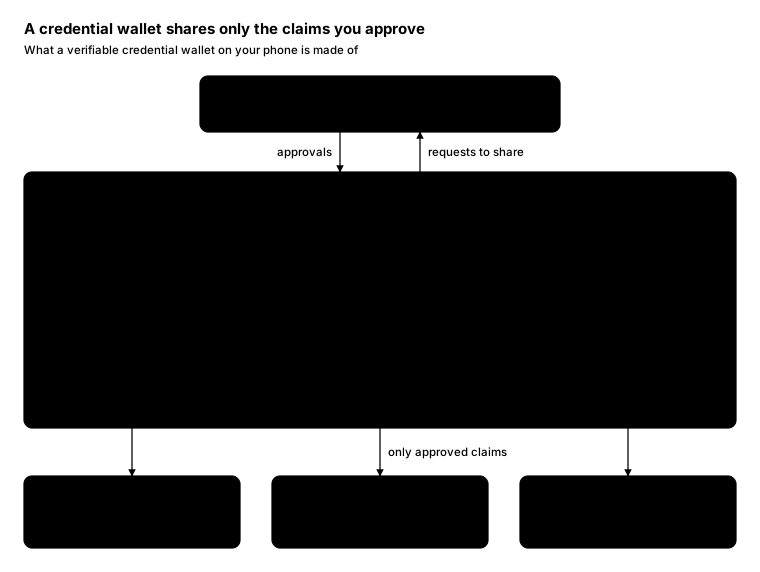
Promptcopy it, change the names, get your own version
Use the crisp-diagrams skill to draw an anatomy diagram (the parts inside one thing).

Title: A credential wallet shares only the claims you approve
Subtitle: What a verifiable credential wallet on your phone is made of

- On top: You, on your phone: Add credentials and approve each request
    Arrow down labelled “approvals” and arrow back up labelled “requests to share”
- A container called “Credential wallet” holding:
    Credentials: Driver's license, diploma, employee badge
    Secure keys: Bound to the phone's secure hardware
    Proof builder: Reveals only the claims a verifier asks for
    Trusted issuers: Which issuers the wallet accepts credentials from
    Activity: What you shared, with whom, and when
    Consent screen (the accent): shows exactly which claims leave, and to whom
- Outside, below it, reached only with “only approved claims”:
    Online services: Ask for proof of age or identity
    Shops and venues: Check a proof in person over NFC or QR
    Status lists: Say whether a credential was revoked

Layout:
- The person box centered at the top, then a full-width container with the parts in 2 rows of 3
- Consent screen as a full-width accent band at the bottom of the container
- The 3 outside systems in a row under the container, each with an arrow from the Consent screen band

Color groups: teal for Credentials, Secure keys, Proof builder, Trusted issuers and Activity; green for Online services, Shops and venues and Status lists; violet for You, on your phone

Use these labels word for word.

Style: tinted zones theme.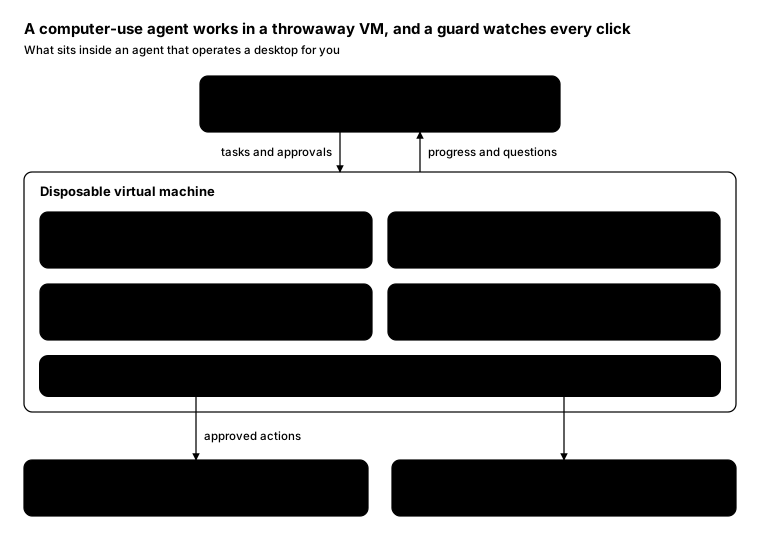
Promptcopy it, change the names, get your own version
Use the crisp-diagrams skill to draw an anatomy diagram (the parts inside one thing).

Title: A computer-use agent works in a throwaway VM, and a guard watches every click
Subtitle: What sits inside an agent that operates a desktop for you

- On top: You: Describe the task and approve risky steps
    Arrow down labelled “tasks and approvals” and arrow back up labelled “progress and questions”
- A container called “Disposable virtual machine” holding:
    Screen reader: Takes screenshots and reads what's on screen
    Planner: Picks the next click or keystroke
    Mouse and keyboard: Sends input to apps inside the VM
    Session recorder: Keeps a replay of every step
    Guard (the accent): pauses before purchases, sign-ins and deletes
- Outside, below it, reached only with “approved actions”:
    Websites: Opened in the VM's own browser
    Desktop apps: Installed in the VM, never on your machine

Layout:
- The person box centered at the top, then a full-width container with the parts in 2 rows of 3
- Guard as a full-width accent band at the bottom of the container
- The 2 outside systems in a row under the container, each with an arrow from the Guard band

Color groups: teal for Screen reader, Planner, Mouse and keyboard and Session recorder; green for Websites and Desktop apps; violet for You

Use these labels word for word.

Style: gradient theme.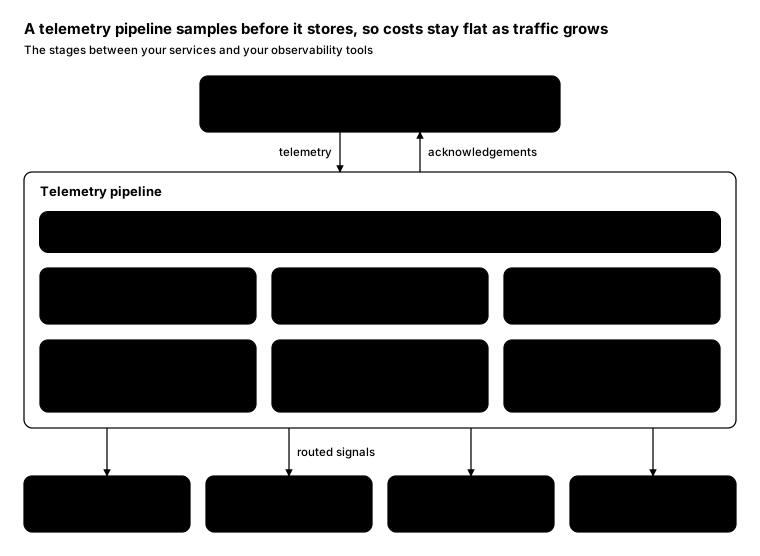
Promptcopy it, change the names, get your own version
Use the crisp-diagrams skill to draw an anatomy diagram (the parts inside one thing).

Title: A telemetry pipeline samples before it stores, so costs stay flat as traffic grows
Subtitle: The stages between your services and your observability tools

- On top: Your services: Send logs, metrics and traces
    Arrow down labelled “telemetry” and arrow back up labelled “acknowledgements”
- A container called “Telemetry pipeline” holding:
    Collector: Receives OpenTelemetry data
    Parser: Turns raw log lines into fields
    Enricher: Adds team, version and region
    Redactor: Removes emails, tokens and card numbers
    Router: Sends each signal to the right store
    Buffer: Holds data while a store is down
    Sampler (the accent): keeps every error and 10% of the rest
- Outside, below it, reached only with “routed signals”:
    Log store: Search and retention
    Metrics: Dashboards and SLOs
    Traces: Request timelines
    Alerting: Pages the on-call

Layout:
- The person box centered at the top, then a full-width container with the parts in 2 rows of 3
- Sampler as a full-width accent band at the top of the container
- The 4 outside systems in a row under the container, each with an arrow from the Sampler band

Color groups: teal for Collector, Parser, Enricher, Redactor, Router and Buffer; green for Log store, Metrics, Traces and Alerting; violet for Your services

Use these labels word for word.

Style: pastel theme.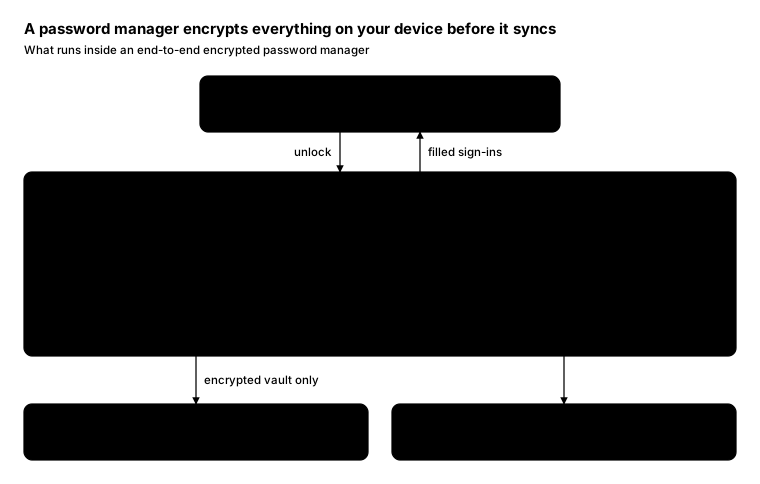
Promptcopy it, change the names, get your own version
Use the crisp-diagrams skill to draw an anatomy diagram (the parts inside one thing).

Title: A password manager encrypts everything on your device before it syncs
Subtitle: What runs inside an end-to-end encrypted password manager

- On top: You, on any device: Unlock with a master password or passkey
    Arrow down labelled “unlock” and arrow back up labelled “filled sign-ins”
- A container called “Password manager app” holding:
    Vault: Passwords, passkeys and secure notes
    Autofill: Fills a sign-in form only on the matching site
    Generator: Creates a strong, unique password per site
    Local encryption (the accent): the key never leaves your devices
- Outside, below it, reached only with “encrypted vault only”:
    Sync server: Stores only encrypted blobs it can't read
    Your other devices: Download the blobs and decrypt them locally

Layout:
- The person box centered at the top, then a full-width container with the parts in one row of 3
- Local encryption as a full-width accent band at the bottom of the container
- The 2 outside systems in a row under the container, each with an arrow from the Local encryption band

Color groups: teal for Vault, Autofill and Generator; green for Sync server and Your other devices; violet for You, on any device

Use these labels word for word.

Style: tinted zones theme.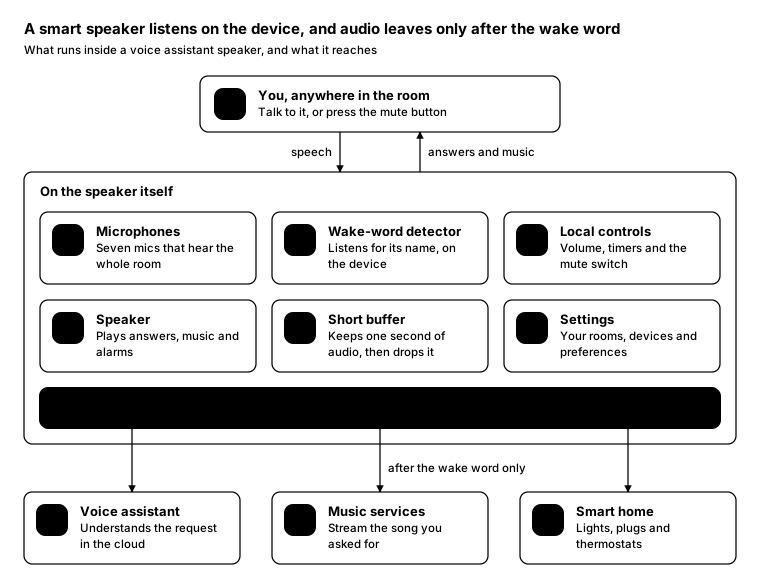
Promptcopy it, change the names, get your own version
Use the crisp-diagrams skill to draw an anatomy diagram (the parts inside one thing).

Title: A smart speaker listens on the device, and audio leaves only after the wake word
Subtitle: What runs inside a voice assistant speaker, and what it reaches

- On top: You, anywhere in the room: Talk to it, or press the mute button
    Arrow down labelled “speech” and arrow back up labelled “answers and music”
- A container called “On the speaker itself” holding:
    Microphones: Seven mics that hear the whole room
    Wake-word detector: Listens for its name, on the device
    Local controls: Volume, timers and the mute switch
    Speaker: Plays answers, music and alarms
    Short buffer: Keeps one second of audio, then drops it
    Settings: Your rooms, devices and preferences
    Privacy gate (the accent): audio leaves the speaker only after the wake word
- Outside, below it, reached only with “after the wake word only”:
    Voice assistant: Understands the request in the cloud
    Music services: Stream the song you asked for
    Smart home: Lights, plugs and thermostats

Layout:
- The person box centered at the top, then a full-width container with the parts in 2 rows of 3
- Privacy gate as a full-width accent band at the bottom of the container
- The 3 outside systems in a row under the container, each with an arrow from the Privacy gate band

Use these labels word for word.

Style: quiet theme (outlines only, one blue accent), with an icon on a tinted badge in each box.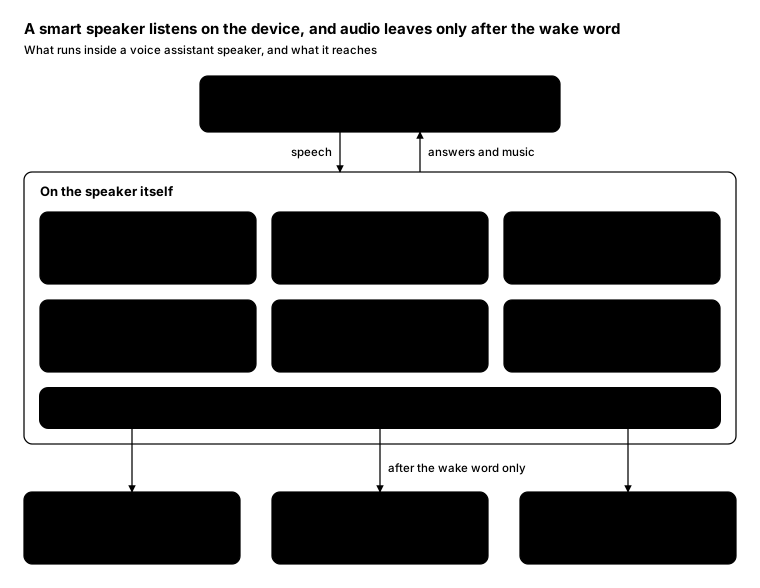
Promptcopy it, change the names, get your own version
Use the crisp-diagrams skill to draw an anatomy diagram (the parts inside one thing).

Title: A smart speaker listens on the device, and audio leaves only after the wake word
Subtitle: What runs inside a voice assistant speaker, and what it reaches

- On top: You, anywhere in the room: Talk to it, or press the mute button
    Arrow down labelled “speech” and arrow back up labelled “answers and music”
- A container called “On the speaker itself” holding:
    Microphones: Seven mics that hear the whole room
    Wake-word detector: Listens for its name, on the device
    Local controls: Volume, timers and the mute switch
    Speaker: Plays answers, music and alarms
    Short buffer: Keeps one second of audio, then drops it
    Settings: Your rooms, devices and preferences
    Privacy gate (the accent): audio leaves the speaker only after the wake word
- Outside, below it, reached only with “after the wake word only”:
    Voice assistant: Understands the request in the cloud
    Music services: Stream the song you asked for
    Smart home: Lights, plugs and thermostats

Layout:
- The person box centered at the top, then a full-width container with the parts in 2 rows of 3
- Privacy gate as a full-width accent band at the bottom of the container
- The 3 outside systems in a row under the container, each with an arrow from the Privacy gate band

Color groups: teal for Microphones, Wake-word detector, Local controls, Speaker, Short buffer and Settings; green for Voice assistant, Music services and Smart home; violet for You, anywhere in the room

Use these labels word for word.

Style: gradient theme, with a small line icon in each box.
Promptcopy it, change the names, get your own version
Use the crisp-diagrams skill to draw an anatomy diagram (the parts inside one thing).

Title: A meeting assistant shares the summary, and the recording stays private
Subtitle: What a note-taking bot does inside your video calls

- On top: You and your team, in a call: Zoom, Meet or Teams, with the assistant invited
    Arrow down labelled “audio and screen” and arrow back up labelled “live notes”
- A container called “Meeting assistant” holding:
    Transcriber: Turns speech into text as people talk
    Speaker labels: Knows who said what
    Summarizer: Writes the key points and decisions
    Action items: Who owes what, by when
    Search: Finds anything said in past meetings
    Retention: Deletes recordings after 30 days
    Sharing rules (the accent): attendees get the summary; recordings stay with the host
- Outside, below it, reached only with “summaries and tasks only”:
    Calendar: Tells it which meetings to join
    Email: Sends the summary to attendees
    Project tracker: Gets the action items as tasks

Layout:
- The person box centered at the top, then a full-width container with the parts in 2 rows of 3
- Sharing rules as a full-width accent band at the bottom of the container
- The 3 outside systems in a row under the container, each with an arrow from the Sharing rules band

Color groups: teal for Transcriber, Speaker labels, Summarizer, Action items, Search and Retention; green for Calendar, Email and Project tracker; violet for You and your team, in a call

Use these labels word for word.

Style: pastel theme, with a small line icon in each box.
Promptcopy it, change the names, get your own version
Use the crisp-diagrams skill to draw an anatomy diagram (the parts inside one thing).

Title: A meeting assistant shares the summary, and the recording stays private
Subtitle: What a note-taking bot does inside your video calls

- On top: You and your team, in a call: Zoom, Meet or Teams, with the assistant invited
    Arrow down labelled “audio and screen” and arrow back up labelled “live notes”
- A container called “Meeting assistant” holding:
    Transcriber: Turns speech into text as people talk
    Speaker labels: Knows who said what
    Summarizer: Writes the key points and decisions
    Action items: Who owes what, by when
    Search: Finds anything said in past meetings
    Retention: Deletes recordings after 30 days
    Sharing rules (the accent): attendees get the summary; recordings stay with the host
- Outside, below it, reached only with “summaries and tasks only”:
    Calendar: Tells it which meetings to join
    Email: Sends the summary to attendees
    Project tracker: Gets the action items as tasks

Layout:
- The person box centered at the top, then a full-width container with the parts in 2 rows of 3
- Sharing rules as a full-width accent band at the bottom of the container
- The 3 outside systems in a row under the container, each with an arrow from the Sharing rules band

Color groups: teal for Transcriber, Speaker labels, Summarizer, Action items, Search and Retention; green for Calendar, Email and Project tracker; violet for You and your team, in a call

Use these labels word for word.

Style: tinted zones theme, with icon cards (icon on top, name below).
Promptcopy it, change the names, get your own version
Use the crisp-diagrams skill to draw an anatomy diagram (the parts inside one thing).

Title: A card terminal encrypts the card number at the reader, before any app sees it
Subtitle: The parts of a payment terminal at a shop counter

- On top: Shopper: Taps a card, phone or watch
    Arrow down labelled “card tap” and arrow back up labelled “approved or declined”
- A container called “Payment terminal” holding:
    Contactless reader: Reads the card or phone over NFC
    PIN pad: A separate, secure input for the PIN
    Secure element: Holds the encryption keys
    Checkout app: Shows the amount, never the card number
    Receipts: Printed, or sent by email
    Encryption at the reader (the accent): card data is encrypted the moment it's read
- Outside, below it, reached only with “encrypted card data”:
    Payment processor: Decrypts it and asks the network
    Card network: Visa, Mastercard and others
    Merchant's system: Gets a token, not the card number

Layout:
- The person box centered at the top, then a full-width container with the parts in 2 rows of 3
- Encryption at the reader as a full-width accent band at the bottom of the container
- The 3 outside systems in a row under the container, each with an arrow from the Encryption at the reader band

Color groups: teal for Contactless reader, PIN pad, Secure element, Checkout app and Receipts; green for Payment processor, Card network and Merchant's system; violet for Shopper

Use these labels word for word.

Style: gradient theme, with icon cards (icon on top, name below).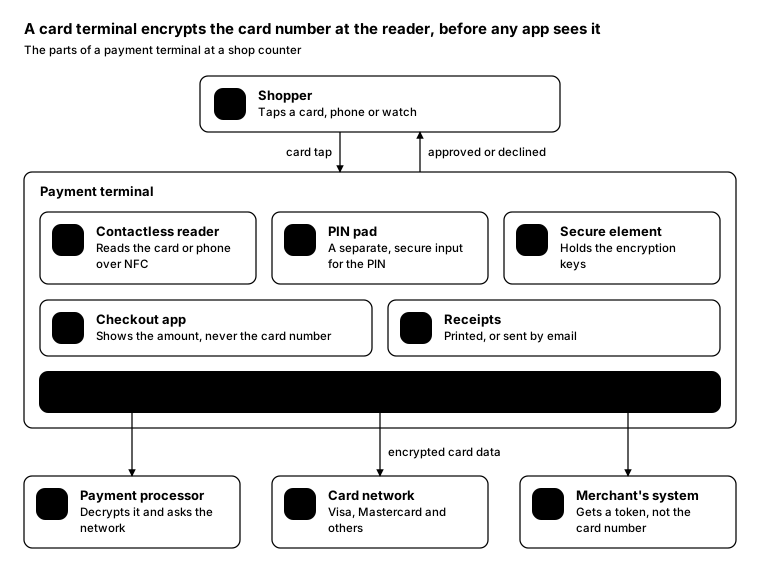
Promptcopy it, change the names, get your own version
Use the crisp-diagrams skill to draw an anatomy diagram (the parts inside one thing).

Title: A card terminal encrypts the card number at the reader, before any app sees it
Subtitle: The parts of a payment terminal at a shop counter

- On top: Shopper: Taps a card, phone or watch
    Arrow down labelled “card tap” and arrow back up labelled “approved or declined”
- A container called “Payment terminal” holding:
    Contactless reader: Reads the card or phone over NFC
    PIN pad: A separate, secure input for the PIN
    Secure element: Holds the encryption keys
    Checkout app: Shows the amount, never the card number
    Receipts: Printed, or sent by email
    Encryption at the reader (the accent): card data is encrypted the moment it's read
- Outside, below it, reached only with “encrypted card data”:
    Payment processor: Decrypts it and asks the network
    Card network: Visa, Mastercard and others
    Merchant's system: Gets a token, not the card number

Layout:
- The person box centered at the top, then a full-width container with the parts in 2 rows of 3
- Encryption at the reader as a full-width accent band at the bottom of the container
- The 3 outside systems in a row under the container, each with an arrow from the Encryption at the reader band

Use these labels word for word.

Style: quiet theme (outlines only, one blue accent), with an icon on a tinted badge in each box.
Promptcopy it, change the names, get your own version
Use the crisp-diagrams skill to draw an anatomy diagram (the parts inside one thing).

Title: Every email passes a sender check before it reaches an inbox
Subtitle: The parts of an email security gateway

- On top: Incoming email: From anyone on the internet
    Arrow down labelled “messages” and arrow back up labelled “bounces and notices”
- A container called “Email security gateway” holding:
    Spam filter: Scores each message on content and history
    Attachment sandbox: Opens files in isolation first
    Link checker: Rewrites links and checks them on click
    Impersonation check: Spots look-alike senders and domains
    Quarantine: Holds suspicious mail for review
    Reports: What was blocked, and why
    Sender check (the accent): SPF, DKIM and DMARC prove who really sent it
- Outside, below it, reached only with “clean mail”:
    Mailboxes: Get only the mail that passed
    Security team: Reviews the quarantine
    Archive: Keeps a copy for compliance

Layout:
- The person box centered at the top, then a full-width container with the parts in 2 rows of 3
- Sender check as a full-width accent band at the top of the container
- The 3 outside systems in a row under the container, each with an arrow from the Sender check band

Color groups: teal for Spam filter, Attachment sandbox, Link checker, Impersonation check, Quarantine and Reports; green for Mailboxes, Security team and Archive; violet for Incoming email

Use these labels word for word.

Style: tinted zones theme, with an icon on a tinted badge in each box.
Promptcopy it, change the names, get your own version
Use the crisp-diagrams skill to draw an anatomy diagram (the parts inside one thing).

Title: Every email passes a sender check before it reaches an inbox
Subtitle: The parts of an email security gateway

- On top: Incoming email: From anyone on the internet
    Arrow down labelled “messages” and arrow back up labelled “bounces and notices”
- A container called “Email security gateway” holding:
    Spam filter: Scores each message on content and history
    Attachment sandbox: Opens files in isolation first
    Link checker: Rewrites links and checks them on click
    Impersonation check: Spots look-alike senders and domains
    Quarantine: Holds suspicious mail for review
    Reports: What was blocked, and why
    Sender check (the accent): SPF, DKIM and DMARC prove who really sent it
- Outside, below it, reached only with “clean mail”:
    Mailboxes: Get only the mail that passed
    Security team: Reviews the quarantine
    Archive: Keeps a copy for compliance

Layout:
- The person box centered at the top, then a full-width container with the parts in 2 rows of 3
- Sender check as a full-width accent band at the top of the container
- The 3 outside systems in a row under the container, each with an arrow from the Sender check band

Color groups: teal for Spam filter, Attachment sandbox, Link checker, Impersonation check, Quarantine and Reports; green for Mailboxes, Security team and Archive; violet for Incoming email

Use these labels word for word.

Style: pastel theme, with a small line icon in each box.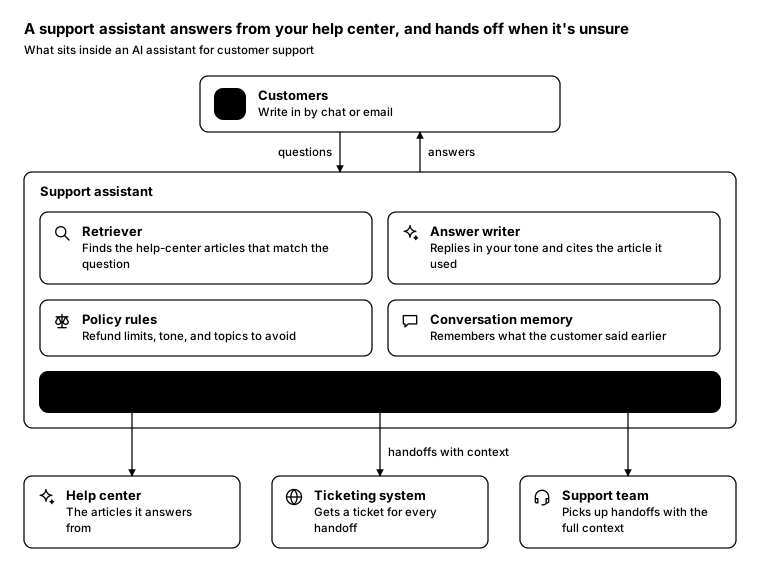
Promptcopy it, change the names, get your own version
Use the crisp-diagrams skill to draw an anatomy diagram (the parts inside one thing).

Title: A support assistant answers from your help center, and hands off when it's unsure
Subtitle: What sits inside an AI assistant for customer support

- On top: Customers: Write in by chat or email
    Arrow down labelled “questions” and arrow back up labelled “answers”
- A container called “Support assistant” holding:
    Retriever: Finds the help-center articles that match the question
    Answer writer: Replies in your tone and cites the article it used
    Policy rules: Refund limits, tone, and topics to avoid
    Conversation memory: Remembers what the customer said earlier
    Escalation check (the accent): unsure, or an upset customer? a person takes over
- Outside, below it, reached only with “handoffs with context”:
    Help center: The articles it answers from
    Ticketing system: Gets a ticket for every handoff
    Support team: Picks up handoffs with the full context

Layout:
- The person box centered at the top, then a full-width container with the parts in 2 rows of 3
- Escalation check as a full-width accent band at the bottom of the container
- The 3 outside systems in a row under the container, each with an arrow from the Escalation check band

Use these labels word for word.

Style: quiet theme (outlines only, one blue accent), with a small line icon in each box.
Promptcopy it, change the names, get your own version
Use the crisp-diagrams skill to draw an anatomy diagram (the parts inside one thing).

Title: A support assistant answers from your help center, and hands off when it's unsure
Subtitle: What sits inside an AI assistant for customer support

- On top: Customers: Write in by chat or email
    Arrow down labelled “questions” and arrow back up labelled “answers”
- A container called “Support assistant” holding:
    Retriever: Finds the help-center articles that match the question
    Answer writer: Replies in your tone and cites the article it used
    Policy rules: Refund limits, tone, and topics to avoid
    Conversation memory: Remembers what the customer said earlier
    Escalation check (the accent): unsure, or an upset customer? a person takes over
- Outside, below it, reached only with “handoffs with context”:
    Help center: The articles it answers from
    Ticketing system: Gets a ticket for every handoff
    Support team: Picks up handoffs with the full context

Layout:
- The person box centered at the top, then a full-width container with the parts in 2 rows of 3
- Escalation check as a full-width accent band at the bottom of the container
- The 3 outside systems in a row under the container, each with an arrow from the Escalation check band

Color groups: teal for Retriever, Answer writer, Policy rules and Conversation memory; green for Help center, Ticketing system and Support team; violet for Customers

Use these labels word for word.

Style: gradient theme, with icon cards (icon on top, name below).
Promptcopy it, change the names, get your own version
Use the crisp-diagrams skill to draw an anatomy diagram (the parts inside one thing).

Title: A work agent acts across company apps, inside the rules IT sets
Subtitle: What a company-approved AI agent is made of

- On top: Employees: Ask for tasks in Slack or the web app
- On top: IT admins: Choose the apps, scopes and rules
- A container called “Work agent” holding:
    Model: Plans the task and writes the result
    Company memory: Docs and decisions it's allowed to use
    Connectors: Signed-in access to each app
    Approvals: Asks a person before risky steps
    Audit log: Every action, with who asked for it
    Policy engine (the accent): IT's rules decide what each request may touch
- Outside, below it, reached only with “allowed actions”:
    Slack: Messages
    Google Drive: Docs and sheets
    Salesforce: Customers
    Jira: Tickets

Layout:
- The person box centered at the top, then a full-width container with the parts in 2 rows of 3
- Policy engine as a full-width accent band at the bottom of the container
- The 4 outside systems in a row under the container, each with an arrow from the Policy engine band

Color groups: teal for Model, Company memory, Connectors, Approvals and Audit log; green for Slack, Google Drive, Salesforce and Jira; violet for Employees and IT admins

Use these labels word for word.

Style: pastel theme, with icon cards (icon on top, name below).
Promptcopy it, change the names, get your own version
Use the crisp-diagrams skill to draw an anatomy diagram (the parts inside one thing).

Title: A work agent acts across company apps, inside the rules IT sets
Subtitle: What a company-approved AI agent is made of

- On top: Employees: Ask for tasks in Slack or the web app
- On top: IT admins: Choose the apps, scopes and rules
- A container called “Work agent” holding:
    Model: Plans the task and writes the result
    Company memory: Docs and decisions it's allowed to use
    Connectors: Signed-in access to each app
    Approvals: Asks a person before risky steps
    Audit log: Every action, with who asked for it
    Policy engine (the accent): IT's rules decide what each request may touch
- Outside, below it, reached only with “allowed actions”:
    Slack: Messages
    Google Drive: Docs and sheets
    Salesforce: Customers
    Jira: Tickets

Layout:
- The person box centered at the top, then a full-width container with the parts in 2 rows of 3
- Policy engine as a full-width accent band at the bottom of the container
- The 4 outside systems in a row under the container, each with an arrow from the Policy engine band

Color groups: teal for Model, Company memory, Connectors, Approvals and Audit log; green for Slack, Google Drive, Salesforce and Jira; violet for Employees and IT admins

Use these labels word for word.

Style: tinted zones theme, with an icon on a tinted badge in each box.
Promptcopy it, change the names, get your own version
Use the crisp-diagrams skill to draw an anatomy diagram (the parts inside one thing).

Title: One MCP host connects to many servers, and you approve the tool calls
Subtitle: How a Model Context Protocol host such as Claude Desktop reaches tools and data

- On top: You, in the chat app: Ask for something that needs a tool
    Arrow down labelled “requests” and arrow back up labelled “answers and approval prompts”
- A container called “MCP host: the app you talk to” holding:
    Model: Decides which tool to call and with what input
    MCP clients: One client per server, each on its own connection
    Tool list: The tools, resources and prompts servers offer
    Approval (the accent): you confirm tool calls before they run
- Outside, below it, reached only with “approved calls only”:
    Filesystem server: Reads and writes files in folders you allow
    GitHub server: Issues, pull requests and code search
    Slack server: Reads channels and posts messages

Layout:
- The person box centered at the top, then a full-width container with the parts in one row of 3
- Approval as a full-width accent band at the bottom of the container
- The 3 outside systems in a row under the container, each with an arrow from the Approval band

Color groups: teal for Model, MCP clients and Tool list; green for Filesystem server, GitHub server and Slack server; violet for You, in the chat app

Use these labels word for word.

Style: gradient theme, with an icon on a tinted badge in each box.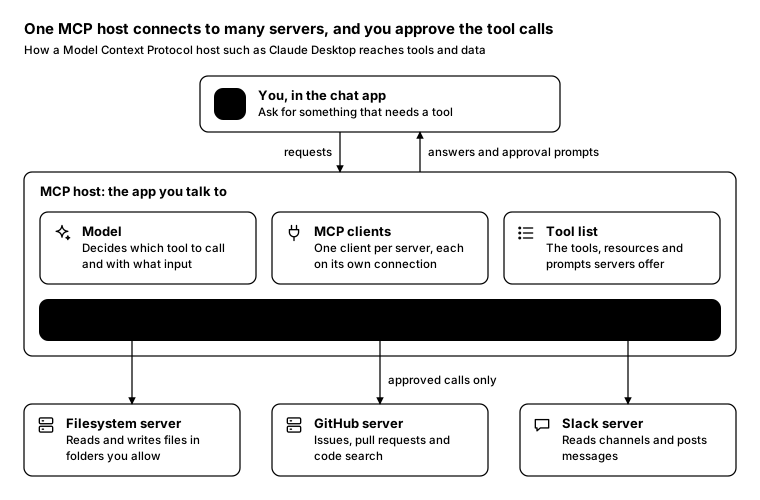
Promptcopy it, change the names, get your own version
Use the crisp-diagrams skill to draw an anatomy diagram (the parts inside one thing).

Title: One MCP host connects to many servers, and you approve the tool calls
Subtitle: How a Model Context Protocol host such as Claude Desktop reaches tools and data

- On top: You, in the chat app: Ask for something that needs a tool
    Arrow down labelled “requests” and arrow back up labelled “answers and approval prompts”
- A container called “MCP host: the app you talk to” holding:
    Model: Decides which tool to call and with what input
    MCP clients: One client per server, each on its own connection
    Tool list: The tools, resources and prompts servers offer
    Approval (the accent): you confirm tool calls before they run
- Outside, below it, reached only with “approved calls only”:
    Filesystem server: Reads and writes files in folders you allow
    GitHub server: Issues, pull requests and code search
    Slack server: Reads channels and posts messages

Layout:
- The person box centered at the top, then a full-width container with the parts in one row of 3
- Approval as a full-width accent band at the bottom of the container
- The 3 outside systems in a row under the container, each with an arrow from the Approval band

Use these labels word for word.

Style: quiet theme (outlines only, one blue accent), with a small line icon in each box.
Promptcopy it, change the names, get your own version
Use the crisp-diagrams skill to draw an anatomy diagram (the parts inside one thing).

Title: An agent wallet spends only inside the limits you set
Subtitle: What sits inside a wallet built for AI agents, and what it pays

- On top: You, the owner: Fund the wallet and set its rules
- On top: Your agent: Asks the wallet to pay for things
- A container called “Agent wallet” holding:
    Keys: Held in secure hardware, never shown to the agent
    Balance: Stablecoins or a linked card
    Receipts: Every payment, with what it bought
    Recovery: Lets you freeze or move the funds at any time
    Spending policy (the accent): per-payment and daily caps, allowed merchants
- Outside, below it, reached only with “payments within policy”:
    Paid APIs: Charge per call over x402
    Online stores: Card checkout with a network token
    Other agents: Get paid for a finished task

Layout:
- The person box centered at the top, then a full-width container with the parts in 2 rows of 3
- Spending policy as a full-width accent band at the bottom of the container
- The 3 outside systems in a row under the container, each with an arrow from the Spending policy band

Color groups: teal for Keys, Balance, Receipts and Recovery; green for Paid APIs, Online stores and Other agents; violet for You, the owner and Your agent

Use these labels word for word.

Style: tinted zones theme, with a small line icon in each box.
Promptcopy it, change the names, get your own version
Use the crisp-diagrams skill to draw an anatomy diagram (the parts inside one thing).

Title: An agent wallet spends only inside the limits you set
Subtitle: What sits inside a wallet built for AI agents, and what it pays

- On top: You, the owner: Fund the wallet and set its rules
- On top: Your agent: Asks the wallet to pay for things
- A container called “Agent wallet” holding:
    Keys: Held in secure hardware, never shown to the agent
    Balance: Stablecoins or a linked card
    Receipts: Every payment, with what it bought
    Recovery: Lets you freeze or move the funds at any time
    Spending policy (the accent): per-payment and daily caps, allowed merchants
- Outside, below it, reached only with “payments within policy”:
    Paid APIs: Charge per call over x402
    Online stores: Card checkout with a network token
    Other agents: Get paid for a finished task

Layout:
- The person box centered at the top, then a full-width container with the parts in 2 rows of 3
- Spending policy as a full-width accent band at the bottom of the container
- The 3 outside systems in a row under the container, each with an arrow from the Spending policy band

Color groups: teal for Keys, Balance, Receipts and Recovery; green for Paid APIs, Online stores and Other agents; violet for You, the owner and Your agent

Use these labels word for word.

Style: pastel theme, with icon cards (icon on top, name below).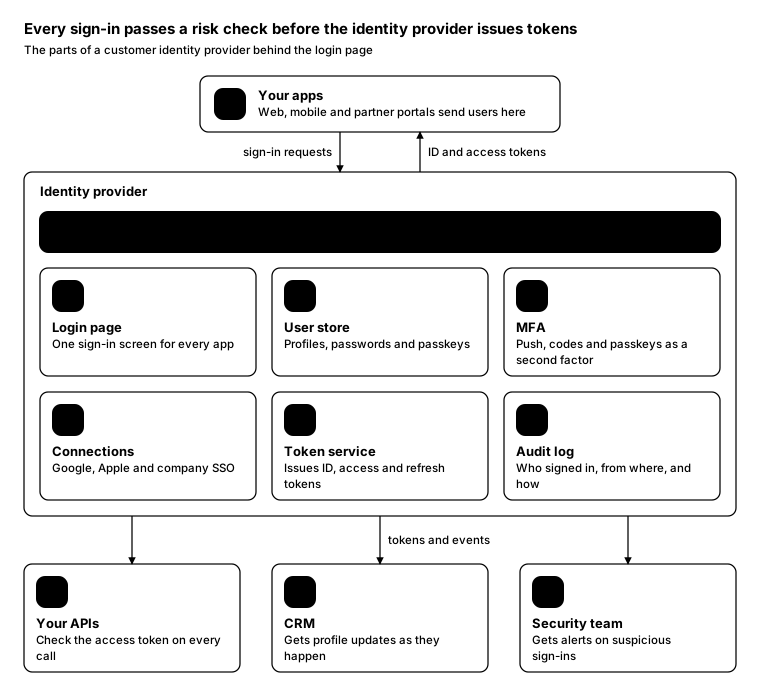
Promptcopy it, change the names, get your own version
Use the crisp-diagrams skill to draw an anatomy diagram (the parts inside one thing).

Title: Every sign-in passes a risk check before the identity provider issues tokens
Subtitle: The parts of a customer identity provider behind the login page

- On top: Your apps: Web, mobile and partner portals send users here
    Arrow down labelled “sign-in requests” and arrow back up labelled “ID and access tokens”
- A container called “Identity provider” holding:
    Login page: One sign-in screen for every app
    User store: Profiles, passwords and passkeys
    MFA: Push, codes and passkeys as a second factor
    Connections: Google, Apple and company SSO
    Token service: Issues ID, access and refresh tokens
    Audit log: Who signed in, from where, and how
    Risk check (the accent): scores each attempt; risky ones need a second factor
- Outside, below it, reached only with “tokens and events”:
    Your APIs: Check the access token on every call
    CRM: Gets profile updates as they happen
    Security team: Gets alerts on suspicious sign-ins

Layout:
- The person box centered at the top, then a full-width container with the parts in 2 rows of 3
- Risk check as a full-width accent band at the top of the container
- The 3 outside systems in a row under the container, each with an arrow from the Risk check band

Use these labels word for word.

Style: quiet theme (outlines only, one blue accent), with icon cards (icon on top, name below).
Promptcopy it, change the names, get your own version
Use the crisp-diagrams skill to draw an anatomy diagram (the parts inside one thing).

Title: Every sign-in passes a risk check before the identity provider issues tokens
Subtitle: The parts of a customer identity provider behind the login page

- On top: Your apps: Web, mobile and partner portals send users here
    Arrow down labelled “sign-in requests” and arrow back up labelled “ID and access tokens”
- A container called “Identity provider” holding:
    Login page: One sign-in screen for every app
    User store: Profiles, passwords and passkeys
    MFA: Push, codes and passkeys as a second factor
    Connections: Google, Apple and company SSO
    Token service: Issues ID, access and refresh tokens
    Audit log: Who signed in, from where, and how
    Risk check (the accent): scores each attempt; risky ones need a second factor
- Outside, below it, reached only with “tokens and events”:
    Your APIs: Check the access token on every call
    CRM: Gets profile updates as they happen
    Security team: Gets alerts on suspicious sign-ins

Layout:
- The person box centered at the top, then a full-width container with the parts in 2 rows of 3
- Risk check as a full-width accent band at the top of the container
- The 3 outside systems in a row under the container, each with an arrow from the Risk check band

Color groups: teal for Login page, User store, MFA, Connections, Token service and Audit log; green for Your APIs, CRM and Security team; violet for Your apps

Use these labels word for word.

Style: gradient theme, with an icon on a tinted badge in each box.
Promptcopy it, change the names, get your own version
Use the crisp-diagrams skill to draw an anatomy diagram (the parts inside one thing).

Title: A credential wallet shares only the claims you approve
Subtitle: What a verifiable credential wallet on your phone is made of

- On top: You, on your phone: Add credentials and approve each request
    Arrow down labelled “approvals” and arrow back up labelled “requests to share”
- A container called “Credential wallet” holding:
    Credentials: Driver's license, diploma, employee badge
    Secure keys: Bound to the phone's secure hardware
    Proof builder: Reveals only the claims a verifier asks for
    Trusted issuers: Which issuers the wallet accepts credentials from
    Activity: What you shared, with whom, and when
    Consent screen (the accent): shows exactly which claims leave, and to whom
- Outside, below it, reached only with “only approved claims”:
    Online services: Ask for proof of age or identity
    Shops and venues: Check a proof in person over NFC or QR
    Status lists: Say whether a credential was revoked

Layout:
- The person box centered at the top, then a full-width container with the parts in 2 rows of 3
- Consent screen as a full-width accent band at the bottom of the container
- The 3 outside systems in a row under the container, each with an arrow from the Consent screen band

Color groups: teal for Credentials, Secure keys, Proof builder, Trusted issuers and Activity; green for Online services, Shops and venues and Status lists; violet for You, on your phone

Use these labels word for word.

Style: pastel theme, with an icon on a tinted badge in each box.
Promptcopy it, change the names, get your own version
Use the crisp-diagrams skill to draw an anatomy diagram (the parts inside one thing).

Title: A credential wallet shares only the claims you approve
Subtitle: What a verifiable credential wallet on your phone is made of

- On top: You, on your phone: Add credentials and approve each request
    Arrow down labelled “approvals” and arrow back up labelled “requests to share”
- A container called “Credential wallet” holding:
    Credentials: Driver's license, diploma, employee badge
    Secure keys: Bound to the phone's secure hardware
    Proof builder: Reveals only the claims a verifier asks for
    Trusted issuers: Which issuers the wallet accepts credentials from
    Activity: What you shared, with whom, and when
    Consent screen (the accent): shows exactly which claims leave, and to whom
- Outside, below it, reached only with “only approved claims”:
    Online services: Ask for proof of age or identity
    Shops and venues: Check a proof in person over NFC or QR
    Status lists: Say whether a credential was revoked

Layout:
- The person box centered at the top, then a full-width container with the parts in 2 rows of 3
- Consent screen as a full-width accent band at the bottom of the container
- The 3 outside systems in a row under the container, each with an arrow from the Consent screen band

Color groups: teal for Credentials, Secure keys, Proof builder, Trusted issuers and Activity; green for Online services, Shops and venues and Status lists; violet for You, on your phone

Use these labels word for word.

Style: tinted zones theme, with a small line icon in each box.
Promptcopy it, change the names, get your own version
Use the crisp-diagrams skill to draw an anatomy diagram (the parts inside one thing).

Title: A computer-use agent works in a throwaway VM, and a guard watches every click
Subtitle: What sits inside an agent that operates a desktop for you

- On top: You: Describe the task and approve risky steps
    Arrow down labelled “tasks and approvals” and arrow back up labelled “progress and questions”
- A container called “Disposable virtual machine” holding:
    Screen reader: Takes screenshots and reads what's on screen
    Planner: Picks the next click or keystroke
    Mouse and keyboard: Sends input to apps inside the VM
    Session recorder: Keeps a replay of every step
    Guard (the accent): pauses before purchases, sign-ins and deletes
- Outside, below it, reached only with “approved actions”:
    Websites: Opened in the VM's own browser
    Desktop apps: Installed in the VM, never on your machine

Layout:
- The person box centered at the top, then a full-width container with the parts in 2 rows of 3
- Guard as a full-width accent band at the bottom of the container
- The 2 outside systems in a row under the container, each with an arrow from the Guard band

Color groups: teal for Screen reader, Planner, Mouse and keyboard and Session recorder; green for Websites and Desktop apps; violet for You

Use these labels word for word.

Style: gradient theme, with icon cards (icon on top, name below).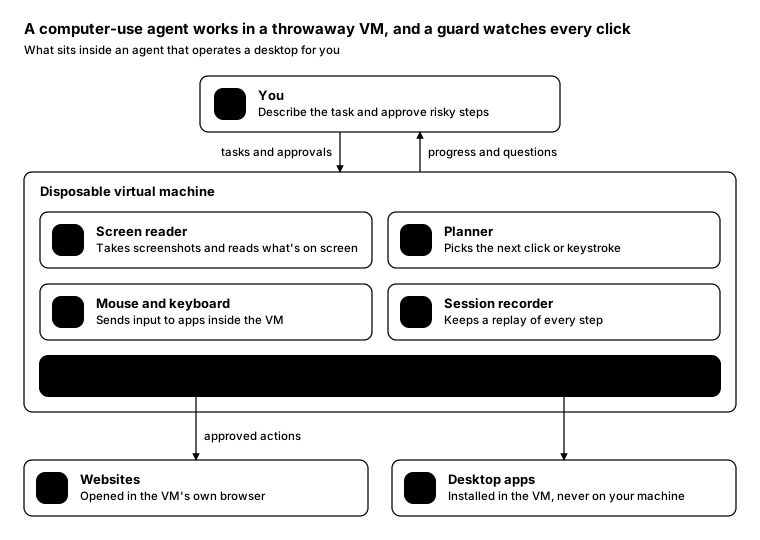
Promptcopy it, change the names, get your own version
Use the crisp-diagrams skill to draw an anatomy diagram (the parts inside one thing).

Title: A computer-use agent works in a throwaway VM, and a guard watches every click
Subtitle: What sits inside an agent that operates a desktop for you

- On top: You: Describe the task and approve risky steps
    Arrow down labelled “tasks and approvals” and arrow back up labelled “progress and questions”
- A container called “Disposable virtual machine” holding:
    Screen reader: Takes screenshots and reads what's on screen
    Planner: Picks the next click or keystroke
    Mouse and keyboard: Sends input to apps inside the VM
    Session recorder: Keeps a replay of every step
    Guard (the accent): pauses before purchases, sign-ins and deletes
- Outside, below it, reached only with “approved actions”:
    Websites: Opened in the VM's own browser
    Desktop apps: Installed in the VM, never on your machine

Layout:
- The person box centered at the top, then a full-width container with the parts in 2 rows of 3
- Guard as a full-width accent band at the bottom of the container
- The 2 outside systems in a row under the container, each with an arrow from the Guard band

Use these labels word for word.

Style: quiet theme (outlines only, one blue accent), with an icon on a tinted badge in each box.
Promptcopy it, change the names, get your own version
Use the crisp-diagrams skill to draw an anatomy diagram (the parts inside one thing).

Title: A telemetry pipeline samples before it stores, so costs stay flat as traffic grows
Subtitle: The stages between your services and your observability tools

- On top: Your services: Send logs, metrics and traces
    Arrow down labelled “telemetry” and arrow back up labelled “acknowledgements”
- A container called “Telemetry pipeline” holding:
    Collector: Receives OpenTelemetry data
    Parser: Turns raw log lines into fields
    Enricher: Adds team, version and region
    Redactor: Removes emails, tokens and card numbers
    Router: Sends each signal to the right store
    Buffer: Holds data while a store is down
    Sampler (the accent): keeps every error and 10% of the rest
- Outside, below it, reached only with “routed signals”:
    Log store: Search and retention
    Metrics: Dashboards and SLOs
    Traces: Request timelines
    Alerting: Pages the on-call

Layout:
- The person box centered at the top, then a full-width container with the parts in 2 rows of 3
- Sampler as a full-width accent band at the top of the container
- The 4 outside systems in a row under the container, each with an arrow from the Sampler band

Color groups: teal for Collector, Parser, Enricher, Redactor, Router and Buffer; green for Log store, Metrics, Traces and Alerting; violet for Your services

Use these labels word for word.

Style: tinted zones theme, with an icon on a tinted badge in each box.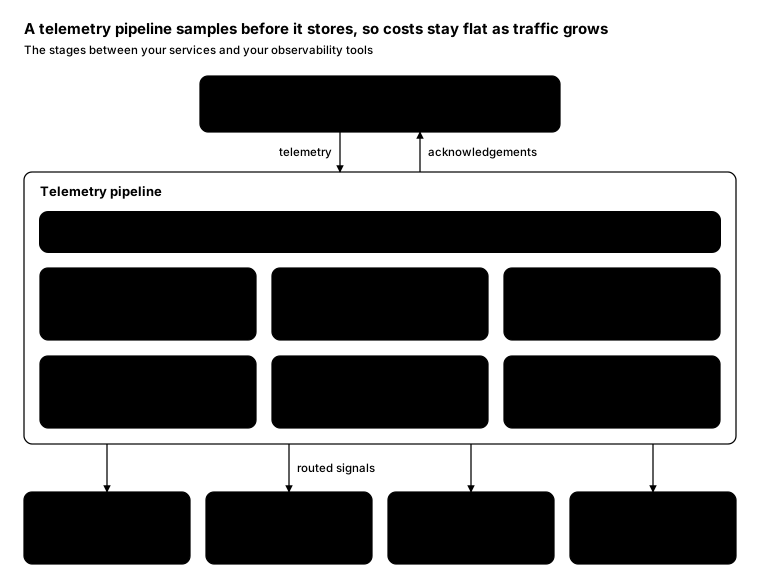
Promptcopy it, change the names, get your own version
Use the crisp-diagrams skill to draw an anatomy diagram (the parts inside one thing).

Title: A telemetry pipeline samples before it stores, so costs stay flat as traffic grows
Subtitle: The stages between your services and your observability tools

- On top: Your services: Send logs, metrics and traces
    Arrow down labelled “telemetry” and arrow back up labelled “acknowledgements”
- A container called “Telemetry pipeline” holding:
    Collector: Receives OpenTelemetry data
    Parser: Turns raw log lines into fields
    Enricher: Adds team, version and region
    Redactor: Removes emails, tokens and card numbers
    Router: Sends each signal to the right store
    Buffer: Holds data while a store is down
    Sampler (the accent): keeps every error and 10% of the rest
- Outside, below it, reached only with “routed signals”:
    Log store: Search and retention
    Metrics: Dashboards and SLOs
    Traces: Request timelines
    Alerting: Pages the on-call

Layout:
- The person box centered at the top, then a full-width container with the parts in 2 rows of 3
- Sampler as a full-width accent band at the top of the container
- The 4 outside systems in a row under the container, each with an arrow from the Sampler band

Color groups: teal for Collector, Parser, Enricher, Redactor, Router and Buffer; green for Log store, Metrics, Traces and Alerting; violet for Your services

Use these labels word for word.

Style: pastel theme, with a small line icon in each box.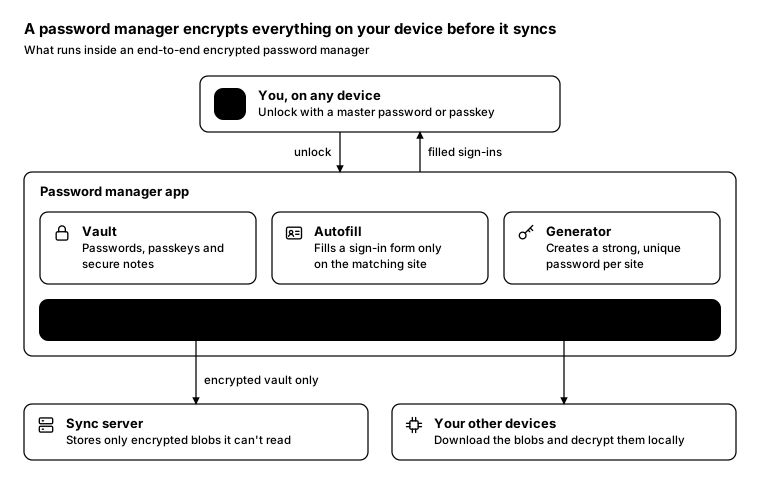
Promptcopy it, change the names, get your own version
Use the crisp-diagrams skill to draw an anatomy diagram (the parts inside one thing).

Title: A password manager encrypts everything on your device before it syncs
Subtitle: What runs inside an end-to-end encrypted password manager

- On top: You, on any device: Unlock with a master password or passkey
    Arrow down labelled “unlock” and arrow back up labelled “filled sign-ins”
- A container called “Password manager app” holding:
    Vault: Passwords, passkeys and secure notes
    Autofill: Fills a sign-in form only on the matching site
    Generator: Creates a strong, unique password per site
    Local encryption (the accent): the key never leaves your devices
- Outside, below it, reached only with “encrypted vault only”:
    Sync server: Stores only encrypted blobs it can't read
    Your other devices: Download the blobs and decrypt them locally

Layout:
- The person box centered at the top, then a full-width container with the parts in one row of 3
- Local encryption as a full-width accent band at the bottom of the container
- The 2 outside systems in a row under the container, each with an arrow from the Local encryption band

Use these labels word for word.

Style: quiet theme (outlines only, one blue accent), with a small line icon in each box.
Promptcopy it, change the names, get your own version
Use the crisp-diagrams skill to draw an anatomy diagram (the parts inside one thing).

Title: A password manager encrypts everything on your device before it syncs
Subtitle: What runs inside an end-to-end encrypted password manager

- On top: You, on any device: Unlock with a master password or passkey
    Arrow down labelled “unlock” and arrow back up labelled “filled sign-ins”
- A container called “Password manager app” holding:
    Vault: Passwords, passkeys and secure notes
    Autofill: Fills a sign-in form only on the matching site
    Generator: Creates a strong, unique password per site
    Local encryption (the accent): the key never leaves your devices
- Outside, below it, reached only with “encrypted vault only”:
    Sync server: Stores only encrypted blobs it can't read
    Your other devices: Download the blobs and decrypt them locally

Layout:
- The person box centered at the top, then a full-width container with the parts in one row of 3
- Local encryption as a full-width accent band at the bottom of the container
- The 2 outside systems in a row under the container, each with an arrow from the Local encryption band

Color groups: teal for Vault, Autofill and Generator; green for Sync server and Your other devices; violet for You, on any device

Use these labels word for word.

Style: gradient theme, with icon cards (icon on top, name below).
Promptcopy it, change the names, get your own version
Use the crisp-diagrams skill to draw a layer stack.

Title: Your data is protected at five layers, from the device to the cloud
Subtitle: Where each protection sits in a typical consumer app

- Layers, top to bottom:
    Device: Encrypted storage behind a passcode (chips: Secure enclave)
    Network: Encrypted in transit, everywhere (chips: TLS 1.3)
    Identity: Proves it's really you (chips: Passkeys, MFA) (the accent)
    Service: Each service sees only what it needs (chips: Least privilege)
    Data: Encrypted at rest, deleted on request (chips: KMS, Retention)

Layout:
- Full-width layer bands stacked with small gaps; name and description on the left, chips right-aligned

Color groups: teal for Device, Network, Service and Data; amber for the chips

Use these labels word for word.

Style: tinted zones theme, with an icon on a tinted badge in each box.
Promptcopy it, change the names, get your own version
Use the crisp-diagrams skill to draw a layer stack.

Title: Agentic commerce runs on four layers, and identity holds them together
Subtitle: The standards an agent uses to find, trust, buy and pay

- Layers, top to bottom:
    Discovery: Finding products and services (chips: MCP, WebMCP)
    Identity: Knowing which agent, acting for which user (chips: Web Bot Auth, OAuth) (the accent)
    Checkout: Agreeing on a cart and its terms (chips: UCP, ACP)
    Payment: Moving money with proof of consent (chips: AP2, x402, Card networks)

Layout:
- Full-width layer bands stacked with small gaps; name and description on the left, chips right-aligned

Color groups: teal for Discovery, Checkout and Payment; amber for the chips

Use these labels word for word.

Style: pastel theme.
Promptcopy it, change the names, get your own version
Use the crisp-diagrams skill to draw a layer stack.

Title: Guardrails sit above everything an agent can do
Subtitle: The layers of a typical AI agent, from the model up

- Layers, top to bottom:
    Guardrails: Approvals, limits and audit logs (chips: Human approval, Spend limits) (the accent)
    Tools: Acts in other systems (chips: MCP, Browser, Code)
    Memory: Remembers people and past work (chips: Profiles, Vector store)
    Planning: Breaks a goal into steps (chips: Plans, Retries)
    Model: Reads, reasons and writes (chips: LLM)

Layout:
- Full-width layer bands stacked with small gaps; name and description on the left, chips right-aligned

Color groups: violet for Tools, Memory, Planning and Model; teal for the chips

Use these labels word for word.

Style: gradient theme.
Promptcopy it, change the names, get your own version
Use the crisp-diagrams skill to draw a layer stack.

Title: Each security layer stops what the one above it missed
Subtitle: Defense in depth for a typical web application

- Layers, top to bottom:
    Edge: Blocks bots and traffic floods (chips: WAF, DDoS protection)
    Identity: Checks who is calling (chips: SSO, MFA) (the accent)
    Application: Validates every input (chips: Schemas, Rate limits)
    Data: Encrypts what it stores (chips: KMS, Backups)
    Monitoring: Spots what got through (chips: SIEM, Alerts)

Layout:
- Full-width layer bands stacked with small gaps; name and description on the left, chips right-aligned

Color groups: teal for Edge, Application, Data and Monitoring; amber for the chips

Use these labels word for word.

Style: tinted zones theme.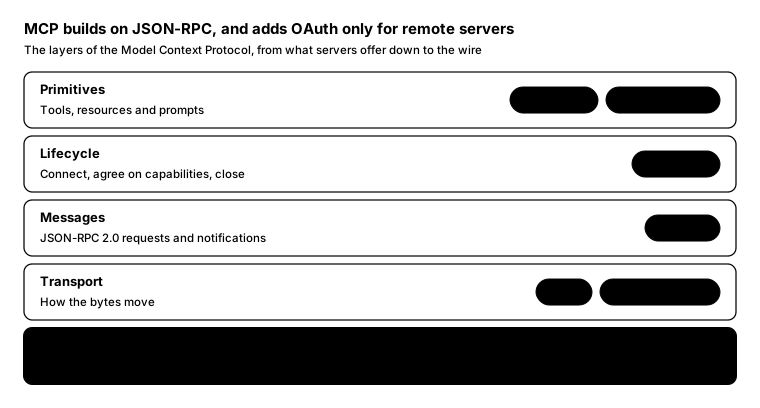
Promptcopy it, change the names, get your own version
Use the crisp-diagrams skill to draw a layer stack.

Title: MCP builds on JSON-RPC, and adds OAuth only for remote servers
Subtitle: The layers of the Model Context Protocol, from what servers offer down to the wire

- Layers, top to bottom:
    Primitives: Tools, resources and prompts (chips: tools/call, resources/read)
    Lifecycle: Connect, agree on capabilities, close (chips: initialize)
    Messages: JSON-RPC 2.0 requests and notifications (chips: JSON-RPC)
    Transport: How the bytes move (chips: stdio, Streamable HTTP)
    Authorization: OAuth 2.1, for servers reached over HTTP (chips: PKCE, Resource indicators) (the accent)

Layout:
- Full-width layer bands stacked with small gaps; name and description on the left, chips right-aligned

Use these labels word for word.

Style: quiet theme (outlines only, one blue accent).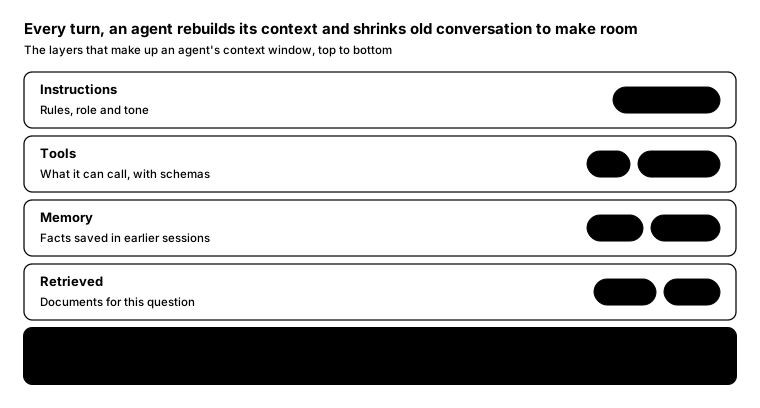
Promptcopy it, change the names, get your own version
Use the crisp-diagrams skill to draw a layer stack.

Title: Every turn, an agent rebuilds its context and shrinks old conversation to make room
Subtitle: The layers that make up an agent's context window, top to bottom

- Layers, top to bottom:
    Instructions: Rules, role and tone (chips: System prompt)
    Tools: What it can call, with schemas (chips: MCP, Functions)
    Memory: Facts saved in earlier sessions (chips: Notes, Profile)
    Retrieved: Documents for this question (chips: Search, Files)
    Conversation: Recent turns; older ones summarized (chips: Summary, Last turns) (the accent)

Layout:
- Full-width layer bands stacked with small gaps; name and description on the left, chips right-aligned

Use these labels word for word.

Style: quiet theme (outlines only, one blue accent).
Promptcopy it, change the names, get your own version
Use the crisp-diagrams skill to draw a layer stack.

Title: Agentic commerce runs on four layers, and identity holds them together
Subtitle: The standards an agent uses to find, trust, buy and pay

- Layers, top to bottom:
    Discovery: Finding products and services (chips: MCP, WebMCP)
    Identity: Knowing which agent, acting for which user (chips: Web Bot Auth, OAuth) (the accent)
    Checkout: Agreeing on a cart and its terms (chips: UCP, ACP)
    Payment: Moving money with proof of consent (chips: AP2, x402, Card networks)

Layout:
- Full-width layer bands stacked with small gaps; name and description on the left, chips right-aligned

Color groups: teal for Discovery, Checkout and Payment; amber for the chips

Use these labels word for word.

Style: tinted zones theme, with icon cards (icon on top, name below).
Promptcopy it, change the names, get your own version
Use the crisp-diagrams skill to draw a layer stack.

Title: Agentic commerce runs on four layers, and identity holds them together
Subtitle: The standards an agent uses to find, trust, buy and pay

- Layers, top to bottom:
    Discovery: Finding products and services (chips: MCP, WebMCP)
    Identity: Knowing which agent, acting for which user (chips: Web Bot Auth, OAuth) (the accent)
    Checkout: Agreeing on a cart and its terms (chips: UCP, ACP)
    Payment: Moving money with proof of consent (chips: AP2, x402, Card networks)

Layout:
- Full-width layer bands stacked with small gaps; name and description on the left, chips right-aligned

Color groups: teal for Discovery, Checkout and Payment; amber for the chips

Use these labels word for word.

Style: pastel theme, with an icon on a tinted badge in each box.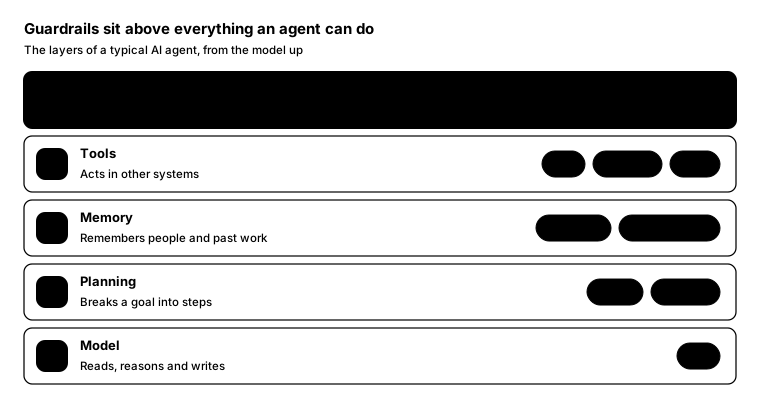
Promptcopy it, change the names, get your own version
Use the crisp-diagrams skill to draw a layer stack.

Title: Guardrails sit above everything an agent can do
Subtitle: The layers of a typical AI agent, from the model up

- Layers, top to bottom:
    Guardrails: Approvals, limits and audit logs (chips: Human approval, Spend limits) (the accent)
    Tools: Acts in other systems (chips: MCP, Browser, Code)
    Memory: Remembers people and past work (chips: Profiles, Vector store)
    Planning: Breaks a goal into steps (chips: Plans, Retries)
    Model: Reads, reasons and writes (chips: LLM)

Layout:
- Full-width layer bands stacked with small gaps; name and description on the left, chips right-aligned

Use these labels word for word.

Style: quiet theme (outlines only, one blue accent), with an icon on a tinted badge in each box.
Promptcopy it, change the names, get your own version
Use the crisp-diagrams skill to draw a layer stack.

Title: Guardrails sit above everything an agent can do
Subtitle: The layers of a typical AI agent, from the model up

- Layers, top to bottom:
    Guardrails: Approvals, limits and audit logs (chips: Human approval, Spend limits) (the accent)
    Tools: Acts in other systems (chips: MCP, Browser, Code)
    Memory: Remembers people and past work (chips: Profiles, Vector store)
    Planning: Breaks a goal into steps (chips: Plans, Retries)
    Model: Reads, reasons and writes (chips: LLM)

Layout:
- Full-width layer bands stacked with small gaps; name and description on the left, chips right-aligned

Color groups: violet for Tools, Memory, Planning and Model; teal for the chips

Use these labels word for word.

Style: gradient theme, with a small line icon in each box.
Promptcopy it, change the names, get your own version
Use the crisp-diagrams skill to draw a layer stack.

Title: Each security layer stops what the one above it missed
Subtitle: Defense in depth for a typical web application

- Layers, top to bottom:
    Edge: Blocks bots and traffic floods (chips: WAF, DDoS protection)
    Identity: Checks who is calling (chips: SSO, MFA) (the accent)
    Application: Validates every input (chips: Schemas, Rate limits)
    Data: Encrypts what it stores (chips: KMS, Backups)
    Monitoring: Spots what got through (chips: SIEM, Alerts)

Layout:
- Full-width layer bands stacked with small gaps; name and description on the left, chips right-aligned

Color groups: teal for Edge, Application, Data and Monitoring; amber for the chips

Use these labels word for word.

Style: tinted zones theme, with a small line icon in each box.
Promptcopy it, change the names, get your own version
Use the crisp-diagrams skill to draw a layer stack.

Title: Each security layer stops what the one above it missed
Subtitle: Defense in depth for a typical web application

- Layers, top to bottom:
    Edge: Blocks bots and traffic floods (chips: WAF, DDoS protection)
    Identity: Checks who is calling (chips: SSO, MFA) (the accent)
    Application: Validates every input (chips: Schemas, Rate limits)
    Data: Encrypts what it stores (chips: KMS, Backups)
    Monitoring: Spots what got through (chips: SIEM, Alerts)

Layout:
- Full-width layer bands stacked with small gaps; name and description on the left, chips right-aligned

Color groups: teal for Edge, Application, Data and Monitoring; amber for the chips

Use these labels word for word.

Style: pastel theme, with icon cards (icon on top, name below).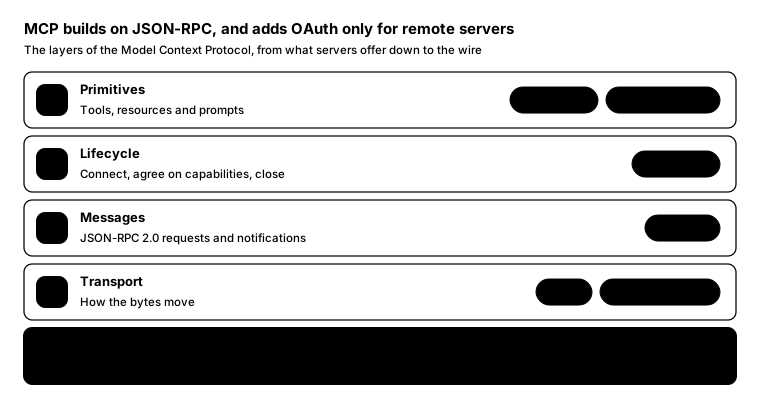
Promptcopy it, change the names, get your own version
Use the crisp-diagrams skill to draw a layer stack.

Title: MCP builds on JSON-RPC, and adds OAuth only for remote servers
Subtitle: The layers of the Model Context Protocol, from what servers offer down to the wire

- Layers, top to bottom:
    Primitives: Tools, resources and prompts (chips: tools/call, resources/read)
    Lifecycle: Connect, agree on capabilities, close (chips: initialize)
    Messages: JSON-RPC 2.0 requests and notifications (chips: JSON-RPC)
    Transport: How the bytes move (chips: stdio, Streamable HTTP)
    Authorization: OAuth 2.1, for servers reached over HTTP (chips: PKCE, Resource indicators) (the accent)

Layout:
- Full-width layer bands stacked with small gaps; name and description on the left, chips right-aligned

Use these labels word for word.

Style: quiet theme (outlines only, one blue accent), with icon cards (icon on top, name below).
Promptcopy it, change the names, get your own version
Use the crisp-diagrams skill to draw a layer stack.

Title: MCP builds on JSON-RPC, and adds OAuth only for remote servers
Subtitle: The layers of the Model Context Protocol, from what servers offer down to the wire

- Layers, top to bottom:
    Primitives: Tools, resources and prompts (chips: tools/call, resources/read)
    Lifecycle: Connect, agree on capabilities, close (chips: initialize)
    Messages: JSON-RPC 2.0 requests and notifications (chips: JSON-RPC)
    Transport: How the bytes move (chips: stdio, Streamable HTTP)
    Authorization: OAuth 2.1, for servers reached over HTTP (chips: PKCE, Resource indicators) (the accent)

Layout:
- Full-width layer bands stacked with small gaps; name and description on the left, chips right-aligned

Color groups: teal for Primitives, Lifecycle, Messages and Transport; amber for the chips

Use these labels word for word.

Style: gradient theme, with an icon on a tinted badge in each box.
Promptcopy it, change the names, get your own version
Use the crisp-diagrams skill to draw a layer stack.

Title: Every turn, an agent rebuilds its context and shrinks old conversation to make room
Subtitle: The layers that make up an agent's context window, top to bottom

- Layers, top to bottom:
    Instructions: Rules, role and tone (chips: System prompt)
    Tools: What it can call, with schemas (chips: MCP, Functions)
    Memory: Facts saved in earlier sessions (chips: Notes, Profile)
    Retrieved: Documents for this question (chips: Search, Files)
    Conversation: Recent turns; older ones summarized (chips: Summary, Last turns) (the accent)

Layout:
- Full-width layer bands stacked with small gaps; name and description on the left, chips right-aligned

Color groups: violet for Instructions, Tools, Memory and Retrieved; teal for the chips

Use these labels word for word.

Style: pastel theme, with an icon on a tinted badge in each box.
Promptcopy it, change the names, get your own version
Use the crisp-diagrams skill to draw a layer stack.

Title: Every turn, an agent rebuilds its context and shrinks old conversation to make room
Subtitle: The layers that make up an agent's context window, top to bottom

- Layers, top to bottom:
    Instructions: Rules, role and tone (chips: System prompt)
    Tools: What it can call, with schemas (chips: MCP, Functions)
    Memory: Facts saved in earlier sessions (chips: Notes, Profile)
    Retrieved: Documents for this question (chips: Search, Files)
    Conversation: Recent turns; older ones summarized (chips: Summary, Last turns) (the accent)

Layout:
- Full-width layer bands stacked with small gaps; name and description on the left, chips right-aligned

Color groups: violet for Instructions, Tools, Memory and Retrieved; teal for the chips

Use these labels word for word.

Style: tinted zones theme, with a small line icon in each box.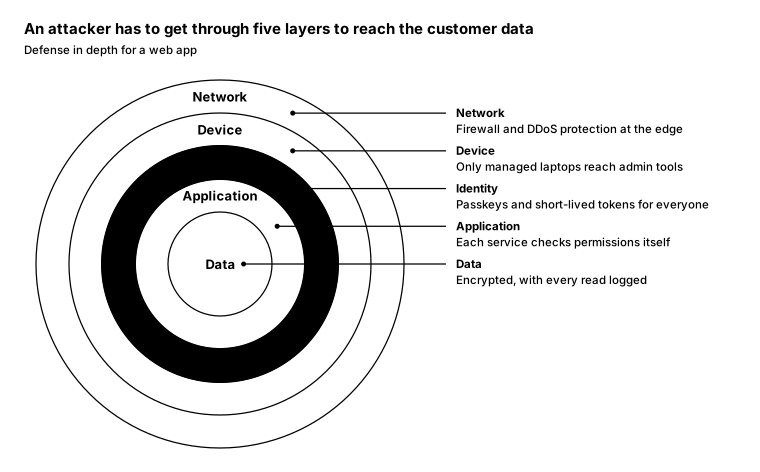
Promptcopy it, change the names, get your own version
Use the crisp-diagrams skill to draw a concentric rings diagram.

Title: An attacker has to get through five layers to reach the customer data
Subtitle: Defense in depth for a web app

- Rings, from the outside in (the last one is the core):
    Network: Firewall and DDoS protection at the edge
    Device: Only managed laptops reach admin tools
    Identity: Passkeys and short-lived tokens for everyone (the accent)
    Application: Each service checks permissions itself
    Data: Encrypted, with every read logged

Layout:
- Concentric circles on the left with each ring's name at the top of its band and the core's name in the middle
- A note per ring in a column on the right, joined to its ring by a leader; only the accent ring's band is tinted

Use these labels word for word.

Style: quiet theme (outlines only, one blue accent).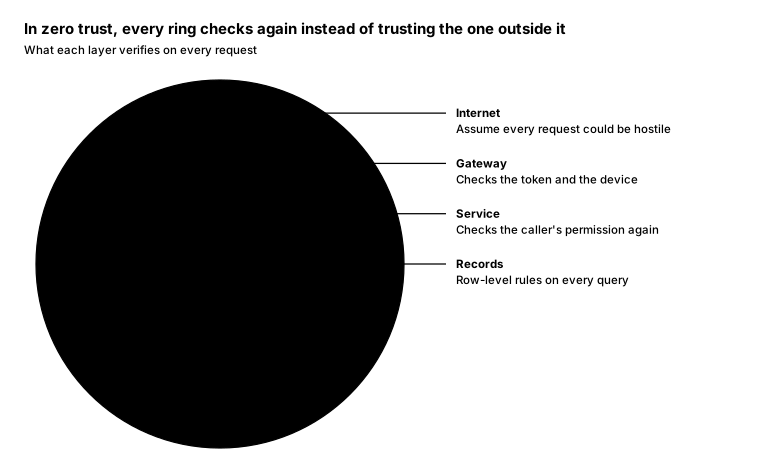
Promptcopy it, change the names, get your own version
Use the crisp-diagrams skill to draw a concentric rings diagram.

Title: In zero trust, every ring checks again instead of trusting the one outside it
Subtitle: What each layer verifies on every request

- Rings, from the outside in (the last one is the core):
    Internet: Assume every request could be hostile
    Gateway: Checks the token and the device (the accent)
    Service: Checks the caller's permission again
    Records: Row-level rules on every query

Layout:
- Concentric circles on the left with each ring's name at the top of its band and the core's name in the middle
- A note per ring in a column on the right, joined to its ring by a leader; only the accent ring's band is tinted

Color groups: rose for Internet; teal for Service; green for Records

Use these labels word for word.

Style: pastel theme.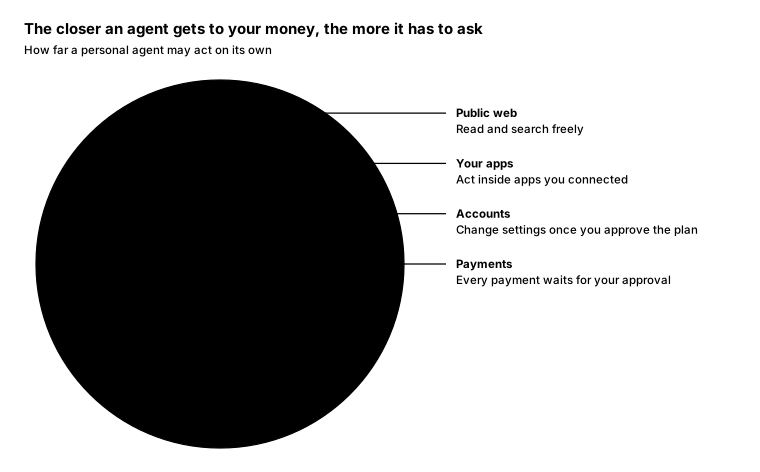
Promptcopy it, change the names, get your own version
Use the crisp-diagrams skill to draw a concentric rings diagram.

Title: The closer an agent gets to your money, the more it has to ask
Subtitle: How far a personal agent may act on its own

- Rings, from the outside in (the last one is the core):
    Public web: Read and search freely
    Your apps: Act inside apps you connected
    Accounts: Change settings once you approve the plan
    Payments: Every payment waits for your approval (the accent)

Layout:
- Concentric circles on the left with each ring's name at the top of its band and the core's name in the middle
- A note per ring in a column on the right, joined to its ring by a leader; only the accent ring's band is tinted

Color groups: green for Public web; teal for Your apps; amber for Accounts

Use these labels word for word.

Style: gradient theme.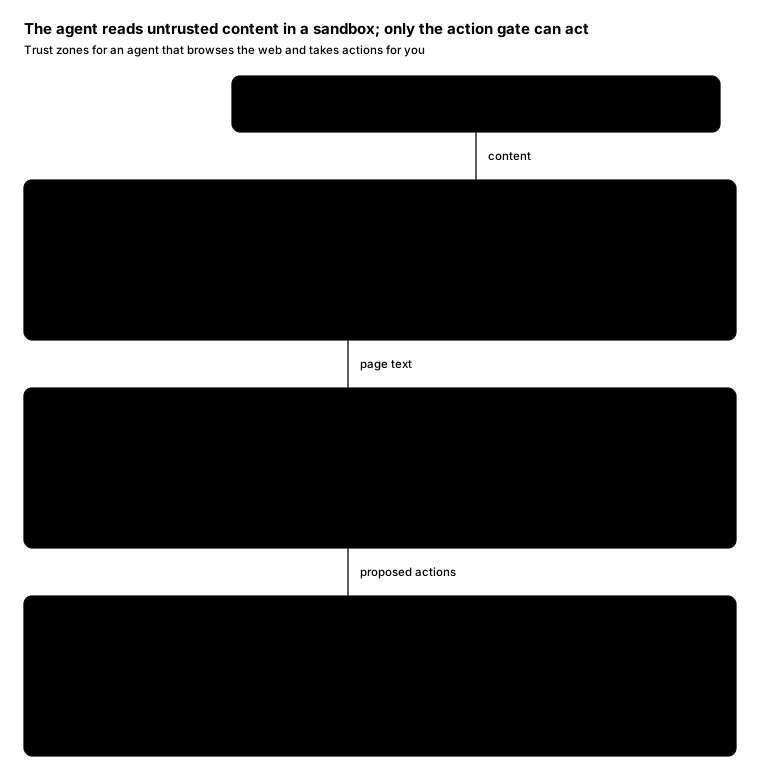
Promptcopy it, change the names, get your own version
Use the crisp-diagrams skill to draw a trust-zones diagram.

Title: The agent reads untrusted content in a sandbox; only the action gate can act
Subtitle: Trust zones for an agent that browses the web and takes actions for you

- Outside, at the top: The open web: Pages, emails and files the agent reads
- Trust zones, outermost first:
    Untrusted input (rules: Anything the agent reads; May hide prompt injections)
      Gate: Fetcher, strips scripts, keeps the text
      Web pages: Read through a text-only view
      Inbox: Emails and attachments
      Entered from The open web, labelled “content”
    Agent sandbox (rules: No credentials here; Can draft, not send)
      Gate: Context filter, treats fetched text as data, not commands
      Model: Plans and drafts actions
      Scratch files: Wiped after each task
      Entered from Untrusted input, labelled “page text”
    Trusted actions (rules: Holds the credentials; Every action is logged)
      Gate: Action gate, your rules decide; risky actions wait for you (the accent)
      Send email: From your account
      Payments: Within your spending limits
      Entered from Agent sandbox, labelled “proposed actions”

Layout:
- Full-width zones stacked top to bottom, each with its name and rules in a left column
- Each zone's gate as a band across the top of its content; arrows into a zone go through its gate
- Parts side by side under the gate

Color groups: rose for Untrusted input, Web pages and Inbox; amber for Agent sandbox, Model and Scratch files; green for Trusted actions, Send email and Payments

Use these labels word for word.

Style: tinted zones theme.
Promptcopy it, change the names, get your own version
Use the crisp-diagrams skill to draw a trust-zones diagram.

Title: Each customer's data lives in its own zone, behind a tenant check
Subtitle: How a multi-tenant SaaS keeps one customer's data away from another's

- Outside, at the top: Customers: People from Acme and Globex sign in
- Trust zones, outermost first:
    Shared edge (rules: Same for every customer; Stores no customer data)
      Gate: Load balancer, TLS ends here
      Web app: Shows each user their own data
      API: Every call carries a tenant ID
      Entered from Customers, labelled “requests”
    Shared services (rules: Code is shared; Data is never mixed)
      Gate: Tenant check, every query is scoped to the caller's tenant (the accent)
      App servers: Business logic
      Job workers: Background tasks, also scoped
      Entered from Shared edge, labelled “calls with a tenant ID”
    Customer data (rules: One database per tenant; Separate encryption keys)
      Gate: Data access, per-tenant credentials only
      Acme database: Encrypted with Acme's key
      Globex database: Encrypted with Globex's key
      Entered from Shared services, labelled “scoped queries”

Layout:
- Full-width zones stacked top to bottom, each with its name and rules in a left column
- Each zone's gate as a band across the top of its content; arrows into a zone go through its gate
- Parts side by side under the gate

Color groups: violet for Shared edge, Web app and API; teal for Shared services, App servers and Job workers; green for Customer data, Acme database and Globex database

Use these labels word for word.

Style: tinted zones theme.
Promptcopy it, change the names, get your own version
Use the crisp-diagrams skill to draw a trust-zones diagram.

Title: Secrets exist only in the trusted zone, after a maintainer approves the deploy
Subtitle: How a CI system keeps deploy credentials away from untrusted code

- Outside, at the top: Contributors: Push code and open pull requests
- Trust zones, outermost first:
    Untrusted builds (rules: Pull requests from anyone; No secrets available)
      Gate: CI runner, a fresh VM for every job
      Tests: Run on every pull request
      Lint: Style and type checks
      Entered from Contributors, labelled “pull requests”
    Trusted deploys (rules: Main branch only; Secrets live here)
      Gate: Deploy approval, a maintainer approves each release (the accent)
      Build and sign: Produces signed release artifacts
      Deploy: Uses the cloud credentials
      Entered from Untrusted builds, labelled “merged to main”

Layout:
- Full-width zones stacked top to bottom, each with its name and rules in a left column
- Each zone's gate as a band across the top of its content; arrows into a zone go through its gate
- Parts side by side under the gate

Color groups: rose for Untrusted builds, Tests and Lint; green for Trusted deploys, Build and sign and Deploy

Use these labels word for word.

Style: pastel theme.
Promptcopy it, change the names, get your own version
Use the crisp-diagrams skill to draw a trust-zones diagram.

Title: Prompts pass a redaction gate before they leave the company
Subtitle: How a company routes employees' AI requests through its own gateway

- Outside, at the top: Employees: Use AI tools for everyday work
- Trust zones, outermost first:
    Company devices (rules: Where prompts are written; Full customer data here)
      Gate: AI apps, chat, coding and search tools
      Chat app: General questions
      Code assistant: Suggestions in the editor
      Entered from Employees, labelled “prompts”
    AI gateway (rules: Run by IT; Logs every request)
      Gate: Redaction, strips customer names, emails and keys (the accent)
      Router: Picks the model for each task
      Audit log: Who sent what, and when
      Entered from Company devices, labelled “raw prompts”
    Model providers (rules: Outside the company; See only redacted text)
      Gate: Contracts, no training on your data
      Provider A: General-purpose model
      Provider B: Code model
      Entered from AI gateway, labelled “redacted prompts”

Layout:
- Full-width zones stacked top to bottom, each with its name and rules in a left column
- Each zone's gate as a band across the top of its content; arrows into a zone go through its gate
- Parts side by side under the gate

Color groups: violet for Company devices, Chat app and Code assistant; teal for AI gateway, Router and Audit log; green for Model providers, Provider A and Provider B

Use these labels word for word.

Style: gradient theme.
Promptcopy it, change the names, get your own version
Use the crisp-diagrams skill to draw a trust-zones diagram.

Title: The agent reads untrusted content in a sandbox; only the action gate can act
Subtitle: Trust zones for an agent that browses the web and takes actions for you

- Outside, at the top: The open web: Pages, emails and files the agent reads
- Trust zones, outermost first:
    Untrusted input (rules: Anything the agent reads; May hide prompt injections)
      Gate: Fetcher, strips scripts, keeps the text
      Web pages: Read through a text-only view
      Inbox: Emails and attachments
      Entered from The open web, labelled “content”
    Agent sandbox (rules: No credentials here; Can draft, not send)
      Gate: Context filter, treats fetched text as data, not commands
      Model: Plans and drafts actions
      Scratch files: Wiped after each task
      Entered from Untrusted input, labelled “page text”
    Trusted actions (rules: Holds the credentials; Every action is logged)
      Gate: Action gate, your rules decide; risky actions wait for you (the accent)
      Send email: From your account
      Payments: Within your spending limits
      Entered from Agent sandbox, labelled “proposed actions”

Layout:
- Full-width zones stacked top to bottom, each with its name and rules in a left column
- Each zone's gate as a band across the top of its content; arrows into a zone go through its gate
- Parts side by side under the gate

Color groups: rose for Untrusted input, Web pages and Inbox; amber for Agent sandbox, Model and Scratch files; green for Trusted actions, Send email and Payments

Use these labels word for word.

Style: pastel theme, with an icon on a tinted badge in each box.
Promptcopy it, change the names, get your own version
Use the crisp-diagrams skill to draw a trust-zones diagram.

Title: The agent reads untrusted content in a sandbox; only the action gate can act
Subtitle: Trust zones for an agent that browses the web and takes actions for you

- Outside, at the top: The open web: Pages, emails and files the agent reads
- Trust zones, outermost first:
    Untrusted input (rules: Anything the agent reads; May hide prompt injections)
      Gate: Fetcher, strips scripts, keeps the text
      Web pages: Read through a text-only view
      Inbox: Emails and attachments
      Entered from The open web, labelled “content”
    Agent sandbox (rules: No credentials here; Can draft, not send)
      Gate: Context filter, treats fetched text as data, not commands
      Model: Plans and drafts actions
      Scratch files: Wiped after each task
      Entered from Untrusted input, labelled “page text”
    Trusted actions (rules: Holds the credentials; Every action is logged)
      Gate: Action gate, your rules decide; risky actions wait for you (the accent)
      Send email: From your account
      Payments: Within your spending limits
      Entered from Agent sandbox, labelled “proposed actions”

Layout:
- Full-width zones stacked top to bottom, each with its name and rules in a left column
- Each zone's gate as a band across the top of its content; arrows into a zone go through its gate
- Parts side by side under the gate

Color groups: rose for Untrusted input, Web pages and Inbox; amber for Agent sandbox, Model and Scratch files; green for Trusted actions, Send email and Payments

Use these labels word for word.

Style: tinted zones theme, with a small line icon in each box.
Promptcopy it, change the names, get your own version
Use the crisp-diagrams skill to draw a trust-zones diagram.

Title: Each customer's data lives in its own zone, behind a tenant check
Subtitle: How a multi-tenant SaaS keeps one customer's data away from another's

- Outside, at the top: Customers: People from Acme and Globex sign in
- Trust zones, outermost first:
    Shared edge (rules: Same for every customer; Stores no customer data)
      Gate: Load balancer, TLS ends here
      Web app: Shows each user their own data
      API: Every call carries a tenant ID
      Entered from Customers, labelled “requests”
    Shared services (rules: Code is shared; Data is never mixed)
      Gate: Tenant check, every query is scoped to the caller's tenant (the accent)
      App servers: Business logic
      Job workers: Background tasks, also scoped
      Entered from Shared edge, labelled “calls with a tenant ID”
    Customer data (rules: One database per tenant; Separate encryption keys)
      Gate: Data access, per-tenant credentials only
      Acme database: Encrypted with Acme's key
      Globex database: Encrypted with Globex's key
      Entered from Shared services, labelled “scoped queries”

Layout:
- Full-width zones stacked top to bottom, each with its name and rules in a left column
- Each zone's gate as a band across the top of its content; arrows into a zone go through its gate
- Parts side by side under the gate

Color groups: violet for Shared edge, Web app and API; teal for Shared services, App servers and Job workers; green for Customer data, Acme database and Globex database

Use these labels word for word.

Style: gradient theme, with a small line icon in each box.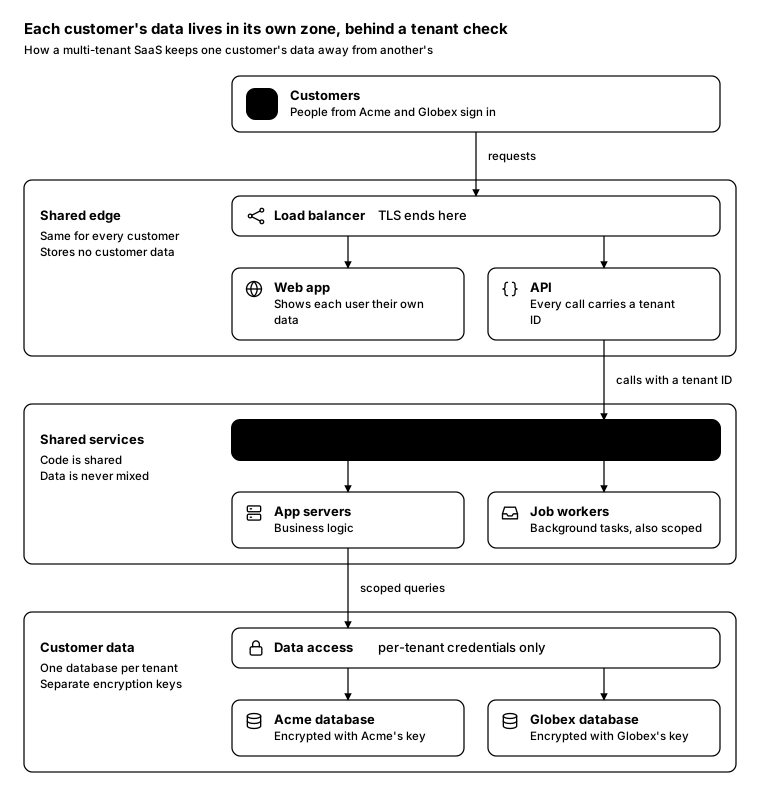
Promptcopy it, change the names, get your own version
Use the crisp-diagrams skill to draw a trust-zones diagram.

Title: Each customer's data lives in its own zone, behind a tenant check
Subtitle: How a multi-tenant SaaS keeps one customer's data away from another's

- Outside, at the top: Customers: People from Acme and Globex sign in
- Trust zones, outermost first:
    Shared edge (rules: Same for every customer; Stores no customer data)
      Gate: Load balancer, TLS ends here
      Web app: Shows each user their own data
      API: Every call carries a tenant ID
      Entered from Customers, labelled “requests”
    Shared services (rules: Code is shared; Data is never mixed)
      Gate: Tenant check, every query is scoped to the caller's tenant (the accent)
      App servers: Business logic
      Job workers: Background tasks, also scoped
      Entered from Shared edge, labelled “calls with a tenant ID”
    Customer data (rules: One database per tenant; Separate encryption keys)
      Gate: Data access, per-tenant credentials only
      Acme database: Encrypted with Acme's key
      Globex database: Encrypted with Globex's key
      Entered from Shared services, labelled “scoped queries”

Layout:
- Full-width zones stacked top to bottom, each with its name and rules in a left column
- Each zone's gate as a band across the top of its content; arrows into a zone go through its gate
- Parts side by side under the gate

Use these labels word for word.

Style: quiet theme (outlines only, one blue accent), with icon cards (icon on top, name below).
Promptcopy it, change the names, get your own version
Use the crisp-diagrams skill to draw a trust-zones diagram.

Title: Secrets exist only in the trusted zone, after a maintainer approves the deploy
Subtitle: How a CI system keeps deploy credentials away from untrusted code

- Outside, at the top: Contributors: Push code and open pull requests
- Trust zones, outermost first:
    Untrusted builds (rules: Pull requests from anyone; No secrets available)
      Gate: CI runner, a fresh VM for every job
      Tests: Run on every pull request
      Lint: Style and type checks
      Entered from Contributors, labelled “pull requests”
    Trusted deploys (rules: Main branch only; Secrets live here)
      Gate: Deploy approval, a maintainer approves each release (the accent)
      Build and sign: Produces signed release artifacts
      Deploy: Uses the cloud credentials
      Entered from Untrusted builds, labelled “merged to main”

Layout:
- Full-width zones stacked top to bottom, each with its name and rules in a left column
- Each zone's gate as a band across the top of its content; arrows into a zone go through its gate
- Parts side by side under the gate

Color groups: rose for Untrusted builds, Tests and Lint; green for Trusted deploys, Build and sign and Deploy

Use these labels word for word.

Style: pastel theme, with icon cards (icon on top, name below).
Promptcopy it, change the names, get your own version
Use the crisp-diagrams skill to draw a trust-zones diagram.

Title: Secrets exist only in the trusted zone, after a maintainer approves the deploy
Subtitle: How a CI system keeps deploy credentials away from untrusted code

- Outside, at the top: Contributors: Push code and open pull requests
- Trust zones, outermost first:
    Untrusted builds (rules: Pull requests from anyone; No secrets available)
      Gate: CI runner, a fresh VM for every job
      Tests: Run on every pull request
      Lint: Style and type checks
      Entered from Contributors, labelled “pull requests”
    Trusted deploys (rules: Main branch only; Secrets live here)
      Gate: Deploy approval, a maintainer approves each release (the accent)
      Build and sign: Produces signed release artifacts
      Deploy: Uses the cloud credentials
      Entered from Untrusted builds, labelled “merged to main”

Layout:
- Full-width zones stacked top to bottom, each with its name and rules in a left column
- Each zone's gate as a band across the top of its content; arrows into a zone go through its gate
- Parts side by side under the gate

Color groups: rose for Untrusted builds, Tests and Lint; green for Trusted deploys, Build and sign and Deploy

Use these labels word for word.

Style: tinted zones theme, with an icon on a tinted badge in each box.
Promptcopy it, change the names, get your own version
Use the crisp-diagrams skill to draw a trust-zones diagram.

Title: Prompts pass a redaction gate before they leave the company
Subtitle: How a company routes employees' AI requests through its own gateway

- Outside, at the top: Employees: Use AI tools for everyday work
- Trust zones, outermost first:
    Company devices (rules: Where prompts are written; Full customer data here)
      Gate: AI apps, chat, coding and search tools
      Chat app: General questions
      Code assistant: Suggestions in the editor
      Entered from Employees, labelled “prompts”
    AI gateway (rules: Run by IT; Logs every request)
      Gate: Redaction, strips customer names, emails and keys (the accent)
      Router: Picks the model for each task
      Audit log: Who sent what, and when
      Entered from Company devices, labelled “raw prompts”
    Model providers (rules: Outside the company; See only redacted text)
      Gate: Contracts, no training on your data
      Provider A: General-purpose model
      Provider B: Code model
      Entered from AI gateway, labelled “redacted prompts”

Layout:
- Full-width zones stacked top to bottom, each with its name and rules in a left column
- Each zone's gate as a band across the top of its content; arrows into a zone go through its gate
- Parts side by side under the gate

Color groups: violet for Company devices, Chat app and Code assistant; teal for AI gateway, Router and Audit log; green for Model providers, Provider A and Provider B

Use these labels word for word.

Style: gradient theme, with an icon on a tinted badge in each box.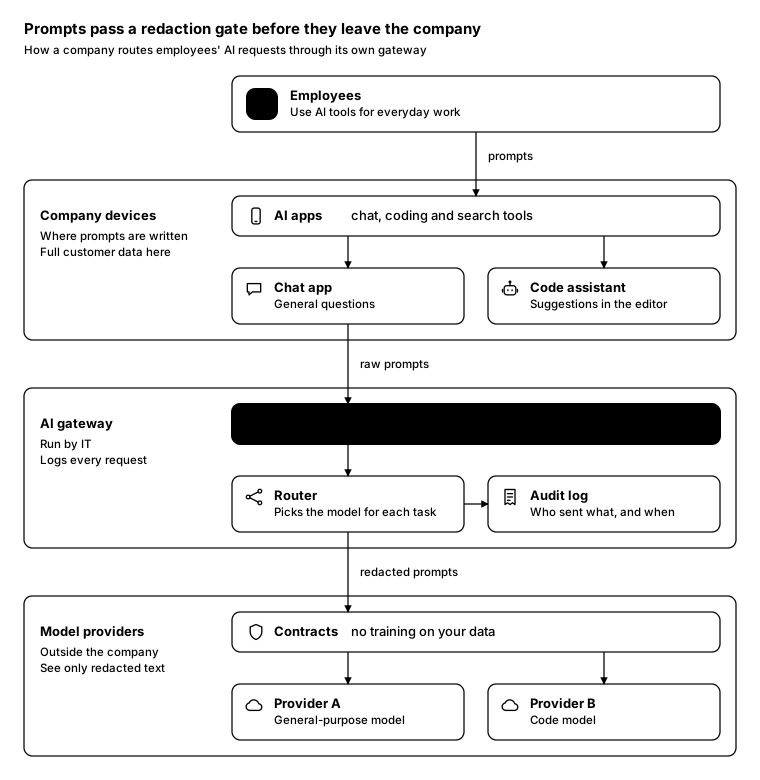
Promptcopy it, change the names, get your own version
Use the crisp-diagrams skill to draw a trust-zones diagram.

Title: Prompts pass a redaction gate before they leave the company
Subtitle: How a company routes employees' AI requests through its own gateway

- Outside, at the top: Employees: Use AI tools for everyday work
- Trust zones, outermost first:
    Company devices (rules: Where prompts are written; Full customer data here)
      Gate: AI apps, chat, coding and search tools
      Chat app: General questions
      Code assistant: Suggestions in the editor
      Entered from Employees, labelled “prompts”
    AI gateway (rules: Run by IT; Logs every request)
      Gate: Redaction, strips customer names, emails and keys (the accent)
      Router: Picks the model for each task
      Audit log: Who sent what, and when
      Entered from Company devices, labelled “raw prompts”
    Model providers (rules: Outside the company; See only redacted text)
      Gate: Contracts, no training on your data
      Provider A: General-purpose model
      Provider B: Code model
      Entered from AI gateway, labelled “redacted prompts”

Layout:
- Full-width zones stacked top to bottom, each with its name and rules in a left column
- Each zone's gate as a band across the top of its content; arrows into a zone go through its gate
- Parts side by side under the gate

Use these labels word for word.

Style: quiet theme (outlines only, one blue accent), with a small line icon in each box.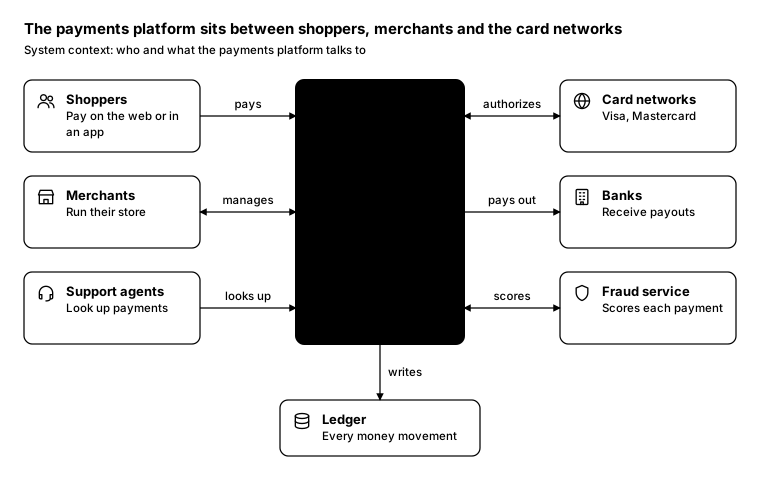
Promptcopy it, change the names, get your own version
Use the crisp-diagrams skill to draw a system context diagram.

Title: The payments platform sits between shoppers, merchants and the card networks
Subtitle: System context: who and what the payments platform talks to

- In the middle (the accent): Payments platform: Takes payments, pays merchants, keeps the ledger
- People and channels on the left:
    Shoppers: Pay on the web or in an app, arrow labelled “pays”
    Merchants: Run their store, arrow labelled “manages” (both ways)
    Support agents: Look up payments, arrow labelled “looks up”
- External systems on the right:
    Card networks: Visa, Mastercard, arrow labelled “authorizes” (both ways)
    Banks: Receive payouts, arrow labelled “pays out”
    Fraud service: Scores each payment, arrow labelled “scores” (both ways)
- Below: Ledger: Every money movement, arrow labelled “writes”

Layout:
- The system as a tall accent box in the middle column; people in the left column, external systems in the right column
- Horizontal arrows with a short verb above each; the optional box below joined by a vertical arrow

Use these labels word for word.

Style: quiet theme (outlines only, one blue accent), with a small line icon in each box.
Promptcopy it, change the names, get your own version
Use the crisp-diagrams skill to draw a system context diagram.

Title: Every app signs users in through one identity platform
Subtitle: System context for a customer identity platform

- In the middle (the accent): Identity platform: Sign-in, accounts, MFA and tokens for every app
- People and channels on the left:
    Customers: Sign in and sign up, arrow labelled “signs in”
    Admins: Manage users and rules, arrow labelled “manages”
    Developers: Configure apps, arrow labelled “configures”
- External systems on the right:
    Your apps: Trust its tokens, arrow labelled “tokens”
    Social logins: Google, Apple, arrow labelled “federates” (both ways)
    Email and SMS: One-time codes, arrow labelled “sends codes”

Layout:
- The system as a tall accent box in the middle column; people in the left column, external systems in the right column
- Horizontal arrows with a short verb above each; the optional box below joined by a vertical arrow

Color groups: violet for Customers, Admins and Developers; green for Your apps, Social logins and Email and SMS

Use these labels word for word.

Style: pastel theme, with an icon on a tinted badge in each box.
Promptcopy it, change the names, get your own version
Use the crisp-diagrams skill to draw a system context diagram.

Title: A personal agent connects one person to the services they already use
Subtitle: System context: what a personal agent reaches on your behalf

- In the middle (the accent): Personal agent: Plans tasks and acts with your permission
- People and channels on the left:
    You: In any chat app, arrow labelled “asks” (both ways)
    Your family: Shared lists and plans, arrow labelled “shares”
- External systems on the right:
    Inbox: Email and calendar, arrow labelled “reads, drafts” (both ways)
    Banks: Payments you approve, arrow labelled “pays”
    Shops: Orders and returns, arrow labelled “orders”
    Smart home: Lights and locks, arrow labelled “controls”
- Below: Memory: Your preferences, arrow labelled “remembers”

Layout:
- The system as a tall accent box in the middle column; people in the left column, external systems in the right column
- Horizontal arrows with a short verb above each; the optional box below joined by a vertical arrow

Color groups: violet for You and Your family; green for Inbox, Banks, Shops and Smart home; teal for Memory

Use these labels word for word.

Style: gradient theme, with an icon on a tinted badge in each box.
Promptcopy it, change the names, get your own version
Use the crisp-diagrams skill to draw a system context diagram.

Title: The patient record system is the hub every clinical system exchanges data with
Subtitle: System context for a hospital's electronic health record

- In the middle (the accent): Patient records: One record per patient, shared across the hospital
- People and channels on the left:
    Doctors: Write notes and orders, arrow labelled “updates” (both ways)
    Nurses: Record care, arrow labelled “records”
    Patients: Through the portal, arrow labelled “views”
- External systems on the right:
    Lab system: Test results, arrow labelled “results”
    Pharmacy: Prescriptions, arrow labelled “orders”
    Insurer: Claims, arrow labelled “claims”

Layout:
- The system as a tall accent box in the middle column; people in the left column, external systems in the right column
- Horizontal arrows with a short verb above each; the optional box below joined by a vertical arrow

Color groups: violet for Doctors, Nurses and Patients; green for Lab system, Pharmacy and Insurer

Use these labels word for word.

Style: tinted zones theme, with a small line icon in each box.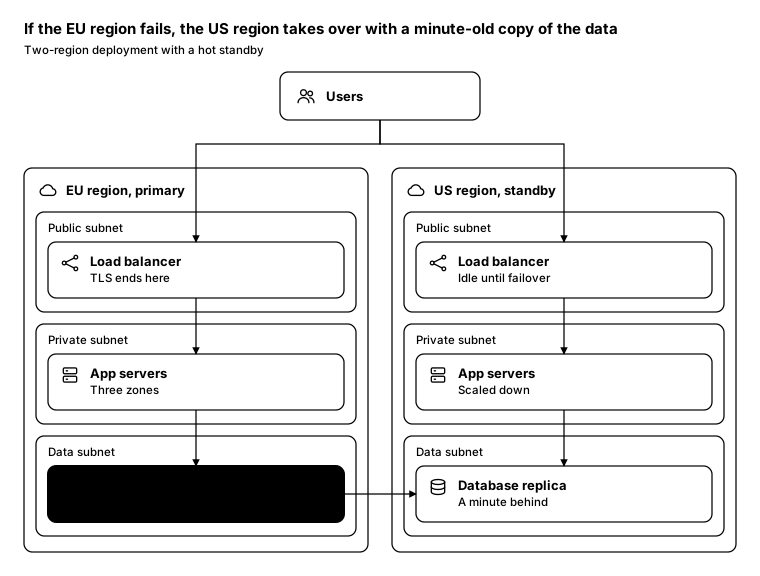
Promptcopy it, change the names, get your own version
Use the crisp-diagrams skill to draw an infrastructure diagram.

Title: If the EU region fails, the US region takes over with a minute-old copy of the data
Subtitle: Two-region deployment with a hot standby

- Outside, at the top: Users
- EU region, primary, containing:
    Public subnet: Load balancer: TLS ends here
    Private subnet: App servers: Three zones
    Data subnet: Database primary: Takes all writes (the accent)
    Arrow: Load balancer → App servers
    Arrow: App servers → Database primary
- US region, standby, containing:
    Public subnet: Load balancer: Idle until failover
    Private subnet: App servers: Scaled down
    Data subnet: Database replica: A minute behind
    Arrow: Load balancer → App servers
    Arrow: App servers → Database replica
- Between regions: Database primary (EU region, primary) → Database replica (US region, standby)

Layout:
- Each network as an outer container, its tiers nested inside it, services inside the tiers; outside things above it
- Arrows straight down from tier to tier; between regions, a horizontal arrow

Use these labels word for word.

Style: quiet theme (outlines only, one blue accent).
Promptcopy it, change the names, get your own version
Use the crisp-diagrams skill to draw an infrastructure diagram.

Title: Only the load balancer faces the internet; the data never does
Subtitle: Network tiers inside one production VPC

- Outside, at the top: Internet
- Production VPC, containing:
    Public subnet: Load balancer: The only public entry (the accent); NAT gateway: Outbound calls only
    Private subnet: App servers: Run the API; Workers: Background jobs
    Data subnet: Postgres: Customer data; Redis: Sessions and cache
    Arrow: Load balancer → App servers
    Arrow: App servers → Postgres
    Arrow: Workers → Redis

Layout:
- Each network as an outer container, its tiers nested inside it, services inside the tiers; outside things above it
- Arrows straight down from tier to tier; between regions, a horizontal arrow

Color groups: amber for Public subnet; teal for Private subnet; green for Data subnet

Use these labels word for word.

Style: pastel theme.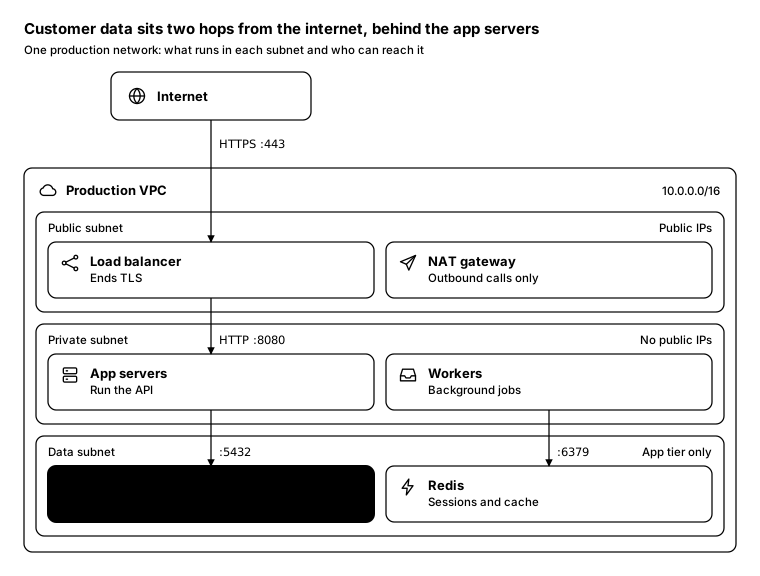
Promptcopy it, change the names, get your own version
Use the crisp-diagrams skill to draw an infrastructure diagram.

Title: Customer data sits two hops from the internet, behind the app servers
Subtitle: One production network: what runs in each subnet and who can reach it

- Outside, at the top: Internet, reaching Load balancer over HTTPS :443
- Production VPC (10.0.0.0/16), containing:
    Public subnet (Public IPs): Load balancer: Ends TLS; NAT gateway: Outbound calls only
    Private subnet (No public IPs): App servers: Run the API; Workers: Background jobs
    Data subnet (App tier only): Postgres: Customer data (the accent); Redis: Sessions and cache
    Arrow: Load balancer → App servers (HTTP :8080)
    Arrow: App servers → Postgres (:5432)
    Arrow: Workers → Redis (:6379)

Layout:
- Each network as an outer container, its tiers nested inside it, services inside the tiers; outside things above it
- Arrows straight down from tier to tier; between regions, a horizontal arrow

Use these labels word for word.

Style: quiet theme (outlines only, one blue accent).
Promptcopy it, change the names, get your own version
Use the crisp-diagrams skill to draw an infrastructure diagram.

Title: Every agent runs in its own sandbox, and the guard sits between it and the world
Subtitle: Infrastructure for a hosted agent platform

- Outside, at the top: Customers' agents
- Agent platform, containing:
    Edge: API gateway: Checks every token; Web firewall: Blocks abuse
    Runtime: Sandboxed VMs: One per agent; Guard: Approves outgoing actions (the accent)
    Data: Vector store: Memory per agent; Audit log: Every action
    Arrow: API gateway → Sandboxed VMs
    Arrow: Sandboxed VMs → Vector store
    Arrow: Guard → Audit log

Layout:
- Each network as an outer container, its tiers nested inside it, services inside the tiers; outside things above it
- Arrows straight down from tier to tier; between regions, a horizontal arrow

Color groups: violet for Edge; teal for Runtime; green for Data

Use these labels word for word.

Style: tinted zones theme.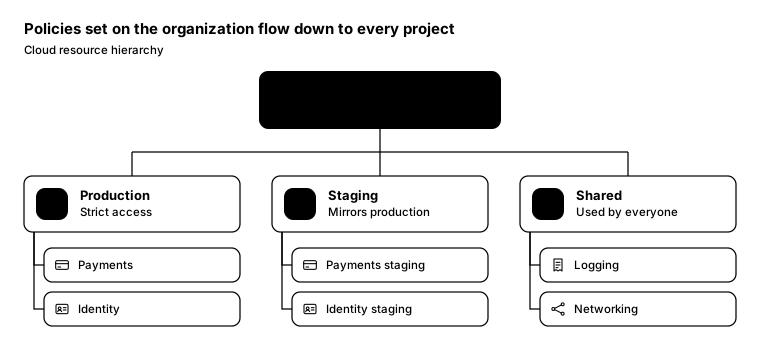
Promptcopy it, change the names, get your own version
Use the crisp-diagrams skill to draw a tree.

Title: Policies set on the organization flow down to every project
Subtitle: Cloud resource hierarchy

- Root (the accent): Organization: Security policies set here
- Children:
    Production: Strict access
      Payments
      Identity
    Staging: Mirrors production
      Payments staging
      Identity staging
    Shared: Used by everyone
      Logging
      Networking

Layout:
- Root centered at the top, children in one row, grandchildren indented under their parent; plain connector lines

Use these labels word for word.

Style: quiet theme (outlines only, one blue accent), with an icon on a tinted badge in each box.
Promptcopy it, change the names, get your own version
Use the crisp-diagrams skill to draw a tree.

Title: The platform team owns the systems every product team builds on
Subtitle: Organization chart, engineering and the teams around it

- Root: CEO: Sets the company goals
- Children:
    Engineering
      Platform (the accent)
      Product
      Security
    Finance
      Payments ops
      Accounting
    Customers
      Support
      Success
    People
      Recruiting

Layout:
- Root centered at the top, children in one row, grandchildren indented under their parent; plain connector lines

Color groups: teal for Engineering; amber for Finance; green for Customers; rose for People

Use these labels word for word.

Style: pastel theme, with an icon on a tinted badge in each box.
Promptcopy it, change the names, get your own version
Use the crisp-diagrams skill to draw a tree.

Title: The docs are organized by what people are trying to do
Subtitle: Information architecture for a developer docs site

- Root: Docs home: Search and the four paths
- Children:
    Get started: First sign-in in 5 minutes (the accent)
      Quickstart
      Concepts
    Build: Guides by task
      Sign-in
      APIs
      Webhooks
    Operate: Run it in production
      Monitoring
      Incidents
    Reference: Every endpoint
      API reference
      SDKs
      Changelog

Layout:
- Root centered at the top, children in one row, grandchildren indented under their parent; plain connector lines

Color groups: teal for Reference

Use these labels word for word.

Style: gradient theme, with a small line icon in each box.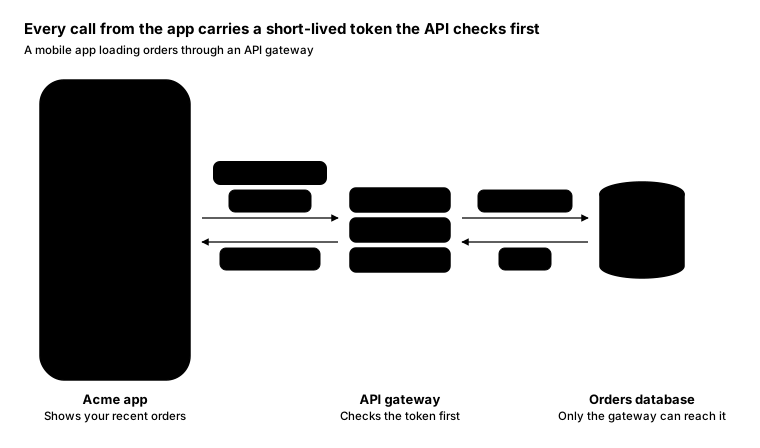
Promptcopy it, change the names, get your own version
Use the crisp-diagrams skill to draw a scene with line-drawn device mockups.

Title: Every call from the app carries a short-lived token the API checks first
Subtitle: A mobile app loading orders through an API gateway

- Objects, left to right:
    a phone, captioned “Acme app”: Shows your recent orders; showing an Orders list: #1042 Shipped, #1039 Delivered, #1031 Delivered, #1027 Refunded
    a server, captioned “API gateway”: Checks the token first
    a database, captioned “Orders database”: Only the gateway can reach it
- What travels between them, as code chips on the arrows:
    Acme app → API gateway: GET /orders, carrying the token Bearer eyJhbG... (the accent); the reply is 200 · 3 orders
    API gateway → Orders database: SELECT orders; the reply is 3 rows

Layout:
- All objects in one row on a shared axis, captions under each on one baseline
- Requests as chips above the arrows, replies as chips below

Use these labels word for word.

Style: quiet theme (outlines only, one blue accent).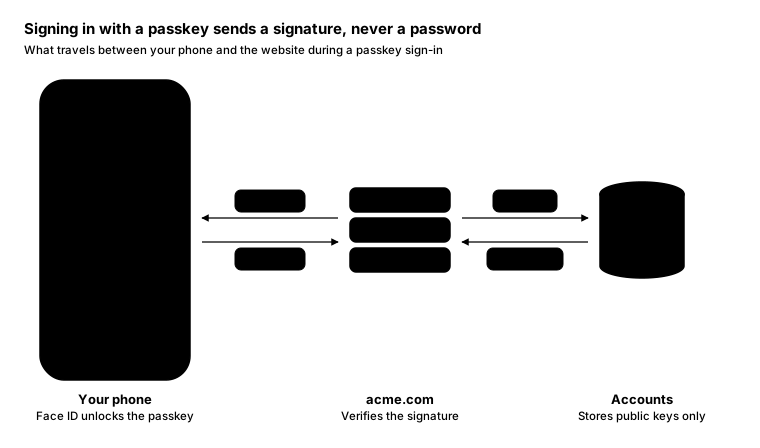
Promptcopy it, change the names, get your own version
Use the crisp-diagrams skill to draw a scene with line-drawn device mockups.

Title: Signing in with a passkey sends a signature, never a password
Subtitle: What travels between your phone and the website during a passkey sign-in

- Objects, left to right:
    a phone, captioned “Your phone”: Face ID unlocks the passkey; showing the Acme sign-in screen: an email field, a Continue button and a highlighted “Use a passkey” option (the accent)
    a server, captioned “acme.com”: Verifies the signature
    a database, captioned “Accounts”: Stores public keys only
- What travels between them, as code chips on the arrows:
    acme.com → Your phone: challenge; the phone answers with a signature
    acme.com → Accounts: find key; the reply is the public key

Layout:
- All objects in one row on a shared axis, captions under each on one baseline
- Requests as chips above the arrows, replies as chips below

Use these labels word for word.

Style: pastel theme.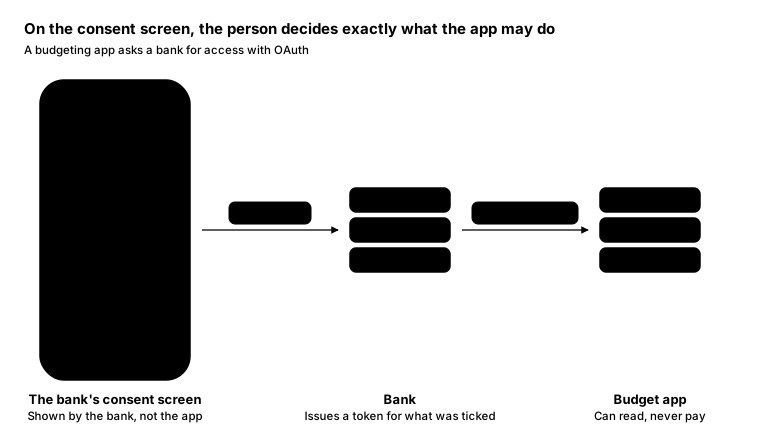
Promptcopy it, change the names, get your own version
Use the crisp-diagrams skill to draw a scene with line-drawn device mockups.

Title: On the consent screen, the person decides exactly what the app may do
Subtitle: A budgeting app asks a bank for access with OAuth

- Objects, left to right:
    a phone, captioned “The bank's consent screen”: Shown by the bank, not the app; showing Budget app asks to: see balances (ticked), see transactions (ticked), make payments (not ticked); the scope list is the accent
    a server, captioned “Bank”: Issues a token for what was ticked
    a server, captioned “Budget app”: Can read, never pay
- What travels between them, as code chips on the arrows:
    Consent screen → Bank: allow: read
    Bank → Budget app: read-only token

Layout:
- All objects in one row on a shared axis, captions under each on one baseline
- Requests as chips above the arrows, replies as chips below

Use these labels word for word.

Style: gradient theme.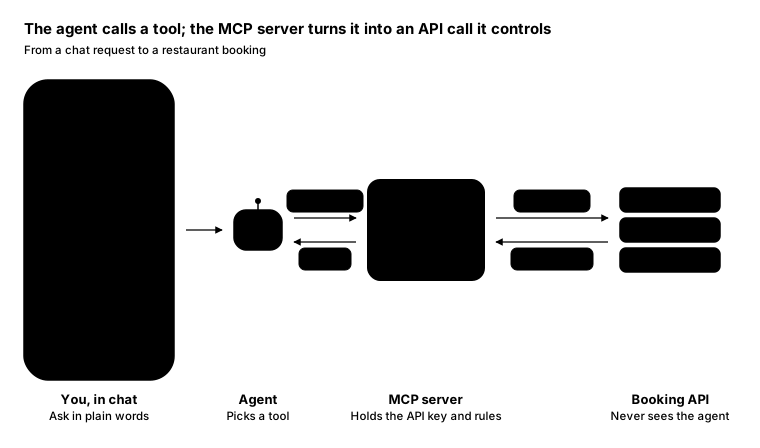
Promptcopy it, change the names, get your own version
Use the crisp-diagrams skill to draw a scene with line-drawn device mockups.

Title: The agent calls a tool; the MCP server turns it into an API call it controls
Subtitle: From a chat request to a restaurant booking

- Objects, left to right:
    a phone, captioned “You, in chat”: Ask in plain words; showing a chat: “Table for 4 at 8 tonight?” and the reply “Booked: Luca's at 20:00. Confirmation sent.”
    an agent (bot), captioned “Agent”: Picks a tool
    a server, captioned “MCP server”: Holds the API key and rules (the accent)
    a server, captioned “Booking API”: Never sees the agent
- What travels between them, as code chips on the arrows:
    You → Agent
    Agent → MCP server: book_table; the reply is booked
    MCP server → Booking API: POST /book; the reply is 201 Created

Layout:
- All objects in one row on a shared axis, captions under each on one baseline
- Requests as chips above the arrows, replies as chips below

Use these labels word for word.

Style: quiet theme (outlines only, one blue accent).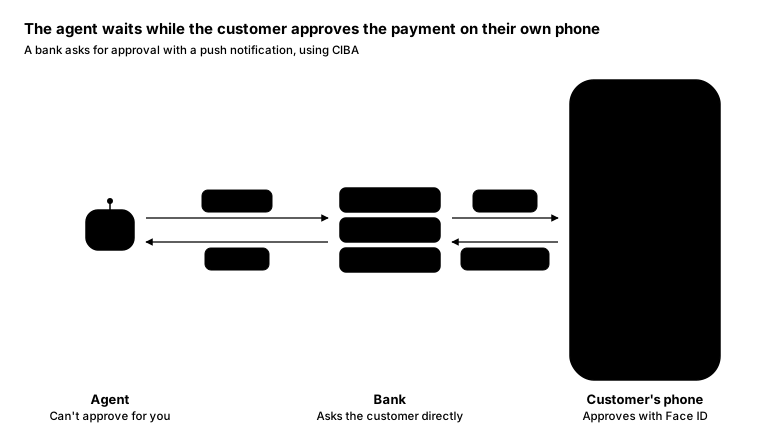
Promptcopy it, change the names, get your own version
Use the crisp-diagrams skill to draw a scene with line-drawn device mockups.

Title: The agent waits while the customer approves the payment on their own phone
Subtitle: A bank asks for approval with a push notification, using CIBA

- Objects, left to right:
    an agent (bot), captioned “Agent”: Can't approve for you
    a server, captioned “Bank”: Asks the customer directly
    a phone, captioned “Customer's phone”: Approves with Face ID; showing a push notification from Acme Bank: “Approve €120 to Luca's?”, From your assistant (the accent)
- What travels between them, as code chips on the arrows:
    Agent → Bank: pay €120?; the reply is approved
    Bank → Customer's phone: approve?; the reply is Face ID: yes

Layout:
- All objects in one row on a shared axis, captions under each on one baseline
- Requests as chips above the arrows, replies as chips below

Use these labels word for word.

Style: pastel theme.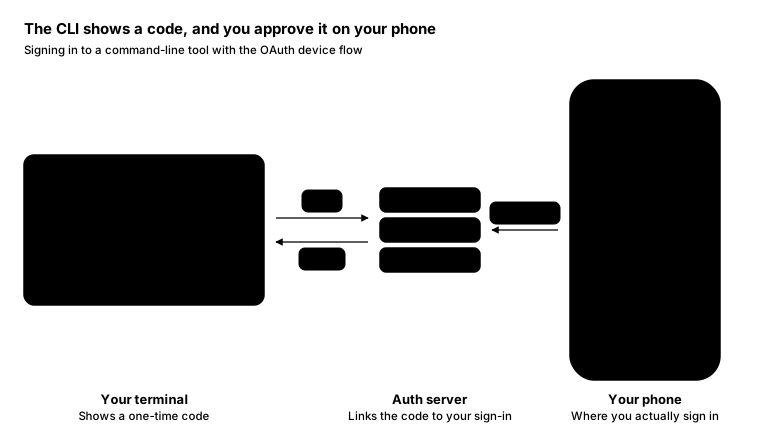
Promptcopy it, change the names, get your own version
Use the crisp-diagrams skill to draw a scene with line-drawn device mockups.

Title: The CLI shows a code, and you approve it on your phone
Subtitle: Signing in to a command-line tool with the OAuth device flow

- Objects, left to right:
    a terminal window, captioned “Your terminal”: Shows a one-time code; showing $ acme login / To sign in, open acme.com/activate and enter WDJB-MJHT / Waiting for approval...
    a server, captioned “Auth server”: Links the code to your sign-in
    a phone, captioned “Your phone”: Where you actually sign in; showing a code entry screen showing WDJB-MJHT (the accent)
- What travels between them, as code chips on the arrows:
    Your terminal → Auth server: poll; the reply is a token
    Your phone → Auth server: WDJB-MJHT

Layout:
- All objects in one row on a shared axis, captions under each on one baseline
- Requests as chips above the arrows, replies as chips below

Use these labels word for word.

Style: gradient theme.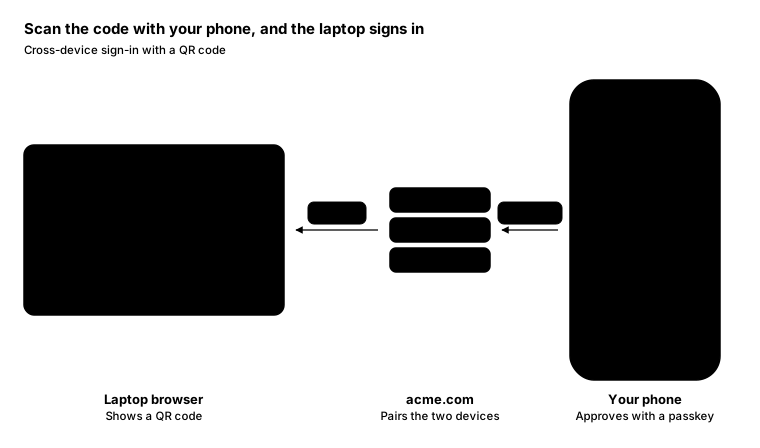
Promptcopy it, change the names, get your own version
Use the crisp-diagrams skill to draw a scene with line-drawn device mockups.

Title: Scan the code with your phone, and the laptop signs in
Subtitle: Cross-device sign-in with a QR code

- Objects, left to right:
    a browser window, captioned “Laptop browser”: Shows a QR code; showing acme.com/login with “Sign in to Acme”, “Scan with your phone”, a QR code, an email field and Continue
    a server, captioned “acme.com”: Pairs the two devices
    a phone, captioned “Your phone”: Approves with a passkey; showing “Sign in on your laptop?”, Chrome on MacBook Air, with Sign in and Not me buttons (the accent)
- What travels between them, as code chips on the arrows:
    Your phone → acme.com: approval
    acme.com → Laptop browser: session

Layout:
- All objects in one row on a shared axis, captions under each on one baseline
- Requests as chips above the arrows, replies as chips below

Use these labels word for word.

Style: tinted zones theme.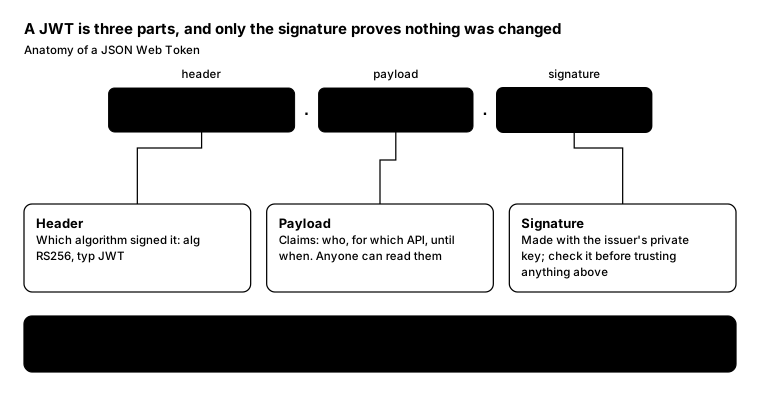
Promptcopy it, change the names, get your own version
Use the crisp-diagrams skill to draw an annotated artifact (one real thing with its parts explained).

Title: A JWT is three parts, and only the signature proves nothing was changed
Subtitle: Anatomy of a JSON Web Token

- The text, split into parts (separated by “.”):
    “eyJhbGciOiJSUzI1NiJ9”, labelled “header”, explained as Header: Which algorithm signed it: alg RS256, typ JWT
    “eyJzdWIiOiI0MiJ9”, labelled “payload”, explained as Payload: Claims: who, for which API, until when. Anyone can read them
    “SflKxwRJSMeKKF2Q”, labelled “signature”, explained as Signature: Made with the issuer's private key; check it before trusting anything above (the accent)
- A takeaway band at the bottom: Encoded, not encrypted: Base64url only hides the text from a quick glance; never put secrets in the payload

Layout:
- The parts in one row as code chips with a small label above each; the separators between them
- A card under each part with its name and meaning, joined by thin leader lines that never cross

Use these labels word for word.

Style: quiet theme (outlines only, one blue accent).
Promptcopy it, change the names, get your own version
Use the crisp-diagrams skill to draw an annotated artifact (one real thing with its parts explained).

Title: The API reads the token in one header before it looks at anything else
Subtitle: Anatomy of an HTTP request to an API

- The text, one line each (in a code window):
      GET /v1/orders?limit=20 HTTP/1.1
      Host: api.acme.com
      Authorization: Bearer eyJhbGciOi...
      Accept: application/json
      Idempotency-Key: 5f1c9a
- Numbered notes on the right, each tied to a tinted range of lines:
    1. Request line (line 1): Method, path with query, and protocol version
    2. Host (line 2): Which API this is for, behind a shared gateway
    3. Authorization (line 3): The access token; the API checks it before anything else (the accent)
    4. Other headers (lines 4-5): The response format, and a key that makes retries safe

Layout:
- The lines in a code window on the left, each annotated range tinted
- Numbered circles beside the window; numbered notes stacked on the right

Color groups: violet for Request line; teal for Host; amber for Other headers

Use these labels word for word.

Style: pastel theme.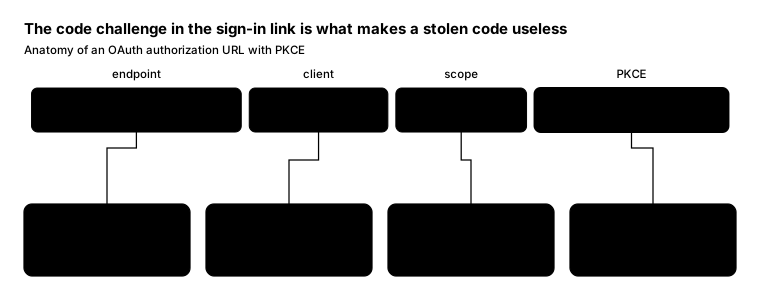
Promptcopy it, change the names, get your own version
Use the crisp-diagrams skill to draw an annotated artifact (one real thing with its parts explained).

Title: The code challenge in the sign-in link is what makes a stolen code useless
Subtitle: Anatomy of an OAuth authorization URL with PKCE

- The text, split into parts:
    “auth.acme.com/authorize”, labelled “endpoint”, explained as Endpoint: Where the user signs in
    “?client_id=web”, labelled “client”, explained as Client: Which app is asking
    “&scope=orders”, labelled “scope”, explained as Scope: What the app may do
    “&code_challenge=E9Mel”, labelled “PKCE”, explained as Code challenge: A hash of a secret only the app holds (the accent)

Layout:
- The parts in one row as code chips with a small label above each
- A card under each part with its name and meaning, joined by thin leader lines that never cross

Color groups: violet for Endpoint; teal for Client; amber for Scope

Use these labels word for word.

Style: gradient theme.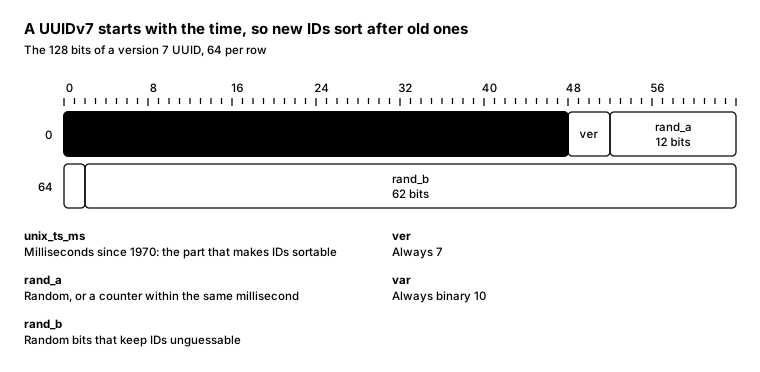
Promptcopy it, change the names, get your own version
Use the crisp-diagrams skill to draw a byte layout (bit field) diagram.

Title: A UUIDv7 starts with the time, so new IDs sort after old ones
Subtitle: The 128 bits of a version 7 UUID, 64 per row

- Fields in order, 64 bits per row:
    unix_ts_ms, 48 bits: Milliseconds since 1970: the part that makes IDs sortable (the accent)
    ver, 4 bits: Always 7
    rand_a, 12 bits: Random, or a counter within the same millisecond
    var, 2 bits: Always binary 10
    rand_b, 62 bits: Random bits that keep IDs unguessable

Layout:
- A ruler of bit numbers along the top; rows of 64 bits with each row's offset on the left, each field a box as wide as its size
- Each field's meaning in a two-column list under the grid

Use these labels word for word.

Style: quiet theme (outlines only, one blue accent).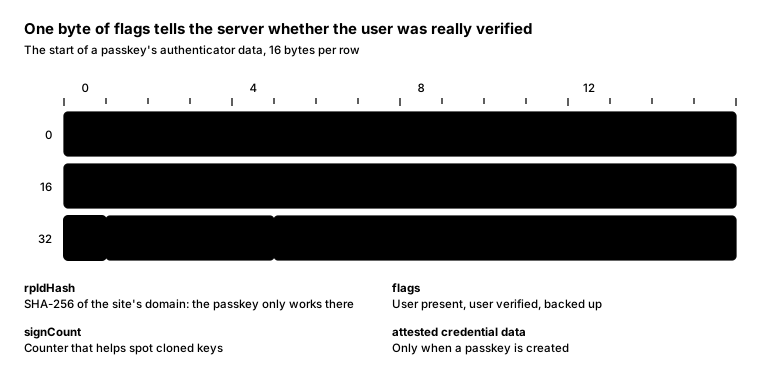
Promptcopy it, change the names, get your own version
Use the crisp-diagrams skill to draw a byte layout (bit field) diagram.

Title: One byte of flags tells the server whether the user was really verified
Subtitle: The start of a passkey's authenticator data, 16 bytes per row

- Fields in order, 16 bytes per row:
    rpIdHash, 32 bytes: SHA-256 of the site's domain: the passkey only works there
    flags, 1 byte: User present, user verified, backed up (the accent)
    signCount, 4 bytes: Counter that helps spot cloned keys
    attested credential data, the rest (variable length): Only when a passkey is created

Layout:
- A ruler of byte numbers along the top; rows of 16 bytes with each row's offset on the left, each field a box as wide as its size
- Each field's meaning in a two-column list under the grid

Use these labels word for word.

Style: pastel theme.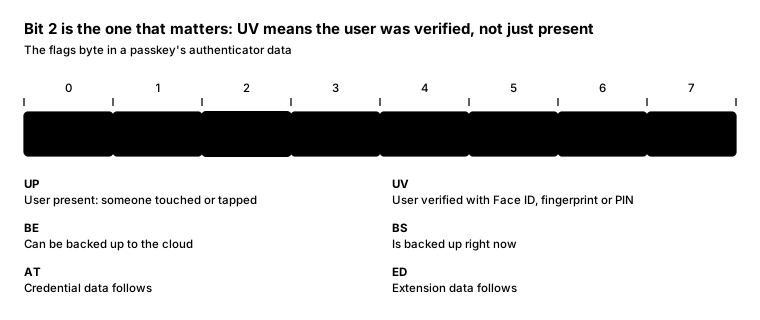
Promptcopy it, change the names, get your own version
Use the crisp-diagrams skill to draw a byte layout (bit field) diagram.

Title: Bit 2 is the one that matters: UV means the user was verified, not just present
Subtitle: The flags byte in a passkey's authenticator data

- Fields in order, 8 bits per row:
    UP, 1 bit: User present: someone touched or tapped
    RFU, 1 bit
    UV, 1 bit: User verified with Face ID, fingerprint or PIN (the accent)
    BE, 1 bit: Can be backed up to the cloud
    BS, 1 bit: Is backed up right now
    RFU, 1 bit
    AT, 1 bit: Credential data follows
    ED, 1 bit: Extension data follows

Layout:
- A ruler of bit numbers along the top; rows of 8 bits with each row's offset on the left, each field a box as wide as its size
- Each field's meaning in a two-column list under the grid

Use these labels word for word.

Style: gradient theme.
Promptcopy it, change the names, get your own version
Use the crisp-diagrams skill to draw a flow diagram (steps from left to right).

Title: New employees get the right access on day one, decided by their role
Subtitle: How joining the company turns into accounts and app access

- Steps, left to right:
    Offer signed: HR adds the person
    Accounts created: Single sign-on and email
    Access by role: Apps assigned from the job role (the accent)
    Day one: The laptop arrives ready
- A takeaway box at the bottom: HR is the source of truth: When the HR record changes, access follows: a new role adds apps, leaving removes them all

Layout:
- The 4 steps as equal boxes in one row with arrows between them
- The takeaway as a full-width gray band at the bottom

Color groups: teal for Accounts created; violet for Offer signed; green for Day one

Use these labels word for word.

Style: gradient theme, with icon cards (icon on top, name below).
Promptcopy it, change the names, get your own version
Use the crisp-diagrams skill to draw a flow diagram (steps from left to right).

Title: A pull request passes three checks before it reaches every user
Subtitle: Our path from a pull request to production

- Steps, left to right:
    Pull request: Small change, linked to an issue
    Automated checks: Tests, lint and a security scan
    Code review: One approval from a code owner
    Canary release: 5% of traffic for an hour, then all (the accent)
- A branch: when a check fails at Automated checks, an arrow goes down to Back to the author: With the failing check, then back to Pull request
- A takeaway box at the bottom: Rollback is automatic: If error rates rise during the canary, the release stops and rolls back on its own

Layout:
- The 4 steps as equal boxes in one row with arrows between them
- The branch box under the second step, with a labelled arrow down into it and one back up to the first step
- The takeaway as a full-width gray band at the bottom

Color groups: teal for Pull request, Automated checks and Code review; rose for Back to the author

Use these labels word for word.

Style: pastel theme.
Promptcopy it, change the names, get your own version
Use the crisp-diagrams skill to draw a flow diagram (steps from left to right).

Title: In agent checkout, the merchant trusts the cart the person signed
Subtitle: How an agent buys something with signed mandates, as in Google's Agent Payments Protocol

- Steps, left to right:
    You ask: Running shoes under €150, size 43
    Agent shops: Compares stores and builds a cart
    You sign the cart: Items and price, approved on your phone (the accent)
    Merchant checks out: Verifies the signature, then charges
- A takeaway box at the bottom: Proof of what the person agreed to: If there's a dispute, the signed cart shows exactly what was approved and when

Layout:
- The 4 steps as equal boxes in one row with arrows between them
- The takeaway as a full-width gray band at the bottom

Color groups: teal for Agent shops; violet for You ask; green for Merchant checks out

Use these labels word for word.

Style: gradient theme.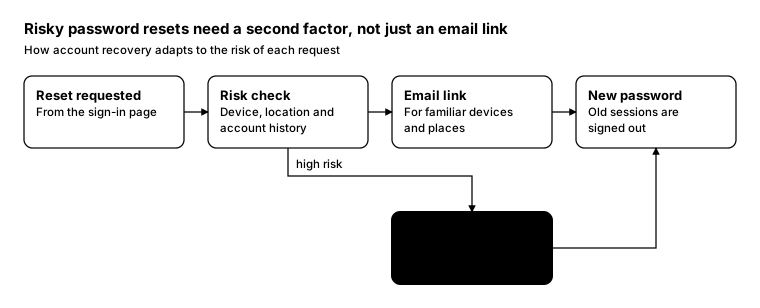
Promptcopy it, change the names, get your own version
Use the crisp-diagrams skill to draw a flow diagram (steps from left to right).

Title: Risky password resets need a second factor, not just an email link
Subtitle: How account recovery adapts to the risk of each request

- Steps, left to right:
    Reset requested: From the sign-in page
    Risk check: Device, location and account history
    Email link: For familiar devices and places
    New password: Old sessions are signed out
- A branch: when high risk at Risk check, an arrow goes down to Passkey or ID check: Before any link is sent, then back to New password

Layout:
- The 4 steps as equal boxes in one row with arrows between them
- The branch box under the second step, with a labelled arrow down into it and one back up to the fourth step

Use these labels word for word.

Style: quiet theme (outlines only, one blue accent).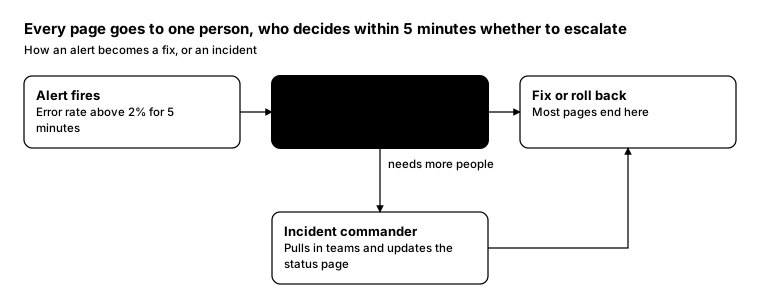
Promptcopy it, change the names, get your own version
Use the crisp-diagrams skill to draw a flow diagram (steps from left to right).

Title: Every page goes to one person, who decides within 5 minutes whether to escalate
Subtitle: How an alert becomes a fix, or an incident

- Steps, left to right:
    Alert fires: Error rate above 2% for 5 minutes
    On-call engineer: Acknowledges and investigates within 5 minutes (the accent)
    Fix or roll back: Most pages end here
- A branch: when needs more people at On-call engineer, an arrow goes down to Incident commander: Pulls in teams and updates the status page, then back to Fix or roll back

Layout:
- The 3 steps as equal boxes in one row with arrows between them
- The branch box under the second step, with a labelled arrow down into it and one back up to the third step

Use these labels word for word.

Style: quiet theme (outlines only, one blue accent).
Promptcopy it, change the names, get your own version
Use the crisp-diagrams skill to draw a flow diagram (steps from left to right).

Title: A retrieval assistant can cite sources because it answers only from what it retrieved
Subtitle: The four steps behind a grounded answer

- Steps, left to right:
    Question: From a user in the app
    Retrieve: Top 8 passages from the index
    Answer: Written from those passages only (the accent)
    Cite: Links each claim to its passage
- A takeaway box at the bottom: No source, no claim: If retrieval finds nothing relevant, the assistant says so instead of guessing

Layout:
- The 4 steps as equal boxes in one row with arrows between them
- The takeaway as a full-width gray band at the bottom

Color groups: teal for Retrieve; violet for Question; green for Cite

Use these labels word for word.

Style: pastel theme.
Promptcopy it, change the names, get your own version
Use the crisp-diagrams skill to draw a flow diagram (steps from left to right).

Title: Customers verify their identity once, and a reusable credential skips it next time
Subtitle: Onboarding with an identity check that issues a verifiable credential

- Steps, left to right:
    Sign up: Email and phone number
    ID check: Document photo and a selfie
    Credential issued: Saved in the customer's wallet (the accent)
    Account open: Ready to use right away
- A branch: when check fails at ID check, an arrow goes down to Manual review: A person decides within a day, then back to Account open

Layout:
- The 4 steps as equal boxes in one row with arrows between them
- The branch box under the second step, with a labelled arrow down into it and one back up to the fourth step

Color groups: teal for ID check; violet for Sign up; green for Account open; rose for Manual review

Use these labels word for word.

Style: gradient theme.
Promptcopy it, change the names, get your own version
Use the crisp-diagrams skill to draw a flow diagram (steps from left to right).

Title: A deletion request reaches every system within 30 days, backups included
Subtitle: How a privacy request to delete personal data is carried out

- Steps, left to right:
    Request received: From the privacy page, identity confirmed
    Delete everywhere: Databases, search index, analytics and support tools (the accent)
    Confirmation: Sent to the person with a deletion receipt
- A takeaway box at the bottom: Backups age out instead of being edited: Backups expire after 30 days, so deleted data disappears from them on schedule

Layout:
- The 3 steps as equal boxes in one row with arrows between them
- The takeaway as a full-width gray band at the bottom

Color groups: violet for Request received; green for Confirmation

Use these labels word for word.

Style: tinted zones theme.
Promptcopy it, change the names, get your own version
Use the crisp-diagrams skill to draw a flow diagram (steps from left to right).

Title: A pull request passes three checks before it reaches every user
Subtitle: Our path from a pull request to production

- Steps, left to right:
    Pull request: Small change, linked to an issue
    Automated checks: Tests, lint and a security scan
    Code review: One approval from a code owner
    Canary release: 5% of traffic for an hour, then all (the accent)
- A branch: when a check fails at Automated checks, an arrow goes down to Back to the author: With the failing check, then back to Pull request
- A takeaway box at the bottom: Rollback is automatic: If error rates rise during the canary, the release stops and rolls back on its own

Layout:
- The 4 steps as equal boxes in one row with arrows between them
- The branch box under the second step, with a labelled arrow down into it and one back up to the first step
- The takeaway as a full-width gray band at the bottom

Color groups: teal for Pull request, Automated checks and Code review; rose for Back to the author

Use these labels word for word.

Style: gradient theme, with icon cards (icon on top, name below).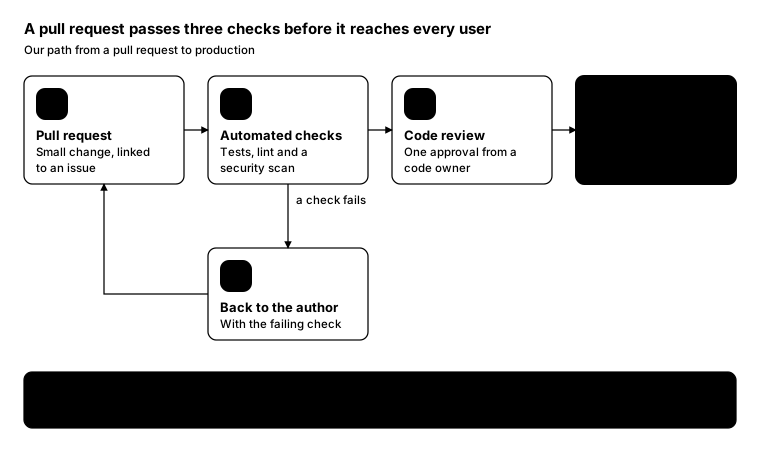
Promptcopy it, change the names, get your own version
Use the crisp-diagrams skill to draw a flow diagram (steps from left to right).

Title: A pull request passes three checks before it reaches every user
Subtitle: Our path from a pull request to production

- Steps, left to right:
    Pull request: Small change, linked to an issue
    Automated checks: Tests, lint and a security scan
    Code review: One approval from a code owner
    Canary release: 5% of traffic for an hour, then all (the accent)
- A branch: when a check fails at Automated checks, an arrow goes down to Back to the author: With the failing check, then back to Pull request
- A takeaway box at the bottom: Rollback is automatic: If error rates rise during the canary, the release stops and rolls back on its own

Layout:
- The 4 steps as equal boxes in one row with arrows between them
- The branch box under the second step, with a labelled arrow down into it and one back up to the first step
- The takeaway as a full-width gray band at the bottom

Use these labels word for word.

Style: quiet theme (outlines only, one blue accent), with an icon on a tinted badge in each box.
Promptcopy it, change the names, get your own version
Use the crisp-diagrams skill to draw a flow diagram (steps from left to right).

Title: In agent checkout, the merchant trusts the cart the person signed
Subtitle: How an agent buys something with signed mandates, as in Google's Agent Payments Protocol

- Steps, left to right:
    You ask: Running shoes under €150, size 43
    Agent shops: Compares stores and builds a cart
    You sign the cart: Items and price, approved on your phone (the accent)
    Merchant checks out: Verifies the signature, then charges
- A takeaway box at the bottom: Proof of what the person agreed to: If there's a dispute, the signed cart shows exactly what was approved and when

Layout:
- The 4 steps as equal boxes in one row with arrows between them
- The takeaway as a full-width gray band at the bottom

Color groups: teal for Agent shops; violet for You ask; green for Merchant checks out

Use these labels word for word.

Style: tinted zones theme, with an icon on a tinted badge in each box.
Promptcopy it, change the names, get your own version
Use the crisp-diagrams skill to draw a flow diagram (steps from left to right).

Title: In agent checkout, the merchant trusts the cart the person signed
Subtitle: How an agent buys something with signed mandates, as in Google's Agent Payments Protocol

- Steps, left to right:
    You ask: Running shoes under €150, size 43
    Agent shops: Compares stores and builds a cart
    You sign the cart: Items and price, approved on your phone (the accent)
    Merchant checks out: Verifies the signature, then charges
- A takeaway box at the bottom: Proof of what the person agreed to: If there's a dispute, the signed cart shows exactly what was approved and when

Layout:
- The 4 steps as equal boxes in one row with arrows between them
- The takeaway as a full-width gray band at the bottom

Color groups: teal for Agent shops; violet for You ask; green for Merchant checks out

Use these labels word for word.

Style: pastel theme, with a small line icon in each box.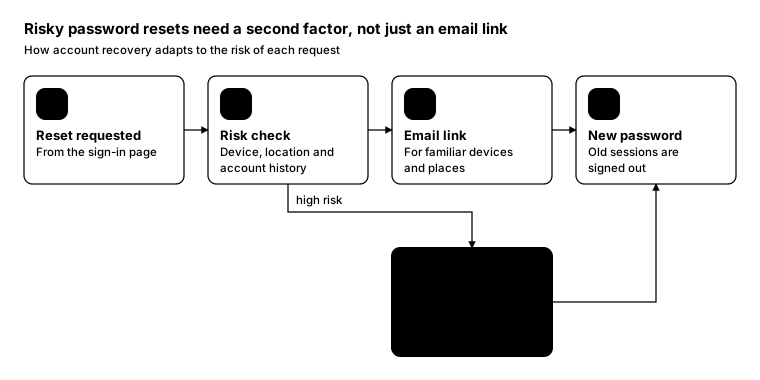
Promptcopy it, change the names, get your own version
Use the crisp-diagrams skill to draw a flow diagram (steps from left to right).

Title: Risky password resets need a second factor, not just an email link
Subtitle: How account recovery adapts to the risk of each request

- Steps, left to right:
    Reset requested: From the sign-in page
    Risk check: Device, location and account history
    Email link: For familiar devices and places
    New password: Old sessions are signed out
- A branch: when high risk at Risk check, an arrow goes down to Passkey or ID check: Before any link is sent, then back to New password

Layout:
- The 4 steps as equal boxes in one row with arrows between them
- The branch box under the second step, with a labelled arrow down into it and one back up to the fourth step

Use these labels word for word.

Style: quiet theme (outlines only, one blue accent), with a small line icon in each box.
Promptcopy it, change the names, get your own version
Use the crisp-diagrams skill to draw a flow diagram (steps from left to right).

Title: Risky password resets need a second factor, not just an email link
Subtitle: How account recovery adapts to the risk of each request

- Steps, left to right:
    Reset requested: From the sign-in page
    Risk check: Device, location and account history
    Email link: For familiar devices and places
    New password: Old sessions are signed out
- A branch: when high risk at Risk check, an arrow goes down to Passkey or ID check: Before any link is sent, then back to New password

Layout:
- The 4 steps as equal boxes in one row with arrows between them
- The branch box under the second step, with a labelled arrow down into it and one back up to the fourth step

Color groups: teal for Reset requested, Risk check and Email link; green for New password; rose for Passkey or ID check

Use these labels word for word.

Style: gradient theme, with icon cards (icon on top, name below).
Promptcopy it, change the names, get your own version
Use the crisp-diagrams skill to draw a flow diagram (steps from left to right).

Title: Every page goes to one person, who decides within 5 minutes whether to escalate
Subtitle: How an alert becomes a fix, or an incident

- Steps, left to right:
    Alert fires: Error rate above 2% for 5 minutes
    On-call engineer: Acknowledges and investigates within 5 minutes (the accent)
    Fix or roll back: Most pages end here
- A branch: when needs more people at On-call engineer, an arrow goes down to Incident commander: Pulls in teams and updates the status page, then back to Fix or roll back

Layout:
- The 3 steps as equal boxes in one row with arrows between them
- The branch box under the second step, with a labelled arrow down into it and one back up to the third step

Color groups: teal for Alert fires; green for Fix or roll back; rose for Incident commander

Use these labels word for word.

Style: pastel theme, with an icon on a tinted badge in each box.
Promptcopy it, change the names, get your own version
Use the crisp-diagrams skill to draw a flow diagram (steps from left to right).

Title: Every page goes to one person, who decides within 5 minutes whether to escalate
Subtitle: How an alert becomes a fix, or an incident

- Steps, left to right:
    Alert fires: Error rate above 2% for 5 minutes
    On-call engineer: Acknowledges and investigates within 5 minutes (the accent)
    Fix or roll back: Most pages end here
- A branch: when needs more people at On-call engineer, an arrow goes down to Incident commander: Pulls in teams and updates the status page, then back to Fix or roll back

Layout:
- The 3 steps as equal boxes in one row with arrows between them
- The branch box under the second step, with a labelled arrow down into it and one back up to the third step

Color groups: teal for Alert fires; green for Fix or roll back; rose for Incident commander

Use these labels word for word.

Style: tinted zones theme, with a small line icon in each box.
Promptcopy it, change the names, get your own version
Use the crisp-diagrams skill to draw a flow diagram (steps from left to right).

Title: A retrieval assistant can cite sources because it answers only from what it retrieved
Subtitle: The four steps behind a grounded answer

- Steps, left to right:
    Question: From a user in the app
    Retrieve: Top 8 passages from the index
    Answer: Written from those passages only (the accent)
    Cite: Links each claim to its passage
- A takeaway box at the bottom: No source, no claim: If retrieval finds nothing relevant, the assistant says so instead of guessing

Layout:
- The 4 steps as equal boxes in one row with arrows between them
- The takeaway as a full-width gray band at the bottom

Color groups: teal for Retrieve; violet for Question; green for Cite

Use these labels word for word.

Style: gradient theme, with a small line icon in each box.
Promptcopy it, change the names, get your own version
Use the crisp-diagrams skill to draw a flow diagram (steps from left to right).

Title: A retrieval assistant can cite sources because it answers only from what it retrieved
Subtitle: The four steps behind a grounded answer

- Steps, left to right:
    Question: From a user in the app
    Retrieve: Top 8 passages from the index
    Answer: Written from those passages only (the accent)
    Cite: Links each claim to its passage
- A takeaway box at the bottom: No source, no claim: If retrieval finds nothing relevant, the assistant says so instead of guessing

Layout:
- The 4 steps as equal boxes in one row with arrows between them
- The takeaway as a full-width gray band at the bottom

Use these labels word for word.

Style: quiet theme (outlines only, one blue accent), with icon cards (icon on top, name below).
Promptcopy it, change the names, get your own version
Use the crisp-diagrams skill to draw a flow diagram (steps from left to right).

Title: Customers verify their identity once, and a reusable credential skips it next time
Subtitle: Onboarding with an identity check that issues a verifiable credential

- Steps, left to right:
    Sign up: Email and phone number
    ID check: Document photo and a selfie
    Credential issued: Saved in the customer's wallet (the accent)
    Account open: Ready to use right away
- A branch: when check fails at ID check, an arrow goes down to Manual review: A person decides within a day, then back to Account open

Layout:
- The 4 steps as equal boxes in one row with arrows between them
- The branch box under the second step, with a labelled arrow down into it and one back up to the fourth step

Color groups: teal for ID check; violet for Sign up; green for Account open; rose for Manual review

Use these labels word for word.

Style: tinted zones theme, with icon cards (icon on top, name below).
Promptcopy it, change the names, get your own version
Use the crisp-diagrams skill to draw a flow diagram (steps from left to right).

Title: Customers verify their identity once, and a reusable credential skips it next time
Subtitle: Onboarding with an identity check that issues a verifiable credential

- Steps, left to right:
    Sign up: Email and phone number
    ID check: Document photo and a selfie
    Credential issued: Saved in the customer's wallet (the accent)
    Account open: Ready to use right away
- A branch: when check fails at ID check, an arrow goes down to Manual review: A person decides within a day, then back to Account open

Layout:
- The 4 steps as equal boxes in one row with arrows between them
- The branch box under the second step, with a labelled arrow down into it and one back up to the fourth step

Color groups: teal for ID check; violet for Sign up; green for Account open; rose for Manual review

Use these labels word for word.

Style: pastel theme, with an icon on a tinted badge in each box.
Promptcopy it, change the names, get your own version
Use the crisp-diagrams skill to draw a flow diagram (steps from left to right).

Title: A deletion request reaches every system within 30 days, backups included
Subtitle: How a privacy request to delete personal data is carried out

- Steps, left to right:
    Request received: From the privacy page, identity confirmed
    Delete everywhere: Databases, search index, analytics and support tools (the accent)
    Confirmation: Sent to the person with a deletion receipt
- A takeaway box at the bottom: Backups age out instead of being edited: Backups expire after 30 days, so deleted data disappears from them on schedule

Layout:
- The 3 steps as equal boxes in one row with arrows between them
- The takeaway as a full-width gray band at the bottom

Use these labels word for word.

Style: quiet theme (outlines only, one blue accent), with an icon on a tinted badge in each box.
Promptcopy it, change the names, get your own version
Use the crisp-diagrams skill to draw a flow diagram (steps from left to right).

Title: A deletion request reaches every system within 30 days, backups included
Subtitle: How a privacy request to delete personal data is carried out

- Steps, left to right:
    Request received: From the privacy page, identity confirmed
    Delete everywhere: Databases, search index, analytics and support tools (the accent)
    Confirmation: Sent to the person with a deletion receipt
- A takeaway box at the bottom: Backups age out instead of being edited: Backups expire after 30 days, so deleted data disappears from them on schedule

Layout:
- The 3 steps as equal boxes in one row with arrows between them
- The takeaway as a full-width gray band at the bottom

Color groups: violet for Request received; green for Confirmation

Use these labels word for word.

Style: gradient theme, with a small line icon in each box.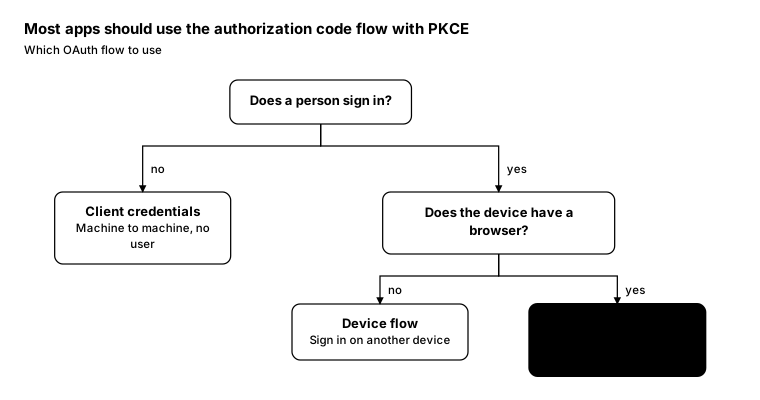
Promptcopy it, change the names, get your own version
Use the crisp-diagrams skill to draw a decision tree.

Title: Most apps should use the authorization code flow with PKCE
Subtitle: Which OAuth flow to use

- Question: Does a person sign in?
    no → Answer: Client credentials: Machine to machine, no user
    yes → Question: Does the device have a browser?
      no → Answer: Device flow: Sign in on another device
      yes → Answer: Code flow + PKCE: Web, mobile and desktop apps (the accent)

Layout:
- Questions as boxes, answers as boxes on the lowest level of each branch; each level below the last
- Edges go down, across and down into each child, labelled with the answer (yes, no)

Use these labels word for word.

Style: quiet theme (outlines only, one blue accent).
Promptcopy it, change the names, get your own version
Use the crisp-diagrams skill to draw a decision tree.

Title: An incident is SEV 1 only when customers are affected and can't work around it
Subtitle: Picking the severity of an incident

- Question: Are customers affected?
    no → Question: Is data at risk?
      yes → Answer: SEV 2: Page security now
      no → Answer: SEV 4: Fix this week
    yes → Question: Is there a workaround?
      yes → Answer: SEV 3: Fix today
      no → Answer: SEV 1: Page everyone, update status (the accent)

Layout:
- Questions as boxes, answers as boxes on the lowest level of each branch; each level below the last
- Edges go down, across and down into each child, labelled with the answer (yes, no)

Color groups: amber for SEV 2; green for SEV 4; teal for SEV 3

Use these labels word for word.

Style: pastel theme.
Promptcopy it, change the names, get your own version
Use the crisp-diagrams skill to draw a decision tree.

Title: Offer a passkey first; fall back only when the device can't use one
Subtitle: Which sign-in method to show a returning customer

- Question: Does the device support passkeys?
    yes → Answer: Passkey: One tap with Face ID or a fingerprint (the accent)
    no → Question: Is our app installed?
      yes → Answer: Push approval: Approve the sign-in in the app
      no → Question: Can we send SMS in their country?
        yes → Answer: SMS code: Six digits, valid for five minutes
        no → Answer: Email link: A one-time link to their inbox

Layout:
- A chain: questions in a column on the left; the branch that ends goes right to its answer on the same row
- The other branch goes down to the next question; the last question's second answer sits on its own row below

Color groups: teal for Push approval; amber for SMS code; violet for Email link

Use these labels word for word.

Style: tinted zones theme.
Promptcopy it, change the names, get your own version
Use the crisp-diagrams skill to draw a lanes diagram (where things sit between two parties).

Title: An agent reaches your app through one of three doors, each with its own sign-in
Subtitle: Where each identity standard sits between an agent and your systems

- Left side: AI agent, with Its browser, Its API client and Its wallet
- Right side: Your app, with Login page, Your API and Verifier
- Lanes between them, one per row:
    Door 1: the login page (chips: Web Bot Auth, Passkeys), joining Its browser to Login page
    Door 2: delegated tokens (chips: OAuth, Token exchange, XAA), joining Its API client to Your API
    Door 3: credentials (chips: Verifiable credentials, OpenID4VP), joining Its wallet to Verifier
- A band under every lane (the accent): Under every door: the user stays in control: Consent, scoped tokens and revocation work the same way whichever door an agent uses

Layout:
- Two tall columns on the left and right with their items in rows; one lane per row in the middle, with its chips inside
- Arrows from each left item into its lane and from the lane to the right item; the base band full width at the bottom

Color groups: violet for AI agent; green for Your app; amber for Door 1: the login page, Door 2: delegated tokens and Door 3: credentials

Use these labels word for word.

Style: tinted zones theme.
Promptcopy it, change the names, get your own version
Use the crisp-diagrams skill to draw a lanes diagram (where things sit between two parties).

Title: Agents pay merchants on three rails, each with proof the user approved
Subtitle: Where agent payment standards sit between an agent and a merchant

- Left side: Agent, with Stablecoins, Card on file and Bank account
- Right side: Merchant, with Paid API, Checkout and Bank
- Lanes between them, one per row:
    Rail 1: stablecoins (chips: x402, Wallet limits), joining Stablecoins to Paid API
    Rail 2: cards (chips: Visa TAP, Mastercard Agent Pay), joining Card on file to Checkout
    Rail 3: bank transfers (chips: Open banking, Mandates), joining Bank account to Bank
- A band under every lane (the accent): Proof of approval travels with every payment: A signed mandate or token shows the merchant and the network that the user said yes

Layout:
- Two tall columns on the left and right with their items in rows; one lane per row in the middle, with its chips inside
- Arrows from each left item into its lane and from the lane to the right item; the base band full width at the bottom

Color groups: violet for Agent; green for Merchant; amber for Rail 1: stablecoins, Rail 2: cards and Rail 3: bank transfers

Use these labels word for word.

Style: pastel theme.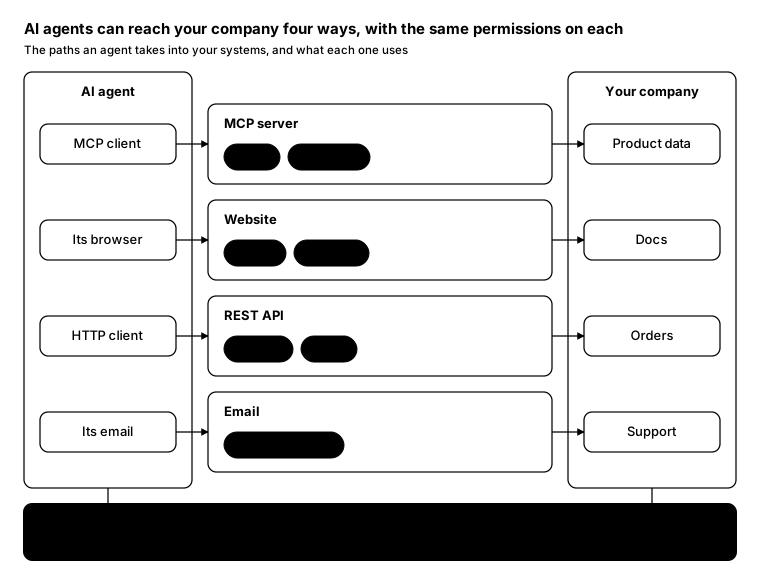
Promptcopy it, change the names, get your own version
Use the crisp-diagrams skill to draw a lanes diagram (where things sit between two parties).

Title: AI agents can reach your company four ways, with the same permissions on each
Subtitle: The paths an agent takes into your systems, and what each one uses

- Left side: AI agent, with MCP client, Its browser, HTTP client and Its email
- Right side: Your company, with Product data, Docs, Orders and Support
- Lanes between them, one per row:
    MCP server (chips: Tools, Resources), joining MCP client to Product data
    Website (chips: WebMCP, llms.txt), joining Its browser to Docs
    REST API (chips: OpenAPI, OAuth), joining HTTP client to Orders
    Email (chips: Inbound parsing), joining Its email to Support
- A band under every lane (the accent): Same permissions on every path: Whatever the path, the agent should see only what the signed-in person could see

Layout:
- Two tall columns on the left and right with their items in rows; one lane per row in the middle, with its chips inside
- Arrows from each left item into its lane and from the lane to the right item; the base band full width at the bottom

Use these labels word for word.

Style: quiet theme (outlines only, one blue accent).
Promptcopy it, change the names, get your own version
Use the crisp-diagrams skill to draw a lanes diagram (where things sit between two parties).

Title: Shoppers pay on three rails, and each one must confirm it's really them
Subtitle: Online payment methods between a shopper and a merchant in the EU

- Left side: Shopper, with Card, Wallet and Bank account
- Right side: Merchant, with Card checkout, Wallet button and Pay by bank
- Lanes between them, one per row:
    Card networks (chips: 3-D Secure, Chargebacks), joining Card to Card checkout
    Digital wallets (chips: Apple Pay, Google Pay), joining Wallet to Wallet button
    Account-to-account (chips: Open banking, Instant), joining Bank account to Pay by bank
- A band under every lane (the accent): Strong customer authentication on every rail: Under PSD2, most online payments need two factors, whichever rail carries them

Layout:
- Two tall columns on the left and right with their items in rows; one lane per row in the middle, with its chips inside
- Arrows from each left item into its lane and from the lane to the right item; the base band full width at the bottom

Color groups: violet for Shopper; green for Merchant; amber for Card networks, Digital wallets and Account-to-account

Use these labels word for word.

Style: gradient theme.
Promptcopy it, change the names, get your own version
Use the crisp-diagrams skill to draw a lanes diagram (where things sit between two parties).

Title: An agent reaches your app through one of three doors, each with its own sign-in
Subtitle: Where each identity standard sits between an agent and your systems

- Left side: AI agent, with Its browser, Its API client and Its wallet
- Right side: Your app, with Login page, Your API and Verifier
- Lanes between them, one per row:
    Door 1: the login page (chips: Web Bot Auth, Passkeys), joining Its browser to Login page
    Door 2: delegated tokens (chips: OAuth, Token exchange, XAA), joining Its API client to Your API
    Door 3: credentials (chips: Verifiable credentials, OpenID4VP), joining Its wallet to Verifier
- A band under every lane (the accent): Under every door: the user stays in control: Consent, scoped tokens and revocation work the same way whichever door an agent uses

Layout:
- Two tall columns on the left and right with their items in rows; one lane per row in the middle, with its chips inside
- Arrows from each left item into its lane and from the lane to the right item; the base band full width at the bottom

Color groups: violet for AI agent; green for Your app; amber for Door 1: the login page, Door 2: delegated tokens and Door 3: credentials

Use these labels word for word.

Style: pastel theme, with icon cards (icon on top, name below).
Promptcopy it, change the names, get your own version
Use the crisp-diagrams skill to draw a lanes diagram (where things sit between two parties).

Title: An agent reaches your app through one of three doors, each with its own sign-in
Subtitle: Where each identity standard sits between an agent and your systems

- Left side: AI agent, with Its browser, Its API client and Its wallet
- Right side: Your app, with Login page, Your API and Verifier
- Lanes between them, one per row:
    Door 1: the login page (chips: Web Bot Auth, Passkeys), joining Its browser to Login page
    Door 2: delegated tokens (chips: OAuth, Token exchange, XAA), joining Its API client to Your API
    Door 3: credentials (chips: Verifiable credentials, OpenID4VP), joining Its wallet to Verifier
- A band under every lane (the accent): Under every door: the user stays in control: Consent, scoped tokens and revocation work the same way whichever door an agent uses

Layout:
- Two tall columns on the left and right with their items in rows; one lane per row in the middle, with its chips inside
- Arrows from each left item into its lane and from the lane to the right item; the base band full width at the bottom

Color groups: violet for AI agent; green for Your app; amber for Door 1: the login page, Door 2: delegated tokens and Door 3: credentials

Use these labels word for word.

Style: tinted zones theme, with an icon on a tinted badge in each box.
Promptcopy it, change the names, get your own version
Use the crisp-diagrams skill to draw a lanes diagram (where things sit between two parties).

Title: Agents pay merchants on three rails, each with proof the user approved
Subtitle: Where agent payment standards sit between an agent and a merchant

- Left side: Agent, with Stablecoins, Card on file and Bank account
- Right side: Merchant, with Paid API, Checkout and Bank
- Lanes between them, one per row:
    Rail 1: stablecoins (chips: x402, Wallet limits), joining Stablecoins to Paid API
    Rail 2: cards (chips: Visa TAP, Mastercard Agent Pay), joining Card on file to Checkout
    Rail 3: bank transfers (chips: Open banking, Mandates), joining Bank account to Bank
- A band under every lane (the accent): Proof of approval travels with every payment: A signed mandate or token shows the merchant and the network that the user said yes

Layout:
- Two tall columns on the left and right with their items in rows; one lane per row in the middle, with its chips inside
- Arrows from each left item into its lane and from the lane to the right item; the base band full width at the bottom

Color groups: violet for Agent; green for Merchant; amber for Rail 1: stablecoins, Rail 2: cards and Rail 3: bank transfers

Use these labels word for word.

Style: gradient theme, with an icon on a tinted badge in each box.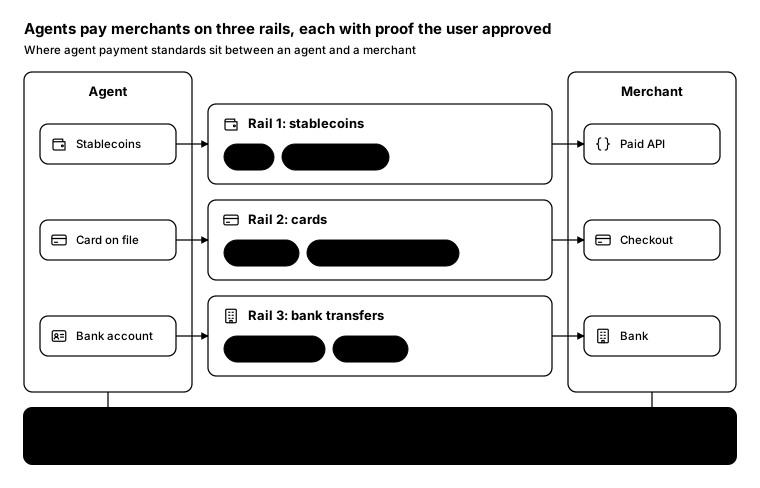
Promptcopy it, change the names, get your own version
Use the crisp-diagrams skill to draw a lanes diagram (where things sit between two parties).

Title: Agents pay merchants on three rails, each with proof the user approved
Subtitle: Where agent payment standards sit between an agent and a merchant

- Left side: Agent, with Stablecoins, Card on file and Bank account
- Right side: Merchant, with Paid API, Checkout and Bank
- Lanes between them, one per row:
    Rail 1: stablecoins (chips: x402, Wallet limits), joining Stablecoins to Paid API
    Rail 2: cards (chips: Visa TAP, Mastercard Agent Pay), joining Card on file to Checkout
    Rail 3: bank transfers (chips: Open banking, Mandates), joining Bank account to Bank
- A band under every lane (the accent): Proof of approval travels with every payment: A signed mandate or token shows the merchant and the network that the user said yes

Layout:
- Two tall columns on the left and right with their items in rows; one lane per row in the middle, with its chips inside
- Arrows from each left item into its lane and from the lane to the right item; the base band full width at the bottom

Use these labels word for word.

Style: quiet theme (outlines only, one blue accent), with a small line icon in each box.
Promptcopy it, change the names, get your own version
Use the crisp-diagrams skill to draw a lanes diagram (where things sit between two parties).

Title: AI agents can reach your company four ways, with the same permissions on each
Subtitle: The paths an agent takes into your systems, and what each one uses

- Left side: AI agent, with MCP client, Its browser, HTTP client and Its email
- Right side: Your company, with Product data, Docs, Orders and Support
- Lanes between them, one per row:
    MCP server (chips: Tools, Resources), joining MCP client to Product data
    Website (chips: WebMCP, llms.txt), joining Its browser to Docs
    REST API (chips: OpenAPI, OAuth), joining HTTP client to Orders
    Email (chips: Inbound parsing), joining Its email to Support
- A band under every lane (the accent): Same permissions on every path: Whatever the path, the agent should see only what the signed-in person could see

Layout:
- Two tall columns on the left and right with their items in rows; one lane per row in the middle, with its chips inside
- Arrows from each left item into its lane and from the lane to the right item; the base band full width at the bottom

Color groups: violet for AI agent; green for Your company; amber for MCP server, Website, REST API and Email

Use these labels word for word.

Style: pastel theme, with a small line icon in each box.
Promptcopy it, change the names, get your own version
Use the crisp-diagrams skill to draw a lanes diagram (where things sit between two parties).

Title: AI agents can reach your company four ways, with the same permissions on each
Subtitle: The paths an agent takes into your systems, and what each one uses

- Left side: AI agent, with MCP client, Its browser, HTTP client and Its email
- Right side: Your company, with Product data, Docs, Orders and Support
- Lanes between them, one per row:
    MCP server (chips: Tools, Resources), joining MCP client to Product data
    Website (chips: WebMCP, llms.txt), joining Its browser to Docs
    REST API (chips: OpenAPI, OAuth), joining HTTP client to Orders
    Email (chips: Inbound parsing), joining Its email to Support
- A band under every lane (the accent): Same permissions on every path: Whatever the path, the agent should see only what the signed-in person could see

Layout:
- Two tall columns on the left and right with their items in rows; one lane per row in the middle, with its chips inside
- Arrows from each left item into its lane and from the lane to the right item; the base band full width at the bottom

Color groups: violet for AI agent; green for Your company; amber for MCP server, Website, REST API and Email

Use these labels word for word.

Style: tinted zones theme, with icon cards (icon on top, name below).
Promptcopy it, change the names, get your own version
Use the crisp-diagrams skill to draw a lanes diagram (where things sit between two parties).

Title: Shoppers pay on three rails, and each one must confirm it's really them
Subtitle: Online payment methods between a shopper and a merchant in the EU

- Left side: Shopper, with Card, Wallet and Bank account
- Right side: Merchant, with Card checkout, Wallet button and Pay by bank
- Lanes between them, one per row:
    Card networks (chips: 3-D Secure, Chargebacks), joining Card to Card checkout
    Digital wallets (chips: Apple Pay, Google Pay), joining Wallet to Wallet button
    Account-to-account (chips: Open banking, Instant), joining Bank account to Pay by bank
- A band under every lane (the accent): Strong customer authentication on every rail: Under PSD2, most online payments need two factors, whichever rail carries them

Layout:
- Two tall columns on the left and right with their items in rows; one lane per row in the middle, with its chips inside
- Arrows from each left item into its lane and from the lane to the right item; the base band full width at the bottom

Color groups: violet for Shopper; green for Merchant; amber for Card networks, Digital wallets and Account-to-account

Use these labels word for word.

Style: gradient theme, with icon cards (icon on top, name below).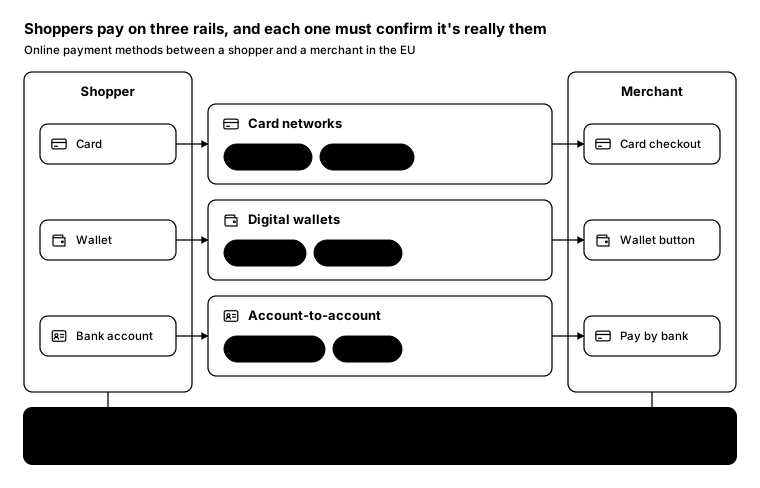
Promptcopy it, change the names, get your own version
Use the crisp-diagrams skill to draw a lanes diagram (where things sit between two parties).

Title: Shoppers pay on three rails, and each one must confirm it's really them
Subtitle: Online payment methods between a shopper and a merchant in the EU

- Left side: Shopper, with Card, Wallet and Bank account
- Right side: Merchant, with Card checkout, Wallet button and Pay by bank
- Lanes between them, one per row:
    Card networks (chips: 3-D Secure, Chargebacks), joining Card to Card checkout
    Digital wallets (chips: Apple Pay, Google Pay), joining Wallet to Wallet button
    Account-to-account (chips: Open banking, Instant), joining Bank account to Pay by bank
- A band under every lane (the accent): Strong customer authentication on every rail: Under PSD2, most online payments need two factors, whichever rail carries them

Layout:
- Two tall columns on the left and right with their items in rows; one lane per row in the middle, with its chips inside
- Arrows from each left item into its lane and from the lane to the right item; the base band full width at the bottom

Use these labels word for word.

Style: quiet theme (outlines only, one blue accent), with an icon on a tinted badge in each box.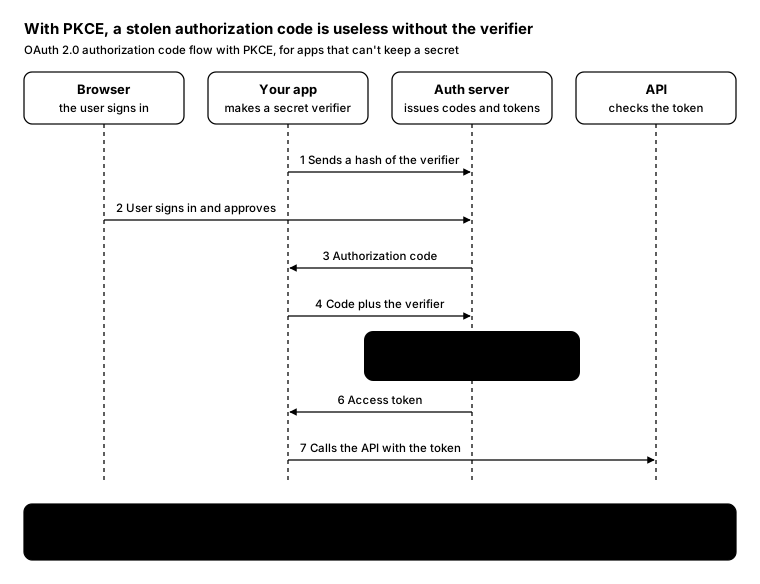
Promptcopy it, change the names, get your own version
Use the crisp-diagrams skill to draw a sequence diagram.

Title: With PKCE, a stolen authorization code is useless without the verifier
Subtitle: OAuth 2.0 authorization code flow with PKCE, for apps that can't keep a secret

- Participants, left to right: Browser: the user signs in; Your app: makes a secret verifier; Auth server: issues codes and tokens; API: checks the token
- Steps, numbered:
    1. Your app → Auth server: Sends a hash of the verifier
    2. Browser → Auth server: User signs in and approves
    3. Auth server → Your app: Authorization code
    4. Your app → Auth server: Code plus the verifier
    5. Auth server, highlighted as the accent: Hashes the verifier (must match the hash from step 1)
    6. Auth server → Your app: Access token
    7. Your app → API: Calls the API with the token
- A takeaway box at the bottom: Why it matters: An attacker who intercepts the code in step 3 can't redeem it: only your app knows the verifier

Layout:
- Participants as boxes across the top with dashed lifelines; numbered arrows between lifelines in order
- The highlighted step as an accent box on its participant's lifeline
- The takeaway as a full-width gray band at the bottom

Use these labels word for word.

Style: quiet theme (outlines only, one blue accent).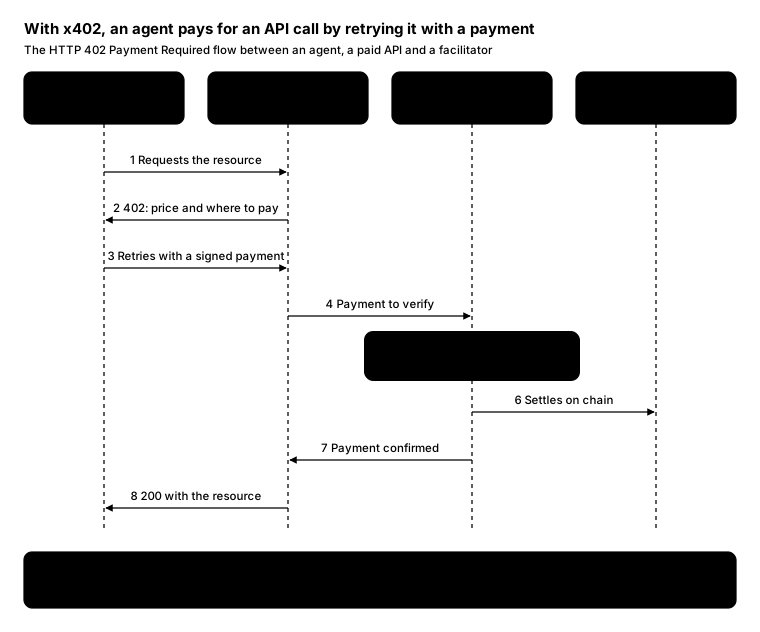
Promptcopy it, change the names, get your own version
Use the crisp-diagrams skill to draw a sequence diagram.

Title: With x402, an agent pays for an API call by retrying it with a payment
Subtitle: The HTTP 402 Payment Required flow between an agent, a paid API and a facilitator

- Participants, left to right: Agent: has a wallet; Paid API: charges per call; Facilitator: verifies and settles; Blockchain: records the payment
- Steps, numbered:
    1. Agent → Paid API: Requests the resource
    2. Paid API → Agent: 402: price and where to pay
    3. Agent → Paid API: Retries with a signed payment
    4. Paid API → Facilitator: Payment to verify
    5. Facilitator, highlighted as the accent: Verifies the payment (checks the signature and amount)
    6. Facilitator → Blockchain: Settles on chain
    7. Facilitator → Paid API: Payment confirmed
    8. Paid API → Agent: 200 with the resource
- A takeaway box at the bottom: No accounts, no API keys: The price and the payment travel in ordinary HTTP headers, so any HTTP client can pay

Layout:
- Participants as boxes across the top with dashed lifelines; numbered arrows between lifelines in order
- The highlighted step as an accent box on its participant's lifeline
- The takeaway as a full-width gray band at the bottom

Color groups: violet for Agent; teal for Paid API; amber for Facilitator; green for Blockchain

Use these labels word for word.

Style: pastel theme.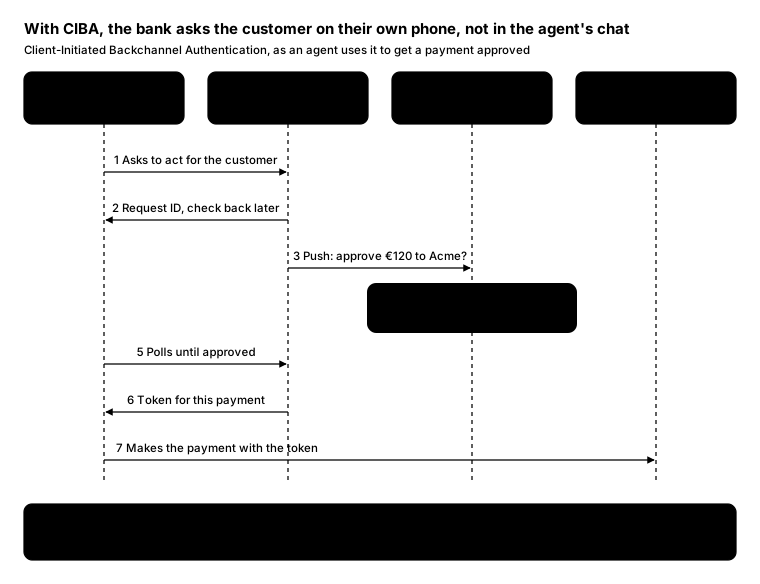
Promptcopy it, change the names, get your own version
Use the crisp-diagrams skill to draw a sequence diagram.

Title: With CIBA, the bank asks the customer on their own phone, not in the agent's chat
Subtitle: Client-Initiated Backchannel Authentication, as an agent uses it to get a payment approved

- Participants, left to right: Agent: wants to pay; Bank auth server: asks and issues tokens; Customer's phone: the bank's app; Bank API: moves the money
- Steps, numbered:
    1. Agent → Bank auth server: Asks to act for the customer
    2. Bank auth server → Agent: Request ID, check back later
    3. Bank auth server → Customer's phone: Push: approve €120 to Acme?
    4. Customer's phone, highlighted as the accent: Customer approves (with Face ID in the bank's app)
    5. Agent → Bank auth server: Polls until approved
    6. Bank auth server → Agent: Token for this payment
    7. Agent → Bank API: Makes the payment with the token
- A takeaway box at the bottom: The agent never sees the customer's login: Approval happens in the bank's own app, so the bank knows the real customer said yes

Layout:
- Participants as boxes across the top with dashed lifelines; numbered arrows between lifelines in order
- The highlighted step as an accent box on its participant's lifeline
- The takeaway as a full-width gray band at the bottom

Color groups: violet for Agent; teal for Bank auth server; amber for Customer's phone; green for Bank API

Use these labels word for word.

Style: gradient theme.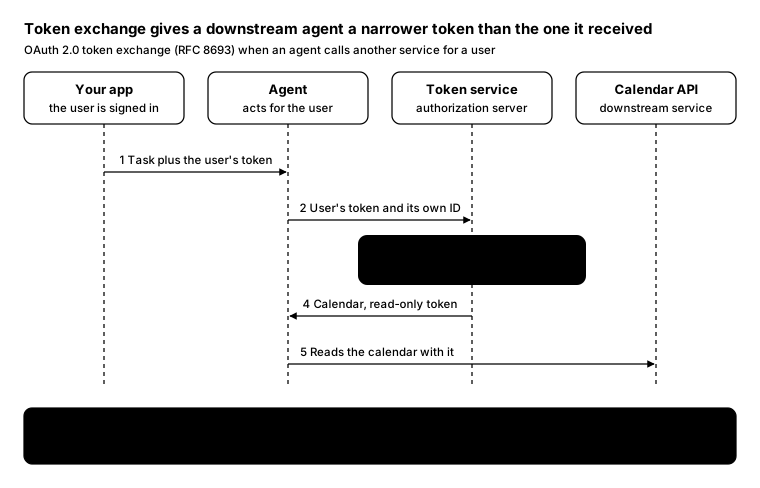
Promptcopy it, change the names, get your own version
Use the crisp-diagrams skill to draw a sequence diagram.

Title: Token exchange gives a downstream agent a narrower token than the one it received
Subtitle: OAuth 2.0 token exchange (RFC 8693) when an agent calls another service for a user

- Participants, left to right: Your app: the user is signed in; Agent: acts for the user; Token service: authorization server; Calendar API: downstream service
- Steps, numbered:
    1. Your app → Agent: Task plus the user's token
    2. Agent → Token service: User's token and its own ID
    3. Token service, highlighted as the accent: Checks policy (may this agent act for this user?)
    4. Token service → Agent: Calendar, read-only token
    5. Agent → Calendar API: Reads the calendar with it
- A takeaway box at the bottom: Least privilege at every hop: The new token names both the user and the agent, and it only works for the calendar

Layout:
- Participants as boxes across the top with dashed lifelines; numbered arrows between lifelines in order
- The highlighted step as an accent box on its participant's lifeline
- The takeaway as a full-width gray band at the bottom

Use these labels word for word.

Style: quiet theme (outlines only, one blue accent).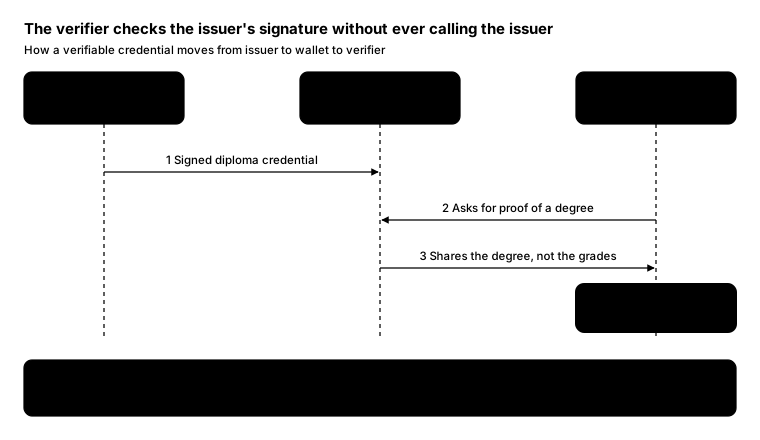
Promptcopy it, change the names, get your own version
Use the crisp-diagrams skill to draw a sequence diagram.

Title: The verifier checks the issuer's signature without ever calling the issuer
Subtitle: How a verifiable credential moves from issuer to wallet to verifier

- Participants, left to right: Issuer: a university; Wallet: the graduate's phone; Verifier: an employer
- Steps, numbered:
    1. Issuer → Wallet: Signed diploma credential
    2. Verifier → Wallet: Asks for proof of a degree
    3. Wallet → Verifier: Shares the degree, not the grades
    4. Verifier, highlighted as the accent: Verifies it (with the issuer's public key)
- A takeaway box at the bottom: The issuer never learns where the diploma was used: Its public key is published once, so checks work offline and stay private

Layout:
- Participants as boxes across the top with dashed lifelines; numbered arrows between lifelines in order
- The highlighted step as an accent box on its participant's lifeline
- The takeaway as a full-width gray band at the bottom

Color groups: amber for Issuer; violet for Wallet; green for Verifier

Use these labels word for word.

Style: tinted zones theme.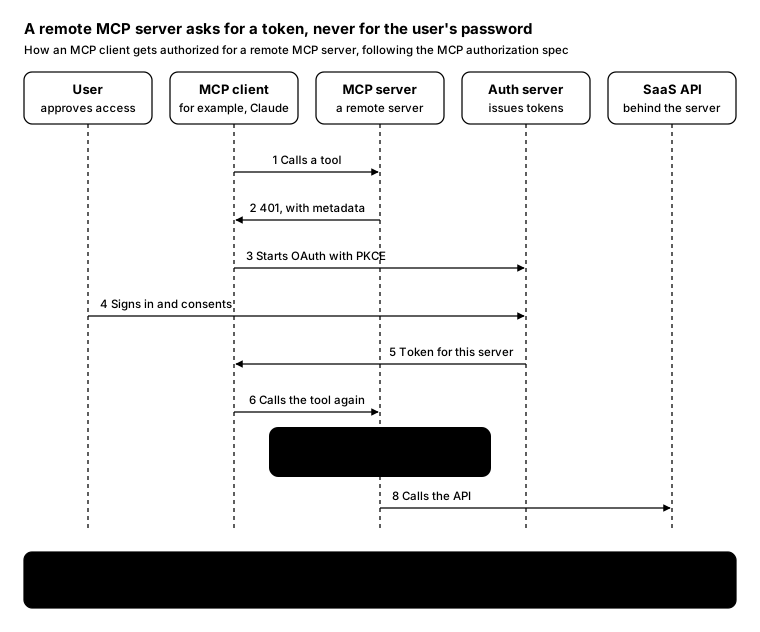
Promptcopy it, change the names, get your own version
Use the crisp-diagrams skill to draw a sequence diagram.

Title: A remote MCP server asks for a token, never for the user's password
Subtitle: How an MCP client gets authorized for a remote MCP server, following the MCP authorization spec

- Participants, left to right: User: approves access; MCP client: for example, Claude; MCP server: a remote server; Auth server: issues tokens; SaaS API: behind the server
- Steps, numbered:
    1. MCP client → MCP server: Calls a tool
    2. MCP server → MCP client: 401, with metadata
    3. MCP client → Auth server: Starts OAuth with PKCE
    4. User → Auth server: Signs in and consents
    5. Auth server → MCP client: Token for this server
    6. MCP client → MCP server: Calls the tool again
    7. MCP server, highlighted as the accent: Checks the token (its audience must be this server)
    8. MCP server → SaaS API: Calls the API
- A takeaway box at the bottom: One token per server: Tokens are bound to one MCP server, so a compromised server can't replay them against another

Layout:
- Participants as boxes across the top with dashed lifelines; numbered arrows between lifelines in order
- The highlighted step as an accent box on its participant's lifeline
- The takeaway as a full-width gray band at the bottom

Use these labels word for word.

Style: quiet theme (outlines only, one blue accent).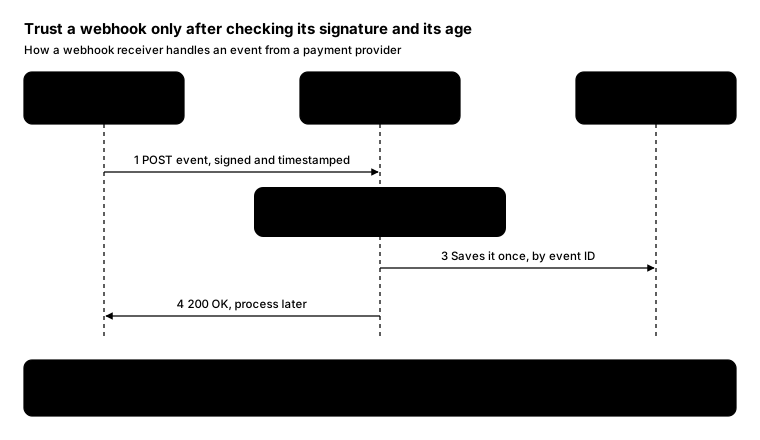
Promptcopy it, change the names, get your own version
Use the crisp-diagrams skill to draw a sequence diagram.

Title: Trust a webhook only after checking its signature and its age
Subtitle: How a webhook receiver handles an event from a payment provider

- Participants, left to right: Payment provider: sends events; Your endpoint: receives webhooks; Your database: stores events
- Steps, numbered:
    1. Payment provider → Your endpoint: POST event, signed and timestamped
    2. Your endpoint, highlighted as the accent: Checks signature and age (rejects anything older than 5 minutes)
    3. Your endpoint → Your database: Saves it once, by event ID
    4. Your endpoint → Payment provider: 200 OK, process later
- A takeaway box at the bottom: Replays and forgeries both fail: A copied request fails the age check, and a forged one fails the signature check

Layout:
- Participants as boxes across the top with dashed lifelines; numbered arrows between lifelines in order
- The highlighted step as an accent box on its participant's lifeline
- The takeaway as a full-width gray band at the bottom

Color groups: violet for Payment provider; teal for Your endpoint; green for Your database

Use these labels word for word.

Style: pastel theme.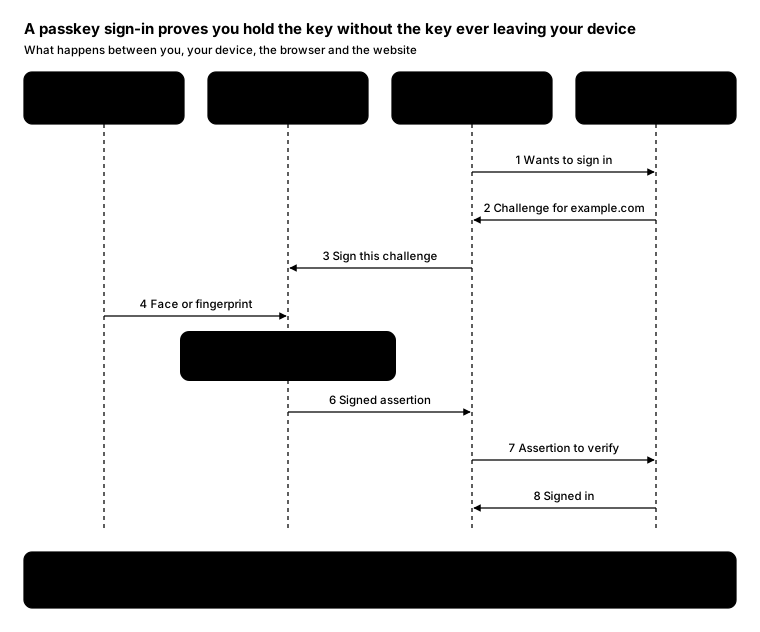
Promptcopy it, change the names, get your own version
Use the crisp-diagrams skill to draw a sequence diagram.

Title: A passkey sign-in proves you hold the key without the key ever leaving your device
Subtitle: What happens between you, your device, the browser and the website

- Participants, left to right: You: face or fingerprint; Authenticator: phone or laptop; Browser: WebAuthn; Website: example.com
- Steps, numbered:
    1. Browser → Website: Wants to sign in
    2. Website → Browser: Challenge for example.com
    3. Browser → Authenticator: Sign this challenge
    4. You → Authenticator: Face or fingerprint
    5. Authenticator, highlighted as the accent: Signs with the private key (the key never leaves the device)
    6. Authenticator → Browser: Signed assertion
    7. Browser → Website: Assertion to verify
    8. Website → Browser: Signed in
- A takeaway box at the bottom: Phishing-resistant by design: The browser only uses a passkey on the domain it was made for, so a fake site gets nothing

Layout:
- Participants as boxes across the top with dashed lifelines; numbered arrows between lifelines in order
- The highlighted step as an accent box on its participant's lifeline
- The takeaway as a full-width gray band at the bottom

Color groups: violet for You; teal for Authenticator; amber for Browser; green for Website

Use these labels word for word.

Style: gradient theme.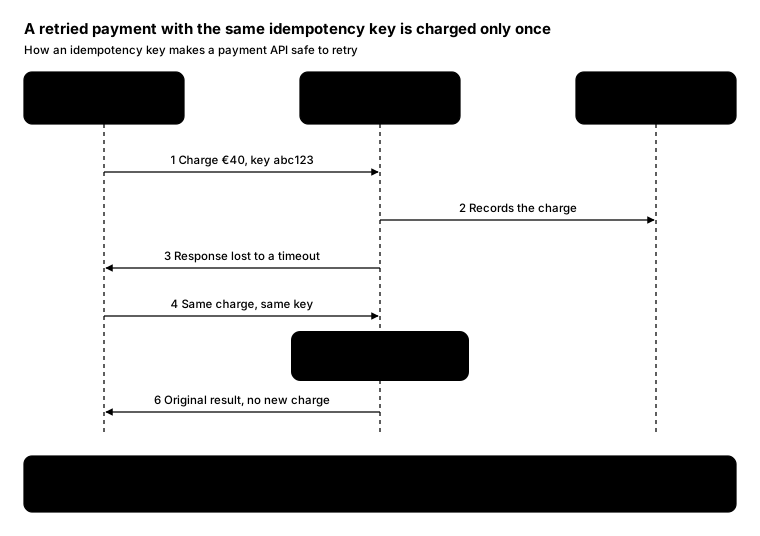
Promptcopy it, change the names, get your own version
Use the crisp-diagrams skill to draw a sequence diagram.

Title: A retried payment with the same idempotency key is charged only once
Subtitle: How an idempotency key makes a payment API safe to retry

- Participants, left to right: Your app: charges a customer; Payments API: remembers keys; Ledger: records charges
- Steps, numbered:
    1. Your app → Payments API: Charge €40, key abc123
    2. Payments API → Ledger: Records the charge
    3. Payments API → Your app: Response lost to a timeout
    4. Your app → Payments API: Same charge, same key
    5. Payments API, highlighted as the accent: Recognizes abc123 (returns the first result)
    6. Payments API → Your app: Original result, no new charge
- A takeaway box at the bottom: Safe to retry: Clients can retry any failed call without charging the customer twice

Layout:
- Participants as boxes across the top with dashed lifelines; numbered arrows between lifelines in order
- The highlighted step as an accent box on its participant's lifeline
- The takeaway as a full-width gray band at the bottom

Color groups: violet for Your app; teal for Payments API; green for Ledger

Use these labels word for word.

Style: tinted zones theme.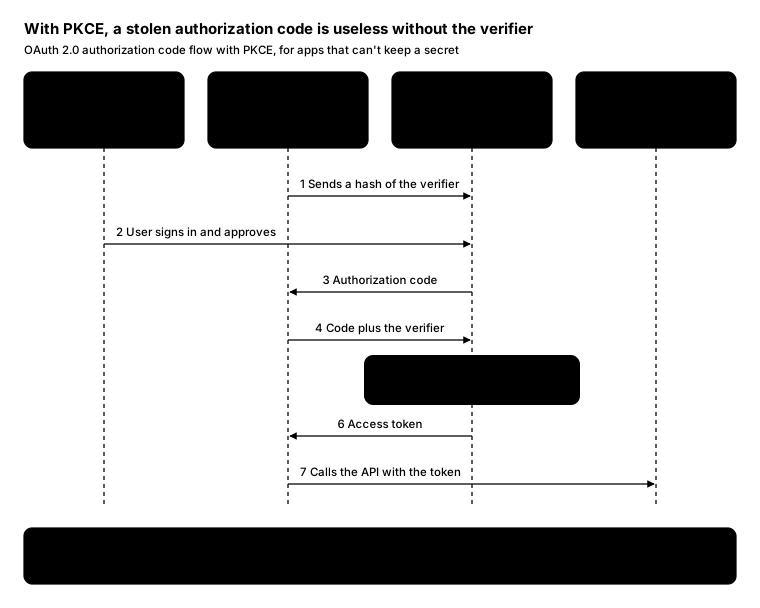
Promptcopy it, change the names, get your own version
Use the crisp-diagrams skill to draw a sequence diagram.

Title: With PKCE, a stolen authorization code is useless without the verifier
Subtitle: OAuth 2.0 authorization code flow with PKCE, for apps that can't keep a secret

- Participants, left to right: Browser: the user signs in; Your app: makes a secret verifier; Auth server: issues codes and tokens; API: checks the token
- Steps, numbered:
    1. Your app → Auth server: Sends a hash of the verifier
    2. Browser → Auth server: User signs in and approves
    3. Auth server → Your app: Authorization code
    4. Your app → Auth server: Code plus the verifier
    5. Auth server, highlighted as the accent: Hashes the verifier (must match the hash from step 1)
    6. Auth server → Your app: Access token
    7. Your app → API: Calls the API with the token
- A takeaway box at the bottom: Why it matters: An attacker who intercepts the code in step 3 can't redeem it: only your app knows the verifier

Layout:
- Participants as boxes across the top with dashed lifelines; numbered arrows between lifelines in order
- The highlighted step as an accent box on its participant's lifeline
- The takeaway as a full-width gray band at the bottom

Color groups: violet for Browser; teal for Your app; amber for Auth server; green for API

Use these labels word for word.

Style: gradient theme, with a small line icon in each box.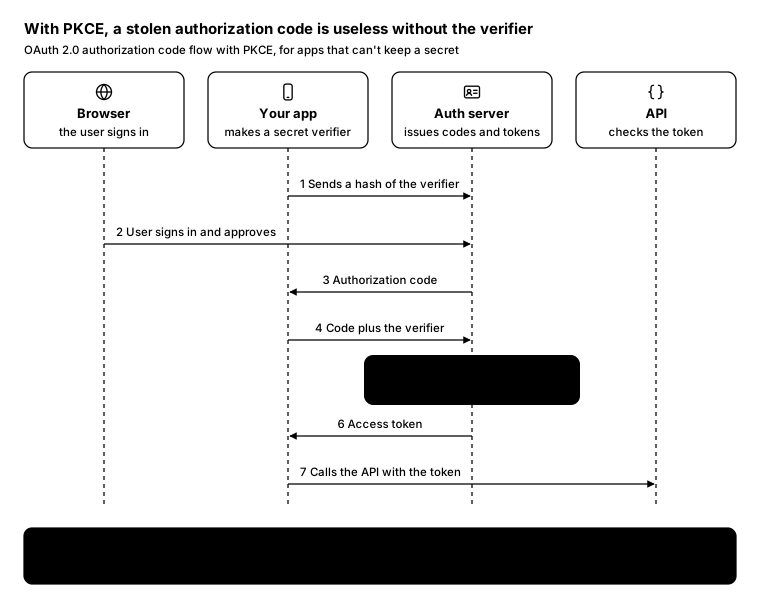
Promptcopy it, change the names, get your own version
Use the crisp-diagrams skill to draw a sequence diagram.

Title: With PKCE, a stolen authorization code is useless without the verifier
Subtitle: OAuth 2.0 authorization code flow with PKCE, for apps that can't keep a secret

- Participants, left to right: Browser: the user signs in; Your app: makes a secret verifier; Auth server: issues codes and tokens; API: checks the token
- Steps, numbered:
    1. Your app → Auth server: Sends a hash of the verifier
    2. Browser → Auth server: User signs in and approves
    3. Auth server → Your app: Authorization code
    4. Your app → Auth server: Code plus the verifier
    5. Auth server, highlighted as the accent: Hashes the verifier (must match the hash from step 1)
    6. Auth server → Your app: Access token
    7. Your app → API: Calls the API with the token
- A takeaway box at the bottom: Why it matters: An attacker who intercepts the code in step 3 can't redeem it: only your app knows the verifier

Layout:
- Participants as boxes across the top with dashed lifelines; numbered arrows between lifelines in order
- The highlighted step as an accent box on its participant's lifeline
- The takeaway as a full-width gray band at the bottom

Use these labels word for word.

Style: quiet theme (outlines only, one blue accent), with icon cards (icon on top, name below).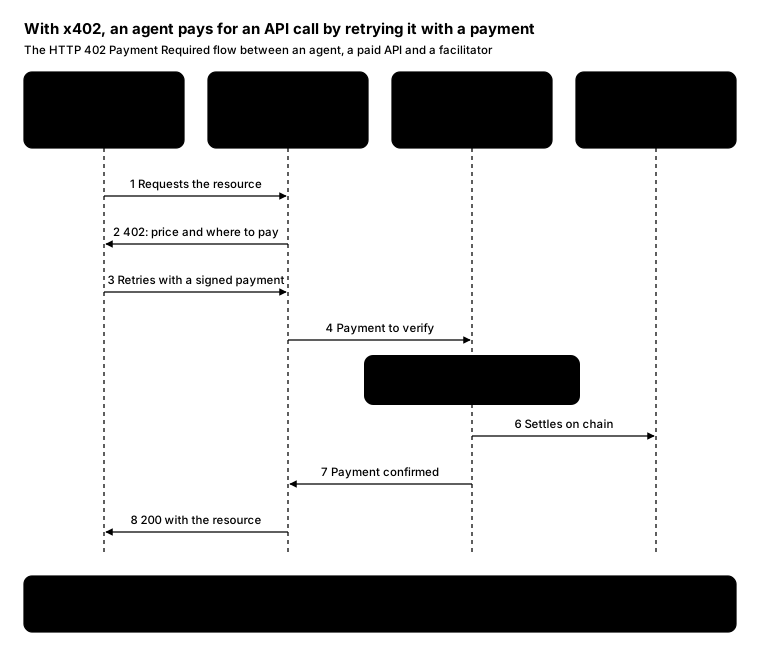
Promptcopy it, change the names, get your own version
Use the crisp-diagrams skill to draw a sequence diagram.

Title: With x402, an agent pays for an API call by retrying it with a payment
Subtitle: The HTTP 402 Payment Required flow between an agent, a paid API and a facilitator

- Participants, left to right: Agent: has a wallet; Paid API: charges per call; Facilitator: verifies and settles; Blockchain: records the payment
- Steps, numbered:
    1. Agent → Paid API: Requests the resource
    2. Paid API → Agent: 402: price and where to pay
    3. Agent → Paid API: Retries with a signed payment
    4. Paid API → Facilitator: Payment to verify
    5. Facilitator, highlighted as the accent: Verifies the payment (checks the signature and amount)
    6. Facilitator → Blockchain: Settles on chain
    7. Facilitator → Paid API: Payment confirmed
    8. Paid API → Agent: 200 with the resource
- A takeaway box at the bottom: No accounts, no API keys: The price and the payment travel in ordinary HTTP headers, so any HTTP client can pay

Layout:
- Participants as boxes across the top with dashed lifelines; numbered arrows between lifelines in order
- The highlighted step as an accent box on its participant's lifeline
- The takeaway as a full-width gray band at the bottom

Color groups: violet for Agent; teal for Paid API; amber for Facilitator; green for Blockchain

Use these labels word for word.

Style: tinted zones theme, with icon cards (icon on top, name below).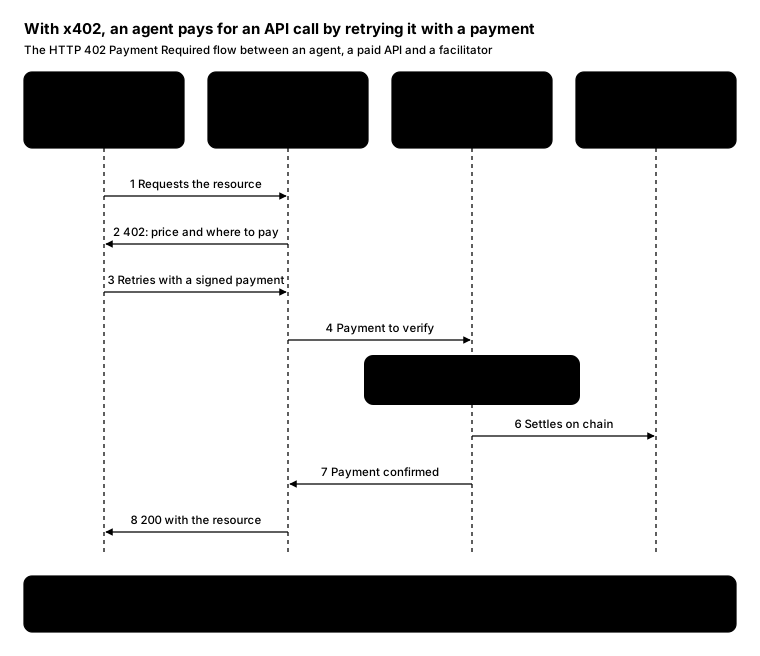
Promptcopy it, change the names, get your own version
Use the crisp-diagrams skill to draw a sequence diagram.

Title: With x402, an agent pays for an API call by retrying it with a payment
Subtitle: The HTTP 402 Payment Required flow between an agent, a paid API and a facilitator

- Participants, left to right: Agent: has a wallet; Paid API: charges per call; Facilitator: verifies and settles; Blockchain: records the payment
- Steps, numbered:
    1. Agent → Paid API: Requests the resource
    2. Paid API → Agent: 402: price and where to pay
    3. Agent → Paid API: Retries with a signed payment
    4. Paid API → Facilitator: Payment to verify
    5. Facilitator, highlighted as the accent: Verifies the payment (checks the signature and amount)
    6. Facilitator → Blockchain: Settles on chain
    7. Facilitator → Paid API: Payment confirmed
    8. Paid API → Agent: 200 with the resource
- A takeaway box at the bottom: No accounts, no API keys: The price and the payment travel in ordinary HTTP headers, so any HTTP client can pay

Layout:
- Participants as boxes across the top with dashed lifelines; numbered arrows between lifelines in order
- The highlighted step as an accent box on its participant's lifeline
- The takeaway as a full-width gray band at the bottom

Color groups: violet for Agent; teal for Paid API; amber for Facilitator; green for Blockchain

Use these labels word for word.

Style: pastel theme, with an icon on a tinted badge in each box.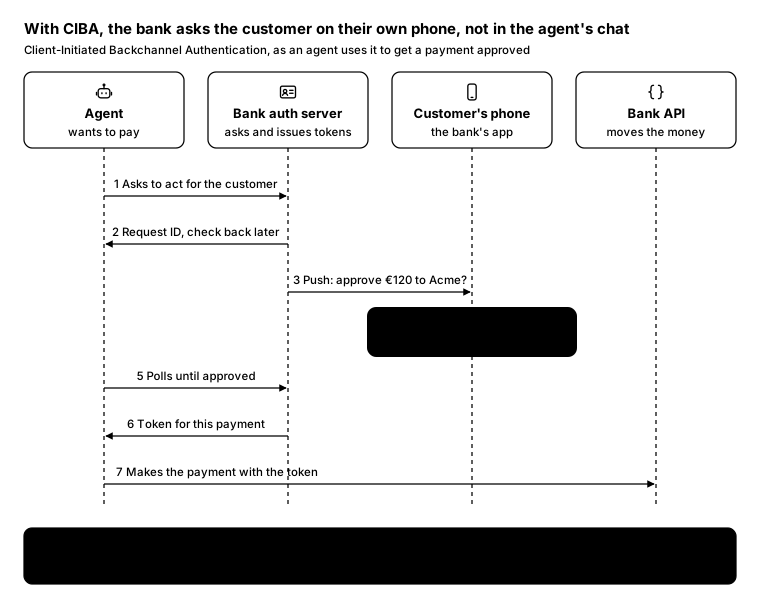
Promptcopy it, change the names, get your own version
Use the crisp-diagrams skill to draw a sequence diagram.

Title: With CIBA, the bank asks the customer on their own phone, not in the agent's chat
Subtitle: Client-Initiated Backchannel Authentication, as an agent uses it to get a payment approved

- Participants, left to right: Agent: wants to pay; Bank auth server: asks and issues tokens; Customer's phone: the bank's app; Bank API: moves the money
- Steps, numbered:
    1. Agent → Bank auth server: Asks to act for the customer
    2. Bank auth server → Agent: Request ID, check back later
    3. Bank auth server → Customer's phone: Push: approve €120 to Acme?
    4. Customer's phone, highlighted as the accent: Customer approves (with Face ID in the bank's app)
    5. Agent → Bank auth server: Polls until approved
    6. Bank auth server → Agent: Token for this payment
    7. Agent → Bank API: Makes the payment with the token
- A takeaway box at the bottom: The agent never sees the customer's login: Approval happens in the bank's own app, so the bank knows the real customer said yes

Layout:
- Participants as boxes across the top with dashed lifelines; numbered arrows between lifelines in order
- The highlighted step as an accent box on its participant's lifeline
- The takeaway as a full-width gray band at the bottom

Use these labels word for word.

Style: quiet theme (outlines only, one blue accent), with an icon on a tinted badge in each box.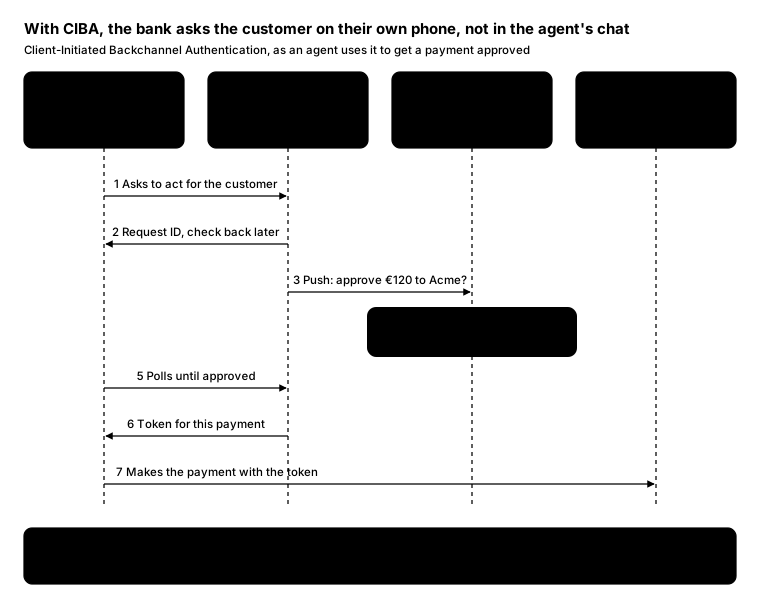
Promptcopy it, change the names, get your own version
Use the crisp-diagrams skill to draw a sequence diagram.

Title: With CIBA, the bank asks the customer on their own phone, not in the agent's chat
Subtitle: Client-Initiated Backchannel Authentication, as an agent uses it to get a payment approved

- Participants, left to right: Agent: wants to pay; Bank auth server: asks and issues tokens; Customer's phone: the bank's app; Bank API: moves the money
- Steps, numbered:
    1. Agent → Bank auth server: Asks to act for the customer
    2. Bank auth server → Agent: Request ID, check back later
    3. Bank auth server → Customer's phone: Push: approve €120 to Acme?
    4. Customer's phone, highlighted as the accent: Customer approves (with Face ID in the bank's app)
    5. Agent → Bank auth server: Polls until approved
    6. Bank auth server → Agent: Token for this payment
    7. Agent → Bank API: Makes the payment with the token
- A takeaway box at the bottom: The agent never sees the customer's login: Approval happens in the bank's own app, so the bank knows the real customer said yes

Layout:
- Participants as boxes across the top with dashed lifelines; numbered arrows between lifelines in order
- The highlighted step as an accent box on its participant's lifeline
- The takeaway as a full-width gray band at the bottom

Color groups: violet for Agent; teal for Bank auth server; amber for Customer's phone; green for Bank API

Use these labels word for word.

Style: gradient theme, with a small line icon in each box.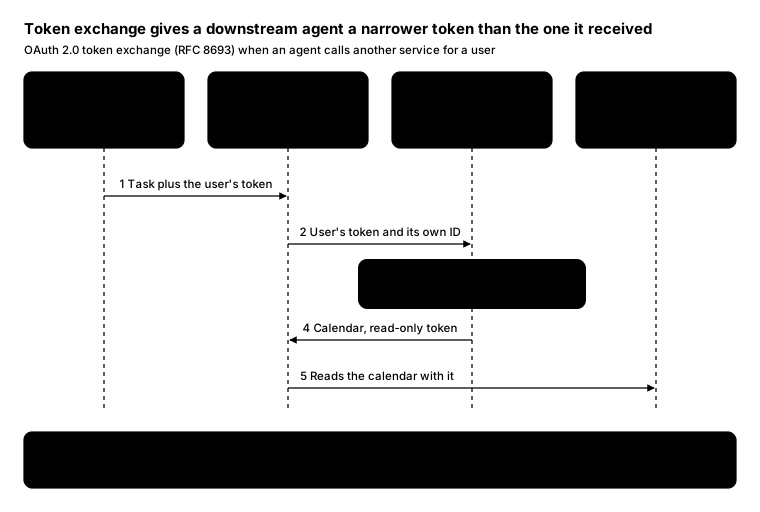
Promptcopy it, change the names, get your own version
Use the crisp-diagrams skill to draw a sequence diagram.

Title: Token exchange gives a downstream agent a narrower token than the one it received
Subtitle: OAuth 2.0 token exchange (RFC 8693) when an agent calls another service for a user

- Participants, left to right: Your app: the user is signed in; Agent: acts for the user; Token service: authorization server; Calendar API: downstream service
- Steps, numbered:
    1. Your app → Agent: Task plus the user's token
    2. Agent → Token service: User's token and its own ID
    3. Token service, highlighted as the accent: Checks policy (may this agent act for this user?)
    4. Token service → Agent: Calendar, read-only token
    5. Agent → Calendar API: Reads the calendar with it
- A takeaway box at the bottom: Least privilege at every hop: The new token names both the user and the agent, and it only works for the calendar

Layout:
- Participants as boxes across the top with dashed lifelines; numbered arrows between lifelines in order
- The highlighted step as an accent box on its participant's lifeline
- The takeaway as a full-width gray band at the bottom

Color groups: violet for Your app; teal for Agent; amber for Token service; green for Calendar API

Use these labels word for word.

Style: pastel theme, with a small line icon in each box.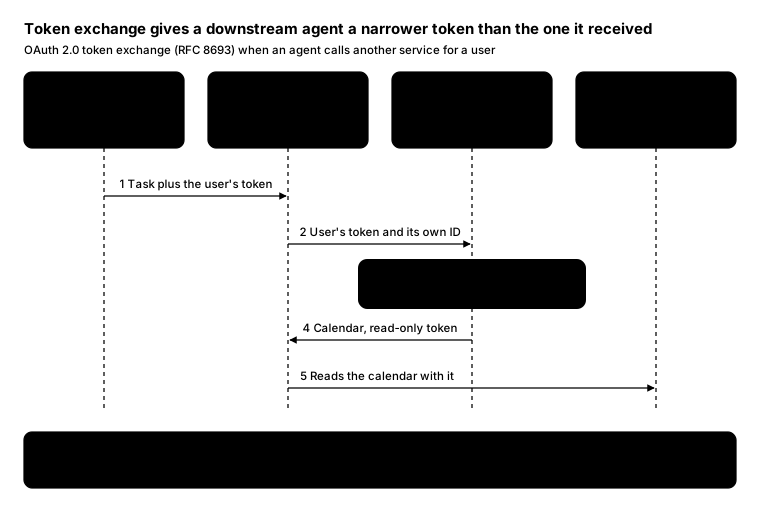
Promptcopy it, change the names, get your own version
Use the crisp-diagrams skill to draw a sequence diagram.

Title: Token exchange gives a downstream agent a narrower token than the one it received
Subtitle: OAuth 2.0 token exchange (RFC 8693) when an agent calls another service for a user

- Participants, left to right: Your app: the user is signed in; Agent: acts for the user; Token service: authorization server; Calendar API: downstream service
- Steps, numbered:
    1. Your app → Agent: Task plus the user's token
    2. Agent → Token service: User's token and its own ID
    3. Token service, highlighted as the accent: Checks policy (may this agent act for this user?)
    4. Token service → Agent: Calendar, read-only token
    5. Agent → Calendar API: Reads the calendar with it
- A takeaway box at the bottom: Least privilege at every hop: The new token names both the user and the agent, and it only works for the calendar

Layout:
- Participants as boxes across the top with dashed lifelines; numbered arrows between lifelines in order
- The highlighted step as an accent box on its participant's lifeline
- The takeaway as a full-width gray band at the bottom

Color groups: violet for Your app; teal for Agent; amber for Token service; green for Calendar API

Use these labels word for word.

Style: tinted zones theme, with icon cards (icon on top, name below).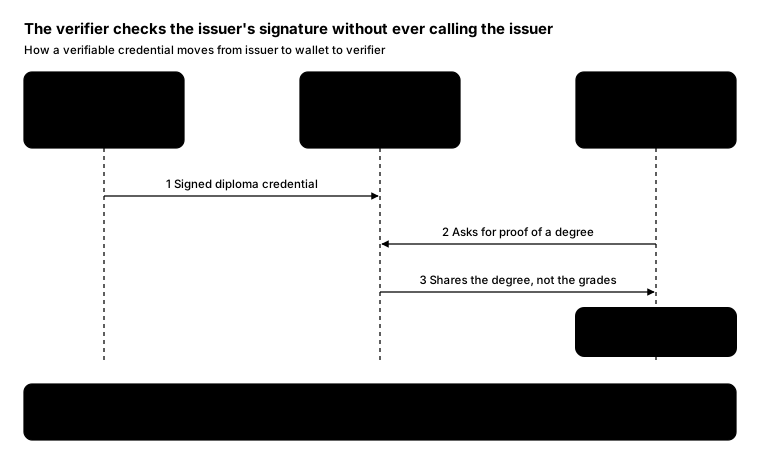
Promptcopy it, change the names, get your own version
Use the crisp-diagrams skill to draw a sequence diagram.

Title: The verifier checks the issuer's signature without ever calling the issuer
Subtitle: How a verifiable credential moves from issuer to wallet to verifier

- Participants, left to right: Issuer: a university; Wallet: the graduate's phone; Verifier: an employer
- Steps, numbered:
    1. Issuer → Wallet: Signed diploma credential
    2. Verifier → Wallet: Asks for proof of a degree
    3. Wallet → Verifier: Shares the degree, not the grades
    4. Verifier, highlighted as the accent: Verifies it (with the issuer's public key)
- A takeaway box at the bottom: The issuer never learns where the diploma was used: Its public key is published once, so checks work offline and stay private

Layout:
- Participants as boxes across the top with dashed lifelines; numbered arrows between lifelines in order
- The highlighted step as an accent box on its participant's lifeline
- The takeaway as a full-width gray band at the bottom

Color groups: amber for Issuer; violet for Wallet; green for Verifier

Use these labels word for word.

Style: pastel theme, with a small line icon in each box.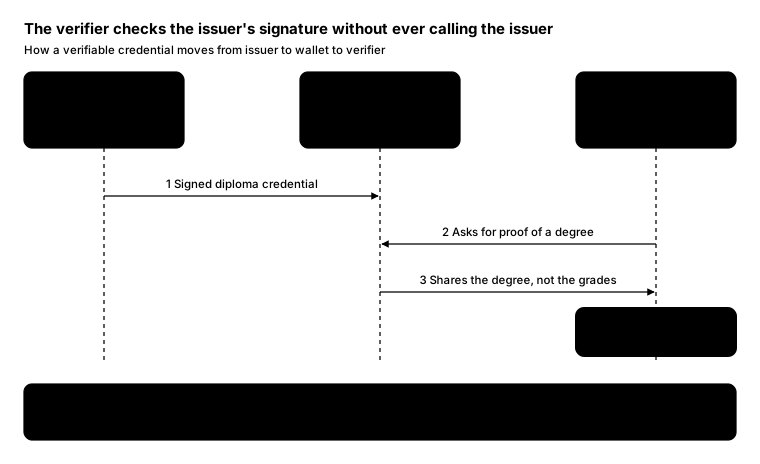
Promptcopy it, change the names, get your own version
Use the crisp-diagrams skill to draw a sequence diagram.

Title: The verifier checks the issuer's signature without ever calling the issuer
Subtitle: How a verifiable credential moves from issuer to wallet to verifier

- Participants, left to right: Issuer: a university; Wallet: the graduate's phone; Verifier: an employer
- Steps, numbered:
    1. Issuer → Wallet: Signed diploma credential
    2. Verifier → Wallet: Asks for proof of a degree
    3. Wallet → Verifier: Shares the degree, not the grades
    4. Verifier, highlighted as the accent: Verifies it (with the issuer's public key)
- A takeaway box at the bottom: The issuer never learns where the diploma was used: Its public key is published once, so checks work offline and stay private

Layout:
- Participants as boxes across the top with dashed lifelines; numbered arrows between lifelines in order
- The highlighted step as an accent box on its participant's lifeline
- The takeaway as a full-width gray band at the bottom

Color groups: amber for Issuer; violet for Wallet; green for Verifier

Use these labels word for word.

Style: tinted zones theme, with icon cards (icon on top, name below).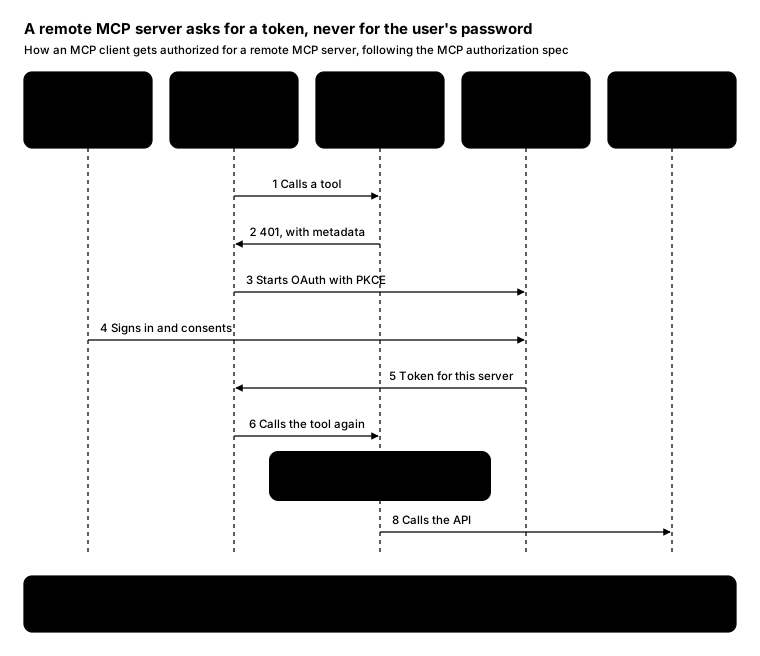
Promptcopy it, change the names, get your own version
Use the crisp-diagrams skill to draw a sequence diagram.

Title: A remote MCP server asks for a token, never for the user's password
Subtitle: How an MCP client gets authorized for a remote MCP server, following the MCP authorization spec

- Participants, left to right: User: approves access; MCP client: for example, Claude; MCP server: a remote server; Auth server: issues tokens; SaaS API: behind the server
- Steps, numbered:
    1. MCP client → MCP server: Calls a tool
    2. MCP server → MCP client: 401, with metadata
    3. MCP client → Auth server: Starts OAuth with PKCE
    4. User → Auth server: Signs in and consents
    5. Auth server → MCP client: Token for this server
    6. MCP client → MCP server: Calls the tool again
    7. MCP server, highlighted as the accent: Checks the token (its audience must be this server)
    8. MCP server → SaaS API: Calls the API
- A takeaway box at the bottom: One token per server: Tokens are bound to one MCP server, so a compromised server can't replay them against another

Layout:
- Participants as boxes across the top with dashed lifelines; numbered arrows between lifelines in order
- The highlighted step as an accent box on its participant's lifeline
- The takeaway as a full-width gray band at the bottom

Color groups: violet for User; teal for MCP client; amber for MCP server; rose for Auth server; green for SaaS API

Use these labels word for word.

Style: pastel theme, with icon cards (icon on top, name below).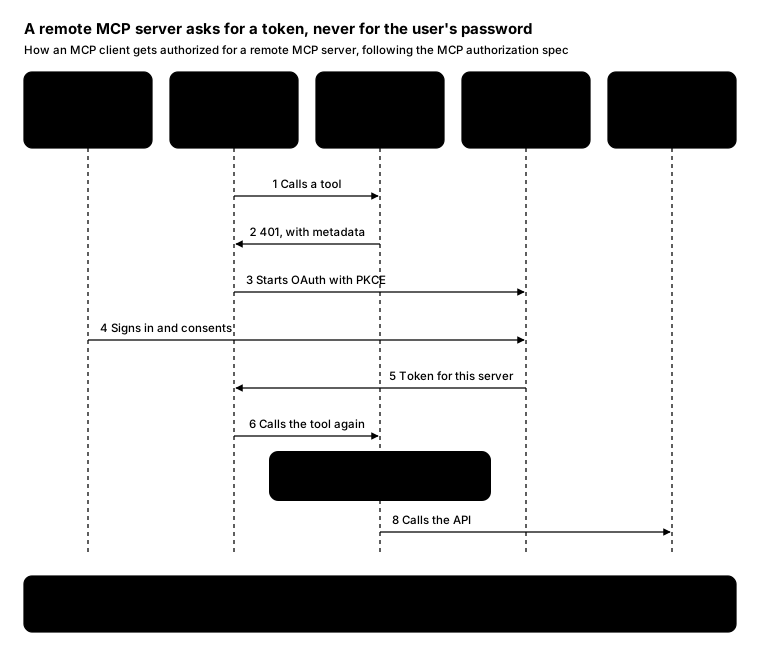
Promptcopy it, change the names, get your own version
Use the crisp-diagrams skill to draw a sequence diagram.

Title: A remote MCP server asks for a token, never for the user's password
Subtitle: How an MCP client gets authorized for a remote MCP server, following the MCP authorization spec

- Participants, left to right: User: approves access; MCP client: for example, Claude; MCP server: a remote server; Auth server: issues tokens; SaaS API: behind the server
- Steps, numbered:
    1. MCP client → MCP server: Calls a tool
    2. MCP server → MCP client: 401, with metadata
    3. MCP client → Auth server: Starts OAuth with PKCE
    4. User → Auth server: Signs in and consents
    5. Auth server → MCP client: Token for this server
    6. MCP client → MCP server: Calls the tool again
    7. MCP server, highlighted as the accent: Checks the token (its audience must be this server)
    8. MCP server → SaaS API: Calls the API
- A takeaway box at the bottom: One token per server: Tokens are bound to one MCP server, so a compromised server can't replay them against another

Layout:
- Participants as boxes across the top with dashed lifelines; numbered arrows between lifelines in order
- The highlighted step as an accent box on its participant's lifeline
- The takeaway as a full-width gray band at the bottom

Color groups: violet for User; teal for MCP client; amber for MCP server; rose for Auth server; green for SaaS API

Use these labels word for word.

Style: tinted zones theme, with an icon on a tinted badge in each box.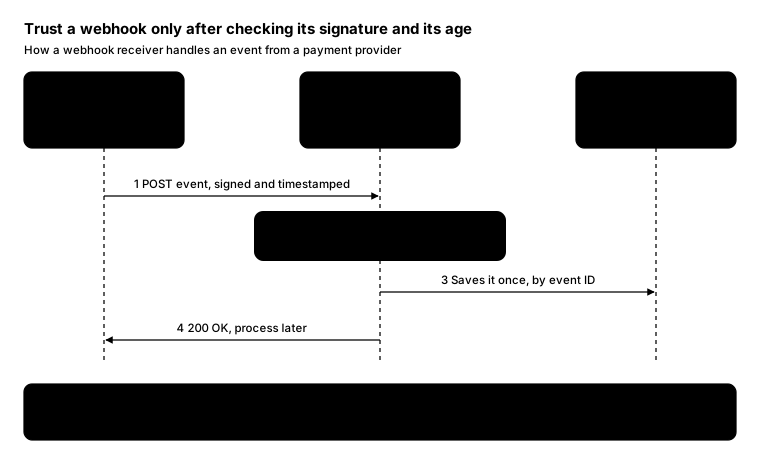
Promptcopy it, change the names, get your own version
Use the crisp-diagrams skill to draw a sequence diagram.

Title: Trust a webhook only after checking its signature and its age
Subtitle: How a webhook receiver handles an event from a payment provider

- Participants, left to right: Payment provider: sends events; Your endpoint: receives webhooks; Your database: stores events
- Steps, numbered:
    1. Payment provider → Your endpoint: POST event, signed and timestamped
    2. Your endpoint, highlighted as the accent: Checks signature and age (rejects anything older than 5 minutes)
    3. Your endpoint → Your database: Saves it once, by event ID
    4. Your endpoint → Payment provider: 200 OK, process later
- A takeaway box at the bottom: Replays and forgeries both fail: A copied request fails the age check, and a forged one fails the signature check

Layout:
- Participants as boxes across the top with dashed lifelines; numbered arrows between lifelines in order
- The highlighted step as an accent box on its participant's lifeline
- The takeaway as a full-width gray band at the bottom

Color groups: violet for Payment provider; teal for Your endpoint; green for Your database

Use these labels word for word.

Style: gradient theme, with an icon on a tinted badge in each box.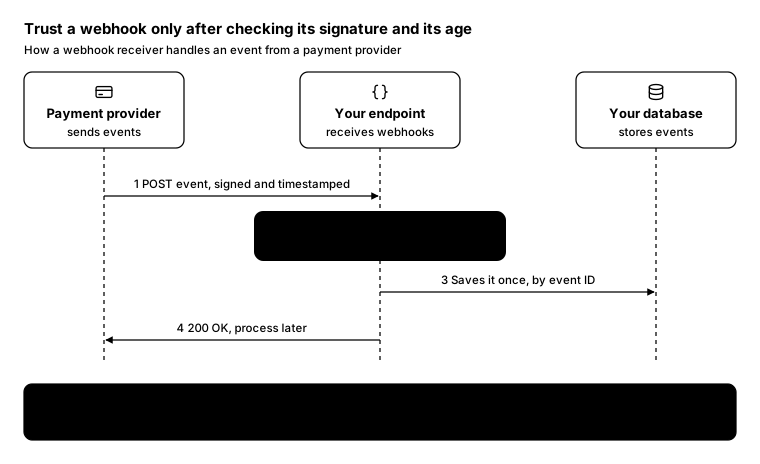
Promptcopy it, change the names, get your own version
Use the crisp-diagrams skill to draw a sequence diagram.

Title: Trust a webhook only after checking its signature and its age
Subtitle: How a webhook receiver handles an event from a payment provider

- Participants, left to right: Payment provider: sends events; Your endpoint: receives webhooks; Your database: stores events
- Steps, numbered:
    1. Payment provider → Your endpoint: POST event, signed and timestamped
    2. Your endpoint, highlighted as the accent: Checks signature and age (rejects anything older than 5 minutes)
    3. Your endpoint → Your database: Saves it once, by event ID
    4. Your endpoint → Payment provider: 200 OK, process later
- A takeaway box at the bottom: Replays and forgeries both fail: A copied request fails the age check, and a forged one fails the signature check

Layout:
- Participants as boxes across the top with dashed lifelines; numbered arrows between lifelines in order
- The highlighted step as an accent box on its participant's lifeline
- The takeaway as a full-width gray band at the bottom

Use these labels word for word.

Style: quiet theme (outlines only, one blue accent), with a small line icon in each box.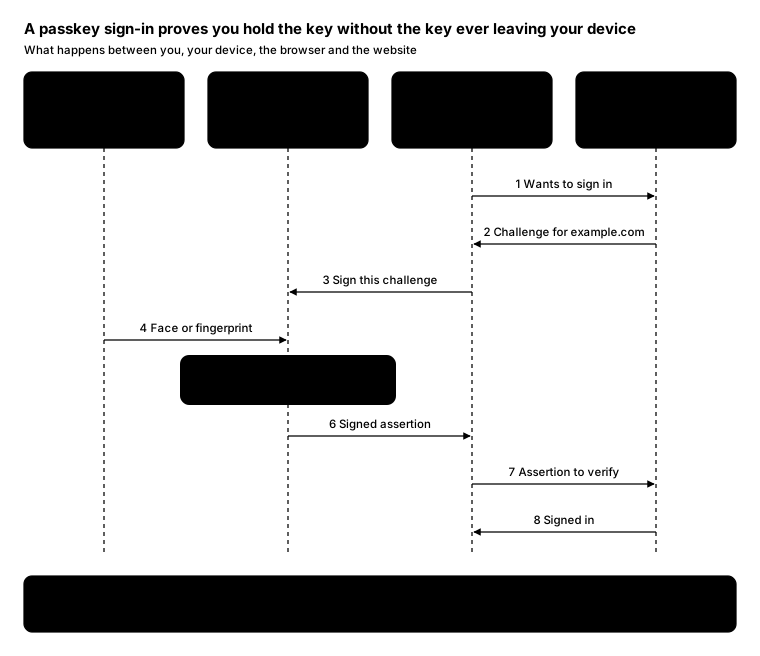
Promptcopy it, change the names, get your own version
Use the crisp-diagrams skill to draw a sequence diagram.

Title: A passkey sign-in proves you hold the key without the key ever leaving your device
Subtitle: What happens between you, your device, the browser and the website

- Participants, left to right: You: face or fingerprint; Authenticator: phone or laptop; Browser: WebAuthn; Website: example.com
- Steps, numbered:
    1. Browser → Website: Wants to sign in
    2. Website → Browser: Challenge for example.com
    3. Browser → Authenticator: Sign this challenge
    4. You → Authenticator: Face or fingerprint
    5. Authenticator, highlighted as the accent: Signs with the private key (the key never leaves the device)
    6. Authenticator → Browser: Signed assertion
    7. Browser → Website: Assertion to verify
    8. Website → Browser: Signed in
- A takeaway box at the bottom: Phishing-resistant by design: The browser only uses a passkey on the domain it was made for, so a fake site gets nothing

Layout:
- Participants as boxes across the top with dashed lifelines; numbered arrows between lifelines in order
- The highlighted step as an accent box on its participant's lifeline
- The takeaway as a full-width gray band at the bottom

Color groups: violet for You; teal for Authenticator; amber for Browser; green for Website

Use these labels word for word.

Style: tinted zones theme, with a small line icon in each box.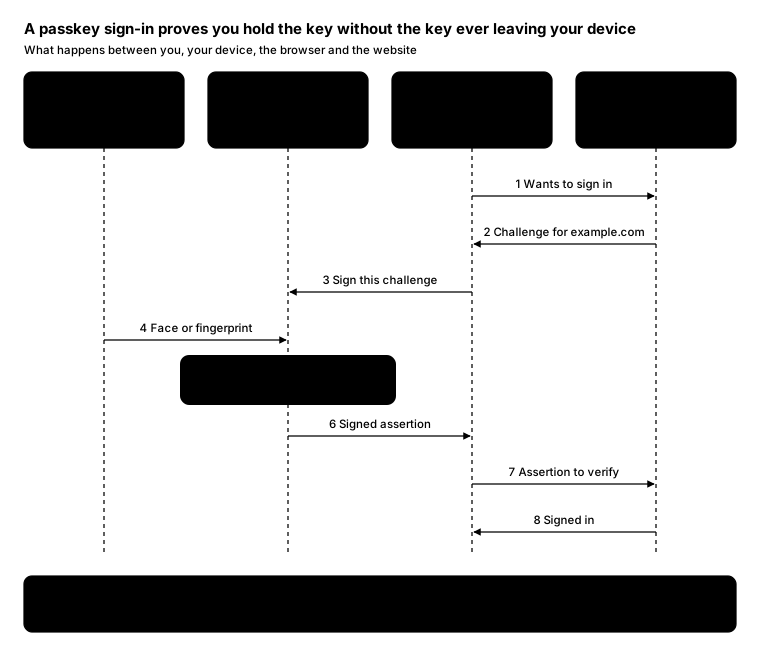
Promptcopy it, change the names, get your own version
Use the crisp-diagrams skill to draw a sequence diagram.

Title: A passkey sign-in proves you hold the key without the key ever leaving your device
Subtitle: What happens between you, your device, the browser and the website

- Participants, left to right: You: face or fingerprint; Authenticator: phone or laptop; Browser: WebAuthn; Website: example.com
- Steps, numbered:
    1. Browser → Website: Wants to sign in
    2. Website → Browser: Challenge for example.com
    3. Browser → Authenticator: Sign this challenge
    4. You → Authenticator: Face or fingerprint
    5. Authenticator, highlighted as the accent: Signs with the private key (the key never leaves the device)
    6. Authenticator → Browser: Signed assertion
    7. Browser → Website: Assertion to verify
    8. Website → Browser: Signed in
- A takeaway box at the bottom: Phishing-resistant by design: The browser only uses a passkey on the domain it was made for, so a fake site gets nothing

Layout:
- Participants as boxes across the top with dashed lifelines; numbered arrows between lifelines in order
- The highlighted step as an accent box on its participant's lifeline
- The takeaway as a full-width gray band at the bottom

Color groups: violet for You; teal for Authenticator; amber for Browser; green for Website

Use these labels word for word.

Style: pastel theme, with icon cards (icon on top, name below).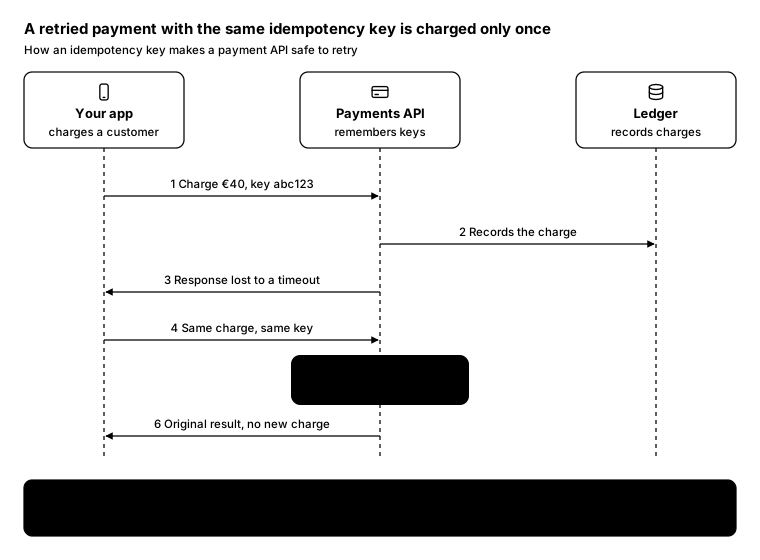
Promptcopy it, change the names, get your own version
Use the crisp-diagrams skill to draw a sequence diagram.

Title: A retried payment with the same idempotency key is charged only once
Subtitle: How an idempotency key makes a payment API safe to retry

- Participants, left to right: Your app: charges a customer; Payments API: remembers keys; Ledger: records charges
- Steps, numbered:
    1. Your app → Payments API: Charge €40, key abc123
    2. Payments API → Ledger: Records the charge
    3. Payments API → Your app: Response lost to a timeout
    4. Your app → Payments API: Same charge, same key
    5. Payments API, highlighted as the accent: Recognizes abc123 (returns the first result)
    6. Payments API → Your app: Original result, no new charge
- A takeaway box at the bottom: Safe to retry: Clients can retry any failed call without charging the customer twice

Layout:
- Participants as boxes across the top with dashed lifelines; numbered arrows between lifelines in order
- The highlighted step as an accent box on its participant's lifeline
- The takeaway as a full-width gray band at the bottom

Use these labels word for word.

Style: quiet theme (outlines only, one blue accent), with icon cards (icon on top, name below).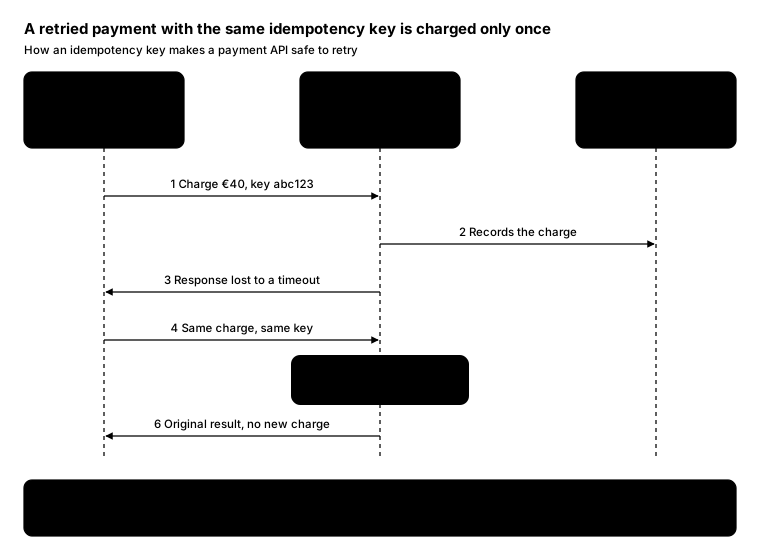
Promptcopy it, change the names, get your own version
Use the crisp-diagrams skill to draw a sequence diagram.

Title: A retried payment with the same idempotency key is charged only once
Subtitle: How an idempotency key makes a payment API safe to retry

- Participants, left to right: Your app: charges a customer; Payments API: remembers keys; Ledger: records charges
- Steps, numbered:
    1. Your app → Payments API: Charge €40, key abc123
    2. Payments API → Ledger: Records the charge
    3. Payments API → Your app: Response lost to a timeout
    4. Your app → Payments API: Same charge, same key
    5. Payments API, highlighted as the accent: Recognizes abc123 (returns the first result)
    6. Payments API → Your app: Original result, no new charge
- A takeaway box at the bottom: Safe to retry: Clients can retry any failed call without charging the customer twice

Layout:
- Participants as boxes across the top with dashed lifelines; numbered arrows between lifelines in order
- The highlighted step as an accent box on its participant's lifeline
- The takeaway as a full-width gray band at the bottom

Color groups: violet for Your app; teal for Payments API; green for Ledger

Use these labels word for word.

Style: gradient theme, with an icon on a tinted badge in each box.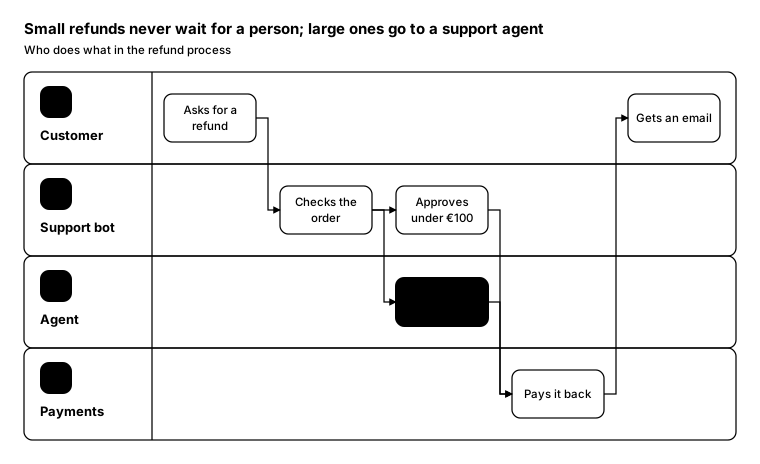
Promptcopy it, change the names, get your own version
Use the crisp-diagrams skill to draw a swimlane diagram.

Title: Small refunds never wait for a person; large ones go to a support agent
Subtitle: Who does what in the refund process

- Lanes, top to bottom: Customer, Support bot, Agent, Payments
- Steps, in order (lane: step):
    Customer: Asks for a refund
    Support bot: Checks the order
    Support bot: Approves under €100
    Agent: Reviews €100 or more (the accent)
    Payments: Pays it back
    Customer: Gets an email
- Arrows: Asks for a refund → Checks the order; Checks the order → Approves under €100; Checks the order → Reviews €100 or more; Approves under €100 → Pays it back; Reviews €100 or more → Pays it back; Pays it back → Gets an email

Layout:
- One full-width lane per actor with the actor's name on the left; steps placed in 5 columns by when they happen
- Steps that happen at the same time share a column; arrows run across, then up or down between lanes

Use these labels word for word.

Style: quiet theme (outlines only, one blue accent).
Promptcopy it, change the names, get your own version
Use the crisp-diagrams skill to draw a swimlane diagram.

Title: A new hire's first day works because HR, IT and the manager each act in order
Subtitle: Who does what when someone joins

- Lanes, top to bottom: HR, IT, Manager, New hire
- Steps, in order (lane: step):
    HR: Offer signed
    IT: Creates accounts (the accent)
    Manager: Plans week one
    IT: Ships the laptop
    New hire: First day
    Manager: 30-day check-in
- Arrows: Offer signed → Creates accounts; Offer signed → Plans week one; Creates accounts → Ships the laptop; Ships the laptop → First day; Plans week one → First day; First day → 30-day check-in

Layout:
- One full-width lane per actor with the actor's name on the left; steps placed in 5 columns by when they happen
- Steps that happen at the same time share a column; arrows run across, then up or down between lanes

Color groups: violet for HR; teal for IT; amber for Manager; green for New hire

Use these labels word for word.

Style: pastel theme.
Promptcopy it, change the names, get your own version
Use the crisp-diagrams skill to draw a swimlane diagram.

Title: Customers hear about an incident before engineers finish fixing it
Subtitle: Who does what during an incident

- Lanes, top to bottom: Monitoring, On-call, Commander, Customers
- Steps, in order (lane: step):
    Monitoring: Alert fires
    On-call: Acknowledges
    Commander: Declares incident (the accent)
    On-call: Rolls back
    Customers: Status page update
    Commander: Writes postmortem
- Arrows: Alert fires → Acknowledges; Acknowledges → Declares incident; Declares incident → Status page update; Declares incident → Rolls back; Rolls back → Writes postmortem

Layout:
- One full-width lane per actor with the actor's name on the left; steps placed in 5 columns by when they happen
- Steps that happen at the same time share a column; arrows run across, then up or down between lanes

Color groups: teal for Monitoring; amber for On-call; violet for Commander; green for Customers

Use these labels word for word.

Style: gradient theme.
Promptcopy it, change the names, get your own version
Use the crisp-diagrams skill to draw a swimlane diagram.

Title: The agent shops, but nothing is bought until the person approves on their phone
Subtitle: Who does what when an agent buys something

- Lanes, top to bottom: Person, Agent, Bank, Merchant
- Steps, in order (lane: step):
    Person: Asks for shoes
    Agent: Compares stores
    Agent: Proposes a cart
    Person: Approves on phone (the accent)
    Bank: Authorizes payment
    Merchant: Ships the order
- Arrows: Asks for shoes → Compares stores; Compares stores → Proposes a cart; Proposes a cart → Approves on phone; Approves on phone → Authorizes payment; Authorizes payment → Ships the order

Layout:
- One full-width lane per actor with the actor's name on the left; steps placed in 5 columns by when they happen
- Steps that happen at the same time share a column; arrows run across, then up or down between lanes

Color groups: violet for Person; teal for Agent; amber for Bank; green for Merchant

Use these labels word for word.

Style: tinted zones theme.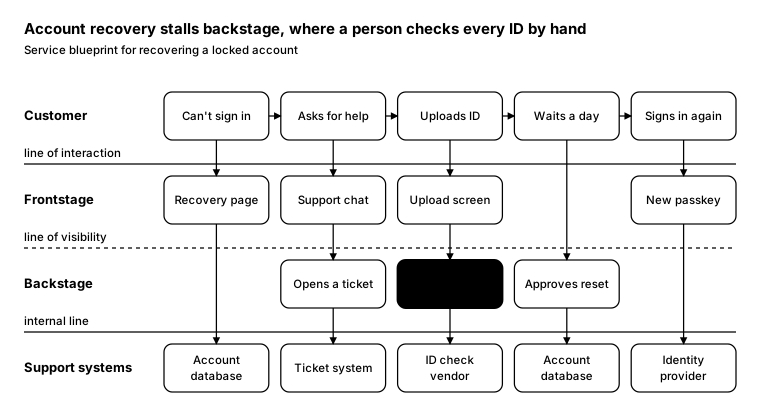
Promptcopy it, change the names, get your own version
Use the crisp-diagrams skill to draw a service blueprint.

Title: Account recovery stalls backstage, where a person checks every ID by hand
Subtitle: Service blueprint for recovering a locked account

- Lanes, top to bottom: Customer, Frontstage, Backstage, Support systems (line of interaction, line of visibility and internal line between them)
- Steps, left to right:
    1. Customer: Can't sign in; Frontstage: Recovery page; Support systems: Account database
    2. Customer: Asks for help; Frontstage: Support chat; Backstage: Opens a ticket; Support systems: Ticket system
    3. Customer: Uploads ID; Frontstage: Upload screen; Backstage: Checks ID by hand (the accent); Support systems: ID check vendor
    4. Customer: Waits a day; Backstage: Approves reset; Support systems: Account database
    5. Customer: Signs in again; Frontstage: New passkey; Support systems: Identity provider

Layout:
- Full-width lanes with their names on the left; the line of visibility dashed, the other two lines plain
- One column per step; arrows down each column and across the customer lane

Use these labels word for word.

Style: quiet theme (outlines only, one blue accent).
Promptcopy it, change the names, get your own version
Use the crisp-diagrams skill to draw a service blueprint.

Title: A lost card is replaced in minutes because nothing waits for a person
Subtitle: Service blueprint for replacing a lost bank card

- Lanes, top to bottom: Customer, Frontstage, Backstage, Support systems (line of interaction, line of visibility and internal line between them)
- Steps, left to right:
    1. Customer: Taps lost card; Frontstage: Card screen; Support systems: Card platform
    2. Customer: Confirms with Face ID; Frontstage: Approval prompt; Backstage: Freezes old card (the accent); Support systems: Card platform
    3. Customer: Gets a virtual card; Frontstage: Wallet update; Support systems: Token service
    4. Customer: Receives the new card; Backstage: Ships plastic card; Support systems: Card printer

Layout:
- Full-width lanes with their names on the left; the line of visibility dashed, the other two lines plain
- One column per step; arrows down each column and across the customer lane

Use these labels word for word.

Style: pastel theme.
Promptcopy it, change the names, get your own version
Use the crisp-diagrams skill to draw a service blueprint.

Title: The customer only sees two steps; the merchant checks the agent's mandate in between
Subtitle: Service blueprint for a purchase made by an agent

- Lanes, top to bottom: Customer, Agent, Merchant, Systems (line of interaction, line of visibility and internal line between them)
- Steps, left to right:
    1. Customer: Asks for shoes; Agent: Searches stores; Systems: Store catalogs
    2. Agent: Builds the cart; Merchant: Prices the cart; Systems: Checkout API
    3. Customer: Approves the cart; Agent: Signs the mandate; Merchant: Checks the mandate (the accent); Systems: Payment network
    4. Customer: Gets a receipt; Merchant: Ships the order; Systems: Warehouse

Layout:
- Full-width lanes with their names on the left; the line of visibility dashed, the other two lines plain
- One column per step; arrows down each column and across the customer lane

Use these labels word for word.

Style: tinted zones theme.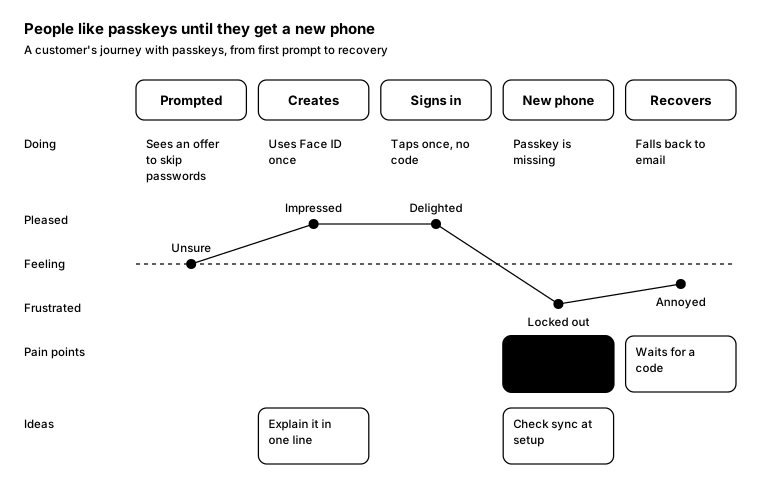
Promptcopy it, change the names, get your own version
Use the crisp-diagrams skill to draw a journey map.

Title: People like passkeys until they get a new phone
Subtitle: A customer's journey with passkeys, from first prompt to recovery

- Stages, left to right (doing, then feeling):
    Prompted: Sees an offer to skip passwords, neutral (“Unsure”)
    Creates: Uses Face ID once, very pleased (“Impressed”); idea: Explain it in one line
    Signs in: Taps once, no code, very pleased (“Delighted”)
    New phone: Passkey is missing, very frustrated (“Locked out”); pain point: Didn't sync to the new phone (the accent); idea: Check sync at setup
    Recovers: Falls back to email, frustrated (“Annoyed”); pain point: Waits for a code

Layout:
- Stage headers across the top; rows under them for doing, a feeling line (pleased at the top, frustrated at the bottom), pain points and ideas
- Pain points and ideas only under the stages that have them

Use these labels word for word.

Style: quiet theme (outlines only, one blue accent).
Promptcopy it, change the names, get your own version
Use the crisp-diagrams skill to draw a journey map.

Title: Developers love the docs but stall when they have to go live
Subtitle: A developer's first week with our API

- Stages, left to right (doing, then feeling):
    Finds docs: Reads the quickstart, pleased
    Gets a key: Creates a test key, very pleased
    First call: Gets orders back, very pleased; idea: Show a curl first
    Goes live: Asks for production access, very frustrated; pain point: Waits two days for review (the accent); idea: Self-serve checks

Layout:
- Stage headers across the top; rows under them for doing, a feeling line (pleased at the top, frustrated at the bottom), pain points and ideas
- Pain points and ideas only under the stages that have them

Use these labels word for word.

Style: pastel theme.
Promptcopy it, change the names, get your own version
Use the crisp-diagrams skill to draw a journey map.

Title: Buying through an agent feels great until the approval comes without context
Subtitle: A customer asks their agent to buy running shoes

- Stages, left to right (doing, then feeling):
    Asks: Says what they want, pleased
    Compares: Agent shortlists three pairs, very pleased
    Approves: Gets a push to approve, frustrated; pain point: Can't see which pair (the accent); idea: Show the item
    Delivered: Shoes arrive in two days, very pleased
    Returns: Wrong size, asks agent, frustrated; pain point: Return needs a call

Layout:
- Stage headers across the top; rows under them for doing, a feeling line (pleased at the top, frustrated at the bottom), pain points and ideas
- Pain points and ideas only under the stages that have them

Use these labels word for word.

Style: gradient theme.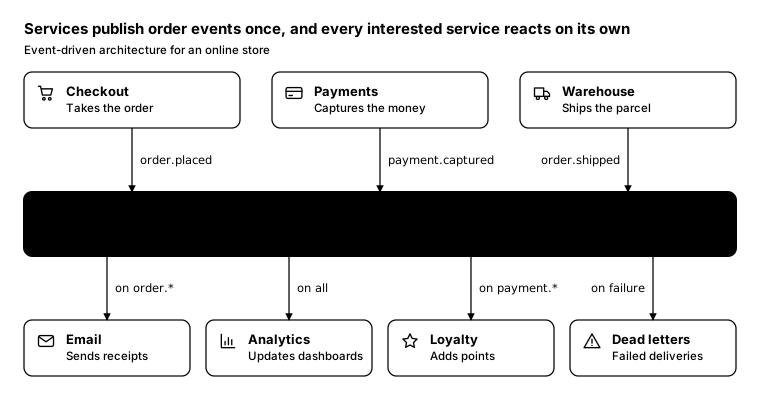
Promptcopy it, change the names, get your own version
Use the crisp-diagrams skill to draw an event-driven architecture diagram.

Title: Services publish order events once, and every interested service reacts on its own
Subtitle: Event-driven architecture for an online store

- Producers on top, each publishing an event:
    Checkout: Takes the order, publishes order.placed
    Payments: Captures the money, publishes payment.captured
    Warehouse: Ships the parcel, publishes order.shipped
- In the middle (the accent): Event bus: Keeps events for 7 days, so consumers can replay them; topics: orders, payments
- Consumers below, each subscribed:
    Email: Sends receipts, on order.*
    Analytics: Updates dashboards, on all
    Loyalty: Adds points, on payment.*
    Dead letters: Failed deliveries, on failure (the dead-letter queue)

Layout:
- Producers in a row at the top, the bus as a full-width accent band in the middle, consumers in a row below
- Straight arrows down: producer to bus labelled with the event, bus to consumer labelled with the subscription

Use these labels word for word.

Style: quiet theme (outlines only, one blue accent), with a small line icon in each box.
Promptcopy it, change the names, get your own version
Use the crisp-diagrams skill to draw an event-driven architecture diagram.

Title: Security events flow into one stream that alerting, risk and audit all read
Subtitle: Event-driven security monitoring

- Producers on top, each publishing an event:
    Login service: Every sign-in attempt, publishes login.failed
    Admin console: Role changes, publishes role.changed
    Devices: New devices, publishes device.new
- In the middle (the accent): Security event stream: Ordered per user, kept for a year; topics: auth, admin
- Consumers below, each subscribed:
    Alerting: Pages the on-call, on spikes
    Risk engine: Raises risk scores, on all
    Audit archive: Keeps every event, on all

Layout:
- Producers in a row at the top, the bus as a full-width accent band in the middle, consumers in a row below
- Straight arrows down: producer to bus labelled with the event, bus to consumer labelled with the subscription

Color groups: violet for Login service, Admin console and Devices; green for Alerting, Risk engine and Audit archive

Use these labels word for word.

Style: pastel theme, with an icon on a tinted badge in each box.
Promptcopy it, change the names, get your own version
Use the crisp-diagrams skill to draw an event-driven architecture diagram.

Title: Sensors publish readings to a broker, and each consumer takes what it needs
Subtitle: Event-driven telemetry for a fleet of devices

- Producers on top, each publishing an event:
    Sensors: Temperature and motion, publishes reading
    Gateways: Connection status, publishes status
- In the middle (the accent): Message broker: MQTT topics per site and device type; topics: site/+/temp, site/+/status
- Consumers below, each subscribed:
    Time-series store: Keeps history, on all
    Alerts: Out-of-range values, on temp
    Billing: Usage per site, hourly

Layout:
- Producers in a row at the top, the bus as a full-width accent band in the middle, consumers in a row below
- Straight arrows down: producer to bus labelled with the event, bus to consumer labelled with the subscription

Color groups: violet for Sensors and Gateways; green for Time-series store, Alerts and Billing

Use these labels word for word.

Style: gradient theme, with icon cards (icon on top, name below).
Promptcopy it, change the names, get your own version
Use the crisp-diagrams skill to draw an event-driven architecture diagram.

Title: Every agent action becomes an event that audit, billing and evaluation consume
Subtitle: Event-driven logging for an AI agent platform

- Producers on top, each publishing an event:
    Agent runtime: Tool calls and results, publishes tool.called
    Guard: Blocked actions, publishes action.blocked
    Scheduler: Jobs that start, publishes job.started
- In the middle (the accent): Agent event log: Append-only and replayable; topics: actions, jobs
- Consumers below, each subscribed:
    Audit log: Who did what, on all
    Usage billing: Counts tool calls, on tool.*
    Notifications: Tells the owner, on blocked
    Evaluation: Scores runs, on job.*

Layout:
- Producers in a row at the top, the bus as a full-width accent band in the middle, consumers in a row below
- Straight arrows down: producer to bus labelled with the event, bus to consumer labelled with the subscription

Color groups: violet for Agent runtime, Guard and Scheduler; green for Audit log, Usage billing, Notifications and Evaluation

Use these labels word for word.

Style: tinted zones theme, with an icon on a tinted badge in each box.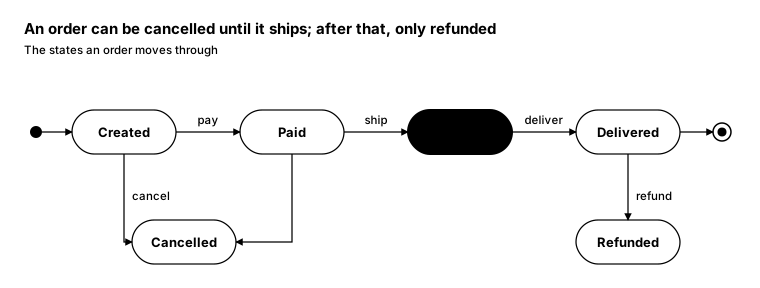
Promptcopy it, change the names, get your own version
Use the crisp-diagrams skill to draw a state machine.

Title: An order can be cancelled until it ships; after that, only refunded
Subtitle: The states an order moves through

- Happy path, left to right, from a start dot to an end ring: Created → Paid → Shipped (the accent) → Delivered
- Events on those arrows: pay, ship, deliver
- Side state Cancelled, reached from Created and Paid by “cancel”
- Side state Refunded, reached from Delivered by “refund”

Layout:
- States as pills on one row with labelled arrows; side states on a second row under the state they leave from

Use these labels word for word.

Style: quiet theme (outlines only, one blue accent).
Promptcopy it, change the names, get your own version
Use the crisp-diagrams skill to draw a state machine.

Title: A payment may pause for 3-D Secure before it succeeds
Subtitle: The states of a card payment

- Happy path, left to right, from a start dot to an end ring: New → Processing → Authorized → Captured (the accent)
- Events on those arrows: confirm, approve, capture
- Side state Needs 3-D Secure, reached from Processing by “challenge”
- Side state Declined, reached from Authorized by “decline”

Layout:
- States as pills on one row with labelled arrows; side states on a second row under the state they leave from

Use these labels word for word.

Style: pastel theme.
Promptcopy it, change the names, get your own version
Use the crisp-diagrams skill to draw a state machine.

Title: Temporary access ends on its own after 30 days
Subtitle: The life of an access request

- Happy path, left to right, from a start dot to an end ring: Requested → Approved → Active → Expired (the accent)
- Events on those arrows: approve, provision, 30 days
- Side state Denied, reached from Requested by “deny”
- Side state Revoked, reached from Active by “revoke”

Layout:
- States as pills on one row with labelled arrows; side states on a second row under the state they leave from

Use these labels word for word.

Style: gradient theme.
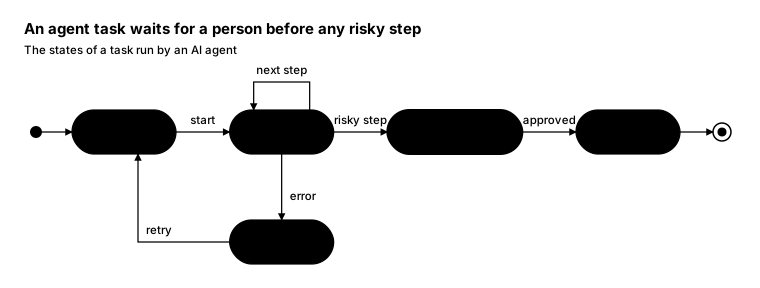
Promptcopy it, change the names, get your own version
Use the crisp-diagrams skill to draw a state machine.

Title: An agent task waits for a person before any risky step
Subtitle: The states of a task run by an AI agent

- Happy path, left to right, from a start dot to an end ring: Queued → Running → Needs approval (the accent) → Done
- Events on those arrows: start, risky step, approved
- Side state Failed, reached from Running by “error”

Layout:
- States as pills on one row with labelled arrows; side states on a second row under the state they leave from

Use these labels word for word.

Style: tinted zones theme.
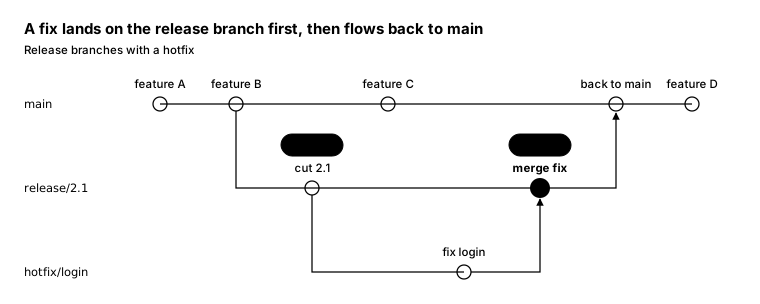
Promptcopy it, change the names, get your own version
Use the crisp-diagrams skill to draw a git branch graph.

Title: A fix lands on the release branch first, then flows back to main
Subtitle: Release branches with a hotfix

- Branches, top to bottom: main, release/2.1, hotfix/login
- Commits in time order:
    main: feature A
    main: feature B
    release/2.1: cut 2.1, branched from main “feature B”, tagged v2.1.0
    main: feature C
    hotfix/login: fix login, branched from release/2.1 “cut 2.1”
    release/2.1: merge fix, merges hotfix/login “fix login”, tagged v2.1.1 (the accent)
    main: back to main, merges release/2.1 “merge fix”
    main: feature D

Layout:
- One lane per branch with its name on the left; commits as small circles in time order, labels and tags above them
- A branch starts straight down from its parent commit; a merge is an arrow into the target commit

Use these labels word for word.

Style: quiet theme (outlines only, one blue accent).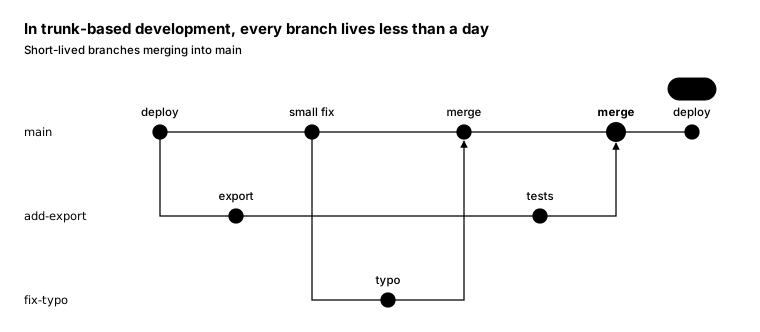
Promptcopy it, change the names, get your own version
Use the crisp-diagrams skill to draw a git branch graph.

Title: In trunk-based development, every branch lives less than a day
Subtitle: Short-lived branches merging into main

- Branches, top to bottom: main, add-export, fix-typo
- Commits in time order:
    main: deploy
    add-export: export, branched from main “deploy”
    main: small fix
    fix-typo: typo, branched from main “small fix”
    main: merge, merges fix-typo “typo”
    add-export: tests
    main: merge, merges add-export “tests” (the accent)
    main: deploy, tagged prod

Layout:
- One lane per branch with its name on the left; commits as small circles in time order, labels and tags above them
- A branch starts straight down from its parent commit; a merge is an arrow into the target commit

Color groups: teal for main; violet for add-export; amber for fix-typo

Use these labels word for word.

Style: pastel theme.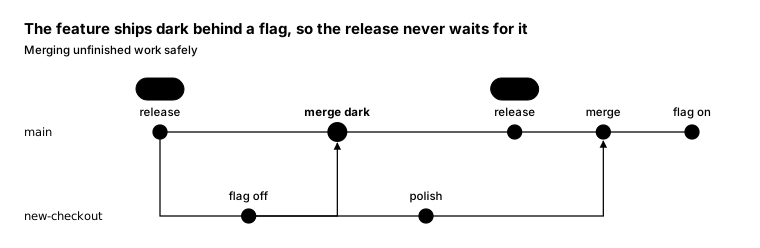
Promptcopy it, change the names, get your own version
Use the crisp-diagrams skill to draw a git branch graph.

Title: The feature ships dark behind a flag, so the release never waits for it
Subtitle: Merging unfinished work safely

- Branches, top to bottom: main, new-checkout
- Commits in time order:
    main: release, tagged v3.0
    new-checkout: flag off, branched from main “release”
    main: merge dark, merges new-checkout “flag off” (the accent)
    new-checkout: polish
    main: release, tagged v3.1
    main: merge, merges new-checkout “polish”
    main: flag on

Layout:
- One lane per branch with its name on the left; commits as small circles in time order, labels and tags above them
- A branch starts straight down from its parent commit; a merge is an arrow into the target commit

Color groups: teal for main; violet for new-checkout

Use these labels word for word.

Style: tinted zones theme.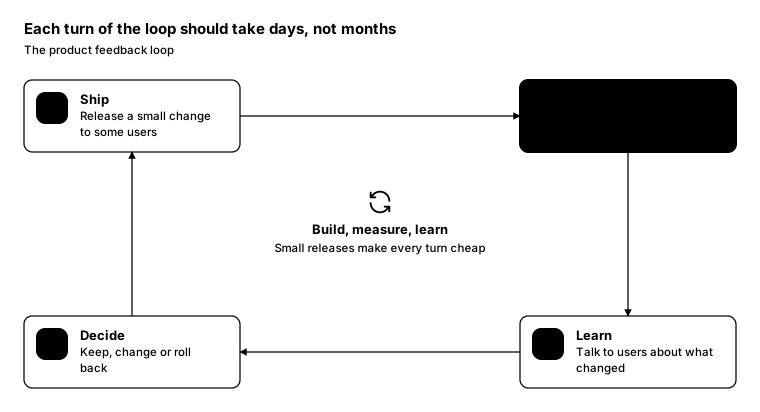
Promptcopy it, change the names, get your own version
Use the crisp-diagrams skill to draw a cycle diagram.

Title: Each turn of the loop should take days, not months
Subtitle: The product feedback loop

- Stations, clockwise from the top left:
    Ship: Release a small change to some users
    Measure: Watch the numbers that matter (the accent)
    Learn: Talk to users about what changed
    Decide: Keep, change or roll back
- In the center: Build, measure, learn: Small releases make every turn cheap

Layout:
- Stations around the edge, arrows running clockwise; the loop's name in the center

Use these labels word for word.

Style: quiet theme (outlines only, one blue accent), with an icon on a tinted badge in each box.
Promptcopy it, change the names, get your own version
Use the crisp-diagrams skill to draw a cycle diagram.

Title: Signing keys rotate every 90 days without a second of downtime
Subtitle: The rotation cycle for a token-signing key

- Stations, clockwise from the top left:
    Generate: New key pair in the vault
    Publish: New public key in the key set
    Start signing: New tokens use the new key
    Grace period: Both keys valid for 24 hours (the accent)
    Retire: Old key leaves the key set
    Record: Logged for the auditors
- In the center: Key rotation: Old and new keys overlap, so no token breaks

Layout:
- Stations around the edge, arrows running clockwise; the loop's name in the center

Use these labels word for word.

Style: pastel theme, with a small line icon in each box.
Promptcopy it, change the names, get your own version
Use the crisp-diagrams skill to draw a cycle diagram.

Title: An incident isn't over until its lessons change the system
Subtitle: The incident lifecycle

- Stations, clockwise from the top left:
    Detect: Alerts and customer reports
    Respond: Mitigate and keep people informed
    Recover: Back to normal, confirmed
    Learn: Blameless review within 5 days (the accent)
- In the center: Incident lifecycle: The last step feeds the first

Layout:
- Stations around the edge, arrows running clockwise; the loop's name in the center

Use these labels word for word.

Style: tinted zones theme, with icon cards (icon on top, name below).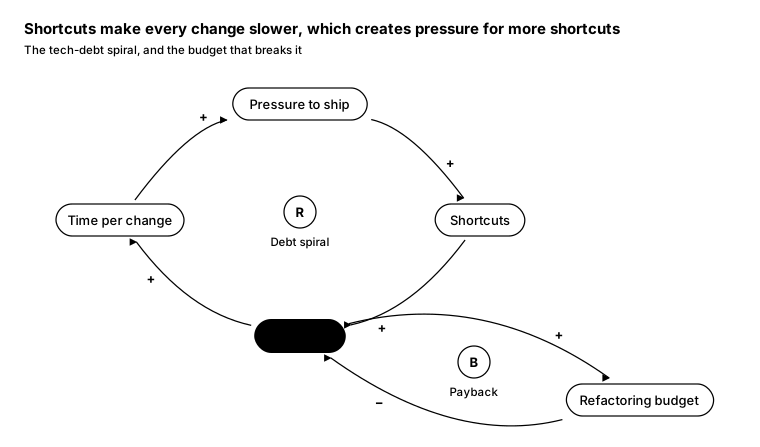
Promptcopy it, change the names, get your own version
Use the crisp-diagrams skill to draw a causal loop diagram.

Title: Shortcuts make every change slower, which creates pressure for more shortcuts
Subtitle: The tech-debt spiral, and the budget that breaks it

- Variables: Pressure to ship, Shortcuts, Tech debt (the accent), Time per change, Refactoring budget
- Links (+ means they move together, − means opposite): Pressure to ship → Shortcuts (+); Shortcuts → Tech debt (+); Tech debt → Time per change (+); Time per change → Pressure to ship (+); Tech debt → Refactoring budget (+); Refactoring budget → Tech debt (−)
- Loop marker R, “Debt spiral”, in the middle of its loop
- Loop marker B, “Payback”, in the middle of its loop

Layout:
- Variables as pills around the loop; curved arrows between them with + or − by each arrowhead
- A small circle with R (reinforcing) or B (balancing) and the loop's name inside each loop

Use these labels word for word.

Style: quiet theme (outlines only, one blue accent).
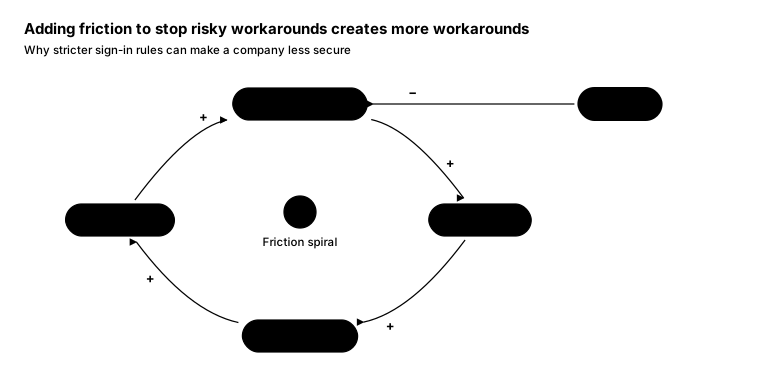
Promptcopy it, change the names, get your own version
Use the crisp-diagrams skill to draw a causal loop diagram.

Title: Adding friction to stop risky workarounds creates more workarounds
Subtitle: Why stricter sign-in rules can make a company less secure

- Variables: Sign-in friction, Workarounds, Security risk, New controls, Passkeys (the accent)
- Links (+ means they move together, − means opposite): Sign-in friction → Workarounds (+); Workarounds → Security risk (+); Security risk → New controls (+); New controls → Sign-in friction (+); Passkeys → Sign-in friction (−)
- Loop marker R, “Friction spiral”, in the middle of its loop

Layout:
- Variables as pills around the loop; curved arrows between them with + or − by each arrowhead
- A small circle with R (reinforcing) or B (balancing) and the loop's name inside each loop

Color groups: amber for Sign-in friction and New controls; rose for Workarounds and Security risk

Use these labels word for word.

Style: pastel theme.
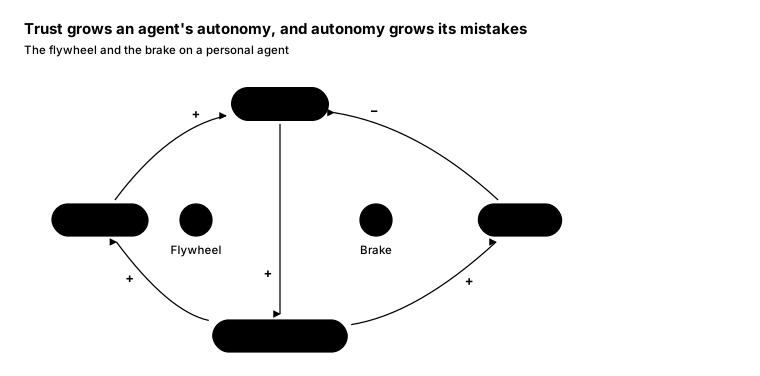
Promptcopy it, change the names, get your own version
Use the crisp-diagrams skill to draw a causal loop diagram.

Title: Trust grows an agent's autonomy, and autonomy grows its mistakes
Subtitle: The flywheel and the brake on a personal agent

- Variables: User trust (the accent), Autonomy granted, Tasks done, Mistakes
- Links (+ means they move together, − means opposite): User trust → Autonomy granted (+); Autonomy granted → Tasks done (+); Tasks done → User trust (+); Autonomy granted → Mistakes (+); Mistakes → User trust (−)
- Loop marker R, “Flywheel”, in the middle of its loop
- Loop marker B, “Brake”, in the middle of its loop

Layout:
- Variables as pills around the loop; curved arrows between them with + or − by each arrowhead
- A small circle with R (reinforcing) or B (balancing) and the loop's name inside each loop

Color groups: violet for Autonomy granted; green for Tasks done; rose for Mistakes

Use these labels word for word.

Style: gradient theme.
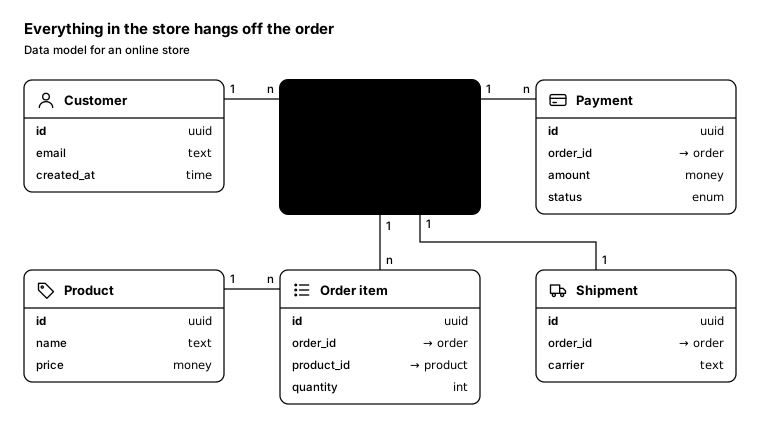
Promptcopy it, change the names, get your own version
Use the crisp-diagrams skill to draw a data model (ERD).

Title: Everything in the store hangs off the order
Subtitle: Data model for an online store

- Tables, with their key fields:
    Customer: id (uuid, primary key), email (text), created_at (time)
    Order (the accent): id (uuid, primary key), customer_id (→ customer), status (enum), total (money)
    Payment: id (uuid, primary key), order_id (→ order), amount (money), status (enum)
    Order item: id (uuid, primary key), order_id (→ order), product_id (→ product), quantity (int)
    Product: id (uuid, primary key), name (text), price (money)
    Shipment: id (uuid, primary key), order_id (→ order), carrier (text)
- Relationships: Customer 1 to Order n; Order 1 to Payment n; Order 1 to Order item n; Product 1 to Order item n; Order 1 to Shipment 1

Layout:
- Tables on a grid of 3 columns and 2 rows: row 1: Customer, Order, Payment; row 2: Product, Order item, Shipment
- Relationships as plain lines without arrowheads, with 1 and n at the ends

Use these labels word for word.

Style: quiet theme (outlines only, one blue accent).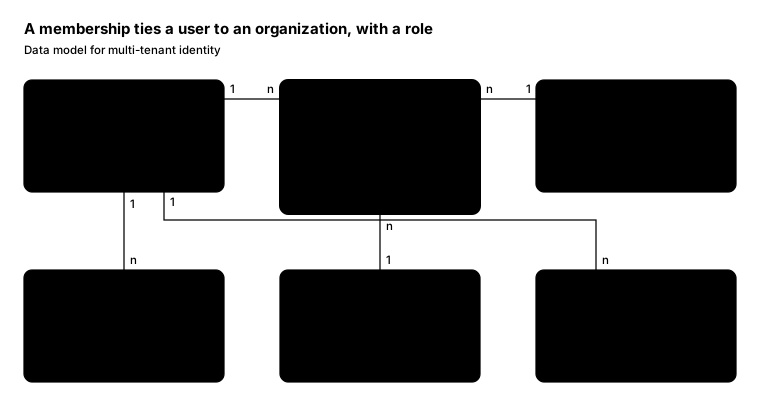
Promptcopy it, change the names, get your own version
Use the crisp-diagrams skill to draw a data model (ERD).

Title: A membership ties a user to an organization, with a role
Subtitle: Data model for multi-tenant identity

- Tables, with their key fields:
    User: id (uuid, primary key), email (text), mfa (bool)
    Membership (the accent): id (uuid, primary key), user_id (→ user), org_id (→ org), role_id (→ role)
    Organization: id (uuid, primary key), name (text), plan (enum)
    Identity: id (uuid, primary key), user_id (→ user), provider (text)
    Role: id (uuid, primary key), name (text), scopes (text[])
    Session: id (uuid, primary key), user_id (→ user), expires (time)
- Relationships: User 1 to Membership n; Organization 1 to Membership n; User 1 to Identity n; Role 1 to Membership n; User 1 to Session n

Layout:
- Tables on a grid of 3 columns and 2 rows: row 1: User, Membership, Organization; row 2: Identity, Role, Session
- Relationships as plain lines without arrowheads, with 1 and n at the ends

Color groups: violet for User and Identity; green for Organization; amber for Role; teal for Session

Use these labels word for word.

Style: pastel theme.
Promptcopy it, change the names, get your own version
Use the crisp-diagrams skill to draw a data model (ERD).

Title: A grant says which agent may use which tool for which person, until when
Subtitle: Data model for agent permissions

- Tables, with their key fields:
    User: id (uuid, primary key), email (text)
    Grant (the accent): id (uuid, primary key), user_id (→ user), agent_id (→ agent), tool_id (→ tool), expires (time)
    Agent: id (uuid, primary key), name (text), owner (→ user)
    Tool: id (uuid, primary key), name (text), risk (enum)
    Tool call: id (uuid, primary key), grant_id (→ grant), at (time), result (enum)
- Relationships: User 1 to Grant n; Agent 1 to Grant n; Tool 1 to Grant n; Tool 1 to Tool call n

Layout:
- Tables on a grid of 3 columns and 2 rows: row 1: User, Grant, Agent; row 2: (empty), Tool, Tool call
- Relationships as plain lines without arrowheads, with 1 and n at the ends

Color groups: violet for User; teal for Agent; amber for Tool; green for Tool call

Use these labels word for word.

Style: gradient theme.
Promptcopy it, change the names, get your own version
Use the crisp-diagrams skill to draw a data model (ERD).

Title: Every message belongs to a ticket, and every ticket to one customer
Subtitle: Data model for a support desk

- Tables, with their key fields:
    Customer: id (uuid, primary key), email (text), plan (enum)
    Ticket (the accent): id (uuid, primary key), customer_id (→ customer), status (enum), team_id (→ team)
    Team: id (uuid, primary key), name (text)
    Message: id (uuid, primary key), ticket_id (→ ticket), author (text), body (text)
    Tag: id (uuid, primary key), label (text)
- Relationships: Customer 1 to Ticket n; Team 1 to Ticket n; Ticket 1 to Message n; Tag n to Ticket n

Layout:
- Tables on a grid of 3 columns and 2 rows: row 1: Customer, Ticket, Team; row 2: Tag, Message, (empty)
- Relationships as plain lines without arrowheads, with 1 and n at the ends

Color groups: violet for Customer; green for Team; teal for Message; amber for Tag

Use these labels word for word.

Style: tinted zones theme.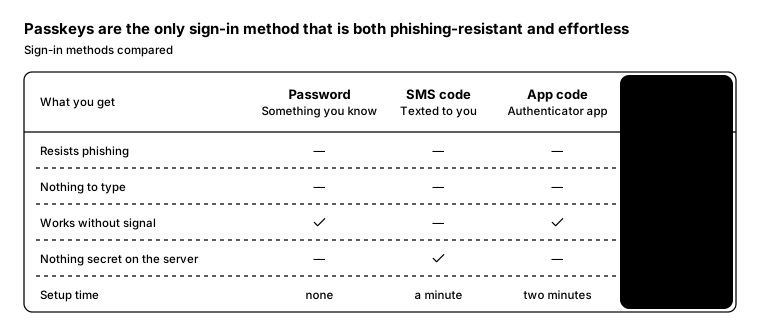
Promptcopy it, change the names, get your own version
Use the crisp-diagrams skill to draw a feature matrix.

Title: Passkeys are the only sign-in method that is both phishing-resistant and effortless
Subtitle: Sign-in methods compared

- Columns: Password: Something you know; SMS code: Texted to you; App code: Authenticator app; Passkey: On your device (the accent, recommended)
- Rows (one answer per column):
    Resists phishing: no | no | no | yes
    Nothing to type: no | no | no | yes
    Works without signal: yes | no | yes | yes
    Nothing secret on the server: no | yes | no | yes
    Setup time: none | a minute | two minutes | seconds

Layout:
- One table: a header row with the options, one row per capability; checks for yes, a dash for no, short values otherwise
- The recommended column outlined as the accent

Use these labels word for word.

Style: quiet theme (outlines only, one blue accent).
Promptcopy it, change the names, get your own version
Use the crisp-diagrams skill to draw a feature matrix.

Title: The Pro plan adds the controls security teams ask for
Subtitle: Plans and what each one includes

- Columns: Free: Up to 3 people; Team: Per person; Pro: Per person (the accent, recommended); Enterprise: Custom
- Rows (one answer per column):
    Passkeys: yes | yes | yes | yes
    Single sign-on: no | no | yes | yes
    Audit log: 7 days | 30 days | 1 year | custom
    Automatic provisioning: no | no | yes | yes
    Data residency: no | no | no | yes
    Support: community | email | priority | dedicated

Layout:
- One table: a header row with the options, one row per capability; checks for yes, a dash for no, short values otherwise
- The recommended column outlined as the accent

Use these labels word for word.

Style: pastel theme.
Promptcopy it, change the names, get your own version
Use the crisp-diagrams skill to draw a feature matrix.

Title: A managed database patches itself; self-hosting gives full control
Subtitle: Three ways to run a database

- Columns: Self-hosted: Your servers; Managed: Cloud provider (the accent, recommended); Serverless: Pay per query
- Rows (one answer per column):
    Automatic backups: no | yes | yes
    Patching handled for you: no | yes | yes
    Scales to zero: no | no | yes
    Full control of settings: yes | most | no
    Predictable monthly cost: yes | yes | no

Layout:
- One table: a header row with the options, one row per capability; checks for yes, a dash for no, short values otherwise
- The recommended column outlined as the accent

Use these labels word for word.

Style: tinted zones theme.
Promptcopy it, change the names, get your own version
Use the crisp-diagrams skill to draw a comparison table.

Title: Only on-behalf-of tokens tie an agent's call to a real person
Subtitle: Three ways an agent can authenticate to your API

- Columns: API key: A shared secret in a header; Client credentials: OAuth, as the agent itself; On behalf of a user: OAuth, with the user's consent
- Rows:
    Who is calling: Whoever holds the key | The agent | The agent, for a named user
    What it can do: Usually everything | What the agent was granted | Only what the user approved
    Expires: When someone rotates it | In minutes to hours | In minutes, then refreshes
    Revoking it: Breaks every integration | Stops one agent | Stops one agent for one user
    Shows up in your audit log as (the accent row): A key ID | An agent | A person and an agent

Layout:
- Each option as a tall column card: its name and note at the top, then every question as a small gray label with that option's answer under it
- The highlighted row as a full-width accent band under the column cards, with each option's answer under its column

Color groups: rose for API key; amber for Client credentials; teal for On behalf of a user

Use these labels word for word.

Style: gradient theme.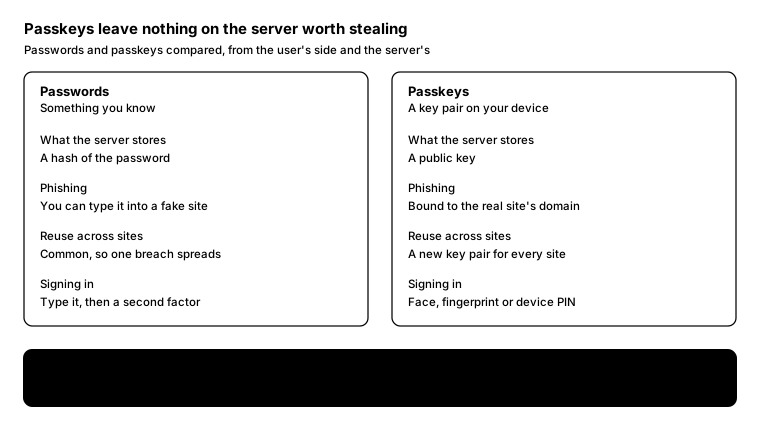
Promptcopy it, change the names, get your own version
Use the crisp-diagrams skill to draw a comparison table.

Title: Passkeys leave nothing on the server worth stealing
Subtitle: Passwords and passkeys compared, from the user's side and the server's

- Columns: Passwords: Something you know; Passkeys: A key pair on your device
- Rows:
    What the server stores: A hash of the password | A public key
    Phishing: You can type it into a fake site | Bound to the real site's domain
    Reuse across sites: Common, so one breach spreads | A new key pair for every site
    Signing in: Type it, then a second factor | Face, fingerprint or device PIN
    If the server is breached (the accent row): Hashes can be cracked offline | Public keys are useless to an attacker

Layout:
- Each option as a tall column card: its name and note at the top, then every question as a small gray label with that option's answer under it
- The highlighted row as a full-width accent band under the column cards, with each option's answer under its column

Use these labels word for word.

Style: quiet theme (outlines only, one blue accent).
Promptcopy it, change the names, get your own version
Use the crisp-diagrams skill to draw a comparison table.

Title: Cookies, JWTs and opaque tokens trade instant revocation against fewer lookups
Subtitle: Three ways to keep a user signed in to your web app or API

- Columns: Session cookie: The server keeps the session; JWT: Self-contained and signed; Opaque token: A reference the server looks up
- Rows:
    Where state lives: On the server | Inside the token | On the server
    Checking it: One lookup per request | Verify a signature, no lookup | One lookup or introspection
    Revoking it: Delete the session | Wait for expiry, or keep a block list | Delete the token
    Best for: Classic web apps | Calls between services | APIs that need instant revocation
    Revocation takes effect (the accent row): Immediately | When the token expires | Immediately

Layout:
- Each option as a tall column card: its name and note at the top, then every question as a small gray label with that option's answer under it
- The highlighted row as a full-width accent band under the column cards, with each option's answer under its column

Color groups: teal for Session cookie; amber for JWT; violet for Opaque token

Use these labels word for word.

Style: pastel theme.
Promptcopy it, change the names, get your own version
Use the crisp-diagrams skill to draw a comparison table.
Title: Webhooks deliver events in seconds; polling wastes most of its calls
Subtitle: Two ways to find out that something changed in another system
- Columns: Polling: You ask every minute; Webhooks: The other system calls you
- Rows:
Delay: Up to the polling interval | Usually seconds
Wasted calls: Most calls return nothing new | None
When something fails: Just poll again | The sender retries; you verify signatures
Network: Outbound calls only | You need a public endpoint
Choose it when (the accent row): You can't expose an endpoint | Events matter in real time
Layout:
- Each option as a tall column card: its name and note at the top, then every question as a small gray label with that option's answer under it
- The highlighted row as a full-width accent band under the column cards, with each option's answer under its column
Color groups: amber for Polling; teal for Webhooks
Use these labels word for word.
Style: tinted zones theme.
Promptcopy it, change the names, get your own version
Use the crisp-diagrams skill to draw a comparison table.
Title: Only on-behalf-of tokens tie an agent's call to a real person
Subtitle: Three ways an agent can authenticate to your API
- Columns: API key: A shared secret in a header; Client credentials: OAuth, as the agent itself; On behalf of a user: OAuth, with the user's consent
- Rows:
Who is calling: Whoever holds the key | The agent | The agent, for a named user
What it can do: Usually everything | What the agent was granted | Only what the user approved
Expires: When someone rotates it | In minutes to hours | In minutes, then refreshes
Revoking it: Breaks every integration | Stops one agent | Stops one agent for one user
Shows up in your audit log as (the accent row): A key ID | An agent | A person and an agent
Layout:
- Each option as a tall column card: its name and note at the top, then every question as a small gray label with that option's answer under it
- The highlighted row as a full-width accent band under the column cards, with each option's answer under its column
Color groups: rose for API key; amber for Client credentials; teal for On behalf of a user
Use these labels word for word.
Style: tinted zones theme, with a small line icon in each box.
Promptcopy it, change the names, get your own version
Use the crisp-diagrams skill to draw a comparison table.
Title: Only on-behalf-of tokens tie an agent's call to a real person
Subtitle: Three ways an agent can authenticate to your API
- Columns: API key: A shared secret in a header; Client credentials: OAuth, as the agent itself; On behalf of a user: OAuth, with the user's consent
- Rows:
Who is calling: Whoever holds the key | The agent | The agent, for a named user
What it can do: Usually everything | What the agent was granted | Only what the user approved
Expires: When someone rotates it | In minutes to hours | In minutes, then refreshes
Revoking it: Breaks every integration | Stops one agent | Stops one agent for one user
Shows up in your audit log as (the accent row): A key ID | An agent | A person and an agent
Layout:
- Each option as a tall column card: its name and note at the top, then every question as a small gray label with that option's answer under it
- The highlighted row as a full-width accent band under the column cards, with each option's answer under its column
Color groups: rose for API key; amber for Client credentials; teal for On behalf of a user
Use these labels word for word.
Style: pastel theme, with icon cards (icon on top, name below).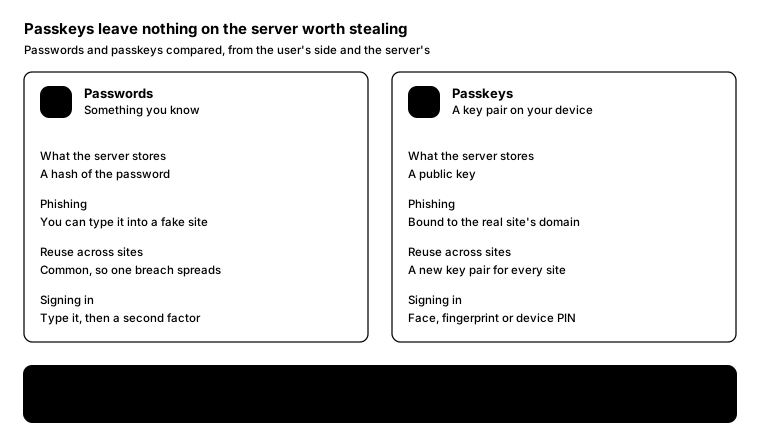
Promptcopy it, change the names, get your own version
Use the crisp-diagrams skill to draw a comparison table.
Title: Passkeys leave nothing on the server worth stealing
Subtitle: Passwords and passkeys compared, from the user's side and the server's
- Columns: Passwords: Something you know; Passkeys: A key pair on your device
- Rows:
What the server stores: A hash of the password | A public key
Phishing: You can type it into a fake site | Bound to the real site's domain
Reuse across sites: Common, so one breach spreads | A new key pair for every site
Signing in: Type it, then a second factor | Face, fingerprint or device PIN
If the server is breached (the accent row): Hashes can be cracked offline | Public keys are useless to an attacker
Layout:
- Each option as a tall column card: its name and note at the top, then every question as a small gray label with that option's answer under it
- The highlighted row as a full-width accent band under the column cards, with each option's answer under its column
Use these labels word for word.
Style: quiet theme (outlines only, one blue accent), with icon cards (icon on top, name below).
Promptcopy it, change the names, get your own version
Use the crisp-diagrams skill to draw a comparison table.
Title: Passkeys leave nothing on the server worth stealing
Subtitle: Passwords and passkeys compared, from the user's side and the server's
- Columns: Passwords: Something you know; Passkeys: A key pair on your device
- Rows:
What the server stores: A hash of the password | A public key
Phishing: You can type it into a fake site | Bound to the real site's domain
Reuse across sites: Common, so one breach spreads | A new key pair for every site
Signing in: Type it, then a second factor | Face, fingerprint or device PIN
If the server is breached (the accent row): Hashes can be cracked offline | Public keys are useless to an attacker
Layout:
- Each option as a tall column card: its name and note at the top, then every question as a small gray label with that option's answer under it
- The highlighted row as a full-width accent band under the column cards, with each option's answer under its column
Color groups: rose for Passwords; teal for Passkeys
Use these labels word for word.
Style: gradient theme, with an icon on a tinted badge in each box.
Promptcopy it, change the names, get your own version
Use the crisp-diagrams skill to draw a comparison table.
Title: Cookies, JWTs and opaque tokens trade instant revocation against fewer lookups
Subtitle: Three ways to keep a user signed in to your web app or API
- Columns: Session cookie: The server keeps the session; JWT: Self-contained and signed; Opaque token: A reference the server looks up
- Rows:
Where state lives: On the server | Inside the token | On the server
Checking it: One lookup per request | Verify a signature, no lookup | One lookup or introspection
Revoking it: Delete the session | Wait for expiry, or keep a block list | Delete the token
Best for: Classic web apps | Calls between services | APIs that need instant revocation
Revocation takes effect (the accent row): Immediately | When the token expires | Immediately
Layout:
- Each option as a tall column card: its name and note at the top, then every question as a small gray label with that option's answer under it
- The highlighted row as a full-width accent band under the column cards, with each option's answer under its column
Color groups: teal for Session cookie; amber for JWT; violet for Opaque token
Use these labels word for word.
Style: tinted zones theme, with an icon on a tinted badge in each box.
Promptcopy it, change the names, get your own version
Use the crisp-diagrams skill to draw a comparison table.
Title: Cookies, JWTs and opaque tokens trade instant revocation against fewer lookups
Subtitle: Three ways to keep a user signed in to your web app or API
- Columns: Session cookie: The server keeps the session; JWT: Self-contained and signed; Opaque token: A reference the server looks up
- Rows:
Where state lives: On the server | Inside the token | On the server
Checking it: One lookup per request | Verify a signature, no lookup | One lookup or introspection
Revoking it: Delete the session | Wait for expiry, or keep a block list | Delete the token
Best for: Classic web apps | Calls between services | APIs that need instant revocation
Revocation takes effect (the accent row): Immediately | When the token expires | Immediately
Layout:
- Each option as a tall column card: its name and note at the top, then every question as a small gray label with that option's answer under it
- The highlighted row as a full-width accent band under the column cards, with each option's answer under its column
Color groups: teal for Session cookie; amber for JWT; violet for Opaque token
Use these labels word for word.
Style: pastel theme, with a small line icon in each box.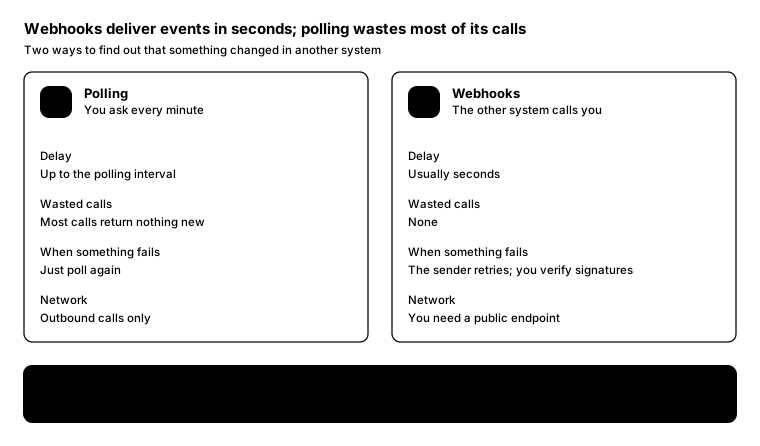
Promptcopy it, change the names, get your own version
Use the crisp-diagrams skill to draw a comparison table.
Title: Webhooks deliver events in seconds; polling wastes most of its calls
Subtitle: Two ways to find out that something changed in another system
- Columns: Polling: You ask every minute; Webhooks: The other system calls you
- Rows:
Delay: Up to the polling interval | Usually seconds
Wasted calls: Most calls return nothing new | None
When something fails: Just poll again | The sender retries; you verify signatures
Network: Outbound calls only | You need a public endpoint
Choose it when (the accent row): You can't expose an endpoint | Events matter in real time
Layout:
- Each option as a tall column card: its name and note at the top, then every question as a small gray label with that option's answer under it
- The highlighted row as a full-width accent band under the column cards, with each option's answer under its column
Use these labels word for word.
Style: quiet theme (outlines only, one blue accent), with a small line icon in each box.
Promptcopy it, change the names, get your own version
Use the crisp-diagrams skill to draw a comparison table.
Title: Webhooks deliver events in seconds; polling wastes most of its calls
Subtitle: Two ways to find out that something changed in another system
- Columns: Polling: You ask every minute; Webhooks: The other system calls you
- Rows:
Delay: Up to the polling interval | Usually seconds
Wasted calls: Most calls return nothing new | None
When something fails: Just poll again | The sender retries; you verify signatures
Network: Outbound calls only | You need a public endpoint
Choose it when (the accent row): You can't expose an endpoint | Events matter in real time
Layout:
- Each option as a tall column card: its name and note at the top, then every question as a small gray label with that option's answer under it
- The highlighted row as a full-width accent band under the column cards, with each option's answer under its column
Color groups: amber for Polling; teal for Webhooks
Use these labels word for word.
Style: gradient theme, with icon cards (icon on top, name below).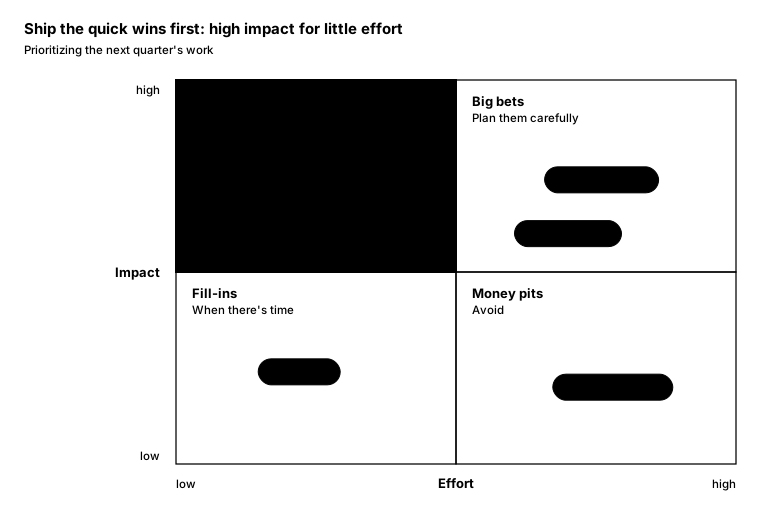
Promptcopy it, change the names, get your own version
Use the crisp-diagrams skill to draw a 2x2 quadrant.
Title: Ship the quick wins first: high impact for little effort
Subtitle: Prioritizing the next quarter's work
- Vertical axis: Impact (high at the top, low at the bottom)
- Horizontal axis: Effort (low on the left, high on the right)
- Quadrants:
Top left: Quick wins: Do these now (the accent)
Top right: Big bets: Plan them carefully
Bottom left: Fill-ins: When there's time
Bottom right: Money pits: Avoid
- Items:
Passkey nudge, in Quick wins
CSV export, in Quick wins
Agent payments, in Big bets
New dashboard, in Big bets
Dark mode, in Fill-ins
Rewrite billing, in Money pits
Layout:
- A 2x2 plot with the axis titles and their ends in the left gutter and under the plot; items as chips inside their quadrant
Use these labels word for word.
Style: quiet theme (outlines only, one blue accent).
Promptcopy it, change the names, get your own version
Use the crisp-diagrams skill to draw a 2x2 quadrant.
Title: Fix the risks that are both likely and damaging before anything else
Subtitle: Security risk matrix
- Vertical axis: Impact (severe at the top, minor at the bottom)
- Horizontal axis: Likelihood (rare on the left, likely on the right)
- Quadrants:
Top left: Watch: Plan a response
Top right: Act now: Fix this sprint (the accent)
Bottom left: Accept: Note and move on
Bottom right: Reduce: Lower the odds
- Items:
Region outage, in Watch
Leaked API key, in Act now
Prompt injection, in Act now
Expired certificate, in Reduce
Typo in docs, in Accept
Layout:
- A 2x2 plot with the axis titles and their ends in the left gutter and under the plot; items as chips inside their quadrant
Color groups: amber for Watch; green for Accept; teal for Reduce
Use these labels word for word.
Style: tinted zones theme.
Promptcopy it, change the names, get your own version
Use the crisp-diagrams skill to draw a 2x2 quadrant.
Title: Let agents act alone only where mistakes are cheap and easy to undo
Subtitle: How much autonomy to give an agent, by kind of action
- Vertical axis: Cost of a mistake (high at the top, low at the bottom)
- Horizontal axis: Undo (hard on the left, easy on the right)
- Quadrants:
Top left: Ask every time: A person approves each one
Top right: Ask once: Approve the plan
Bottom left: Ask for big ones: Set a limit
Bottom right: Let it act: Report afterwards (the accent)
- Items:
Send money, in Ask every time
Delete files, in Ask every time
Change settings, in Ask once
Buy groceries, in Ask for big ones
Draft an email, in Let it act
Book a table, in Let it act
Layout:
- A 2x2 plot with the axis titles and their ends in the left gutter and under the plot; items as chips inside their quadrant
Color groups: rose for Ask every time; amber for Ask once; violet for Ask for big ones
Use these labels word for word.
Style: pastel theme.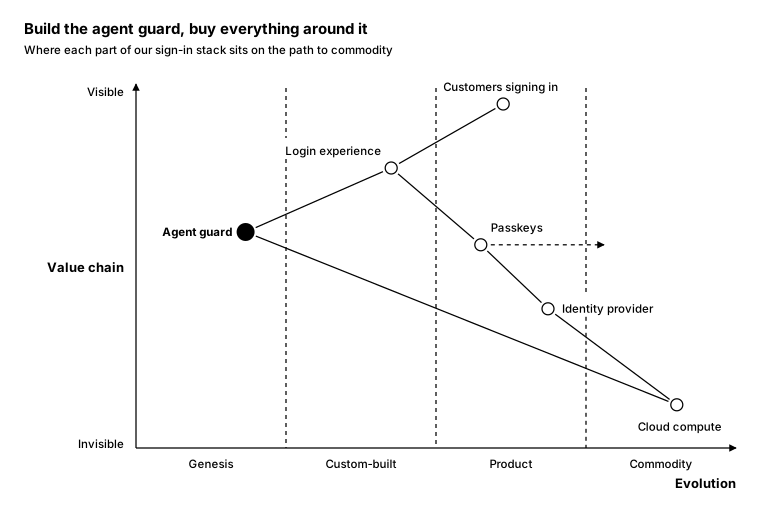
Promptcopy it, change the names, get your own version
Use the crisp-diagrams skill to draw a Wardley map.
Title: Build the agent guard, buy everything around it
Subtitle: Where each part of our sign-in stack sits on the path to commodity
- Components (evolution left to right: genesis, custom-built, product, commodity; visibility to the user top to bottom):
Customers signing in: product, at the top
Login experience: custom-built, high
Agent guard: genesis, middle (the accent)
Passkeys: product, middle; moving toward commodity
Identity provider: product, low
Cloud compute: commodity, at the bottom
- Dependencies: Customers signing in → Login experience; Login experience → Agent guard; Login experience → Passkeys; Passkeys → Identity provider; Agent guard → Cloud compute; Identity provider → Cloud compute
Layout:
- A vertical value-chain axis (visible at the top) and a horizontal evolution axis with the four stages, dashed dividers between them
- Components as small circles with their name beside them, dependencies as plain lines; a dashed arrow for any part that is moving
Use these labels word for word.
Style: quiet theme (outlines only, one blue accent).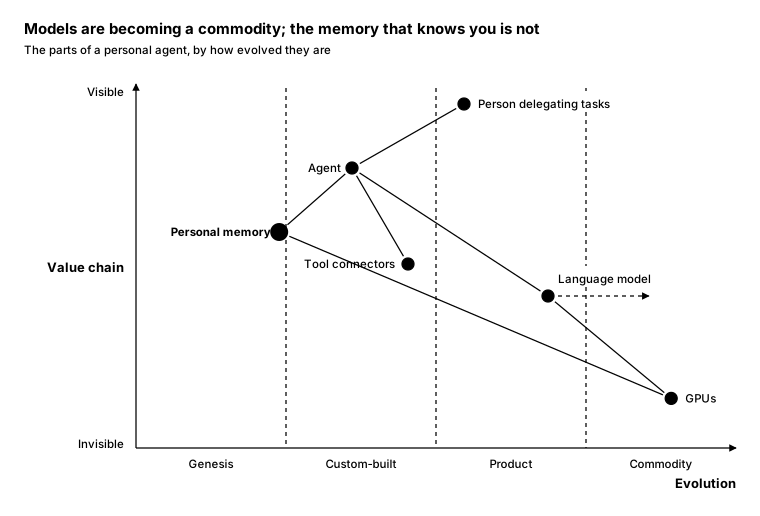
Promptcopy it, change the names, get your own version
Use the crisp-diagrams skill to draw a Wardley map.
Title: Models are becoming a commodity; the memory that knows you is not
Subtitle: The parts of a personal agent, by how evolved they are
- Components (evolution left to right: genesis, custom-built, product, commodity; visibility to the user top to bottom):
Person delegating tasks: product, at the top
Agent: custom-built, high
Personal memory: genesis, middle (the accent)
Tool connectors: custom-built, middle
Language model: product, middle; moving toward commodity
GPUs: commodity, at the bottom
- Dependencies: Person delegating tasks → Agent; Agent → Personal memory; Agent → Tool connectors; Agent → Language model; Language model → GPUs; Personal memory → GPUs
Layout:
- A vertical value-chain axis (visible at the top) and a horizontal evolution axis with the four stages, dashed dividers between them
- Components as small circles with their name beside them, dependencies as plain lines; a dashed arrow for any part that is moving
Use these labels word for word.
Style: pastel theme.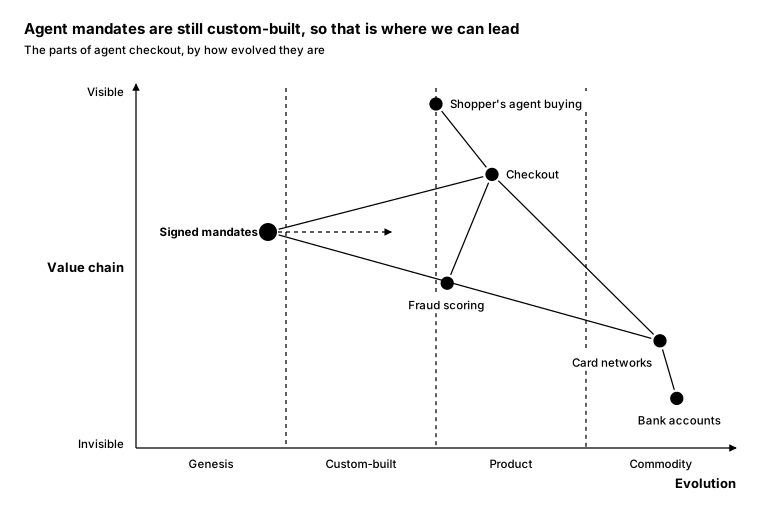
Promptcopy it, change the names, get your own version
Use the crisp-diagrams skill to draw a Wardley map.
Title: Agent mandates are still custom-built, so that is where we can lead
Subtitle: The parts of agent checkout, by how evolved they are
- Components (evolution left to right: genesis, custom-built, product, commodity; visibility to the user top to bottom):
Shopper's agent buying: product, at the top
Checkout: product, high
Signed mandates: genesis, middle; moving toward custom-built (the accent)
Fraud scoring: product, middle
Card networks: commodity, low
Bank accounts: commodity, at the bottom
- Dependencies: Shopper's agent buying → Checkout; Checkout → Signed mandates; Checkout → Fraud scoring; Checkout → Card networks; Card networks → Bank accounts; Signed mandates → Card networks
Layout:
- A vertical value-chain axis (visible at the top) and a horizontal evolution axis with the four stages, dashed dividers between them
- Components as small circles with their name beside them, dependencies as plain lines; a dashed arrow for any part that is moving
Use these labels word for word.
Style: tinted zones theme.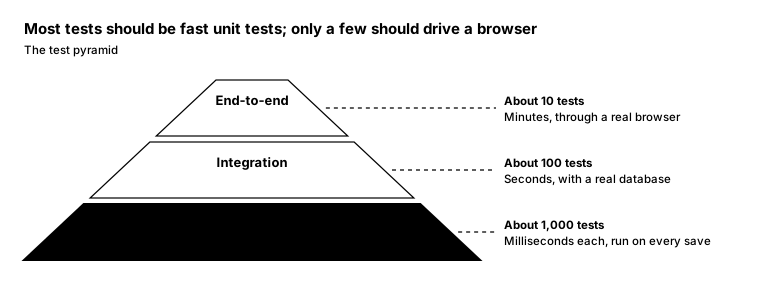
Promptcopy it, change the names, get your own version
Use the crisp-diagrams skill to draw a pyramid.
Title: Most tests should be fast unit tests; only a few should drive a browser
Subtitle: The test pyramid
- Levels, from the top (narrowest) to the base:
End-to-end, side note: About 10 tests, Minutes, through a real browser
Integration, side note: About 100 tests, Seconds, with a real database
Unit (fast and focused), side note: About 1,000 tests, Milliseconds each, run on every save (the accent)
Layout:
- Trapezoid levels narrowing to the top, with dashed leaders to a note column on the right
Use these labels word for word.
Style: quiet theme (outlines only, one blue accent).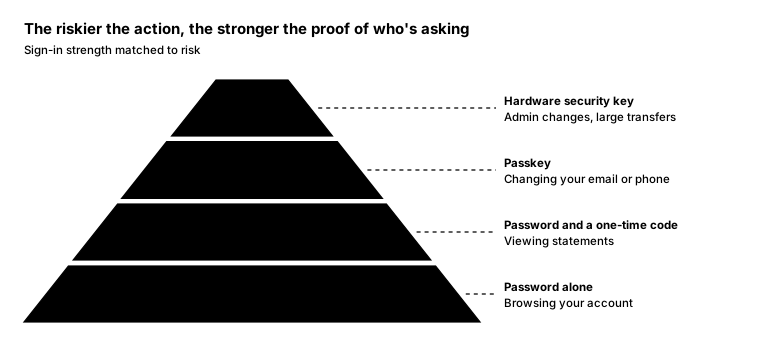
Promptcopy it, change the names, get your own version
Use the crisp-diagrams skill to draw a pyramid.
Title: The riskier the action, the stronger the proof of who's asking
Subtitle: Sign-in strength matched to risk
- Levels, from the top (narrowest) to the base:
Key, side note: Hardware security key, Admin changes, large transfers
Passkey, side note: Passkey, Changing your email or phone (the accent)
Password + code, side note: Password and a one-time code, Viewing statements
Password, side note: Password alone, Browsing your account
Layout:
- Trapezoid levels narrowing to the top, with dashed leaders to a note column on the right
Color groups: rose for Key; amber for Password + code; teal for Password
Use these labels word for word.
Style: gradient theme.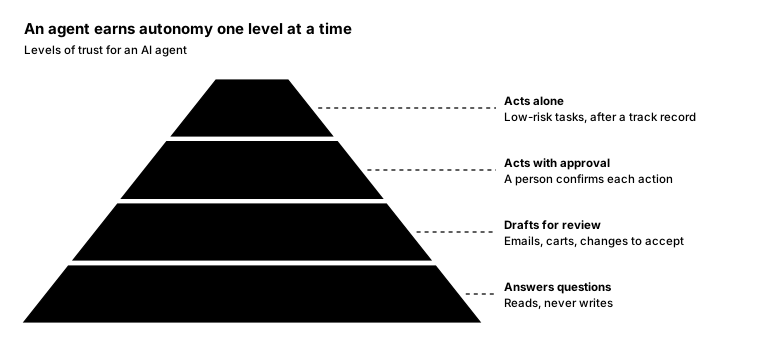
Promptcopy it, change the names, get your own version
Use the crisp-diagrams skill to draw a pyramid.
Title: An agent earns autonomy one level at a time
Subtitle: Levels of trust for an AI agent
- Levels, from the top (narrowest) to the base:
Alone, side note: Acts alone, Low-risk tasks, after a track record
With approval, side note: Acts with approval, A person confirms each action (the accent)
Drafts, side note: Drafts for review, Emails, carts, changes to accept
Answers questions, side note: Answers questions, Reads, never writes
Layout:
- Trapezoid levels narrowing to the top, with dashed leaders to a note column on the right
Color groups: green for Alone; teal for Drafts; violet for Answers questions
Use these labels word for word.
Style: pastel theme.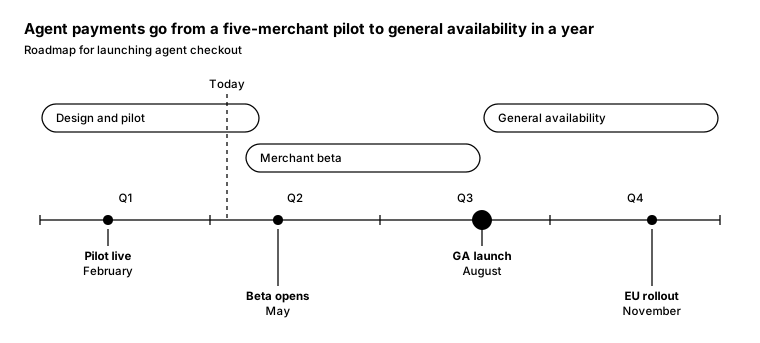
Promptcopy it, change the names, get your own version
Use the crisp-diagrams skill to draw a timeline.
Title: Agent payments go from a five-merchant pilot to general availability in a year
Subtitle: Roadmap for launching agent checkout
- Periods along the axis: Q1, Q2, Q3, Q4
- Phases:
Design and pilot, from the start of Q1 to the middle of Q2
Merchant beta, from the start of Q2 to the middle of Q3
General availability, from the middle of Q3 to the end of Q4
- Milestones:
Pilot live (February)
Beta opens (May)
GA launch (August) (the accent)
EU rollout (November)
- A dashed Today line at the start of Q2
Layout:
- An axis with 4 equal periods; phases as pills above the period labels, overlapping phases on separate rows
- Milestones as dots on the axis with their name and date below, alternating rows so labels never collide
Use these labels word for word.
Style: quiet theme (outlines only, one blue accent).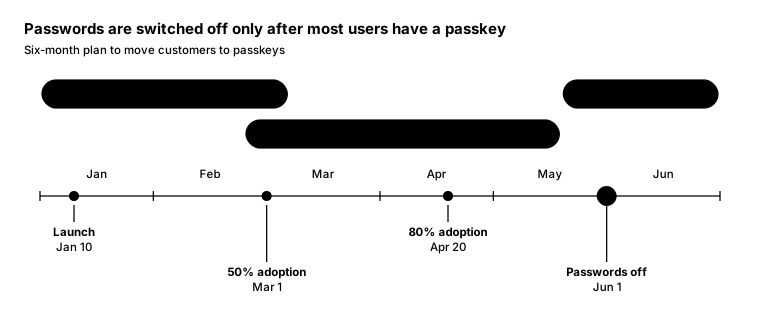
Promptcopy it, change the names, get your own version
Use the crisp-diagrams skill to draw a timeline.
Title: Passwords are switched off only after most users have a passkey
Subtitle: Six-month plan to move customers to passkeys
- Periods along the axis: Jan, Feb, Mar, Apr, May, Jun
- Phases:
Offer passkeys, from the start of Jan to the start of Mar
Nudge at every sign-in, from the end of Feb to the middle of May
Passwords optional, from the middle of May to the end of Jun
- Milestones:
Launch (Jan 10)
50% adoption (Mar 1)
80% adoption (Apr 20)
Passwords off (Jun 1) (the accent)
Layout:
- An axis with 6 equal periods; phases as pills above the period labels, overlapping phases on separate rows
- Milestones as dots on the axis with their name and date below, alternating rows so labels never collide
Color groups: teal for Offer passkeys; amber for Nudge at every sign-in; violet for Passwords optional
Use these labels word for word.
Style: pastel theme.
Promptcopy it, change the names, get your own version
Use the crisp-diagrams skill to draw a timeline.
Title: The outage lasted 47 minutes, and customers heard about it after 9
Subtitle: Incident timeline, Tuesday afternoon
- Periods along the axis: 14:00, 14:10, 14:20, 14:30, 14:40, 14:50
- Phases:
Elevated errors, from the start of 14:00 to the end of 14:40
Status page: investigating, from the start of 14:10 to the end of 14:40
- Milestones:
Bad deploy (14:02)
Customers told (14:11) (the accent)
Rollback (14:36)
Recovered (14:49)
Layout:
- An axis with 6 equal periods; phases as pills above the period labels, overlapping phases on separate rows
- Milestones as dots on the axis with their name and date below, alternating rows so labels never collide
Color groups: rose for Elevated errors; amber for Status page: investigating
Use these labels word for word.
Style: gradient theme.
Promptcopy it, change the names, get your own version
Use the crisp-diagrams skill to draw a task board.
Title: One task is waiting on you; everything else the agent is handling
Subtitle: An agent's task board
- Columns, left to right, with their cards:
Queued:
Renew passport: Needs your photo
Plan Lisbon trip: Starts Monday
Running:
Compare energy plans: 3 of 8 checked
Book dentist: Calling the clinic
Needs you:
Pay €120 to Luca's: Waiting for approval (the accent)
Done:
Cancel old gym: Confirmed by email
Return shoes: Label printed
Split dinner bill: Sent to 3 friends
Layout:
- Equal columns side by side with a count in each header; cards stacked inside
Use these labels word for word.
Style: quiet theme (outlines only, one blue accent).
Promptcopy it, change the names, get your own version
Use the crisp-diagrams skill to draw a task board.
Title: The leaked key gets fixed first; everything else waits its turn
Subtitle: Security fixes in flight
- Columns, left to right, with their cards:
Reported:
Open redirect: Low · bug bounty
Verbose errors: Low · pentest
Triaging:
Old TLS version: Medium · scanner
Fixing:
Leaked API key: High · rotate today (the accent)
Missing rate limit: Medium · in review
Verified:
XSS in search: Fixed and retested
Layout:
- Equal columns side by side with a count in each header; cards stacked inside
Color groups: violet for Reported; amber for Triaging; rose for Fixing; green for Verified
Use these labels word for word.
Style: tinted zones theme.
Promptcopy it, change the names, get your own version
Use the crisp-diagrams skill to draw a task board.
Title: One blocked item holds up the launch: the legal review
Subtitle: Launch checklist
- Columns, left to right, with their cards:
To do:
Press release: Marketing
Status page entry: Support
In progress:
Docs and guides: Developer relations
Pricing page: Web team
Blocked:
Legal review: Terms not signed off (the accent)
Done:
Load test: 10x normal traffic
Security review: No open findings
Layout:
- Equal columns side by side with a count in each header; cards stacked inside
Color groups: violet for To do; teal for In progress; rose for Blocked; green for Done
Use these labels word for word.
Style: gradient theme.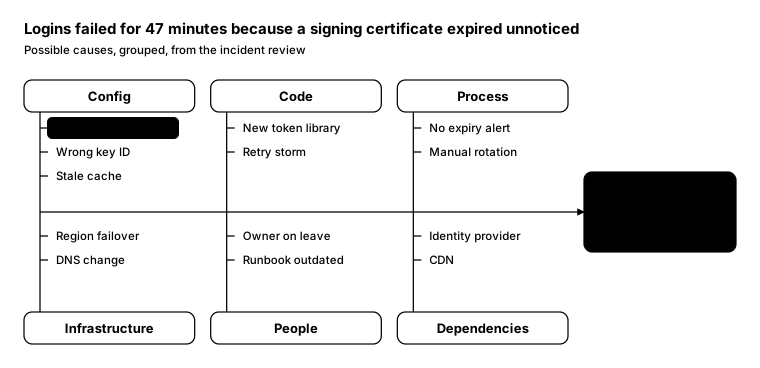
Promptcopy it, change the names, get your own version
Use the crisp-diagrams skill to draw a fishbone (Ishikawa) diagram.
Title: Logins failed for 47 minutes because a signing certificate expired unnoticed
Subtitle: Possible causes, grouped, from the incident review
- The problem, at the head on the right: Logins failed: 47 minutes, all regions
- Cause categories, with their causes:
Config: Certificate expired (the root cause, the accent); Wrong key ID; Stale cache
Code: New token library; Retry storm
Process: No expiry alert; Manual rotation
Infrastructure: Region failover; DNS change
People: Owner on leave; Runbook outdated
Dependencies: Identity provider; CDN
Layout:
- A spine arrow into the problem box on the right; category boxes above and below with a straight bone to the spine
- Causes listed along each bone with a small tick; the root cause outlined as the accent
Use these labels word for word.
Style: quiet theme (outlines only, one blue accent).
Promptcopy it, change the names, get your own version
Use the crisp-diagrams skill to draw a fishbone (Ishikawa) diagram.
Title: Checkout got slow because every page load called the fraud service twice
Subtitle: Causes considered for slow checkout pages
- The problem, at the head on the right: Slow checkout: p95 went from 0.8 to 3 seconds
- Cause categories, with their causes:
Code: Duplicate fraud call (the root cause, the accent); Large bundle
Data: Missing index; Big carts
Network: Slow CDN region; TLS handshakes
Vendors: Fraud API latency; Tax service
Layout:
- A spine arrow into the problem box on the right; category boxes above and below with a straight bone to the spine
- Causes listed along each bone with a small tick; the root cause outlined as the accent
Color groups: teal for Code; violet for Data; amber for Network; green for Vendors
Use these labels word for word.
Style: pastel theme.
Promptcopy it, change the names, get your own version
Use the crisp-diagrams skill to draw a fishbone (Ishikawa) diagram.
Title: The agent bought the wrong size because it trusted an old order
Subtitle: Why an agent made a wrong purchase
- The problem, at the head on the right: Wrong purchase: Size 42 instead of 43
- Cause categories, with their causes:
Instructions: No size given; Vague request
Memory: Old order reused (the root cause, the accent); No expiry on facts
Tools: Size chart missing; Cart API quirk
Guardrails: No size check; Approval skipped
Layout:
- A spine arrow into the problem box on the right; category boxes above and below with a straight bone to the spine
- Causes listed along each bone with a small tick; the root cause outlined as the accent
Color groups: violet for Instructions; teal for Memory; amber for Tools; rose for Guardrails
Use these labels word for word.
Style: gradient theme.No diagram matches these filters. Clear one to see more.